AppFolio Property Manager is a cloud-based software platform designed to streamline property operations, accounting, tenant communication, leasing, and maintenance tracking. Users master the system by configuring core property data, setting up online portals for tenants and owners, automating rent collection, and running integrated financial statements for streamlined portfolio management.
Overview of AppFolio Property Manager
AppFolio Property Manager is an all-in-one property management platform serving residential, commercial, student housing, community association, and mixed-use portfolios. Operating completely in the cloud, AppFolio consolidates front-office tasks—such as marketing vacant units and screening applicants—with back-office accounting, vendor payments, and owner reporting.
The platform relies on a single database model. When a tenant pays rent online through the Tenant Portal, the system automatically updates the tenant ledger, logs the cash deposit in the general ledger, adjusts the bank reconciliation module, and updates the real-time financial reporting available on the Owner Portal. Understanding this interconnected structure is essential for property managers, bookkeepers, and leasing agents aiming to minimize manual data entry and eliminate record-keeping discrepancies.
AppFolio offers different tier configurations depending on portfolio size and operational needs. The base tier, AppFolio Property Manager Core, covers essential accounting, leasing, maintenance management, and resident communication tools. Higher-tier packages like AppFolio Property Manager Plus and Max introduce advanced features such as corporate performance analytics, customizable workflows, enterprise API integrations, and dedicated account support. Regardless of the operational tier, the foundational workflows remain consistent across all property types.
System Requirements and Initial Setup Prerequisites
Before diving into daily operations, property management teams must establish baseline system requirements and prepare key documentation. Proper preparation prevents setup errors in general ledger mapping, tenant ledgers, and bank account configurations.
Technical and Organizational Prerequisites
- Browser and Hardware Compatibility: Because AppFolio is web-based, users need a modern browser such as Google Chrome, Mozilla Firefox, Microsoft Edge, or Apple Safari. For field staff handling maintenance inspections or leasing tours, the AppFolio Mobile App requires an iOS or Android device with camera and location services enabled.
- Banking and Merchant Setup: Electronic payments via Automated Clearing House (ACH) and credit card transactions require connected merchant accounts. Ensure corporate trust accounts, operating accounts, and security deposit accounts are fully set up at a recognized financial institution.
- Data Organization: Prepare existing portfolio data in structured formats (such as CSV or Excel spreadsheets). Essential datasets include property addresses, unit count, master lease start and end dates, tenant security deposit balances, monthly rent rates, vendor tax identification numbers (W-9s), and standard Chart of Accounts.
Account Configuration: Properties, Units, and Portals
Setting up portfolio structures accurately is the single most important step in AppFolio. Incorrect property or unit hierarchies can lead to misallocated funds, inaccurate owner statements, and lease tracking errors.
Portfolio Setup Hierarchy:
- Property / Building Group
- Individual Units
- Tenant Leases & Ledgers
- Owner Account Assignment
1. Setting Up Properties and Property Groups
Properties in AppFolio represent physical locations or legal entities. To add a new property:
- Navigate to the Properties tab on the main navigation menu and click Add Property.
- Select the property type (e.g., Single-Family, Multi-Family, Commercial, Association).
- Enter the official property name, physical address, and legal entity details.
- Assign the property to an Owner Account. If the property belongs to a third-party owner or investment group, link the corresponding owner record so that rental income flows to the correct destination.
- Assign Property Groups if managing multiple buildings under a single portfolio or geographic region. Grouping simplifies batch actions, such as sending bulk tenant notices or generating portfolio-wide financial reports.
2. Creating Units and Leasing Parameters
Once the parent property is created, individual units must be defined under that property record:
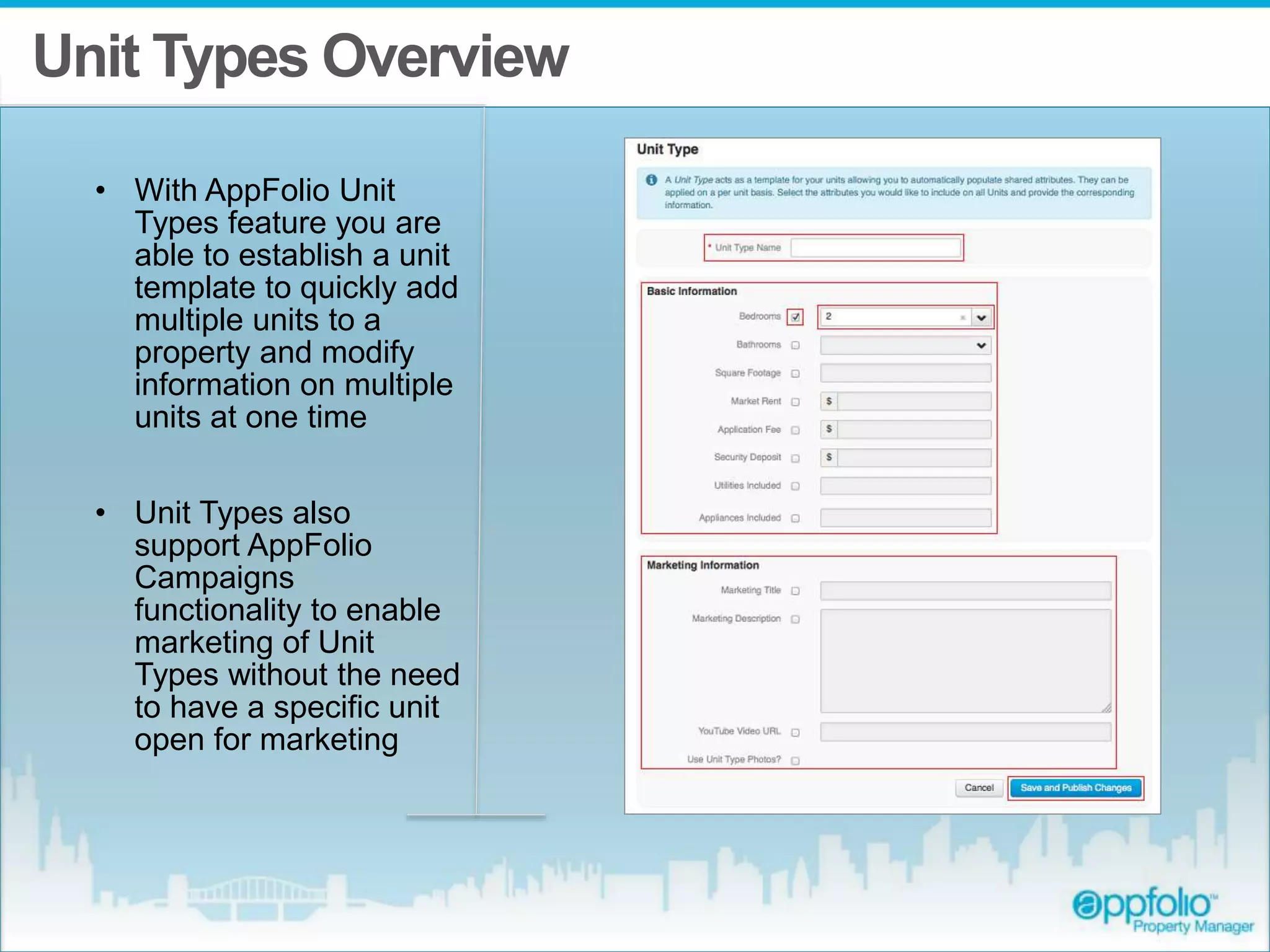
- Open the property detail page and select Units, then click Add Unit.
- Input unit numbers or identifiers, target market rent rates, deposit amounts, square footage, bedroom/bathroom counts, and specific amenities.
- Set the unit status (e.g., Occupied, Vacant-Unassigned, Vacant-Rented, Maintenance Hold).
- Configure utility responsibility details (such as identifying which utilities are billed directly to tenants versus managed through Ratio Utility Billing Systems, or RUBS).
3. User Roles, Access Controls, and Permissions
Security settings must align with organizational duties to protect sensitive tenant personally identifiable information (PII) and corporate financial records.
- Go to Settings and select Users & Roles.
- Assign pre-defined or custom role templates to team members, such as Leasing Agent, Property Manager, Maintenance Manager, or Bookkeeper.
- Restrict sensitive functions, such as writing off bad debt, issuing owner draws, or executing bank reconciliations, to authorized administrative users.
- Enable Two-Factor Authentication (2FA) across all user profiles to uphold data security guidelines established by national privacy standards and property management regulatory frameworks.
Core Operational Workflows
Daily usage of AppFolio centers on four operational pillars: leasing, tenant portal management, maintenance execution, and accounting.
Operational Pipeline:
- Leasing & Screening
- Tenant Onboarding & Online Rent
- Maintenance Work Orders
- Accounting & Owner Reporting
1. Leasing and Applicant Screening Workflow
AppFolio streamlines the leasing pipeline from initial marketing through lease signing.
Marketing Vacancies
When a unit status shifts to vacant, users can initiate listing syndication directly within AppFolio. Navigating to Leasing > Vacancies allows staff to upload high-resolution photos, virtual tours, and detailed descriptions. With a single click, AppFolio syndicates the listing across major third-party rental search engines, including Zillow, Trulia, HotPads, and Realtor.com.
Processing Applications and Background Screening
Prospective tenants apply directly via an embedded link on the property management website or syndicated listing.
- The applicant submits personal details, income documentation, and payment for the application fee online.
- The leasing team reviews incoming applications under Leasing > Applications.
- Run background checks directly in AppFolio. The built-in screening tool evaluates credit scores, criminal background history, eviction history, and income verification metrics against pre-set tenant selection criteria.
- Once verified, click Approve or Decline. Declining an applicant allows the system to generate an automated adverse action notice that complies with the Fair Credit Reporting Act (FCRA).
Generating and Executing Digital Leases
Upon application approval, select Move Applicant In to convert the applicant into a tenant record. AppFolio generates a digital lease agreement using customizable document templates. Standard clauses, custom addenda, pet agreements, and rent schedules populate automatically from the unit and applicant data. Send the document package via built-in electronic signature integration. Once signed by all parties, the completed agreement stores permanently in the tenant’s file.
2. Rent Collection and Tenant Online Portal Management
Manual check handling slows operations and increases error rates. AppFolio centers rent collection around the Tenant Online Portal.
Rent Collection Sequence:
- Charge Posted to Tenant Ledger
- Notification Sent
- Tenant Pays via Portal (ACH/Card)
- Automatic Ledger Reconciliation
Onboarding Tenants to the Portal
Send automated portal activation invitations via email or SMS during the move-in workflow. Tenants can access their portal using a web browser or the mobile tenant app.
Setting Up Recurring Charges and Payments
- Automated Charges: Set up monthly recurring charges on the tenant record (e.g., base rent, parking fees, pet rent, utility recovery). The system posts these charges to tenant ledgers on a specified day each month (typically the 1st).
- Payment Methods: Tenants can make one-time payments or configure auto-pay through several methods:
- ACH (Direct Debit): Generally offers low or no transaction fees for tenants.
- Credit/Debit Cards: Subject to third-party merchant processing fees paid by the tenant.
- Electronic Cash Payments (eCheck/PayNearMe): Tenants who prefer cash receive a unique barcode to pay rent in cash at participating retail locations (such as 7-Eleven or CVS). The transaction automatically updates the tenant ledger in real time.
Managing Late Fees and Ledger Adjustments
If rent is not received by the grace period deadline (e.g., the 5th of the month), run the Apply Late Fees automated utility under the Leasing menu. AppFolio evaluates all outstanding tenant ledgers against defined property late-fee rules and posts late charges automatically. If a fee must be waived due to special circumstances, navigate to the individual tenant ledger, select the specific line-item charge, and choose Reverse/Waive Charge with an explanatory note for audit tracking.
3. Property Maintenance & Work Order Tracking
AppFolio simplifies maintenance management by establishing a unified digital workflow connecting tenants, property managers, field staff, and third-party vendors.
Maintenance Workflow:
- Tenant Request
- Work Order Creation
- Vendor/Staff Assignment
- Job Execution
- Invoice Processing & Payment
Work Order Creation and Intake
Maintenance requests enter AppFolio through three primary channels:
- Tenant Portal Submissions: Tenants upload descriptions and photos of the issue directly from their mobile app.
- Smart Maintenance (AI/Call Center Services): If enabled, AppFolio’s integrated maintenance triage service answers after-hours emergency calls, troubleshoots with tenants, and dispatches emergency vendors when necessary.
- Manual Entry: Managers create work orders manually under Maintenance > Work Orders > Add Work Order for staff-identified issues during routine property inspections.
Dispatching and Vendor Assignment
- Open the work order record and assign a priority level (Emergency, High, Medium, Low).
- Assign the task to internal maintenance staff or an external vendor profile.
- Set spending limits (Not to Exceed / NTE amounts) directly on the work order so vendors understand maximum authorized billing limits without prior management re-approval.
- Click Dispatch to automatically email or text the work order details, tenant contact information, and access instructions to the assigned vendor.
Invoice Processing and Work Order Closure
Once work is completed:
- The vendor submits an invoice, which can be attached directly to the work order.
- Review the completed work notes and verify invoice amounts against approved NTE thresholds.
- Click Convert to Bill on the work order screen. This action automatically generates an Accounts Payable (AP) bill linked to the vendor record, populates the chart of accounts line item (e.g., Plumbing Repairs), and attaches the original work order and vendor invoice images for audit readiness.
- Mark the work order as Closed.
4. Accounting, Owner Distributions, and Financial Reporting
AppFolio utilizes a fully integrated double-entry accounting engine designed specifically for property management trust compliance.
Accounting Flow:
- Monthly Tenant Payments
- AP Invoice Clearance
- Property Management Fee Calculation
- Owner Distribution & Statement Dispatch
Bank Reconciliation
Regular bank reconciliations are vital for maintaining state real estate commission compliance, especially when handling client trust funds.
- Navigate to Accounting > Reconcile Bank Account.
- Select the target account (e.g., Operating Trust Account) and enter the statement ending date and balance.
- AppFolio displays cleared checks, electronic disbursements, and deposits. Import bank feed data electronically to auto-match transactions.
- Confirm that the Difference field equals zero before finalizing the reconciliation report.
Accounts Payable (AP) and Vendor Disbursements
To pay recurring bills or maintenance invoices:
- Go to Accounting > Pay Bills.
- Filter bills by due date, property, or vendor.
- Select the bills to clear and choose the payment delivery method: direct ACH batch payment, virtual credit card payment, or physical check printing.
- Approve the payment batch to post journal entries automatically to the correct property accounts.
Calculating Management Fees and Processing Owner Draws
At month-end, management companies must collect their earned fees and distribute net funds to property owners:
- Calculate Management Fees: Go to Accounting > Calculate Management Fees. The system applies pre-configured fee rules (e.g., 8% of collected income, flat monthly fee per unit, leasing commissions) and generates AP bills payable to the property management company's operating account.
- Run Owner Distributions: Go to Accounting > Owner Distributions. AppFolio calculates net available cash per property by subtracting reserve requirements, unpaid bills, and pending expenses from total cash receipts.
- Execute Direct Deposit: Approve distribution amounts and send funds directly to owner bank accounts via ACH payment batch.
Generating Owner Statements and Financial Reports
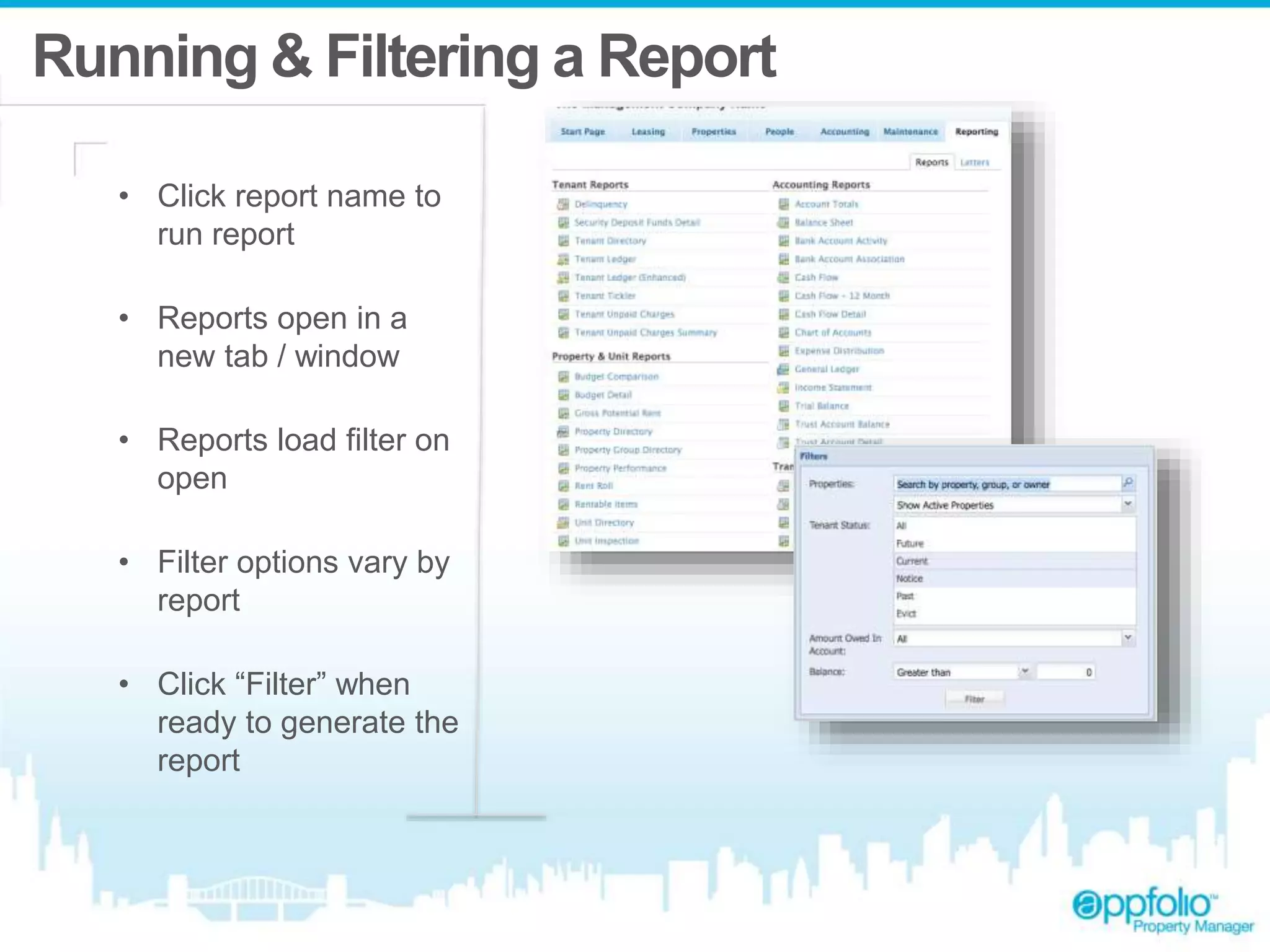
Once distributions are finalized, navigate to Reports > Owner Packets.
- Select the desired reporting period and target property groups.
- Standard owner packets include a Cash Flow Statement, Income Statement (Profit & Loss), Rent Roll, and Maintenance Summary.
- Click Publish to Owner Portal to securely deliver reports to property owners. Owners receive an automated email notification letting them know their monthly financial packet and statement are ready for view or download.
AppFolio Core vs. Plus vs. Max Feature Comparison
Choosing or optimizing the right software tier depends on portfolio scale, customization needs, and operational complexity. Below is a detailed feature matrix comparing the standard configurations available across AppFolio tiers.
| Feature / Module | AppFolio Core | AppFolio Plus | AppFolio Max |
|---|---|---|---|
| Minimum Unit Requirement | Typically 50 units | Typically 1,000 units | Enterprise / Large Scale |
| Basic Accounting & Rent Collection | Included | Included | Included |
| Tenant & Owner Portals | Included | Included | Included |
| Online Maintenance & Dispatch | Included | Included | Included |
| Listing Syndication & Mobile Leasing | Included | Included | Included |
| Advanced Performance Analytics | Limited | Included | Included |
| Customizable Workflows & Process Management | Standard | Advanced | Fully Customizable |
| Enterprise API Access & Stack Integrations | Not Included | Included | Advanced Tier Access |
| Dedicated Account Manager & Strategy | Standard Support | Dedicated Manager | Executive Support Team |
| AI-Powered Leasing & Maintenance Triage | Optional Add-on | Optional Add-on | Included / Priority |
Common Troubleshooting Scenarios and Solutions
Even experienced operators encounter administrative or technical roadblocks in AppFolio. The following solutions address common operational challenges.
1. Tenant Payment Failed or Bounced (NSF)
- Problem: A tenant pays rent via ACH, but the payment is returned days later due to Non-Sufficient Funds (NSF) or an invalid bank account number.
- Solution: Navigate to Accounting > Deposits and locate the original deposit containing the returned item. Select Reverse Deposit Item. This action automatically re-opens the charge on the tenant’s ledger, updates the bank account balance, and gives you the option to assess an automated NSF fee charge to the tenant record based on lease guidelines.
2. Unallocated Cash / Undeposited Funds Discrepancy
- Problem: Cash receipts appear in general reporting but do not show up in bank reconciliation modules.
- Solution: Check the Undeposited Funds ledger account under Accounting > Quick Checks / Deposits. Funds collected online or entered manually remain in an undeposited state until they are grouped into a bank deposit event. Create a new deposit record under Accounting > Deposits > New Deposit, select all uncleared cash items, and commit them to the matching bank account.
3. Tenant Moved Out with Unpaid Utility Balances
- Problem: A tenant moves out, but utility bills or maintenance damage invoices arrive after the security deposit disposition was completed.
- Solution: If the deposit was already refunded, reopen the tenant record status to Past Tenant. Post a new charge line item to their ledger for the outstanding billable amount. If the debt remains unpaid past standard collection windows, select the unpaid charge items and process a Bad Debt Write-Off under accounting options to move the uncollectible balance to an expense account while keeping general ledger accounts balanced.
4. Duplicate Vendor Profiles Created
- Problem: Staff members entered the same vendor multiple times under slight name variations (e.g., "ABC Plumbing" vs. "ABC Plumbing LLC"), creating split 1099 tax tracking records.
- Solution: Navigate to Vendors, select Merge Vendors, choose the primary (master) vendor record, and select the duplicate profile to merge. AppFolio consolidates historical work orders, payment history, attached W-9 forms, and tax tracking under the unified master profile.
Best Practices for System Optimization
To get the most out of AppFolio, management teams should incorporate these industry-standard workflows into daily, weekly, and monthly operational routines.
Regular Review Cycle:
- Daily: Clearing Undeposited Cash & Work Orders
- Weekly: Delinquency Audits & AP Reviews
- Monthly: Bank Recs & Owner Packets
1. Implement Standard Operating Procedures (SOPs) for Data Entry
Establish strict formatting guidelines across your team for entering tenant names, phone numbers, vendor tax IDs, and property addresses. Inconsistent data entry creates duplicate records and complicates portfolio-wide searching.
2. Perform Weekly Delinquency Audits
Do not wait until the end of the month to address unpaid rent. Run the Delinquencies Report every week on the 6th of the month. Use AppFolio’s bulk communication tools to send automated payment reminders via SMS and email to all tenants with outstanding balances before initiating formal notice processes compliant with local landlord-tenant laws.
3. Audit User Permissions Annually
Regularly review active administrative user accounts. Deactivate former employee profiles immediately to safeguard sensitive client financial accounts and tenant identification data. Update permission levels as staff members transition between leasing, maintenance, and accounting roles.
4. Utilize AppFolio Stack Integrations Wisely
If operating on supported software tiers, take advantage of the AppFolio Stack ecosystem. Integrating specialized third-party tools—such as advanced virtual tours, utility management services, or specialized collections agencies—directly into your primary AppFolio database eliminates data silos and reduces manual administrative work.
Frequently Asked Questions
How does AppFolio handle tenant security deposit accounting?
AppFolio tracks tenant security deposits in dedicated liabilities accounts separate from operational property income. When a security deposit is received, it is credited to a Security Deposit Liability ledger tied to the tenant record and deposited into a designated bank account. During tenant move-out, the user executes a Move-Out Disposition workflow. The system allocates funds to cover unpaid damages or back rent, returns remaining funds to the tenant via check or ACH, and posts relevant journal entries automatically.
Can owners view real-time accounting details through their portal?
Yes. When property managers publish statements to the Owner Portal, owners can view real-time cash flow summaries, income statements, performance dashboards, and attached maintenance receipts. Management teams maintain control over when monthly statements are published, ensuring that all month-end reconciliations, fee calculations, and audit checks are completed before reports become visible to owners.
What is the process for processing 1099-NEC forms at year-end?
AppFolio includes a dedicated 1099 management module located under Accounting > 1099s. The system tracks vendor payments throughout the calendar year based on vendor settings. At year-end, users review vendor eligibility, verify Tax Identification Numbers (TINs) and W-9 data, make manual adjustments for non-reportable reimbursements, and electronically file 1099-NEC forms directly with the IRS and relevant state tax agencies through AppFolio’s integrated e-filing feature.
Can tenants set up recurring rent payments on the AppFolio mobile app?
Yes. Tenants can download the Online Portal by AppFolio app on iOS or Android. Once logged in, they can save payment methods (ACH or credit card), set up fixed auto-pay schedules on a selected day of the month, view billing histories, download lease documents, and track active maintenance work orders directly from their mobile devices.
How does AppFolio handle Ratio Utility Billing Systems (RUBS)?
AppFolio includes an automated RUBS processing module designed to divide master utility bills among property residents. Property managers can set allocation rules based on unit square footage, occupant headcount, or a combination of both. When a master property utility bill is entered into accounting, the system calculates each unit's share and automatically posts corresponding utility charges directly to individual tenant ledgers.
Recommended Next Actions
To successfully implement or refine your operations using AppFolio, follow these actionable steps:
- Complete a Data Audit: Review existing property, unit, tenant, and vendor ledgers to ensure all phone numbers, email addresses, lease end dates, and tax IDs (W-9s) are accurate and fully updated.
- Standardize Workflows: Document internal standard operating procedures for critical workflows—specifically applicant screening, maintenance work order dispatching, and month-end owner statement generation.
- Drive Tenant Portal Adoption: Aim for high tenant portal adoption by encouraging incoming tenants to activate online accounts during lease execution. Increasing online payment adoption reduces manual payment entry errors and accelerates monthly cash flows.
- Schedule Monthly Reconciliations: Establish a strict deadline (e.g., the 10th of every month) to complete bank reconciliations, process management fee collections, and publish owner packets reliably.