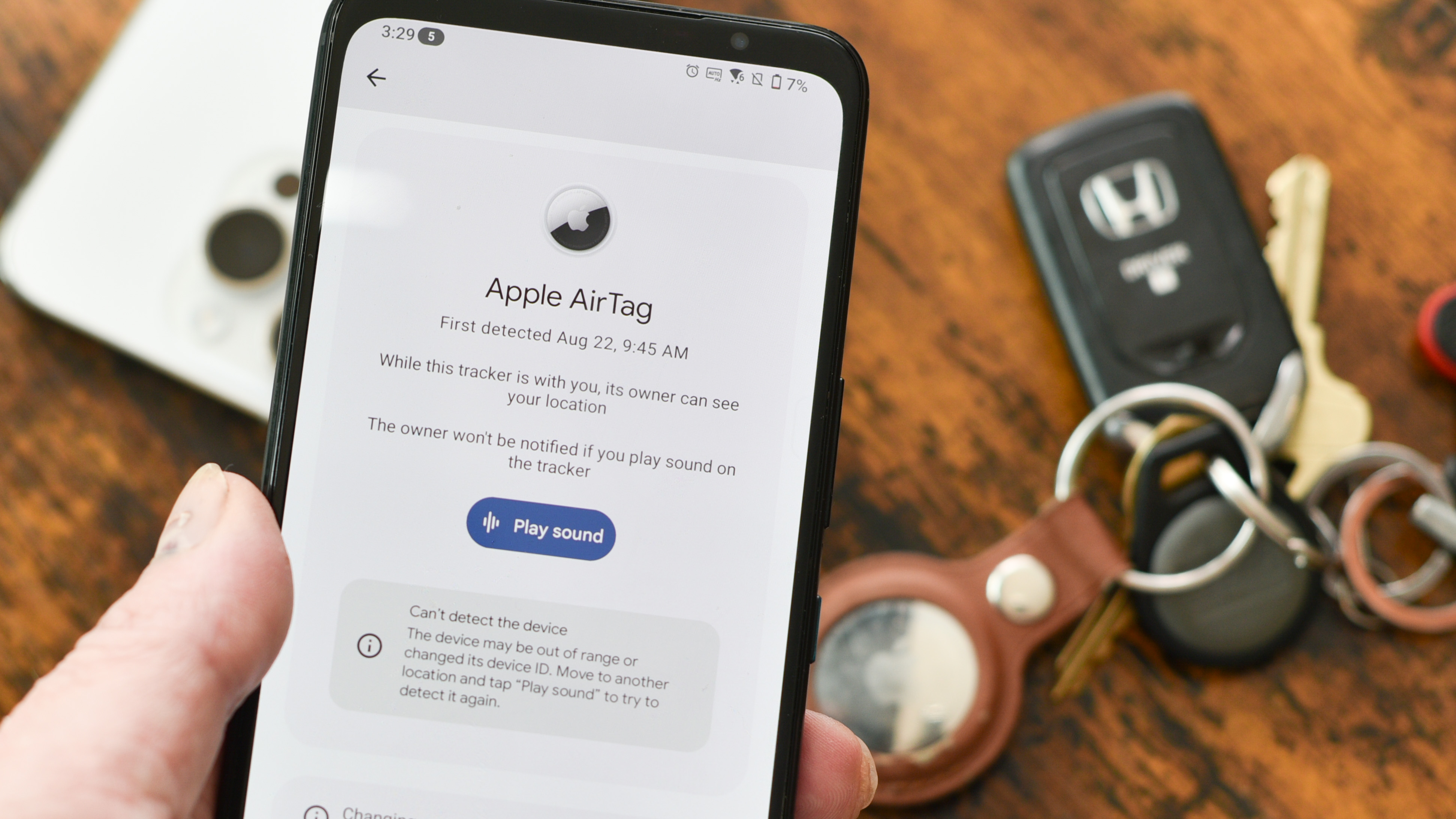
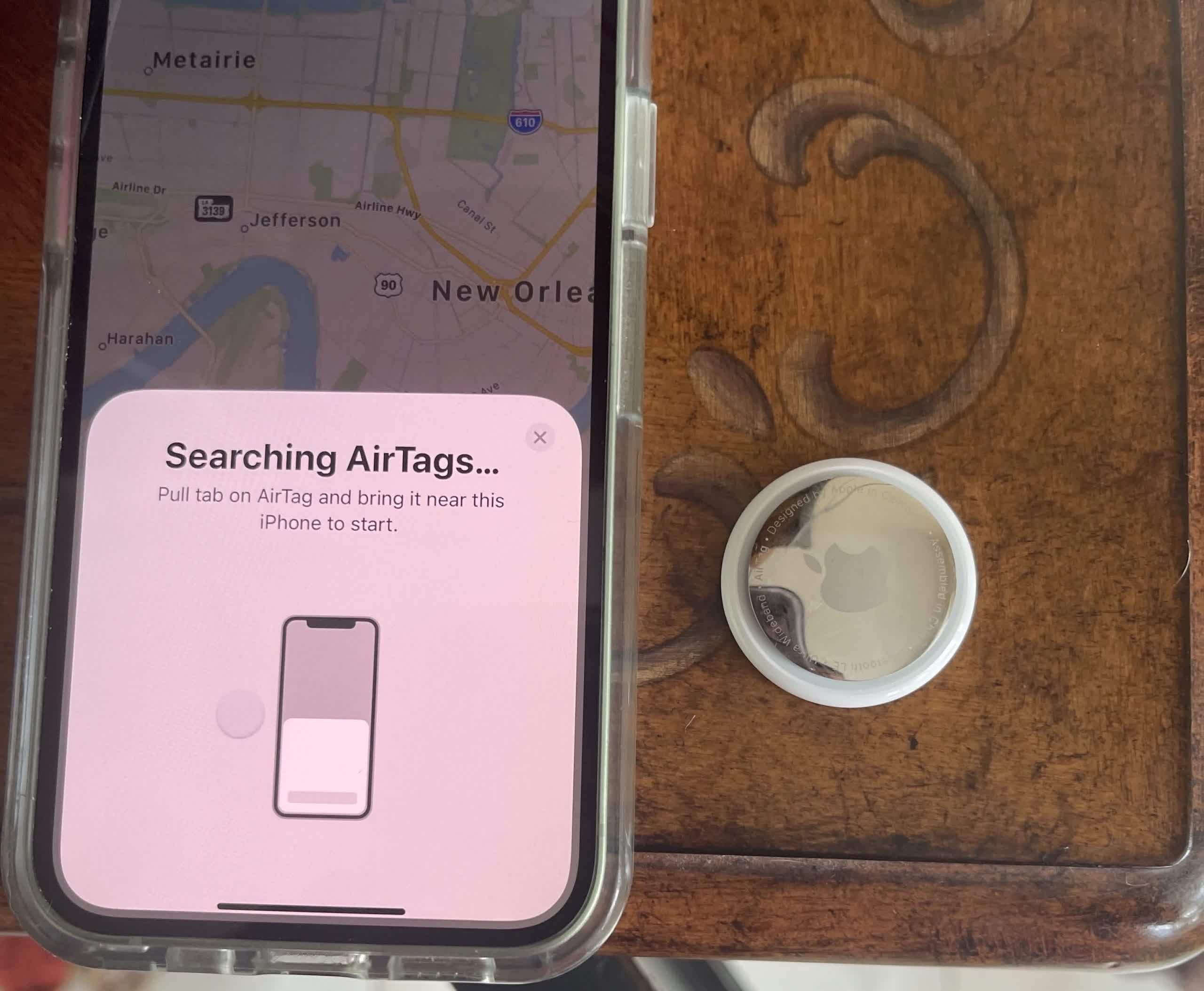
Using an Apple AirTag with Android provides limited functionality because Apple limits full setup, live location tracking, and precision direction finding exclusively to iOS devices. While Android users cannot register or actively monitor an AirTag, they can scan lost AirTags via NFC and detect unwanted AirTags using Android’s native safety alerts.
Understanding AirTag Compatibility with Android Devices
Apple designed the AirTag to function seamlessly within its proprietary hardware and software ecosystem. The device relies on Apple's Find My network, an encrypted mesh of hundreds of millions of Apple devices that relay Bluetooth signals to report the location of lost items to their owner's Apple Account. Because this network and the companion Find My app are deeply integrated into iOS and iPadOS, native compatibility with non-Apple hardware is fundamentally restricted.
Android smartphones lack native access to Apple’s Find My network for item setup, live map tracking, and active device management. You cannot unbox an AirTag, pull the battery tab, and pair it with a Google Pixel, Samsung Galaxy, or any other Android phone. Apple does not offer a Find My app on the Google Play Store for location tracking, nor does it allow cross-platform Bluetooth pairing for ownership setup.
However, cross-platform interactions exist in two specific scenarios: identifying lost property and protecting personal safety. Android devices equipped with Near Field Communication (NFC) can read lost AirTags to display contact information provided by the owner. Furthermore, industry safety collaborations between Apple and Google allow Android phones to alert users if an unknown AirTag is traveling with them without their knowledge.
What Android Users Can (and Cannot) Do with an AirTag
Understanding the line between what Android can and cannot do with an AirTag prevents unnecessary purchases and sets clear expectations for mixed-device households.
| Feature / Capability | Supported on iOS | Supported on Android | Technical Requirement / Details |
|---|---|---|---|
| Initial Setup & Registration | Yes | No | Requires an iPhone or iPad with an Apple ID/Account. |
| Live Map Location Tracking | Yes | No | Managed via the native iOS Find My application. |
| Precision Finding (UWB) | Yes | No | Requires Ultra-Wideband (UWB) chip (iPhone 11 or newer). |
| Play Sound on AirTag | Yes | Limited | iOS users can trigger chime at will; Android can only trigger sound via anti-stalking scans. |
| NFC Lost Mode Scanning | Yes | Yes | Requires an NFC-enabled Android phone and a web browser. |
| Unwanted Tracker Alerts | Yes | Yes | Native in Android 6.0+ via Google Play Services / Android Unknown Tracker Alerts. |
| Sharing Tag Location | Yes | No | AirTag location sharing is restricted to family/friends within the Apple Find My app. |
1. Setup and Account Assignment
Setting up an AirTag requires an iPhone or iPad running a modern version of iOS/iPadOS, signed in to an active Apple Account. The setup process uses Apple’s fast-pairing proximity pop-up and ties the tracker's unique hardware ID to that specific Apple ID. Because Android cannot run the Find My background system service, an Android user cannot execute this initial handshake.
2. Real-Time Location Tracking
Once registered, an AirTag broadcasts encrypted Bluetooth signals. Nearby Apple devices running background location services pick up these signals, pair them with GPS coordinates, and silently upload the data to Apple’s cloud servers. Apple does not provide an API or web platform that exposes an AirTag's location to Android devices. Even accessing icloud.com/find from an Android browser will only display major Apple hardware (such as MacBooks, iPhones, or iPads); it explicitly omits AirTags and third-party Find My accessories.
3. Precision Finding via Ultra-Wideband (UWB)
AirTags contain Apple’s U1 Ultra-Wideband chip, which allows an iPhone to give point-by-point directional arrows, distance estimates in feet or meters, and haptic feedback when within roughly 30 feet of the tag. While many modern high-end Android phones contain UWB chips, Android cannot interface with Apple's proprietary UWB protocols.
4. NFC Readability for Lost Items
An AirTag contains a passive NFC chip embedded in its plastic dome. When an owner marks an AirTag as lost via their iPhone, they can attach a phone number, email address, and custom message. Anyone with an NFC-capable Android smartphone can physical tap the white plastic surface of the AirTag against the back of their phone to open an official web link.
How to Scan an AirTag Using an Android Device
If you find an item attached to an AirTag—such as a set of keys, a wallet, or a backpack—you can use your Android phone to help return it to its owner.
- Found AirTag
- Tap to Android NFC reader
- Web Browser Opens
- found.apple.com
- Owner Info Displayed
Step-by-Step Guide to NFC Reading:
- Enable NFC on Your Android Phone: Open your device's Settings, navigate to Connected Devices or Connections, and ensure NFC is toggled on.
- Locate the NFC Antenna: The NFC sensor location varies by Android phone manufacturer. On Samsung Galaxy devices, it is typically near the center of the rear glass; on Google Pixel phones, it is usually near the upper third or camera bar.
- Tap and Hold the AirTag: Hold the white plastic side of the AirTag directly against the back of your Android phone. Hold it steady for two to three seconds until your phone vibrates or plays a chime.
- Open the Notification Web Link: A system notification or web browser pop-up will appear displaying a link to
found.apple.com. Tap the link to view the page. - Review Owner Information: If the owner has flagged the item as lost, the webpage will display their contact details and message. If the tag has not been marked lost, the page will still show the AirTag’s masked serial number (e.g.,
1A23***89B), which can be provided to local law enforcement if necessary.
Detecting Unwanted AirTags on Android (Anti-Stalking Protections)
To prevent location trackers from being used for illicit tracking, Apple and Google finalized an industry standard known as Detecting Unwanted Location Trackers (DULT). This partnership ensures that both Android and iOS devices can automatically identify unknown Bluetooth trackers moving with a user over time, regardless of whether the tracker was made by Apple, Pebblebee, Chipolo, or another manufacturer.
Native Android Unknown Tracker Alerts
Modern Android devices running Android 6.0 or newer (via updated Google Play Services) include built-in protection against unauthorized tracking. You do not need to download an extra application to stay protected.
- Automatic Background Scanning: If an unrecognized AirTag remains separated from its registered owner and moves along with your Android phone over a period of time, your phone will generate an Unknown Tracker Alert.
- Viewing the Tracker on a Map: Tapping the notification reveals a map showing where the tracker was first detected alongside your route, proving it is moving with you rather than just sitting near you at a static location.
- Playing a Sound: You can tap Play Sound on the screen to force the hidden AirTag to emit a chime, helping you locate it inside a bag, coat lining, or vehicle. The owner of the AirTag will not be notified that you played this sound.
- Manual Scanning: You can run an instant scan at any time by navigating to Settings > Safety & emergency > Unknown tracker alerts (or Settings > Security & privacy > Unknown tracker alerts) and pressing Scan now.
For more details on managing safety notifications, consult the official Google Android Unknown Tracker Alerts Help Guide.
Apple’s Tracker Detect App for Android
Before the native Android-Google integration, Apple released a standalone Android utility called Tracker Detect, available on the Google Play Store.
While native system alerts run automatically, the Tracker Detect app allows Android users to perform manual Bluetooth scans specifically for nearby AirTags or Find My-compatible trackers that have been separated from their owners for at least 15 minutes. If the app detects an AirTag near you for more than 10 minutes, it allows you to trigger a sound to locate it.
- Unknown AirTag Moving with Android User
- Native Android Auto-Alert
- Automatic push notification
- Shows route map history
- Forces tag to ring sound
- Manual Scan via Tracker Detect
- User manually opens app
- Scans nearby area (10+ min separation)
- Forces tag to ring sound
- Disable Tracker
- Remove AirTag Back Cover & Remove CR2032 Battery
- Native Android Auto-Alert
How to Physically Disable an Unwanted AirTag
If you locate an unauthorized AirTag on your person or property, disabling it stops all future location broadcasts to the owner:
- Push down firmly on the polished stainless steel battery cover of the AirTag.
- Rotate the cover counterclockwise until it stops spinning.
- Remove the metal cap and pull out the CR2032 coin cell battery.
- Disconnecting the battery completely deactivates the device's power and location broadcasting.
Workarounds and Realities for Mixed-Device Households
Families or teams using a mix of Android and iOS smartphones often try to share location trackers. Here is an evaluation of practical workarounds and their real-world limitations.
Can You Track an AirTag via Web Browser?
A common assumption is that an Android user can log into icloud.com/find to view their family's AirTags. This does not work. Apple limits the web interface of Find My exclusively to primary devices linked to an Apple Account (iPhones, iPads, Macs, Apple Watches, and AirPods). Item tracking—which encompasses AirTags and third-party Find My network accessories—is missing from the web interface.
The "Single-Device iOS Setup" Compromise
In some mixed households, an iOS user sets up the AirTag on their iPhone and attaches the tracker to a shared item (such as luggage or car keys). While this allows the iOS user to monitor the item, the Android user remains completely blind to its location unless the iOS user takes a screenshot or relays the position manually.
If the Android user takes the item on an extended trip without the iOS user, their Android device will eventually flag the item with an Unwanted Tracker Alert because the registered owner is not present.
Top Android-Compatible Alternatives to Apple AirTag
Rather than forcing an AirTag to work outside its supported environment, Android users should adopt tracking ecosystems designed for Android OS. Google operates its own expansive Find My Device network, which uses millions of active Android devices to locate lost items via crowd-sourced Bluetooth signals.
- Android Bluetooth Tracking Ecosystem
- Google Find My Device Network
- Chipolo ONE Pt.
- Pebblebee Clip
- Eufy SmartTrack (Android ver.)
- Samsung SmartThings Find Ecosystem
- Galaxy SmartTag2
- Requires Samsung Galaxy Phone
- UWB + AR Finding
- Independent / Cross-Platform
- Tile Pro / Mate
- Uses Tile App
- Works on iOS & Android
- Google Find My Device Network
1. Google Find My Device Network Trackers
Google’s native tracking network offers feature parity with Apple's ecosystem, providing crowd-sourced location tracking, fast pairing, and remote ringing directly integrated into Android.
- Chipolo ONE Point & CARD Point: Designed specifically for Google's Find My Device network. The ONE Point attaches to keyrings, while the CARD Point slides into wallets. They feature loud ringers, long battery life, and simple integration with Android devices. Learn more about device setup via the Google Find My Device Help Center.
- Pebblebee Clip, Card, and Tag (Point Edition): High-performance trackers offering rechargeable batteries, bright LED visual alerts, and dynamic integration with Android’s native network.
- eufy SmartTrack Link (Android Version): An affordable option offering loud audio alerts and water-resistant designs tailored for non-Apple ecosystems.
2. Samsung Galaxy SmartTag2 (Best for Samsung Galaxy Users)
For owners of Samsung Galaxy smartphones, the Samsung Galaxy SmartTag2 is the most powerful alternative on the market.
- Network Scope: Operates on Samsung’s proprietary SmartThings Find network, backed by hundreds of millions of Galaxy devices globally.
- Advanced Features: Includes both Bluetooth Low Energy (BLE) and Ultra-Wideband (UWB) tracking. Samsung users with UWB-enabled Galaxy phones (such as Ultra series devices) can utilize Compass View for augmented reality directional tracking similar to Apple's Precision Finding.
- Physical Controls: Features an integrated metal ring and an onboard smart button that can trigger automated smart home routines (such as turning on lights).
3. Tile (Best for Cross-Platform Flexibility)
Tile remains a strong choice for mixed households containing both Android and iPhone users.
- Cross-Platform App: The Tile application functions identically on both Android and iOS, allowing family members on different operating systems to share access to the same tracker.
- Hardware Options: Includes the Tile Pro (long-range, replaceable battery), Tile Mate (compact design), Tile Slim (card form factor for wallets), and Tile Sticker (adhesive format).
- Limitations: Tile relies exclusively on app-installed users for its crowd-sourced location network, making its coverage network smaller in remote areas compared to Google's or Apple's OS-level mesh networks.
Alternative Tracker Comparison Matrix
| Tracker Model | Operating Network | Native Android Setup? | Cross-Platform Sharing? | Battery Type | Key Advantage |
|---|---|---|---|---|---|
| Apple AirTag | Apple Find My | No | No (iOS only) | CR2032 (Replaceable) | Unrivaled global coverage for iOS users. |
| Chipolo ONE Point | Google Find My Device | Yes | Yes (via Google network) | CR2032 (Replaceable) | Direct integration into native Android setup. |
| Pebblebee Clip | Google Find My Device | Yes | Yes (via Google network) | USB-C Rechargeable | Rechargeable battery; LED visual tracking lights. |
| Samsung SmartTag2 | Samsung SmartThings Find | Yes (Samsung only) | No (Samsung restricted) | CR2032 (Replaceable) | UWB Precision Finding for Galaxy phones. |
| Tile Pro | Tile Network | Yes | Yes (iOS + Android app) | CR2032 (Replaceable) | Universal app parity across OS platforms. |
Frequently Asked Questions
Can I set up an Apple AirTag using an Android phone?
No. An AirTag cannot be configured, activated, or paired using an Android phone. Initial setup requires an iPhone or iPad running iOS/iPadOS 14.5 or later connected to an Apple Account. There are no software workarounds, third-party apps, or browser tricks that allow an Android device to complete this initial pairing process.
Can I track an AirTag on an Android device using iCloud.com?
No. While you can log into icloud.com using a mobile browser on an Android phone, the Find Devices section on the web interface only displays primary Apple hardware (like iPhones, MacBooks, iPads, and Apple Watches). It intentionally excludes AirTags and third-party Find My network items due to end-to-end encryption architecture.
Why is my Android phone alerting me about an unknown AirTag?
Your Android phone includes automatic safety protections (Unknown Tracker Alerts) developed jointly by Google and Apple. If an AirTag separated from its owner is detected moving with you over time, your Android phone alerts you to prevent covert tracking or stalking. The alert lets you locate the tracker by playing a chime or viewing a map of where it accompanied you.
What happens when an Android phone scans a lost AirTag via NFC?
When you tap an NFC-enabled Android phone against an AirTag, your phone reads an embedded web link leading to found.apple.com. If the owner marked the AirTag as lost, the webpage displays contact details and a custom message set by the owner. If it is not marked lost, it will only display the device's masked serial number.
Can an AirTag be shared between an iPhone user and an Android user?
No. AirTag sharing is restricted to users within the Apple Find My application ecosystem. An iPhone user can share an AirTag with other Apple Account holders, but they cannot grant access or location-visibility permissions to an Android user.
Final Verdict and Recommendations
If you exclusively use an Android device, buying an Apple AirTag is not recommended. Without an iOS device for initial activation, management, and tracking, an AirTag cannot perform its primary function.
- For General Android Users: Choose trackers built for the Google Find My Device network, such as the Chipolo ONE Point or Pebblebee Clip. These trackers utilize Android's built-in global mesh network for location updating and require no third-party software overhead.
- For Samsung Galaxy Device Owners: The Samsung Galaxy SmartTag2 offers the best hardware performance, combining UWB precision direction finding with extensive global coverage via the SmartThings Find network.
- For Mixed-OS Households: Deploy Tile trackers if both iOS and Android users require equal access to monitor shared keys, vehicles, or luggage via a unified cross-platform application.
By matching your location tracking hardware to your smartphone's native operating system, you ensure seamless setup, live map updates, reliable signal range, and full access to modern tracking features.