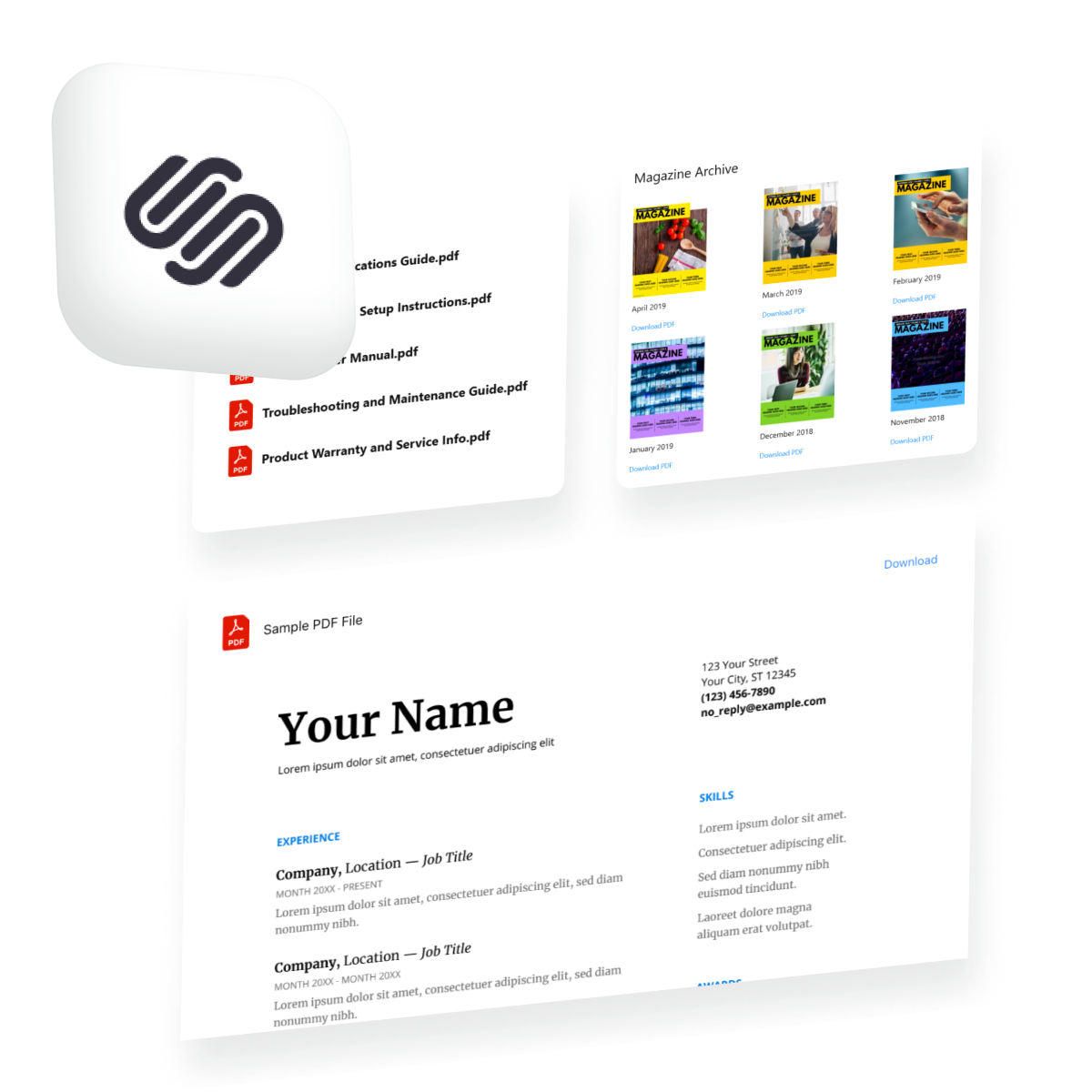
Adding a PDF to your Squarespace website allows you to distribute essential documents, such as brochures, menus, technical manuals, or whitepapers, directly to your visitors. By uploading your file to the Squarespace link editor, you create a downloadable resource that integrates seamlessly with your site’s navigation, buttons, or text links, providing users with a reliable way to access offline content.
Understanding the Squarespace File Upload System
Squarespace handles files by treating them as distinct assets within your site’s media library. When you "add" a PDF, you are essentially uploading the document to the Squarespace servers and generating a unique URL for that specific file. This process is distinct from embedding a PDF for direct viewing, which typically requires a third-party service or a specialized code block.
When a user clicks on the link to your PDF, the browser’s behavior depends on the visitor's individual settings. Most modern browsers will either open the PDF in a new tab for immediate viewing or trigger an automatic download to the user’s local device. Because this action relies on the visitor's browser configuration, you should always notify users that the link points to a PDF, especially if the file size is significant.
Prerequisites for Uploading
Before you begin, ensure your file meets the technical requirements set by the Squarespace platform. As of 2026, Squarespace maintains a strict file size limit of 20 MB for individual files uploaded through the link editor. If your PDF exceeds this limit, you must either compress the file using a third-party tool or host the document on a cloud service like Google Drive, Dropbox, or a dedicated document management platform and link to it via a URL.
Step-by-Step: Adding a PDF to a Link or Button
The most common way to display a PDF is by attaching it to a button or a hyperlinked piece of text. This method is intuitive for the user and keeps your page layout clean.
- Log in to your Squarespace account: Navigate to the site you wish to edit and enter the Edit mode.
- Select your target: Locate the text block, button block, or image block where you want to place the link.
- Open the link editor:
- For text: Highlight the text you want to make clickable and click the Link icon in the toolbar.
- For buttons: Click the button and select the Edit (pencil) icon.
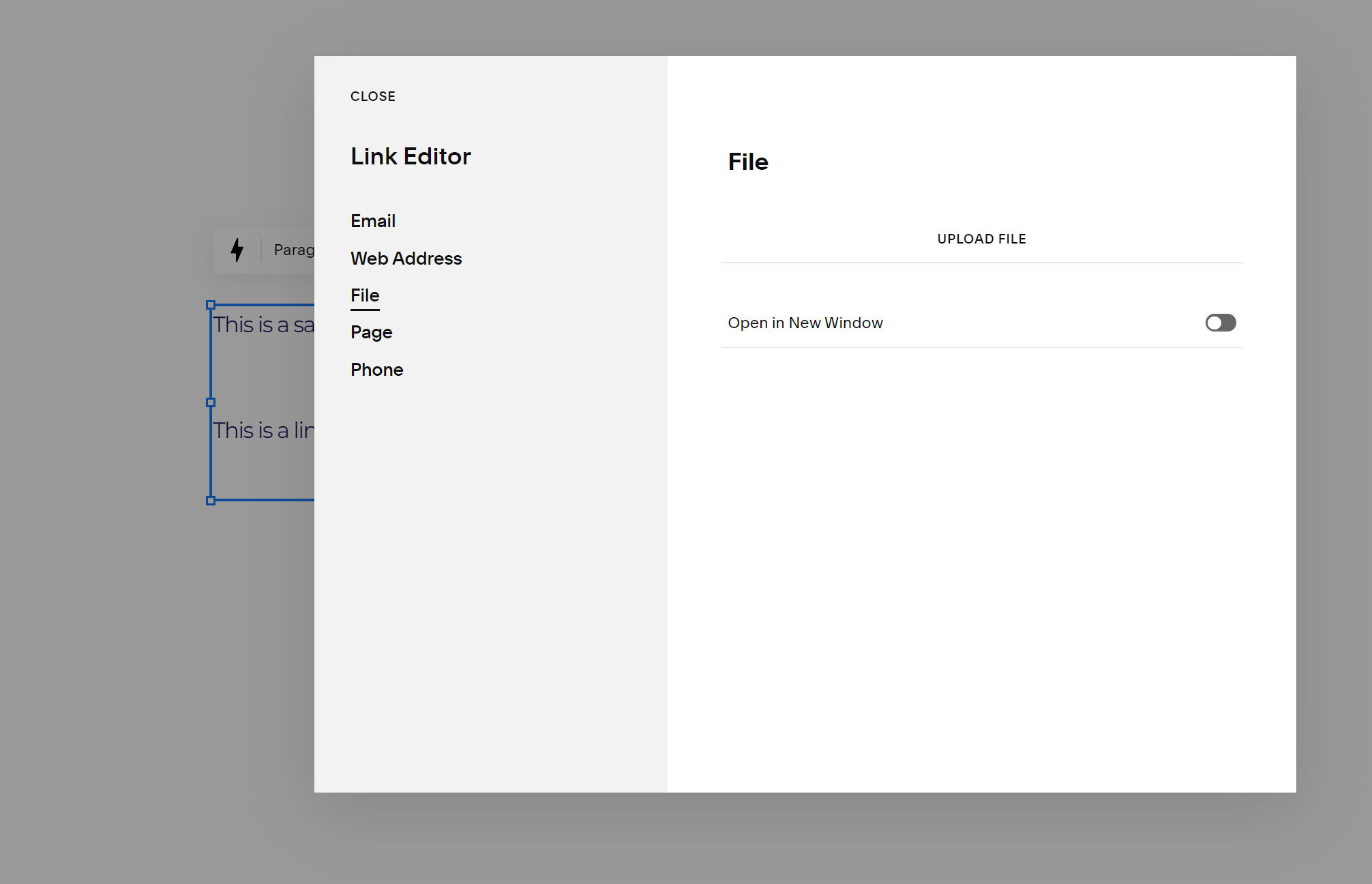
- Access the file selection menu: In the link pop-up menu, select the File tab.
- Upload the document: Click the upload arrow or drag and drop your PDF from your computer directly into the designated area.
- Finalize the link: Once the upload progress bar completes, ensure the file is selected (a checkmark should appear).
- Toggle "Open in new tab": It is considered best practice to toggle the Open in new tab setting to "On." This prevents the user from navigating away from your website when they click the PDF, ensuring they remain on your page after they finish viewing the document.
- Save your changes: Exit the editor and click Save at the top of the page to apply the updates to your live site.
Comparison of PDF Integration Methods
Choosing the right way to present your PDF depends on the user experience you want to provide.
| Method | Best For | Pros | Cons |
|---|---|---|---|
| Direct Link | Brochures, Forms | Simple, fast, no external dependency. | Relies on browser behavior. |
| Button Link | Call-to-Actions (CTAs) | High visibility, professional look. | Requires more page space. |
| Embedded Viewer | Portfolios, Menus | Viewable without leaving the page. | Requires third-party code/plugin. |
| Cloud Hosting | Large files (20MB+) | Bypasses Squarespace size limits. | Potential for broken external links. |
Managing Large Files and External Links
If your file is larger than the 20 MB threshold, you will need to utilize an external cloud storage solution. To do this, upload your PDF to a service like Google Drive or Dropbox. Once uploaded, ensure that the sharing permissions are set to "Anyone with the link can view."
Copy the public link provided by the hosting service and return to your Squarespace editor. Instead of selecting the "File" tab in the link editor, select the "Web Address" (URL) tab. Paste the shareable link into the address field. This method ensures your site remains fast and responsive while providing users access to heavy files that would otherwise exceed platform limitations.
Troubleshooting Common PDF Issues
Even with a straightforward process, you may occasionally run into issues. Below are common scenarios and their resolutions:
The File Won't Upload
If the upload fails, verify the file size first. If it is under 20 MB, check for special characters or extremely long filenames, which can occasionally cause issues with server-side processing. Rename your file to something simple, like document-name.pdf, and try the upload again.
The Link Isn't Working
If you click the link and receive a 404 error, you may have deleted the file from the Squarespace link repository, or the file was never fully uploaded. Navigate back to the link editor and confirm that the file is selected correctly. If you recently updated the document, you may need to delete the old instance of the file from the "Manage Files" section of the link editor and upload the new version to ensure the old URL isn't cached.
The PDF Opens in the Same Tab
If the document replaces your website entirely, users may forget to hit the "Back" button to return to your content. Always ensure the Open in new tab setting is enabled. This ensures that the PDF opens in a secondary browser tab, keeping your website open and accessible in the background.
Best Practices for File Organization
Maintaining an organized media library is vital for site performance and management. Every time you add a PDF, Squarespace stores it in your internal file list. Over time, this list can become cluttered.
Periodically navigate to the Manage Files section within the link editor to review your uploaded assets. Delete outdated versions of documents to prevent confusion and ensure you are only serving the most current information to your audience. Furthermore, descriptive naming of your files—such as 2026-Product-Catalog.pdf rather than final_final_v2.pdf—improves your internal organization and makes it easier to locate documents for future page updates.
Frequently Asked Questions
Can I display a PDF directly on my Squarespace page?
Squarespace does not have a native "PDF viewer" element that displays a full document inline without external tools. The standard method is to provide a downloadable link. To display a visual preview, you may take a screenshot of the first page of your PDF and link that image directly to the PDF file.
Does adding many PDFs slow down my website?
Linking to PDFs does not slow down your website because the files remain inactive until a user clicks the link. Unlike images embedded directly on a page, which load as soon as a visitor arrives, your PDF stays on the server until requested, ensuring your page load speeds remain unaffected.
What should I do if my PDF needs an update?
If the content of your PDF changes, you do not need to delete your existing link. Simply go into the link editor, delete the old file, upload the new version, and select it. As long as you use the same link location, your existing buttons and text links will automatically point to the updated document.
Is it better to link to a PDF or create a web page?
If the content is text-heavy and needs to be searchable by search engines, it is almost always better to create a standard Squarespace page. Search engines can index text within PDFs, but a web page is far more accessible, mobile-friendly, and better for your overall site SEO. Use PDFs only for documents that are meant to be printed or downloaded for offline use.
Next Steps for Your Site
To maintain a professional user experience, review your site content to identify which documents should be migrated to native web pages versus those that truly require a PDF format. For those that must remain as PDFs, perform a site-wide audit to ensure all download links are labeled clearly—for example, by adding "(PDF, 2MB)" next to the link text so users know what to expect before clicking. Finally, test every link to ensure they open in new tabs as intended, providing a smooth, uninterrupted browsing experience for your visitors.