Choosing the right backup strategy for Windows 10 involves evaluating your specific data protection needs, technical comfort level, and storage resources by comparing native tools, cloud services, and third-party software to find a balance between automated security, cost, and recovery speed.
Data loss is an inevitability that every computer user faces eventually. Whether it stems from sudden hardware failure, malicious ransomware attacks, accidental file deletion, or a corrupted operating system update following a routine patch, losing irreplaceable files can cause severe disruption. Windows 10 provides a resilient operating environment, but it does not completely shield users from catastrophic data loss. Establishing a reliable backup routine is no longer optional for maintaining a healthy workstation. However, navigating the vast array of backup choices can feel overwhelming. To build an effective data protection strategy, you must understand your options and align them with your specific requirements.
1. Assess Your Data Scope and Storage Requirements
Before selecting any backup tool or methodology, you must inventory what you actually need to protect. Data classification forms the foundation of any sound backup strategy. Not all files on your Windows 10 machine carry equal value or require the same frequency of backup.
First, differentiate between system files and personal data. System files include the Windows 10 operating system, installed applications, custom registries, and system settings. Personal data encompasses your documents, photographs, financial spreadsheets, media libraries, and application-specific settings.
- Personal Files: Typically reside in user profile folders (
C:\Users\Username). These change frequently and require regular, often daily or continuous, incremental backups. - System State and Applications: Change relatively infrequently, usually only during software installations, major Windows updates, or driver changes. A full system image is best suited for this category.
Calculate your total data volume using File Explorer or disk management utilities. Knowing your storage footprint dictates your hardware and cloud subscription requirements. If your critical data totals 200 GB, a standard 1TB external hard drive or a mid-tier cloud storage subscription will suffice. Conversely, if you manage several terabytes of raw video footage or design assets, local network-attached storage (NAS) or high-capacity local drives become mandatory.
2. Evaluate Native Windows 10 Backup Utilities
Windows 10 includes built-in data protection tools designed to handle basic backup scenarios without requiring additional software purchases or complex installations. Reviewing these native utilities helps determine whether third-party investments are necessary.
File History
File History is designed specifically for protecting user files stored in libraries, desktop, contacts, and favorites folders. It continuously monitors these directories for changes and automatically saves copies of altered files to a dedicated external drive or network folder on a schedule you define. You can configure how often it saves versions (from every 10 minutes to daily) and how long versions are kept. Restoring an older version of a document is straightforward through the native File History interface, making it an excellent choice for daily document protection.
Backup and Restore (Windows 7)
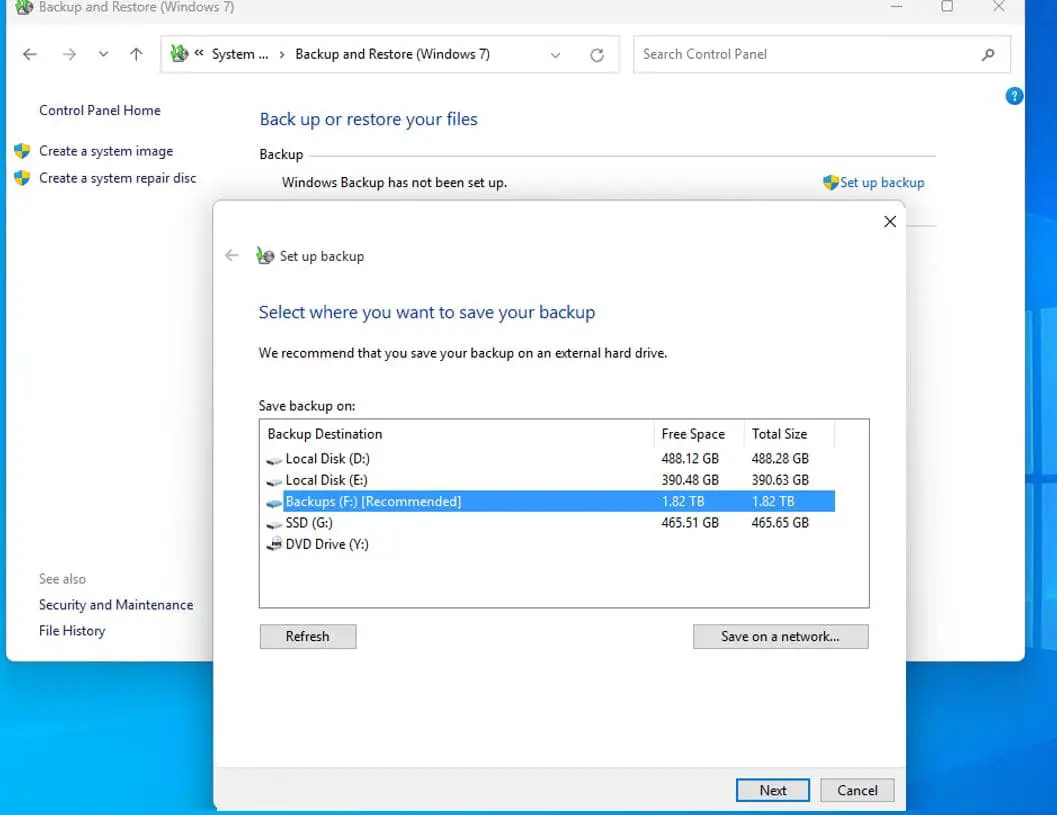
Despite its legacy branding, Backup and Restore remains fully functional within Windows 10. This tool serves two primary purposes: creating file-and-folder backups on a schedule and generating a complete system image. A system image creates an exact binary copy of your entire system drive, including the operating system, installed programs, and user data. If your primary drive fails completely, you can restore the entire machine to its exact state using this image, provided you have a bootable recovery media disk or USB drive.
OneDrive Integration
For cloud-centric users, Microsoft’s OneDrive offers integrated folder backup for Desktop, Documents, and Pictures. By enabling OneDrive folder backup, your local files sync in real time to Microsoft's cloud servers. While this provides immediate offsite protection against local hardware failure and ransomware encryption (via OneDrive's version history and file recovery features), it relies heavily on continuous internet bandwidth and ongoing subscription fees for storage beyond the complimentary free tier.
3. Compare Third-Party Backup Software Solutions
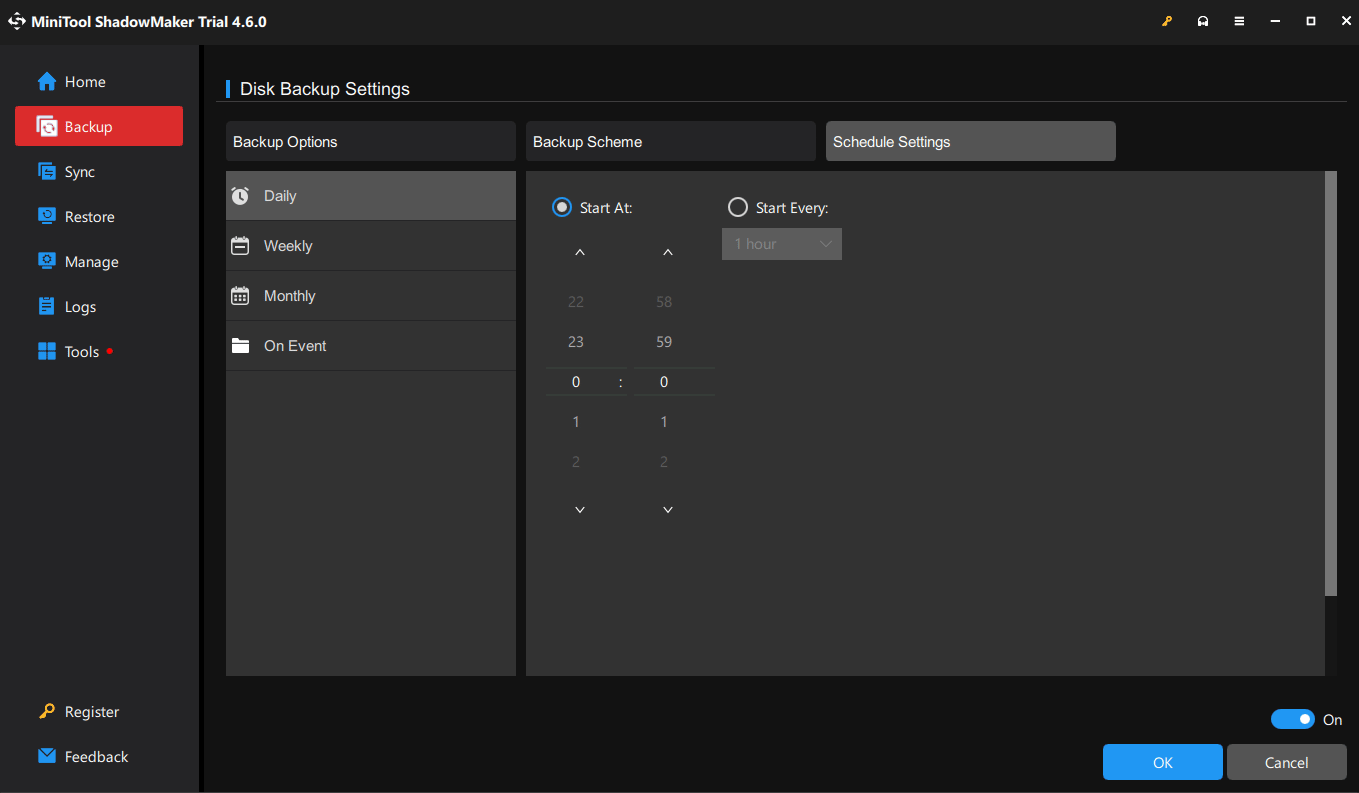
While native Windows tools cover basic recovery needs, third-party backup applications offer advanced capabilities, granular control, and streamlined management for users who require more robust protection.
Commercial backup suites typically provide features that native Windows tools lack, such as encryption with zero-knowledge keys, deduplication to save storage space, sector-level imaging with universal restore capabilities (allowing you to restore an image to dissimilar hardware), and advanced scheduling algorithms.
When evaluating third-party solutions, consider the following technical criteria:
- Backup Types Supported: Does the software support full, differential, and incremental backups? Incremental backups save storage space and time by only recording changes made since the last backup.
- Bootable Media Creation: Can the software easily create a Linux- or Windows PE-based bootable USB drive to restore systems that refuse to boot?
- Resource Overhead: How much CPU and RAM does the background service consume while running scheduled backups? Lightweight applications prevent system slowdowns during intensive work sessions.
- Licensing Models: Is the software licensed perpetually (one-time purchase), or does it require an ongoing annual subscription?
Popular industry standards like Macrium Reflect, Acronis Cyber Protect Home Office, and EaseUS Todo Backup offer robust free tiers or trial periods, allowing you to test their performance against your specific hardware configuration before committing financial resources.
4. Implement the 3-2-1 Backup Rule
A backup strategy is only as good as its execution and redundancy. Relying on a single backup destination—such as a single external hard drive plugged permanently into your computer—leaves your data vulnerable to simultaneous destruction from power surges, malware, fire, or theft.
The gold standard for data protection is the 3-2-1 Backup Rule, formulated originally by computer photographer Peter Krogh. Applying this rule to Windows 10 ensures maximum resilience:
- 3 Copies of Your Data: Maintain your original production data on your Windows 10 PC, plus at least two distinct backup copies. If a file exists in only one place, it is not backed up.
- 2 Different Storage Media: Store your backups on at least two different types of physical media. For example, keep one backup on an external USB hard drive and another on a cloud storage service or a network-attached storage (NAS) device. This protects against media-specific failure modes.
- 1 Offsite Backup: Keep at least one backup copy offsite. If your home or office suffers a physical disaster, local backups stored next to your computer will be destroyed. Cloud backups, or physical drives stored securely at a relative's house or bank safety deposit box, satisfy this requirement.
| Backup Strategy Layer | Primary Technology | Advantages | Disadvantages |
|---|---|---|---|
| Local File Backup | Windows File History / External USB Drive | Fast recovery speeds, no recurring subscription costs, easy file versioning. | Vulnerable to physical theft, local hardware failure, and ransomware if left connected. |
| System Image Backup | Backup and Restore (Windows 7) / Third-Party Imaging | Restores complete OS, apps, and settings after catastrophic drive failure. | Large storage footprint, slower creation time, rigid restoration process. |
| Cloud Backup | OneDrive, Backblaze, or IDrive | Fully automated, offsite protection against local disasters and ransomware. | Dependent on internet upload speeds; recurring subscription costs required. |
| Network Storage (NAS) | Local Network Drive with RAID | Centralized backup for multiple home devices, high capacity, local speeds. | Higher upfront hardware cost, requires basic network configuration knowledge. |
5. Verify and Test Your Recovery Procedures
The most common and dangerous misconception in data backup is assuming that because a backup task reports "Successful," your data is safe. A backup is entirely useless if you cannot successfully restore it when disaster strikes. Verification and testing form the final, crucial step in choosing and maintaining your Windows 10 backup architecture.
Establish a routine verification schedule:
- Monthly File Checks: Periodically open random backed-up files—such as a tax document, a family photo, or a database archive—directly from your backup destination to ensure the data is intact and uncorrupted.
- Quarterly Recovery Drills: If you rely on system images or third-party imaging software, test your bootable recovery media. Boot your computer into the recovery environment (without overwriting your primary drive, if possible) to confirm that the software recognizes your backup archives and can navigate the recovery menus.
- Monitor Storage Health: Use S.M.A.R.T. monitoring software to check the physical health of external hard drives used for backups. Mechanical drives degrade over time; replacing an aging backup drive proactively prevents catastrophic failure during a recovery attempt.
By treating backup as an active, verifiable process rather than a passive set-and-forget task, you ensure absolute peace of mind and data integrity for your Windows 10 environment.
Frequently Asked Questions
Is the built-in Windows 10 backup enough to protect my data?
The built-in tools (File History and Backup and Restore) are sufficient for basic file recovery and full system imaging for casual users. However, they lack advanced features like continuous cloud syncing, zero-knowledge encryption, and sophisticated deduplication found in dedicated third-party software. For robust protection, combining native tools with cloud storage or external drives is recommended.
How often should I back up my Windows 10 PC?
The frequency depends on how often your data changes. Personal documents and active work files should be backed up continuously or daily via automated schedules. System images and application states only need to be captured weekly or monthly, or immediately before performing major Windows updates, driver installations, or hardware changes.
What is the difference between a file backup and a system image?
A file backup copies specific user documents, photos, and folders, allowing you to restore individual items quickly. A system image captures a sector-by-sector snapshot of your entire hard drive, including the operating system, installed applications, system settings, and personal files. System images are used to recover from total hardware crashes or severe operating system corruption.
Does OneDrive count as a complete backup?
OneDrive provides excellent protection for files saved within designated synchronized folders, offering cloud redundancy and file versioning. However, it does not back up your Windows system state, installed desktop applications, or system registry settings. Furthermore, if a file is intentionally or maliciously deleted locally, it is often deleted from the cloud sync folder as well, making it a complementary tool rather than a comprehensive backup solution.
How do I protect my Windows 10 backups from ransomware?
Ransomware specifically targets connected backup drives to prevent recovery. To protect your backups, utilize offline or immutable backup methods. Disconnect external USB backup drives when they are not actively running a backup task, or utilize cloud backup services with built-in versioning and object locking that prevent ransomware from deleting or encrypting historical file versions.