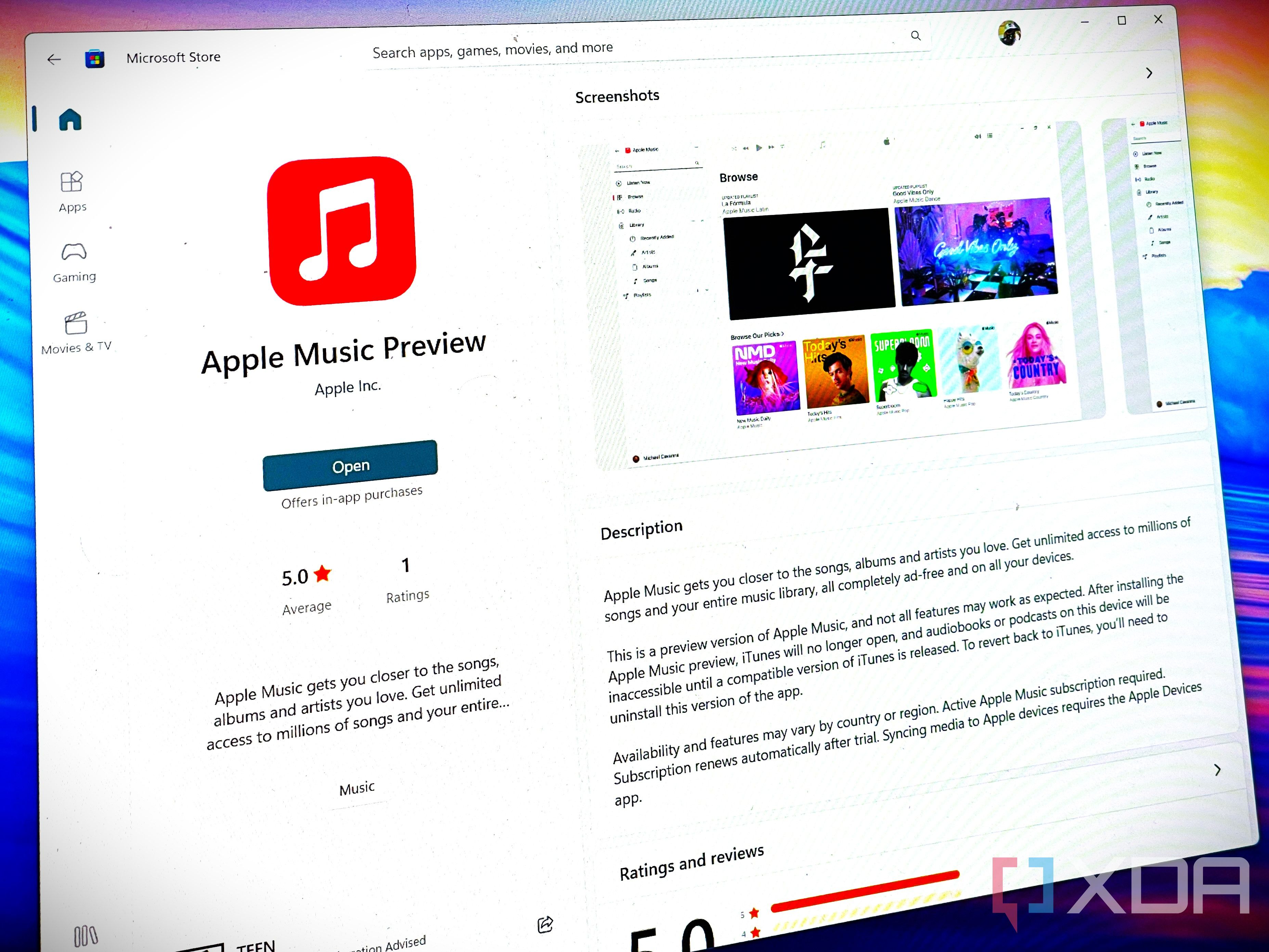
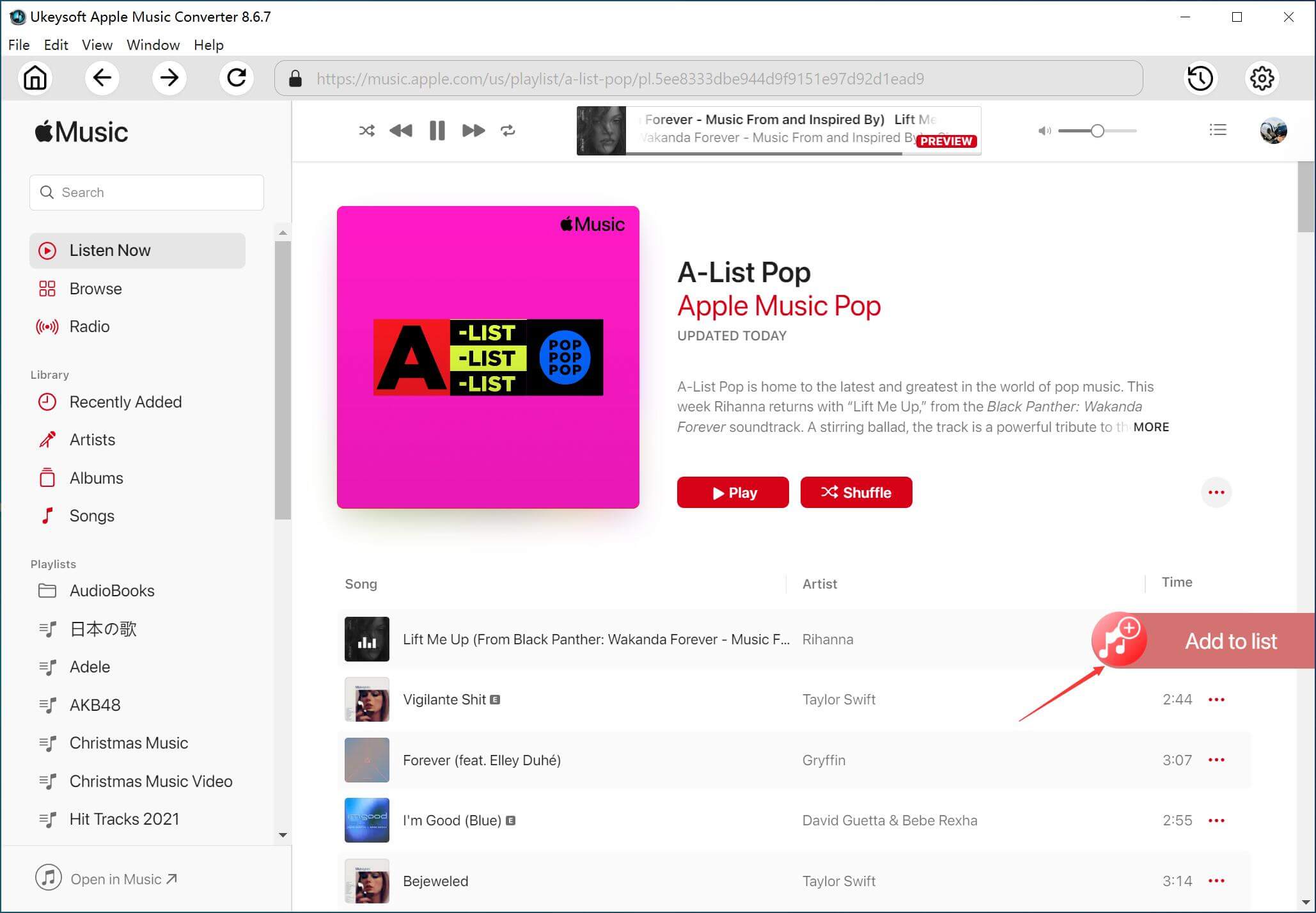
To access the Apple Music player on Windows, you must download and install the official Apple Music app from the Microsoft Store, which replaced the legacy iTunes interface for music playback. This dedicated application enables full synchronization with your Apple ID library, providing high-resolution audio streaming, offline listening, and comprehensive playlist management directly on your Windows 10 or 11 system.
The Transition from iTunes to Dedicated Apps
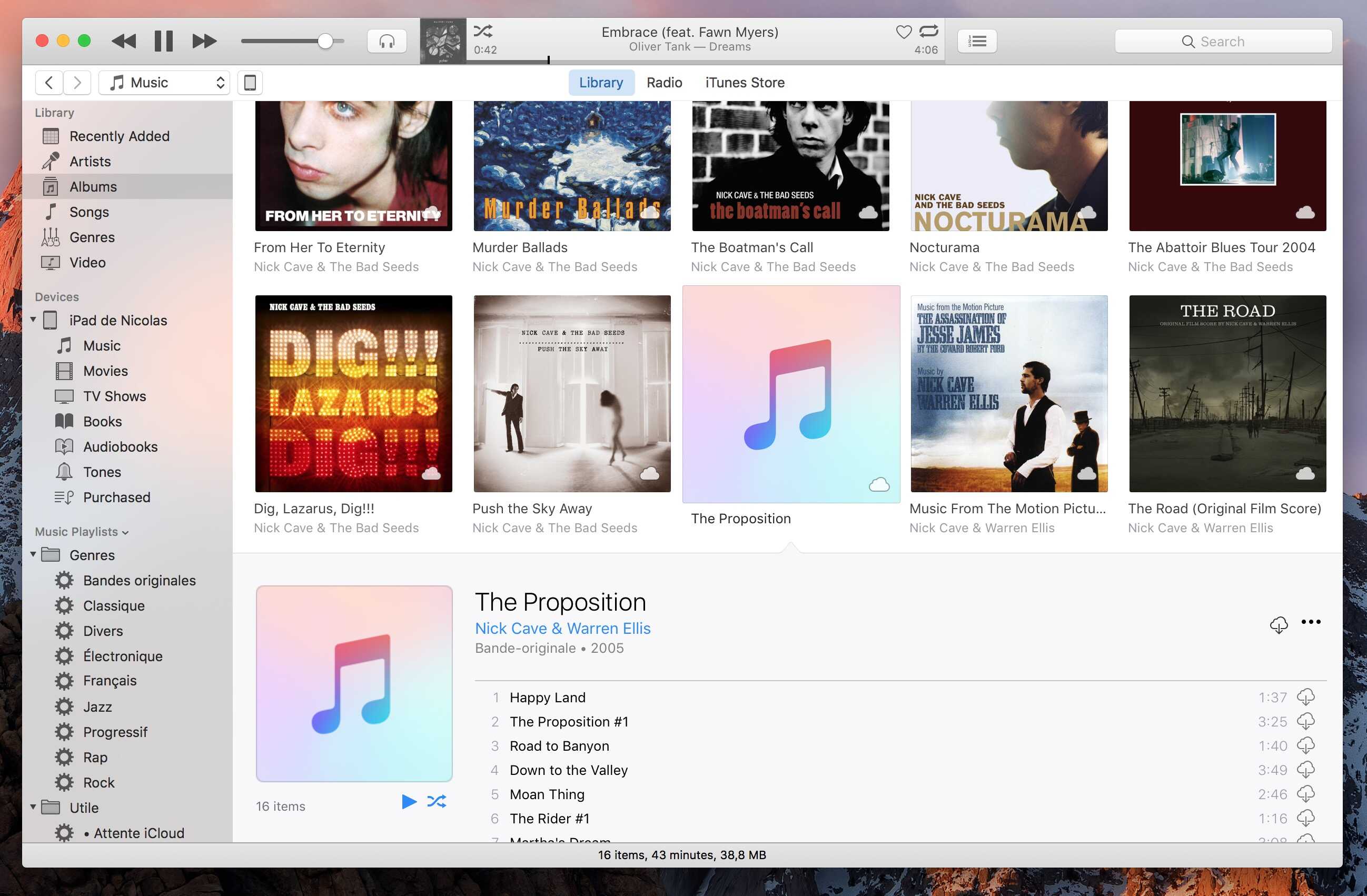
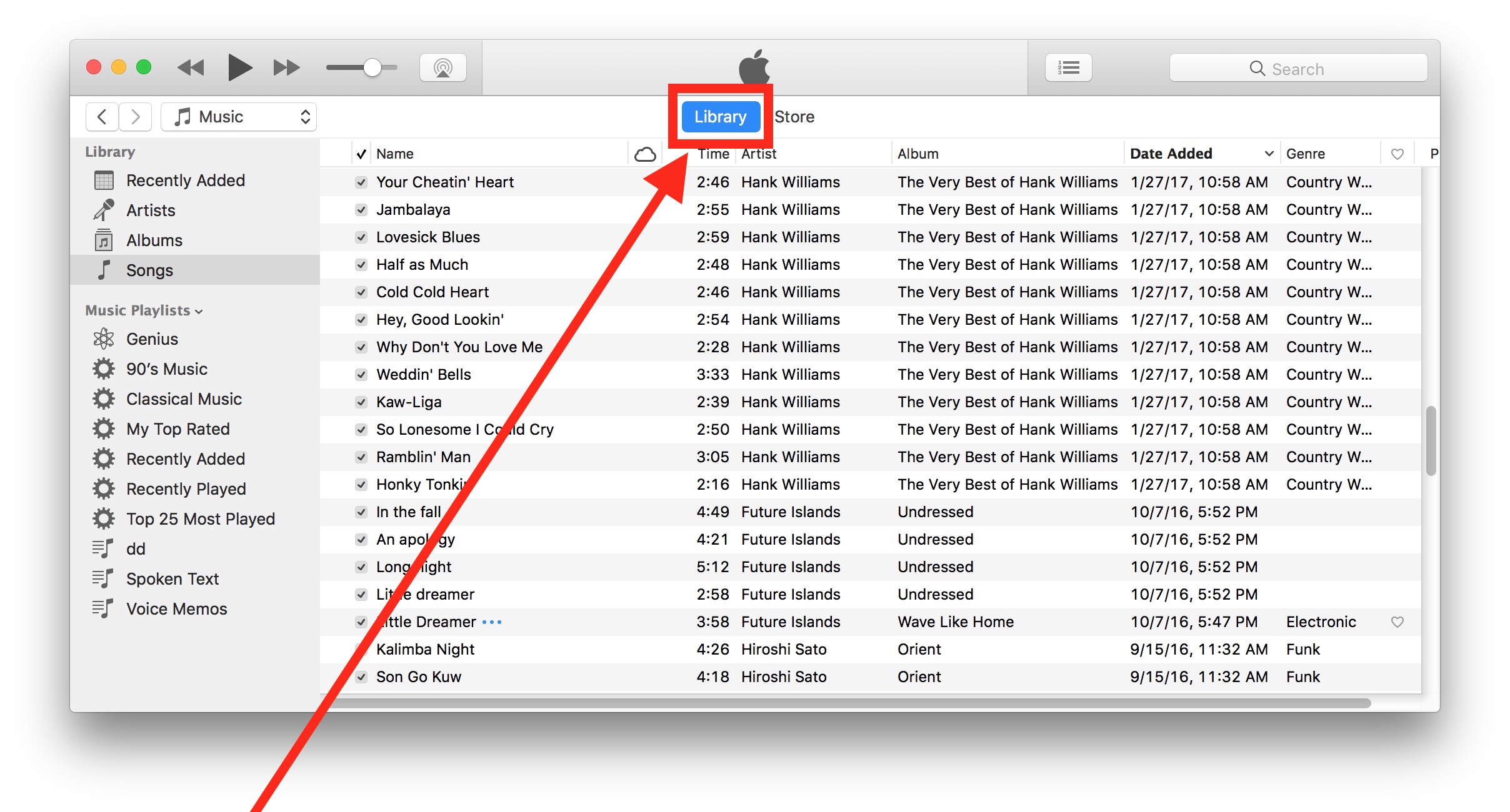
For many years, the primary way to manage Apple media on a Windows PC was through the monolithic iTunes application. iTunes was designed as an "all-in-one" solution, handling everything from music playback and store purchases to device backups, software updates for iPhones, and movie rentals. As the Apple ecosystem evolved, the company recognized that users desired a more streamlined, performant experience.
In 2023, Apple officially released dedicated apps for Windows to replace the music-related functions of iTunes. These apps—Apple Music, Apple TV, and Apple Devices—are built on modern frameworks that offer better integration with Windows 11 and Windows 10 architecture. By separating the music player from device management and video streaming, Apple has created a more responsive interface that consumes fewer system resources and provides a user experience closely mirroring the macOS Music app.
Prerequisites for Installation
Before attempting to set up the Apple Music player on your Windows computer, you must ensure your system meets the minimum requirements established by Apple. Compatibility is not universal across all legacy versions of Windows.
System Requirements
- Operating System: Windows 10 (version 19045 or higher) or Windows 11.
- Architecture: The apps are optimized for 64-bit systems.
- Microsoft Store: You must have the Microsoft Store app enabled and functional, as this is the only authorized distribution channel for the Windows versions of these apps.
- Apple ID: A valid Apple ID is required. If you subscribe to Apple Music, you will need the credentials associated with that active subscription to access your cloud library.
- Hardware: While the software is lightweight, a stable internet connection is essential for high-quality streaming and library synchronization.
If you are running an older version of Windows, such as Windows 7 or 8, these dedicated applications will not install. In such cases, you are restricted to using the legacy version of iTunes or the web browser-based Apple Music player at music.apple.com.
Step-by-Step Installation Guide
To begin using the Apple Music player, follow this standardized procedure to ensure a clean installation and proper synchronization with your existing account.
- Open the Microsoft Store: Click the Start menu and type "Microsoft Store" to launch the application.
- Search for Apple Music: Use the search bar to locate "Apple Music." Ensure the publisher is listed as "Apple Inc." to avoid third-party software that may mimic the branding.
- Install the Application: Click the "Get" or "Install" button. The download process will begin automatically.
- Launch and Sign In: Once the installation completes, open the app. You will be prompted to sign in with your Apple ID and password.
- Authorize Your Device: If you have multiple devices associated with your Apple ID, you may need to verify the connection via two-factor authentication on another Apple device or via SMS.
- Sync Library: Upon initial login, the app will pull your music library, playlists, and listening history from the cloud. Depending on the size of your library, this may take several minutes.
Managing Your Music Library and Playback
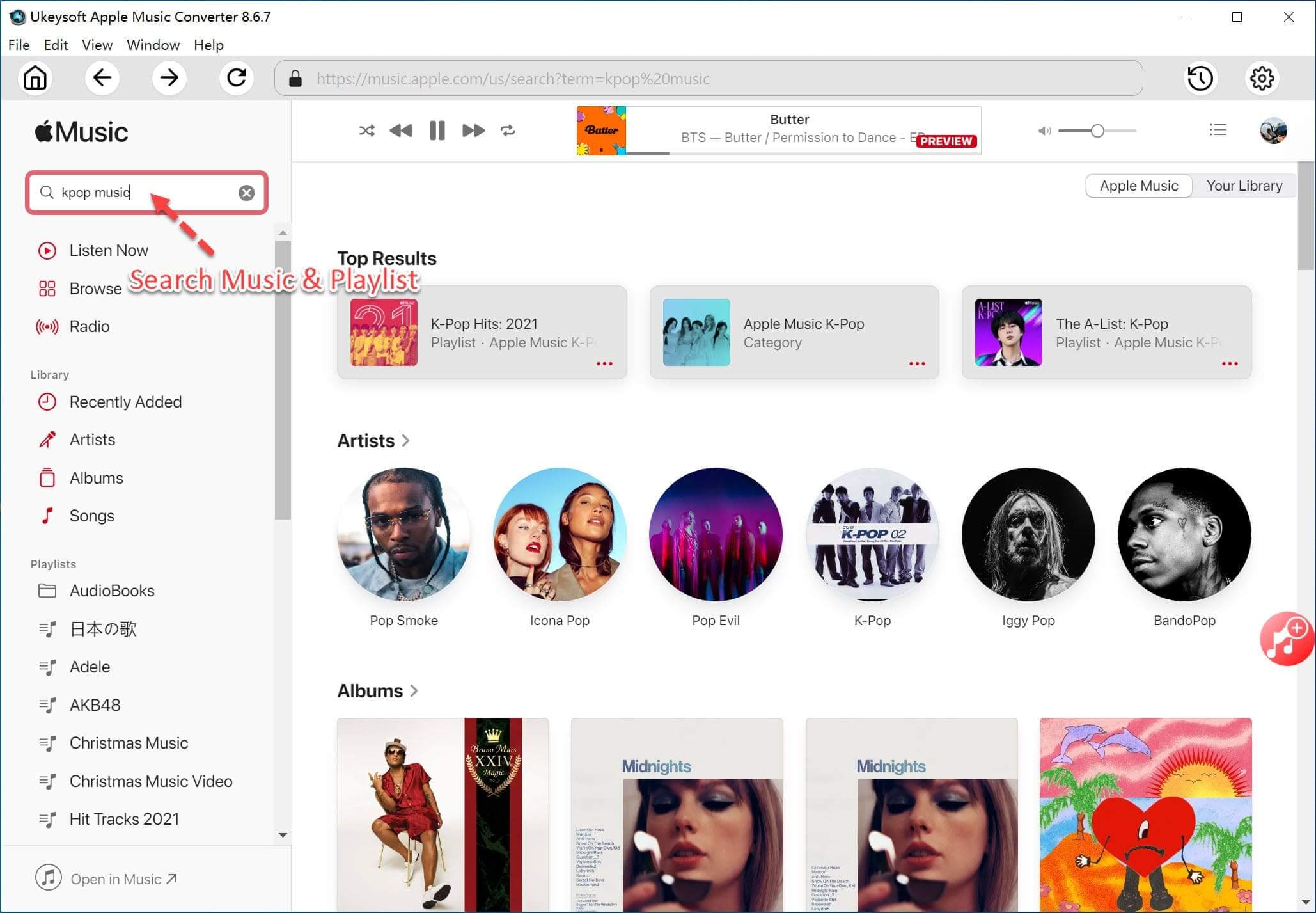
Once the application is running, the interface provides a comprehensive dashboard for your audio collection. The sidebar serves as the primary navigation tool, allowing you to switch between "Listen Now," "Browse," "Radio," and your local or cloud-based library.
Key Features of the Windows Player
- Lossless and Spatial Audio: Unlike the browser version, the desktop application supports Apple’s high-fidelity audio formats. You can configure your streaming and download quality settings in the Preferences menu.
- Smart Playlists: Your existing smart playlists created on iPhone or Mac will automatically sync to your Windows app.
- Offline Access: You can download tracks for offline listening by clicking the cloud-download icon next to any song or album.
- Local File Integration: The Apple Music app on Windows still allows you to import local audio files (MP3, WAV, FLAC, etc.) into your library, which can then be organized alongside your streamed tracks.
Comparison of Apple Music Access Methods on Windows
Users have several ways to interact with the service. Understanding the limitations of each helps in choosing the right tool for your workflow.
| Feature | Apple Music App (Win) | Web Player (Browser) | Legacy iTunes |
|---|---|---|---|
| High-Res Audio | Yes | No | Limited |
| Offline Downloads | Yes | No | Yes |
| Performance | High | Moderate | Low |
| UI/UX Design | Modern/Clean | Browser-dependent | Dated/Cluttered |
| Device Syncing | Via Apple Devices App | None | Integrated |
Troubleshooting Common Issues
Despite the move to a more modern platform, users may encounter synchronization or playback issues. Here are the most effective solutions:
Library Not Syncing
If your playlists or recently added music are not appearing, ensure that "Sync Library" is enabled in the app's settings. Navigate to Account > Settings and verify that your Apple ID is active and the sync toggle is set to "On."
Playback Stuttering
Streaming issues are often related to network stability or hardware acceleration. Try clearing the app cache or ensuring that your Windows audio drivers are up to date. Occasionally, disabling "Crossfade" in the playback settings can resolve minor buffering interruptions.
Authorization Errors
If the app repeatedly asks for your password or fails to authorize your computer, verify that your Windows system time and date settings are set to "Automatic." Time synchronization discrepancies frequently interfere with Apple's secure authentication tokens.
Frequently Asked Questions
1. Is the Apple Music app on Windows free to use? The application itself is free to download from the Microsoft Store. However, full access to the music catalog requires an active Apple Music subscription. Without a subscription, you can only play music you have previously purchased or imported into your library.
2. Can I use the Apple Music app to sync my iPhone? No. In the new Windows architecture, Apple separated device management. If you need to sync, backup, or restore an iPhone or iPad, you must download the separate "Apple Devices" app from the Microsoft Store.
3. Does the app support high-resolution lossless audio? Yes, the Apple Music app on Windows supports Apple's Lossless (ALAC) and Hi-Res Lossless formats. You can adjust these settings in the app's playback menu to ensure you are receiving the highest possible quality based on your hardware capabilities.
4. What happens to my old iTunes library? When you install the Apple Music app, it will automatically import your existing iTunes music library, including your playlists, metadata, and play counts. Your local media files will remain in their original folders on your hard drive unless you move them.
5. Can I use the Windows app if I don't have an Apple Music subscription? Yes. You can use the application as a local media player for your personal audio files. You will still need to sign in with an Apple ID to use the app, but you are not required to pay for the subscription service.
Final Recommendations for Optimal Performance
For the best experience, keep both your Windows OS and the Apple Music app updated. Microsoft often releases updates that improve the underlying media foundations of the operating system, and Apple frequently patches the app to address syncing latency and audio codecs. If you are an audiophile, consider connecting a dedicated external digital-to-analog converter (DAC) to your Windows machine; the Apple Music player will recognize the device, allowing you to bypass the standard Windows audio processing for a cleaner signal path.