WhatsApp features built-in read receipts, represented by two blue checkmarks next to sent messages, which indicate that the recipient has opened and read the chat. If you turn off read receipts in your privacy settings, you will no longer be able to see read receipts from other users, and group chats and voice messages operate under slightly different rules.
The Mechanics of WhatsApp Checkmarks: From Sending to Reading
Communication apps rely heavily on visual cues to let users know the status of their messages. WhatsApp implements a clear, progressive system of checkmarks (often called ticks) to trace the delivery and reception of text messages, media, documents, and voice notes. Understanding what each icon means eliminates guesswork and helps manage expectations during personal and professional correspondence.
When you type a message and tap the send icon, the application transitions through distinct phases. Each phase is denoted by a specific indicator next to the timestamp of the message. These indicators apply universally across mobile applications on Android and iOS, as well as WhatsApp Web and WhatsApp Desktop.
Single Gray Checkmark
A single gray checkmark appears immediately after you send a message. This icon indicates that the message has successfully left your device and has been transmitted to the WhatsApp servers.
If your phone loses internet connectivity immediately after hitting send, or if the recipient’s device is entirely offline with no network connection, the message will remain at this single-check stage. It simply means the message is in transit or stored temporarily on the server waiting for delivery.
Double Gray Checkmarks
Double gray checkmarks appear the moment the message is delivered to the recipient’s device. This signifies that the data packet has reached their phone, and the application has received it.
However, double gray checkmarks do not mean the user has opened the chat window or read the text. It only confirms that the recipient's phone is connected to the internet and has successfully downloaded the incoming notification or message payload. In areas with intermittent connectivity, a message might sit with double gray checkmarks for hours if the recipient's phone is powered on but tucked away in a bag or pocket.
Double Blue Checkmarks
Double blue checkmarks—the definitive read receipts—appear when the recipient opens the specific chat thread containing your message. For text messages, photos, videos, and documents, this color change happens almost instantaneously upon opening the conversation.
The appearance of these blue marks confirms that the payload has been rendered on the recipient's screen. If you tap and hold a message and select "Info," WhatsApp will display the exact timestamp for when the message was delivered and when it was read.
| Checkmark Icon | Status Meaning | Technical Condition |
|---|---|---|
| Single Gray Check | Sent | Message reached WhatsApp servers; waiting for recipient network connection. |
| Double Gray Check | Delivered | Message reached the recipient’s device; app has not necessarily been opened. |
| Double Blue Check | Read | Recipient has opened the chat thread containing the message. |
| Microphone Icon (Blue) | Played | Recipient has pressed play and listened to an incoming voice note. |
Voice Messages and Group Chat Nuances
While standard text messages follow the checkmark system precisely, audio messages and group conversations introduce specific behavioral variations that every user should understand.
How Voice Notes Handle Read Receipts
Voice messages add an extra layer of visual feedback. When you send a voice note, the gray microphone icon next to it indicates delivery.
Once the recipient taps the play button and listens to the audio, that gray microphone icon turns blue. Notably, even if a user has disabled standard read receipts in their settings, voice note icons will still turn blue when played in individual chats, giving the sender clear confirmation that the audio has been heard.
Read Receipts in Group Chats
Group chats operate under a different set of rules regarding privacy and visibility. In a group conversation, double blue checkmarks will only appear when every single participant has opened and read the message.
If a group has five members and three have read your message while two have not, your message will display double gray checkmarks. Once the final two members open the chat thread, all checkmarks switch to blue.
To see individual read statuses within a group, you can long-press your sent message, tap the menu or info icon, and view a detailed breakdown showing who the message was "Delivered to" and who it was "Read by," complete with exact timestamps for each person.
How to Turn Off Read Receipts on WhatsApp
Users who value digital privacy often prefer to hide their reading habits. WhatsApp provides a global privacy toggle that allows you to disable read receipts entirely. However, enabling this privacy feature comes with a distinct trade-off.
The Reciprocal Rule
When you turn off read receipts, you stop sending blue checkmarks to other users when you read their messages. However, you also stop seeing read receipts from others.
If you disable this feature, you will no longer see double blue checkmarks on the messages you send to other individuals; your messages will remain stuck on double gray checkmarks even after they have been read. This ensures a symmetrical privacy experience across the platform.
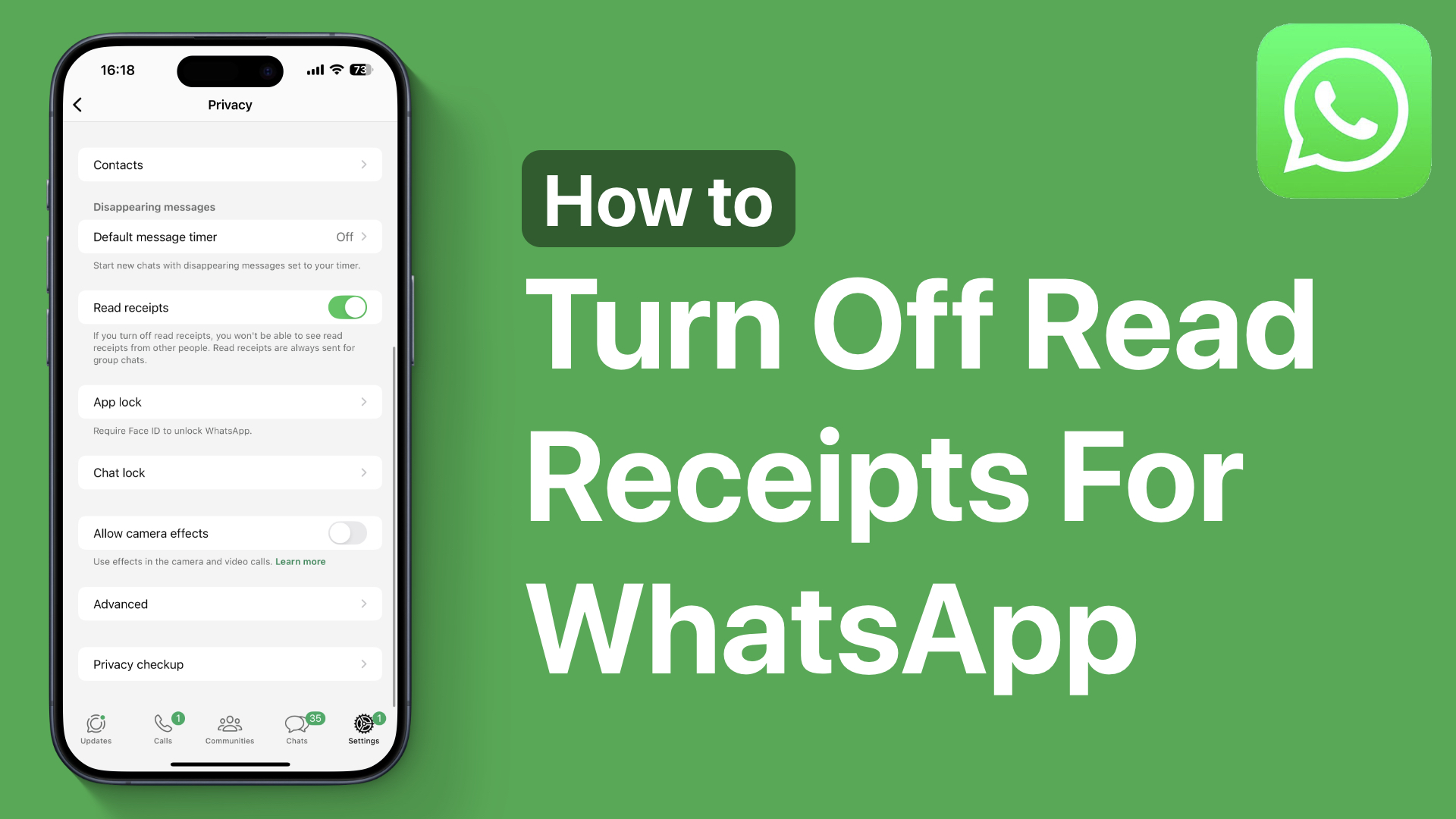
Step-by-Step Instructions to Toggle Read Receipts
- Open WhatsApp on your mobile device.
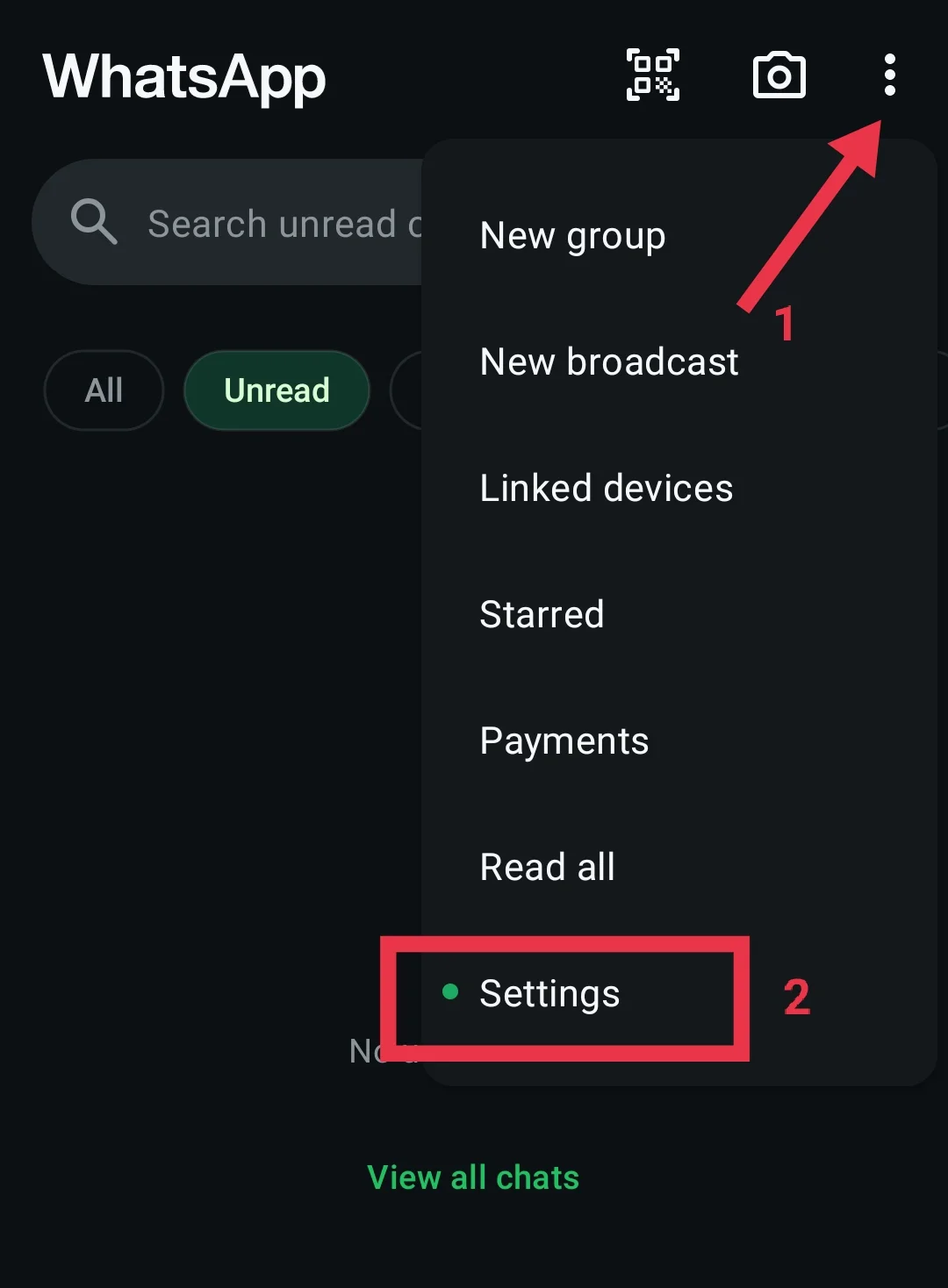
- Navigate to the Settings menu (tap the gear icon on iOS or the three vertical dots on Android, then select Settings).
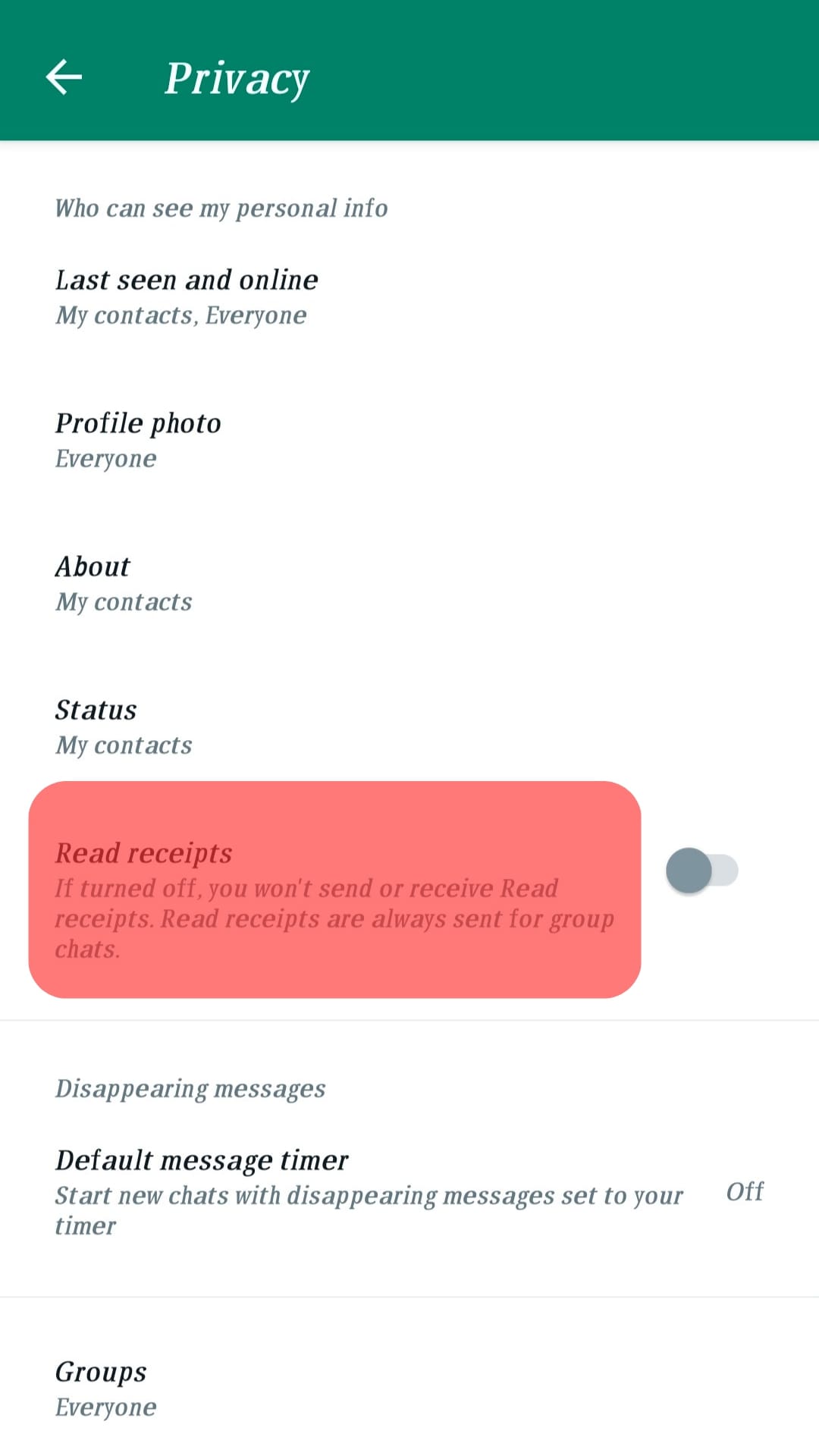
- Tap on Privacy.
- Scroll down to find the toggle labeled Read receipts.
- Switch the toggle off.
Note: Disabling read receipts does not affect read receipts in group chats. Group chat read receipts and voice note play receipts remain active regardless of your personal setting.
Workarounds and Alternative Methods to View Messages Privately
Because turning off read receipts is a global, all-or-nothing setting that also blinds you to others' receipts, many users look for alternative ways to preview messages without triggering the blue checkmarks.
Airplane Mode Trick
One classic method for reading messages discreetly involves utilizing device-level network disconnection:
- When you receive a notification for a new WhatsApp message, do not open the app yet.
- Swipe down your phone's control center or quick settings menu and enable Airplane Mode (or turn off both Wi-Fi and mobile data).
- Open WhatsApp and read the message inside the chat thread.
- Close the application completely, ensuring it is swiped away from your recent apps background tray.
- Disable Airplane Mode to restore your internet connection.
Because the device was offline when you opened the chat, the application cannot transmit the read receipt back to the server until after you have closed the app. Caution: Once you reconnect to the internet and reopen WhatsApp later, read receipts may sometimes catch up and trigger, making this method occasionally unreliable.
Previewing via Notifications
Modern smartphone operating systems allow users to read incoming messages directly from the notification banner, lock screen, or drop-down shade. Expanding a notification banner or replying directly from the notification tray generally does not trigger read receipts inside the chat app, allowing you to catch the gist of a message safely.
Troubleshooting Missing Read Receipts
Sometimes, checkmarks do not behave as expected. If you notice persistent anomalies, several common technical factors are usually at play.
- Network Instability: If your phone or the recipient's phone has a weak cellular signal, messages will hang on a single gray checkmark. Moving to an area with stable Wi-Fi or 4G/5G coverage usually resolves delivery delays.
- Account Privacy Settings: If you notice that you never see blue checkmarks from a specific contact, verify whether they have turned off their read receipts. Remember, if your own read receipts are turned off, you cannot see theirs either.
- Application Outages: On rare occasions, WhatsApp server outages can delay message delivery and status updates globally. Checking status monitoring websites or official social media channels can confirm if it is a platform-wide issue.
- Blocked Contacts: If your messages permanently display a single gray checkmark to a specific person over several days, and their profile picture or "Last Seen" status disappears, it is possible you have been blocked by that user.
Frequently Asked Questions
Can I turn off read receipts for specific contacts only?
No. WhatsApp's read receipt setting is global. You cannot enable blue checkmarks for close friends while disabling them for acquaintances or business contacts. The toggle applies universally to all individual chats.
Do read receipts apply to status updates?
Yes. When you view someone's WhatsApp Status (stories), your name appears in their viewer list. If you turn off read receipts in your privacy settings, your name will not appear in the viewer list when you watch other people's statuses, but you also won't be able to see who views your own statuses.
Why do my messages show double gray checkmarks even though I know the person read them?
This usually happens for two reasons: either the recipient has turned off their read receipts in their privacy settings, or you have turned off your own read receipts, which prevents you from seeing read receipts from others.
Does deleting a message remove the read receipt?
If you use the "Delete for Everyone" feature before the recipient opens the message, they will only see a placeholder note stating "This message was deleted." However, if they already opened the message and triggered the blue checkmarks before you hit delete, the read status was already registered on their device.
Conclusion
WhatsApp read receipts provide a transparent, reliable way to track message delivery and reading status through clear checkmark indicators. While the default setting keeps receipts active for both sending and receiving, the platform offers the flexibility to disable them via the privacy menu for users who prioritize discretion. By understanding how checkmarks function across individual chats, group conversations, and voice notes, you can communicate more effectively and tailor your messaging experience to your personal privacy preferences.