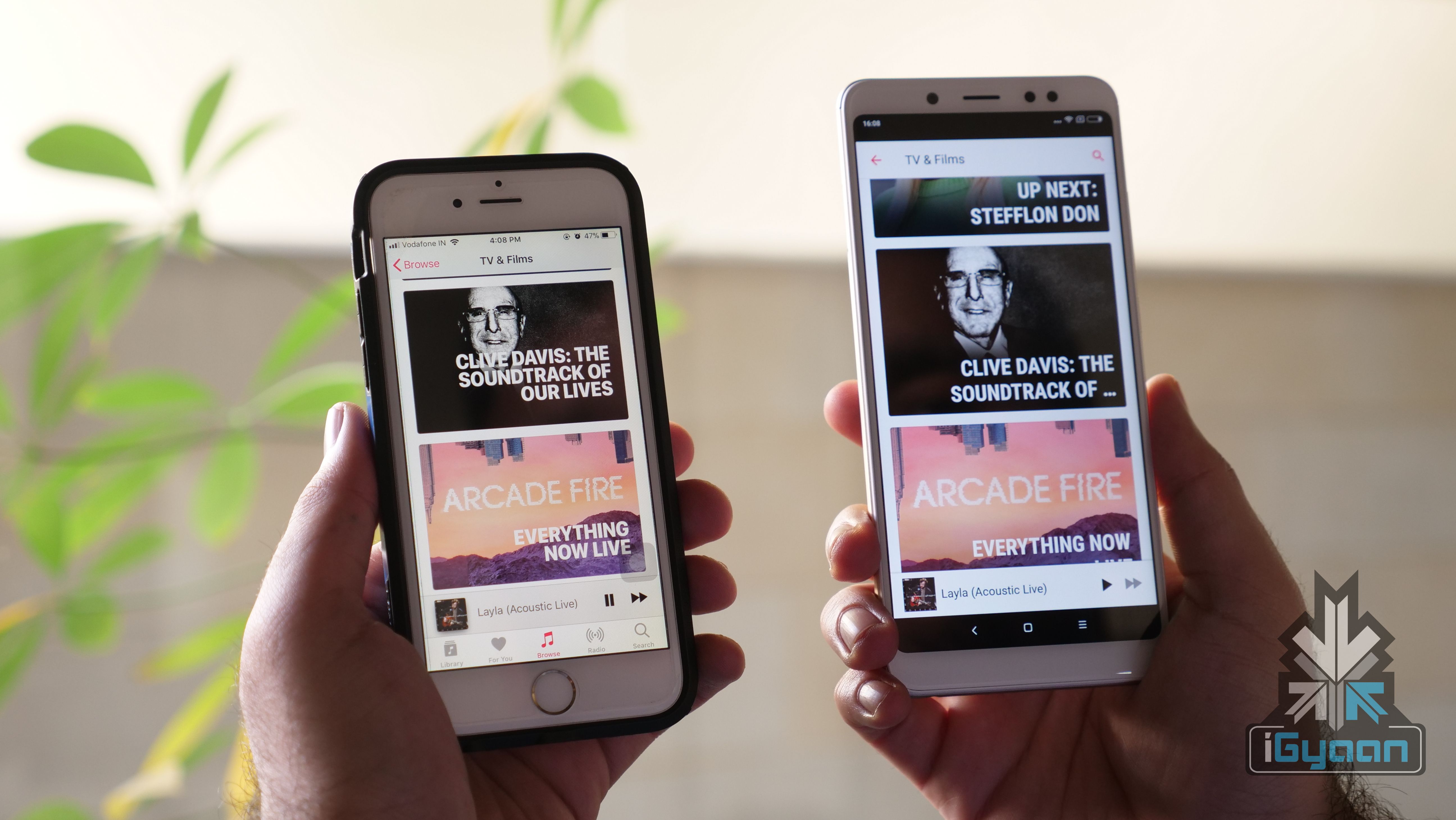
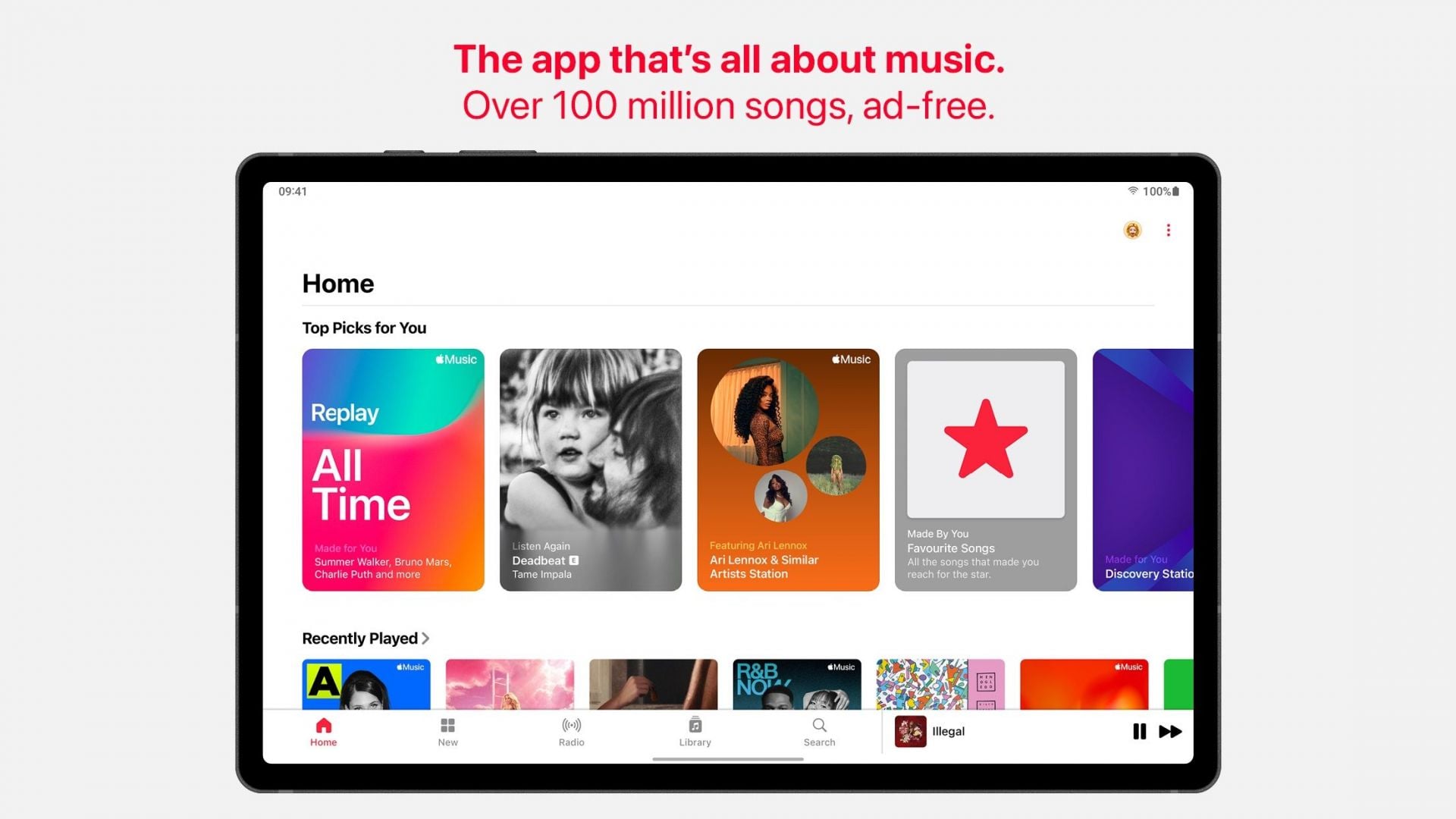
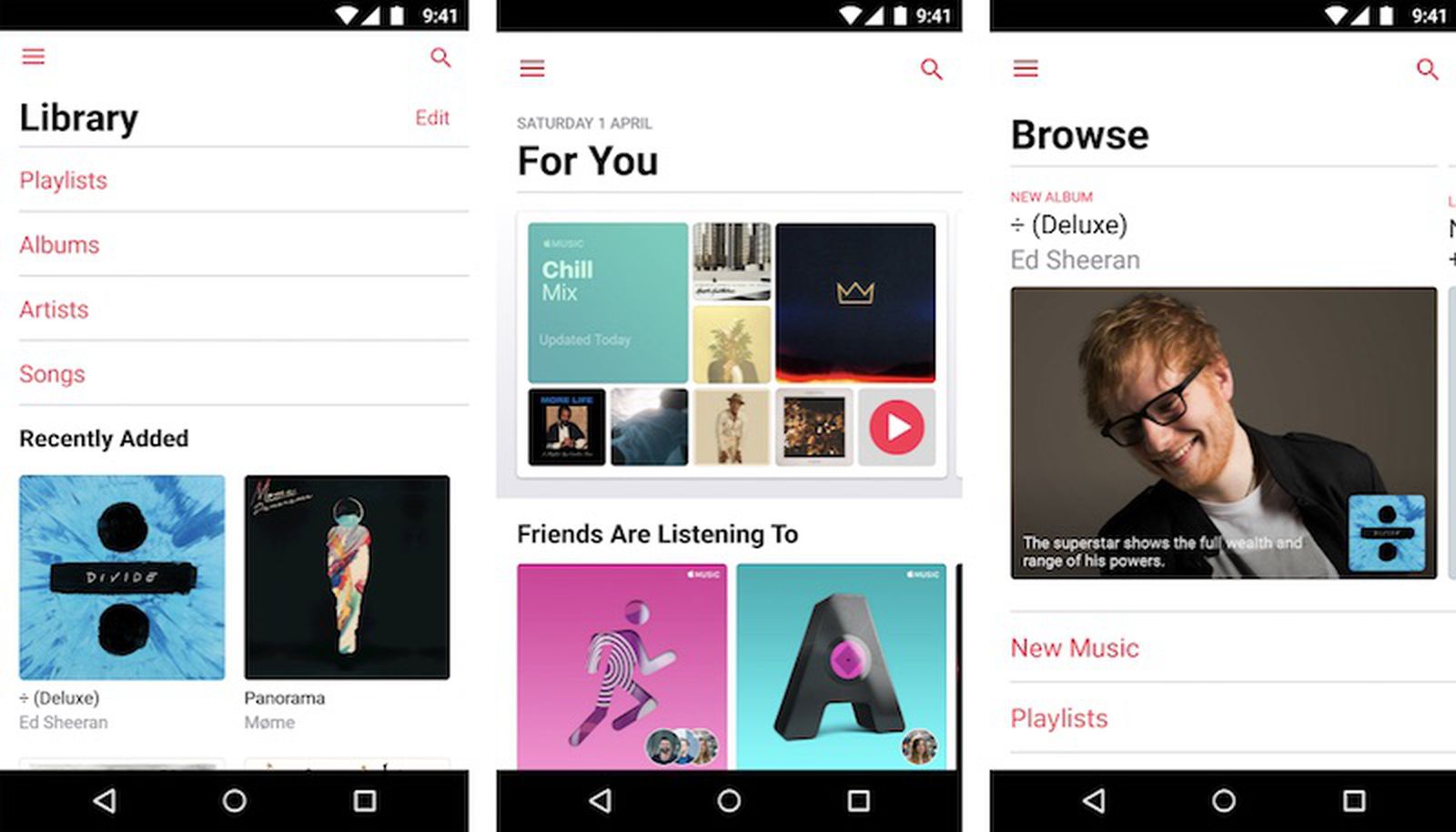
Accessing the Apple Music catalog on an Android device is a straightforward process that grants you full entry to one of the world's most expansive music streaming libraries. By downloading the dedicated Apple Music application from the Google Play Store, Android users can enjoy features such as Lossless Audio, Spatial Audio with Dolby Atmos, personalized playlists, and real-time lyrics, effectively bridging the gap between Apple’s ecosystem and the Android mobile experience.
Prerequisites and Compatibility Requirements
Before you begin the installation process, it is important to understand the technical environment required to run the service effectively. Apple Music for Android is designed to provide a robust, native experience, but it does require specific system software to function correctly.
To use the Apple Music application, your device must be running Android 5.0 (Lollipop) or later. While the application is compatible with a wide range of devices, the quality of your audio experience may depend on your phone’s internal hardware. For instance, while high-resolution features like Lossless Audio are supported within the app settings, you will need a wired connection or a compatible external Digital-to-Analog Converter (DAC) to fully experience the fidelity of high-resolution files, as standard Bluetooth connections currently compress audio data.
You will also need an active Apple ID. If you have previously used Apple services like iCloud, the App Store, or iMessage, you likely already possess one. If not, you can create one during the initial setup process within the application. Ensure you have a stable internet connection—ideally Wi-Fi—during the download and initial library syncing process to avoid consuming excessive mobile data.
Installing the Application and Setting Up Your Account
The installation process follows standard Android conventions, ensuring that the app integrates seamlessly with your device’s existing architecture.
- Download: Open the Google Play Store on your Android phone and search for "Apple Music." Select the official application developed by Apple Inc. and tap "Install."
- Launch: Once the installation is complete, locate the icon in your app drawer and open it.
- Sign In or Subscribe: Upon opening the app, you will be prompted to sign in with an existing Apple ID. If you do not have an account, the app provides a straightforward pathway to create one. You will also need to choose or manage your subscription plan (Individual, Student, or Family).
- Library Syncing: If you have used Apple Music on other devices in the past, signing in will automatically populate your library, including saved albums, playlists, and preferences, onto your Android device.
The interface is optimized for the Android design language, meaning that navigation feels familiar. You will find the core tabs—Listen Now, Browse, Radio, and Library—located at the bottom of the screen, mirroring the functionality found on iOS devices.
Optimizing Audio Quality and Technical Settings
One of the primary reasons users choose Apple Music is the access to high-fidelity audio options that are not always standard on other platforms. You can customize these settings to balance sound quality with data consumption.
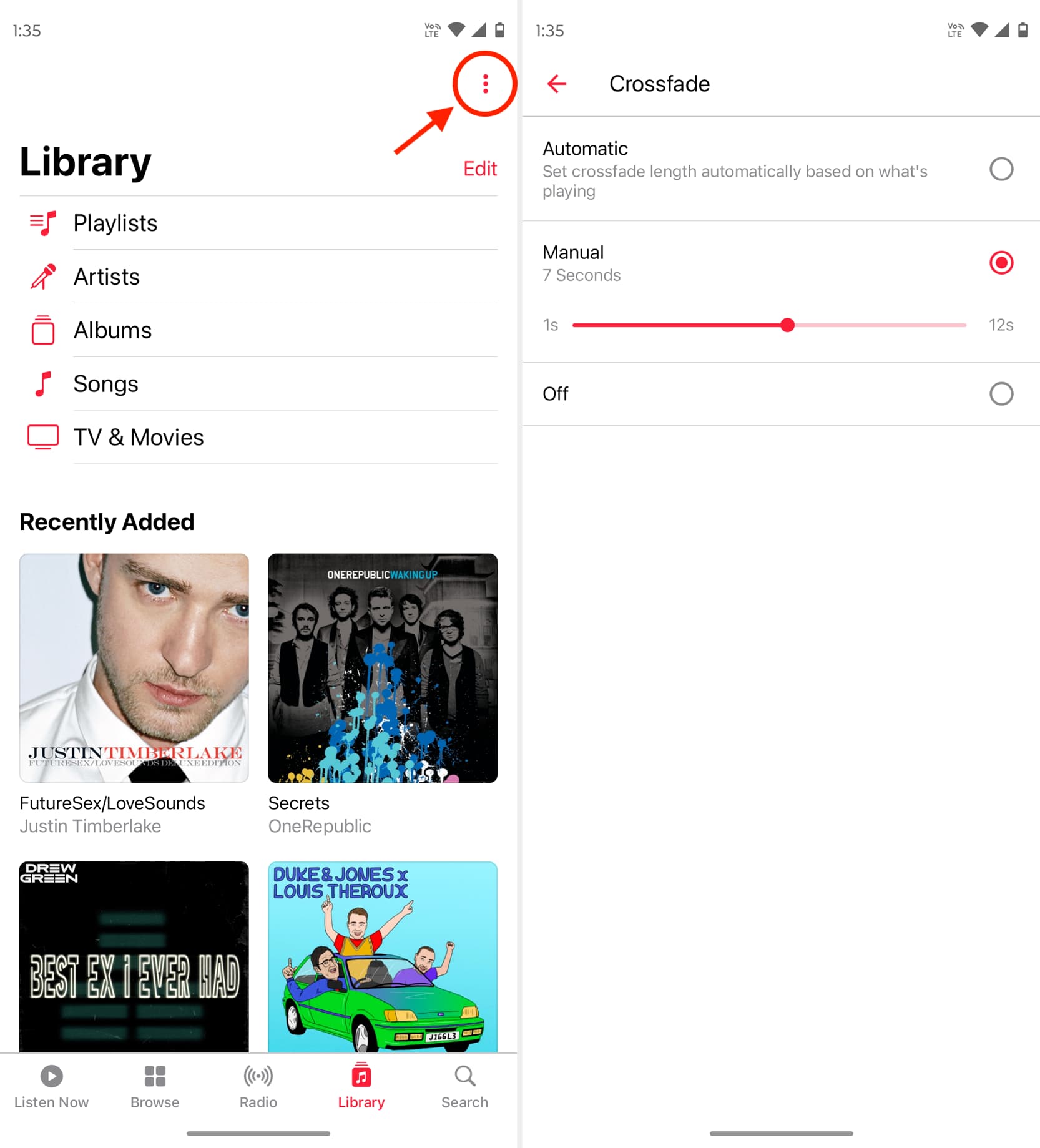
To access these settings, tap the "More" button (represented by three dots) in the top-right corner of the app, then select Settings. Navigate to Audio Quality to configure your preferences:
- Wi-Fi Streaming: You can set this to "High Quality" (AAC 256kbps) or enable "Lossless" (ALAC up to 24-bit/48kHz) or "Hi-Res Lossless" (ALAC up to 24-bit/192kHz).
- Cellular Streaming: To save data, many users opt for standard quality when on the go. However, if you have a generous data plan, you can increase the quality, though be mindful that Hi-Res Lossless files are significantly larger and will deplete data much faster.
- Downloads: You can specify the quality at which music is saved to your device for offline listening. Selecting "Lossless" here ensures that when you download an album or song, you receive the full-quality file.
Additionally, within the Audio settings, you can toggle Dolby Atmos on or off. When set to "Always On," the app will attempt to play music in Spatial Audio whenever it is available, providing an immersive, theater-like sound experience.
Comparing Streaming Experiences
Choosing a music service often comes down to integration and specific features. The table below outlines how Apple Music on Android compares to standard industry expectations regarding library and audio fidelity.
| Feature | Apple Music on Android | Typical Alternative |
|---|---|---|
| Catalog Size | Over 100 million songs | Varies by provider |
| Lossless Audio | Included (ALAC format) | Usually extra fee |
| Spatial Audio | Supported (Dolby Atmos) | Limited availability |
| Offline Playback | Supported | Supported |
| Lyrics | Real-time synchronized | Real-time synchronized |
| Ecosystem | Standalone App | Often tied to OS |
While some competitors focus on algorithmic discovery, Apple Music leans into a mix of human-curated editorial playlists and machine learning. On Android, you lose the deep system-level integration (such as Siri control), but you maintain the integrity of your personal music library and high-resolution playback capabilities.
Troubleshooting Common Issues
While the Apple Music application is generally stable, technical hiccups can occur. Here are the most effective ways to resolve them:
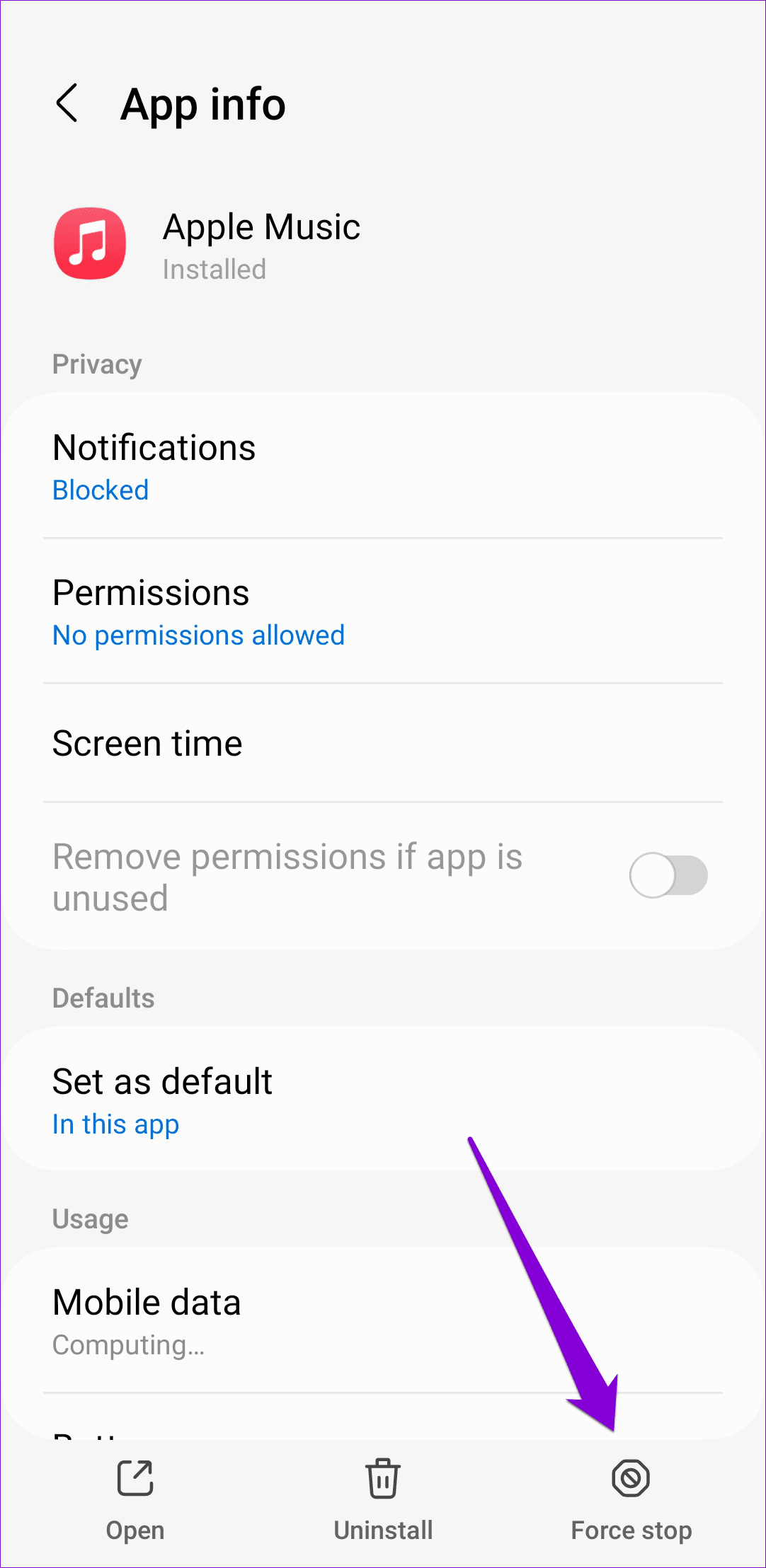
- Playback Interruptions: If songs skip or fail to load, ensure your battery optimization settings are not restricting the app. Go to your phone’s Settings > Apps > Apple Music > Battery and set it to "Unrestricted." This prevents the Android OS from killing the app in the background.
- Syncing Problems: If your library is not updating across devices, sign out of your Apple ID within the app and sign back in. This forces a refresh of your account data with Apple’s servers.
- Storage Warnings: Because Hi-Res Lossless files are larger than standard compressed files, they can fill your internal storage quickly. If you run out of space, navigate to the Library tab and check your Downloaded Music section to remove files you no longer need.
- Connection Errors: If the app fails to connect, check if you have a VPN active. Sometimes, strict VPN configurations can interfere with the authentication handshake required by Apple's servers.
Frequently Asked Questions
Can I use my Google Home or other smart speakers with Apple Music on Android? Yes. You can link Apple Music as a default music service within the Google Home app. Once linked, you can play music via voice commands by saying "Hey Google, play [song name] on Apple Music."
Does Apple Music on Android support crossfade? Yes, it does. You can enable crossfade by navigating to Settings > Playback > Crossfade. You can then set the duration of the transition between songs to your preference.
Will my Android phone get hot when playing Hi-Res Lossless audio? It is possible. Decoding high-resolution audio files requires more processing power than standard compressed files. If you notice your device warming up, revert to standard high-quality AAC streaming in the audio settings.
Is there a family plan available for Android users? Yes. If you are the organizer of an Apple Music Family subscription, you can invite others regardless of whether they use Android or iOS. Android users have full access to all features of the family plan, including individual library privacy.
Can I export my playlists from other services to Apple Music? Apple Music does not provide a native tool for importing playlists from third-party services. However, there are several third-party transfer services available on the Google Play Store that can migrate your library metadata between platforms.
Do I need an Apple device to manage my subscription? No. You can manage your subscription, update payment methods, and cancel your plan entirely from within the Apple Music app on your Android phone. Simply tap the "More" icon, go to Account, and select Manage Subscription.
Final Recommendations
To get the most out of your experience, take the time to customize your "Listen Now" tab. By "loving" songs and artists you enjoy, the recommendation engine will become significantly more accurate over time. Furthermore, if you are a frequent traveler, prioritize downloading your favorite albums while connected to Wi-Fi to avoid the pitfalls of inconsistent cellular signals. By following these steps and keeping your app updated through the Google Play Store, you ensure a high-quality, reliable music streaming experience that competes directly with any native solution available on the Android platform.