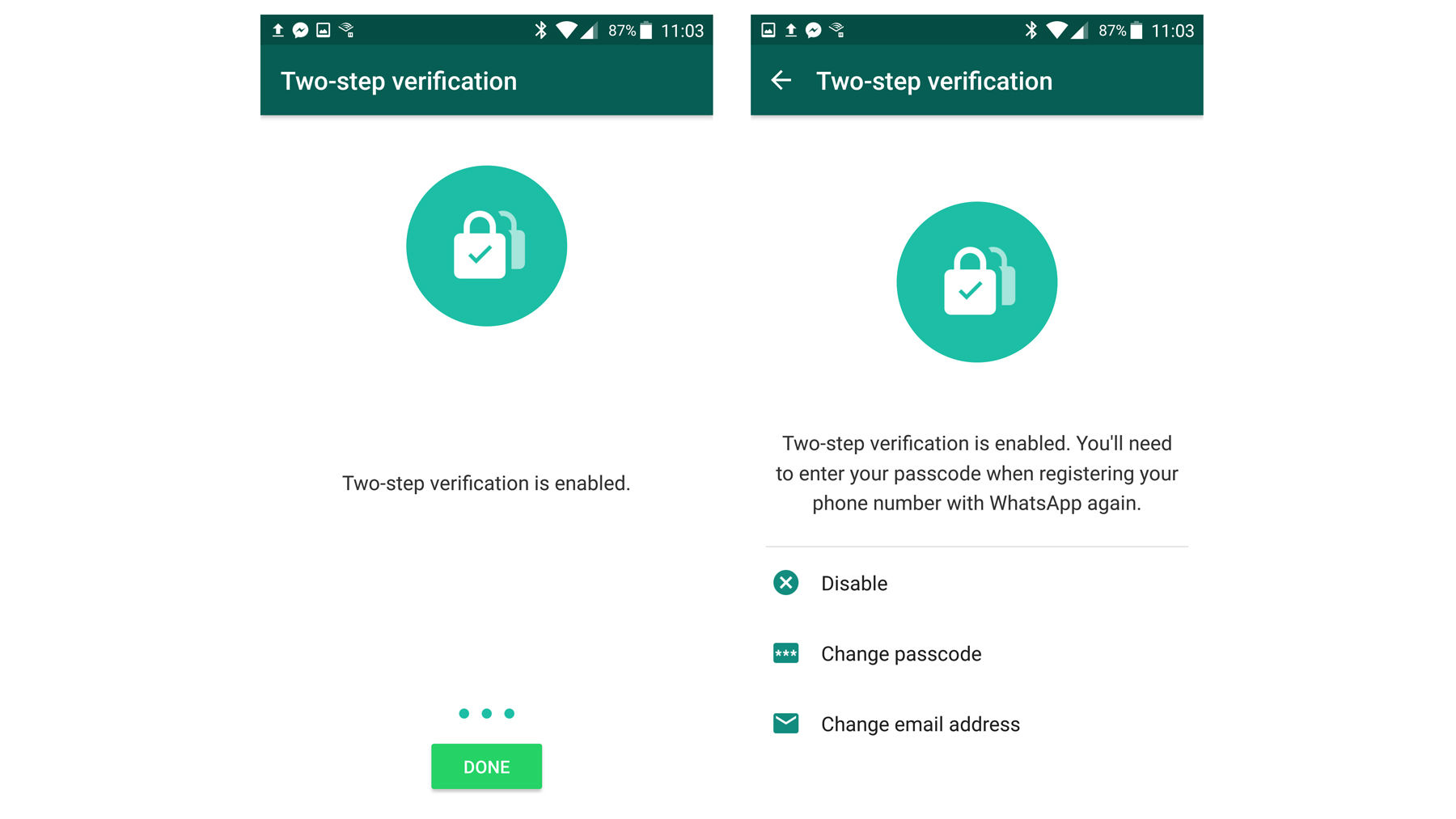
Apple 2-Step Verification is an extra layer of identity protection designed to prevent unauthorized access to your Apple account, even if someone knows your password. It requires entering your standard account password alongside a temporary verification code sent to a trusted device or phone number before granting access to personal data, backups, or account settings.
Understanding Apple 2-Step Verification: History and Context
Apple introduced Two-Step Verification in 2013 as an optional security mechanism for Apple ID accounts (now referred to as Apple Accounts). Prior to its introduction, accessing an account required only a username, a static password, and security questions. As cybersecurity threats evolved and credential stuffing attacks became more frequent, rely-on-password-alone models proved insufficient to secure sensitive personal data stored within iCloud, device backups, and purchase histories.
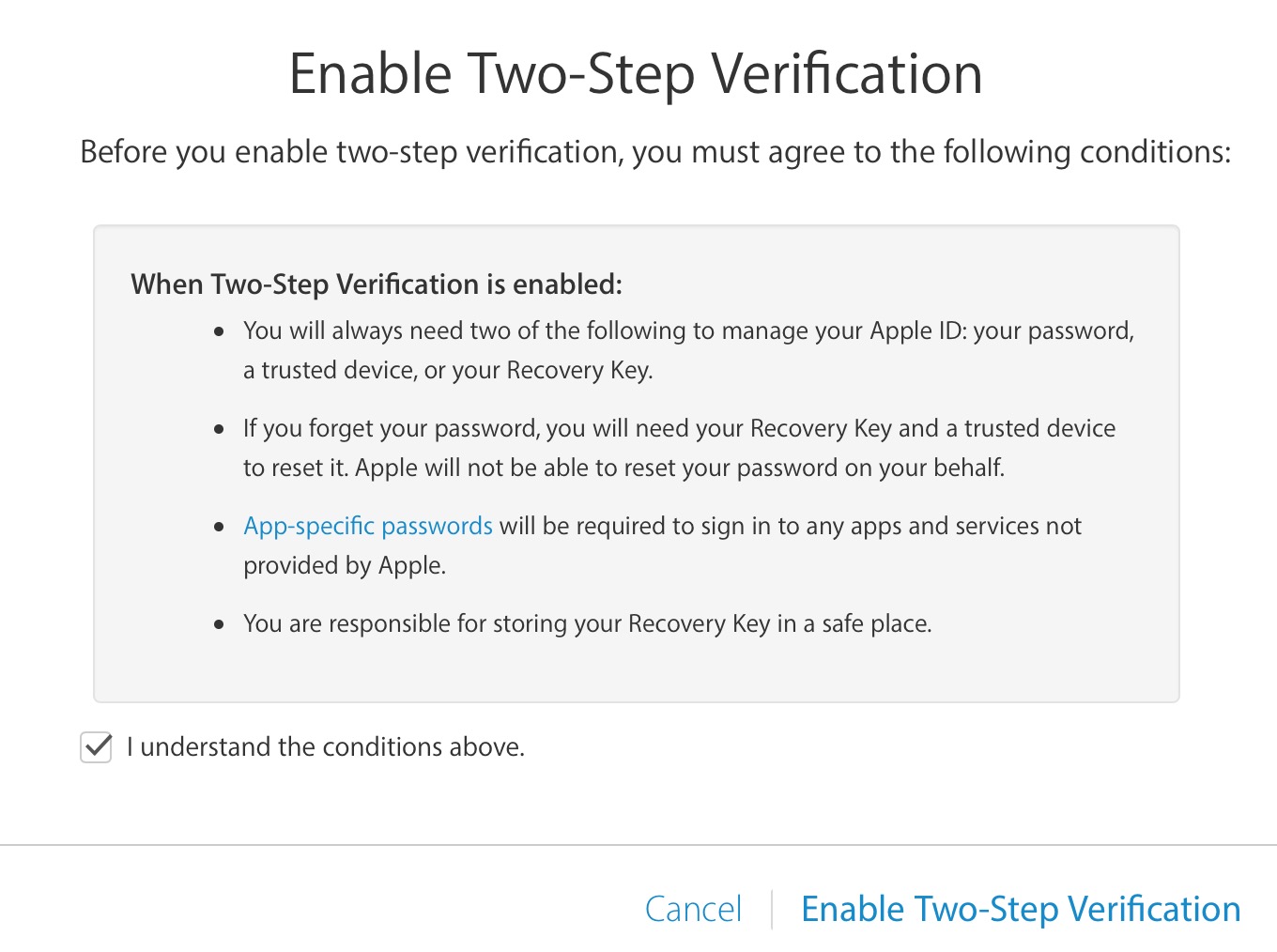
Under the legacy 2-step verification framework, identity verification relied heavily on SMS short-message delivery, Find My iPhone notifications, and a physical 14-character printed Recovery Key. If a user attempted to sign in to their account management page, purchase items from a new device, or request Apple support regarding their account, Apple required two of the following three credentials:
- The standard Apple account password.
- Access to a designated trusted device or trusted phone number capable of receiving a 4-digit verification code.
- The 14-character Recovery Key issued during initial setup.
As mobile operating systems matured, Apple replaced legacy 2-step verification with Two-Factor Authentication (2FA) starting with iOS 9 and OS X El Capitan. Modern 2FA integrates directly into the core of iOS, iPadOS, macOS, and watchOS. Rather than relying primarily on SMS messages or Find My notifications, modern two-factor authentication pushes secure, system-level prompts displaying dynamic 6-digit codes and interactive location maps directly to signed-in, trusted Apple hardware.
While legacy two-step verification is no longer offered to newly created accounts, understanding how it operates—and how it compares to current multi-factor authentication systems—is critical for account management, device recovery, and maintaining secure access across Apple hardware.
Core Components of Apple 2-Step Verification
The legacy 2-step verification system operates on three foundational components. Each component fulfills a specific role in confirming account ownership.
- Apple Account Password
- Identity Challenge Trigger
- 4-Digit SMS / Push Verification Code
- OR
- 14-Character Key (Account Recovery)
1. The Account Password
Your standard password serves as the first factor of verification ("something you know"). It remains the initial entry barrier when accessing your account management dashboard, logging into web services like iCloud, or configuring a new device.
2. Trusted Devices and Phone Numbers
A trusted device under the legacy 2-step system is an Apple device you control that can receive 4-digit verification codes using SMS or the Find My iPhone service.
A trusted phone number is a mobile number capable of receiving verification codes via SMS text messages or automated voice calls. Unlike modern 2FA—which can verify any enrolled Apple device running current firmware natively—legacy verification relied on SMS gateway infrastructure and Find My notifications to route basic verification codes to hardware.
3. The 14-Character Recovery Key
When setting up legacy 2-step verification, Apple generated a random, 14-character string of letters and numbers formatted in four distinct blocks (for example: XXXX-XXXX-XXXX-XX).
The Recovery Key served as the ultimate fallback mechanism ("something you possess"). Under the strict rules of legacy 2-step verification, if you lost access to your trusted devices or forgot your account password, presenting your Recovery Key was the only method available to regain account access. Apple Customer Support representatives were explicitly prohibited from overriding or resetting accounts locked out of 2-step verification.
What to Expect During Daily Sign-Ins and Account Operations
Using an account secured with multi-factor protections alters standard sign-in procedures across operating systems, web browsers, and third-party software. Here is what you experience during routine administrative actions.
Signing In on a New Device or Web Browser
When logging into an Apple device or web service (such as iCloud.com) for the first time:
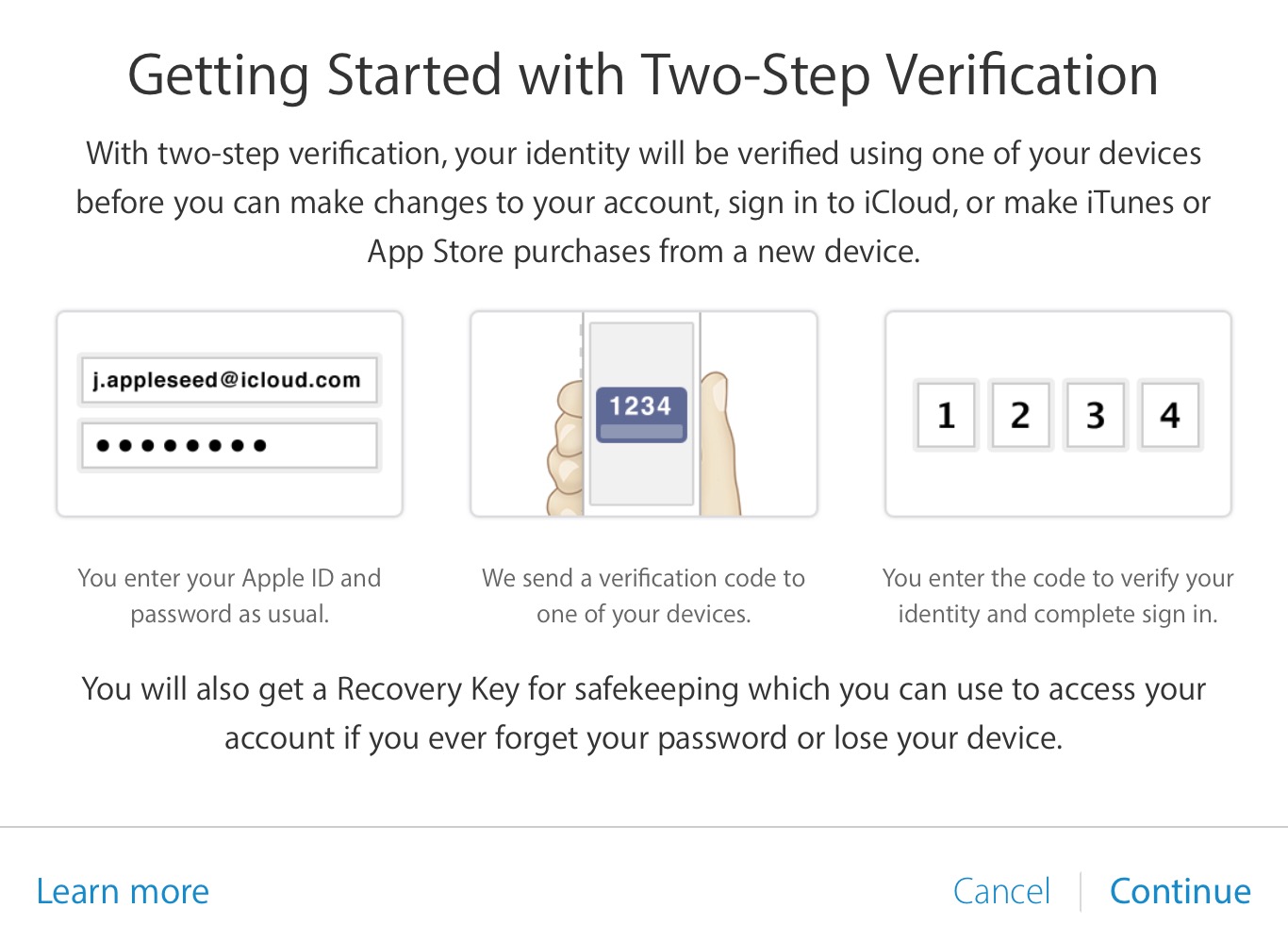
- You enter your primary account email/username and password.
- The system prompts you for a verification code.
- Apple transmits a short code to one of your pre-registered trusted devices or phone numbers.
- You type the code into the prompt to complete authentication.
Once authenticated, the browser or device can be marked as "trusted," eliminating the need for a verification code on subsequent sign-ins on that specific device unless you log out completely, wipe the browser cache, or change your password.
Generating App-Specific Passwords
Legacy 2-step verification and modern 2FA both restrict third-party software applications (such as Microsoft Outlook, Mozilla Thunderbird, or Android mail clients) from directly accessing your primary account credentials.
To connect third-party apps to iCloud Mail, Contacts, or Calendars:
- Sign in to your account page at appleid.apple.com.
- Navigate to the Sign-In and Security section.
- Select App-Specific Passwords and choose to generate a new key.
- Label the key (e.g., "Outlook Mail Desktop") and copy the generated 16-character code.
- Enter this generated key into the password field of the third-party application.
App-specific passwords ensure your central account password is never exposed to third-party software developers or external servers.
App-Specific Password Workflow:
- Sign in to appleid.apple.com
- Navigate to Security -> App-Specific Passwords
- Generate a 16-character code for third-party client (e.g., Outlook)
- Enter the unique 16-character code into third-party application password prompt
Comparing Legacy 2-Step Verification and Modern Two-Factor Authentication (2FA)
Many users confuse legacy 2-step verification with Apple's modern 2FA. While both serve to protect accounts, their technical architecture, security resilience, and user experiences differ substantially.
| Feature / Attribute | Legacy 2-Step Verification | Modern Two-Factor Authentication (2FA) |
|---|---|---|
| Verification Code Length | 4 digits | 6 digits |
| Primary Code Delivery Method | SMS text message or Find My notification | Native system-level pop-up alert with location map |
| Offline Code Generation | Not supported (requires active cellular/network signal) | Supported natively via iOS/macOS settings |
| Hardware Security Keys | Not supported | Supported (FIDO Certified hardware keys like YubiKey) |
| Recovery Mechanism | Required 14-character physical Recovery Key | Account Recovery Contacts, Web Recovery, or optional 28-character Key |
| Account Lockout Policy | Permanent if password AND Recovery Key are lost | Flexible through multi-step identity verification flows |
| Integration Level | Web and service portal overlay | Deep OS integration across iOS, iPadOS, macOS, and watchOS |
Why the Transition Matters
Legacy 2-step verification relied heavily on SMS messages. Cybersecurity researchers, including the National Institute of Standards and Technology (NIST), have highlighted vulnerabilities inherent in SMS verification, such as SIM-swapping attacks (where an attacker tricks a cellular carrier into transferring a victim's phone number to an attacker-controlled SIM card) and SS7 protocol interception.
Modern 2FA mitigates these vulnerabilities by routing authentication requests through encrypted Apple Push Notification services (APNs) tied cryptographically to physical hardware keys stored within the device's Secure Enclave.
How to Upgrade from 2-Step Verification to Modern Two-Factor Authentication
Because legacy 2-step verification lacks modern security protections, Apple encourages all users to upgrade to standard Two-Factor Authentication. If your account is still utilizing the older 4-digit system, updating ensures broader feature compatibility, better recovery options, and higher resistance against account takeover.
Prerequisites Before Upgrading
Before initiating an upgrade, verify that:
- Your primary mobile device is running a supported operating system version.
- You have active control over at least one phone number capable of receiving SMS or voice calls.
- You know your current primary account password.
Step-by-Step Upgrade Guide
Upgrading via iPhone or iPad
- Open the Settings app.
- Tap your name at the top of the menu to access your Apple account settings.
- Select Sign-In & Security (or Password & Security on older iOS builds).
- Tap Turn On Two-Factor Authentication.
- Tap Continue when prompted with the account security overview.
- Enter the phone number where you want to receive verification codes via text message or phone call.
- Enter the verification code sent to that phone number to complete enrollment.
Upgrading via Mac
- Open System Settings (or System Preferences) from the Apple menu.
- Click your name or account profile picture at the top of the sidebar.
- Select Sign-In & Security.
- Click Turn On Two-Factor Authentication next to the account security entry.
- Follow the on-screen prompts to confirm your trusted phone number and identity.
Upgrading via Web Browser
If you do not currently own an Apple device:
- Navigate to appleid.apple.com and log in.
- Go to the Account Security section.
- Select the option to turn off legacy 2-Step Verification (if active).
- Select Two-Factor Authentication and follow the step-by-step setup prompts to link a verified cellular phone number.
What to Expect If You Lose Access: Recovery Scenarios
Account recovery protocols differ depending on whether your account uses legacy 2-step verification or modern two-factor authentication.
Account Locked / Lost Device:
- Legacy 2-Step Verification
- Requires 2 of 3 Items:
- Password
- Trusted Device / SMS
- 14-Character Recovery Key
- Missing Key + Phone = Lockout (Support CANNOT bypass)
- Requires 2 of 3 Items:
- Modern 2FA System
- Flexible Recovery Options:
- Account Recovery Contact
- Web-based Account Recovery
- Trusted Hardware / Keys
- Automated identity verification (Apple Support can assist)
- Flexible Recovery Options:
Legacy 2-Step Recovery Limits
Under the original 2-step verification policy, if you forgot your password and lost access to your trusted device/phone number, your account was permanently unrecoverable unless you could supply the printed 14-character Recovery Key. If you misplaced the key while lacking access to a trusted phone, Apple could not reset the account, resulting in permanent loss of purchased content, iCloud photos, and device backups.
Modern 2FA Recovery Procedures
Modern Two-Factor Authentication introduces more flexible recovery mechanisms:
- Account Recovery Contacts: You can designate trusted friends or family members who can generate a short recovery code on their Apple devices to help you regain access without giving them direct access to your data.
- Automated Account Recovery: If you lose your devices, password, and trusted phone number, you can initiate an automated recovery evaluation at iforgot.apple.com. The system evaluates identity parameters, payment card details, and usage patterns over a mandatory multi-day waiting period to restore access safely.
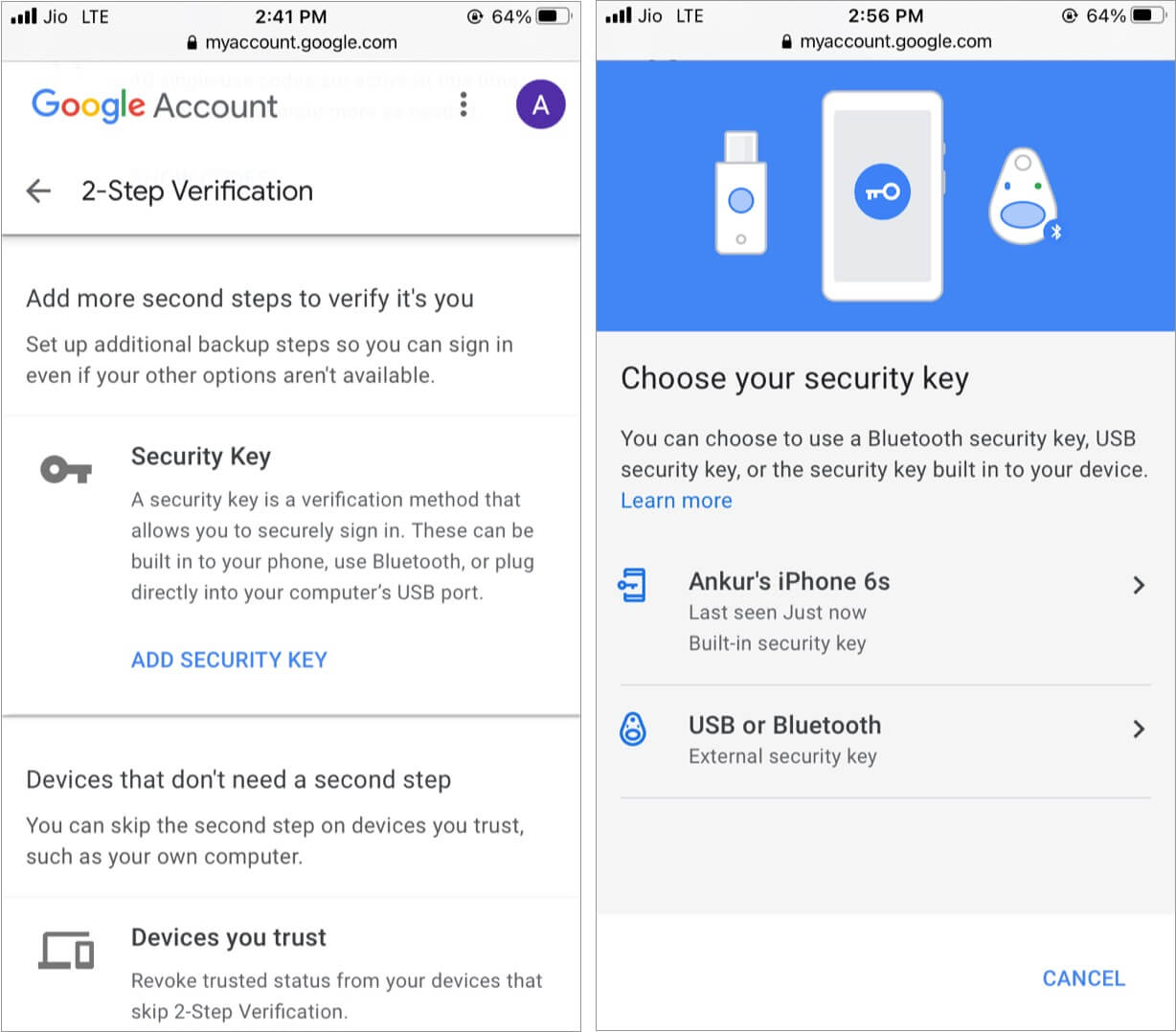
- Hardware Security Keys: For users with elevated threat models, Apple supports physical FIDO-certified hardware security keys (such as YubiKeys). When configured, logging in requires physically plugging in or tapping an NFC security key, rendering online phishing attempts ineffective.
Essential Best Practices for Apple Account Protection
To prevent lockouts and guard against unauthorized access, implement these operational practices:
- Maintain Multiple Trusted Phone Numbers: Add a secondary phone number (such as a spouse's, family member's, or landline) within your account settings. If your primary smartphone is lost or damaged, you can route verification codes to your secondary trusted number.
- Keep Contact Information Up to Date: When changing cellular service providers or phone numbers, update your registered trusted numbers before disconnecting your old line.
- Store Recovery Keys Securely: If you elect to generate a manual Recovery Key under modern 2FA settings, store a physical copy in a fireproof safe or record it within an encrypted password manager. Losing both your primary hardware and your recovery key will restrict account recovery options.
- Beware of Social Engineering Phishing: Apple will never call, text, or email you requesting your 6-digit verification code, primary password, or app-specific keys. Never enter verification codes into web pages opened from unsolicited email links. Always verify the domain name reads
apple.comoricloud.comin your browser address bar.
Frequently Asked Questions
Can I still enable legacy 4-digit 2-Step Verification on a new Apple ID?
No. Apple retired legacy 2-step verification for new accounts following the rollout of iOS 9. All new accounts created today automatically utilize Apple's modern Two-Factor Authentication system, which uses 6-digit codes and device-level cryptographic checks.
What should I do if I receive a verification code prompt when I am not trying to sign in?
If a verification code pop-up or SMS text appears on your device unexpectedly, someone else has entered your correct Apple account password on a secondary device or website. Select Do Not Allow (or dismiss the code) immediately, and update your primary account password at appleid.apple.com to prevent unauthorized entry.
How do app-specific passwords work with multi-factor authentication?
App-specific passwords bypass the need to enter temporary verification codes inside third-party apps that do not support Apple's native two-factor prompts. Once generated on your account portal, an app-specific password grants that single third-party client permission to sync your iCloud data securely without exposing your main login credentials.
What happens if I lose my legacy 14-character Recovery Key?
If your account still uses legacy 2-step verification and you misplace your Recovery Key, you can generate a new one by signing into your account management portal using your password and a trusted device. However, if you lose your Recovery Key after losing access to your trusted device or password, Apple cannot unlock your account. Upgrading to modern Two-Factor Authentication is recommended to avoid permanent lockout.
Does turning on Two-Factor Authentication affect Find My iPhone or activation lock?
No. Multi-factor protections operate alongside Find My services and Activation Lock. Enabling 2FA enhances security by ensuring an attacker cannot log into your account to remotely turn off Find My or disable Activation Lock without passing secondary identity verification.
Recommended Next Steps
To ensure your Apple account remains secure and accessible across all your devices, review your security status today:
- Visit appleid.apple.com and log into your dashboard.
- Check your Account Security section. If your account is using legacy 2-Step Verification, select the option to upgrade to Two-Factor Authentication.
- Verify that all listed Trusted Phone Numbers are accurate and currently active.
- Add a secondary trusted phone number (such as a trusted family member's line) as an emergency fallback.
- Review your active App-Specific Passwords and revoke any entries for old devices or software applications you no longer use.