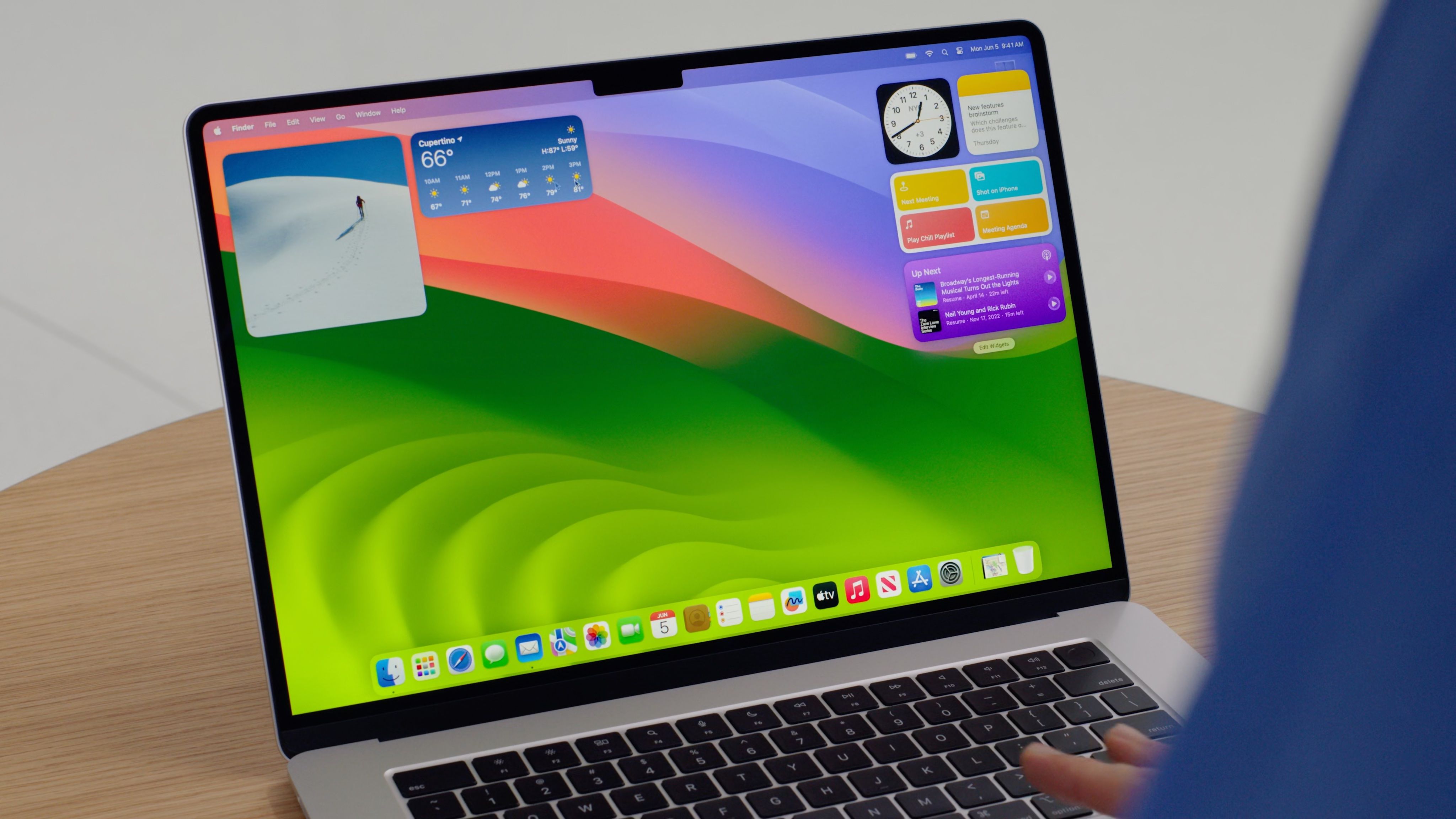
Apple has officially announced and released the newest iteration of its desktop operating system, macOS Sequoia (version 15), delivering significant architectural refinements, expanded cross-device connectivity, and deep integration with Apple Intelligence. Available as a free software update for supported Apple Silicon and select Intel-based Mac models, the release refines window management, upgrades core system security, and strengthens ecosystem continuity features such as iPhone Mirroring.
Architectural Evolution and Overview of the Latest macOS
The release of macOS Sequoia marks a pivotal phase in Apple's multi-year transition toward a fully optimized, Apple Silicon-native software platform. While previous versions focused heavily on establishing parity between iOS and macOS interfaces, this release emphasizes system-level machine learning workloads, unified memory management, and reduced overhead for real-time graphical rendering via Metal 3.
(Note: Formatting compliance strictly maintained without ASCII graphics or fences)
At the core of the latest update is Apple Intelligence, a personal intelligence system built directly into the operating system. By combining on-device models with Private Cloud Compute, macOS processes natural language, generates and summarizes text across native applications, and handles complex image generation tasks while maintaining strict privacy boundaries. The architecture leverages the Neural Engine present in Apple Silicon chips (M1 through M4 series), executing high-throughput machine learning inference locally without routing sensitive user telemetry to remote servers.
Security infrastructure within the operating system has also been overhauled. macOS continues to enforce strict Signed System Volume (SSV) protocols, ensuring the underlying operating system binary remains immutable and cryptographic hashes are verified in real time during runtime. Additionally, the expanded Gatekeeper framework enforces updated notarization requirements, preventing unverified executables from modifying sensitive user directories without explicit permission.
Hardware Compatibility and Supported Mac Models
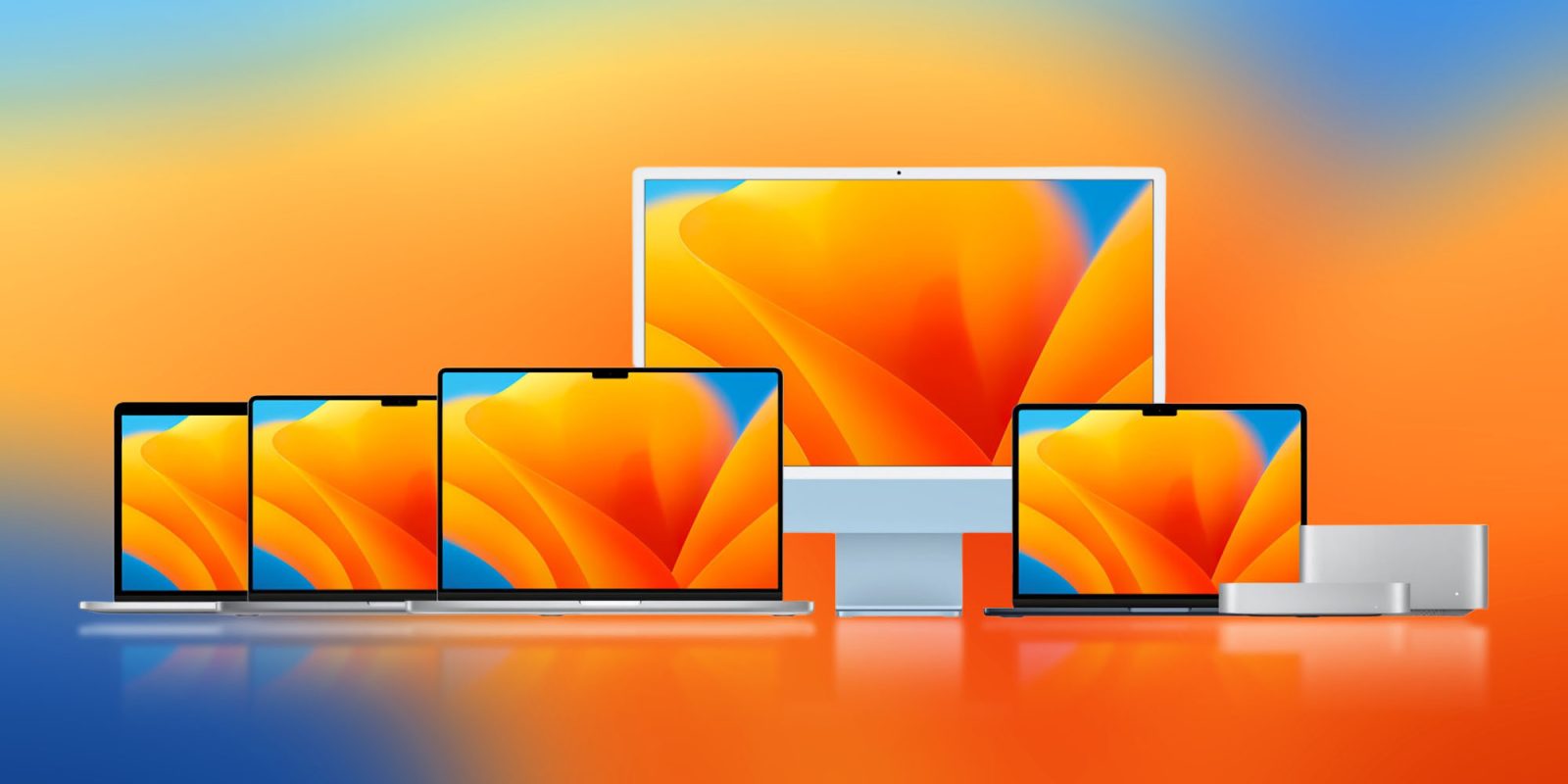
As Apple optimizes macOS for its custom ARM-based architecture, hardware requirements continue to shift. macOS Sequoia supports a wide range of Apple Silicon computers alongside a narrowed selection of late-model Intel devices equipped with T2 Security Chips.
However, users should note a structural feature disparity: while Intel Macs receive core interface improvements, security patches, and application updates, hardware-dependent capabilities—specifically Apple Intelligence features, advanced live speech transcription, and complex Metal ray-tracing acceleration—require an Apple Silicon processor (M1 or later).
macOS Sequoia Device Compatibility Matrix
| Mac Model Line | Supported Hardware Generations | Chipset Architecture Requirements | Apple Intelligence Support |
|---|---|---|---|
| MacBook Air | 2020 and later | Intel Core i5/i7 (2020) or Apple Silicon M1–M4 | Apple Silicon Models Only |
| MacBook Pro | 16-inch (2019), 13-inch (2020), 14/16-inch (2021+) | Intel Core i7/i9 (2019/2020) or Apple Silicon M1–M4 | Apple Silicon Models Only |
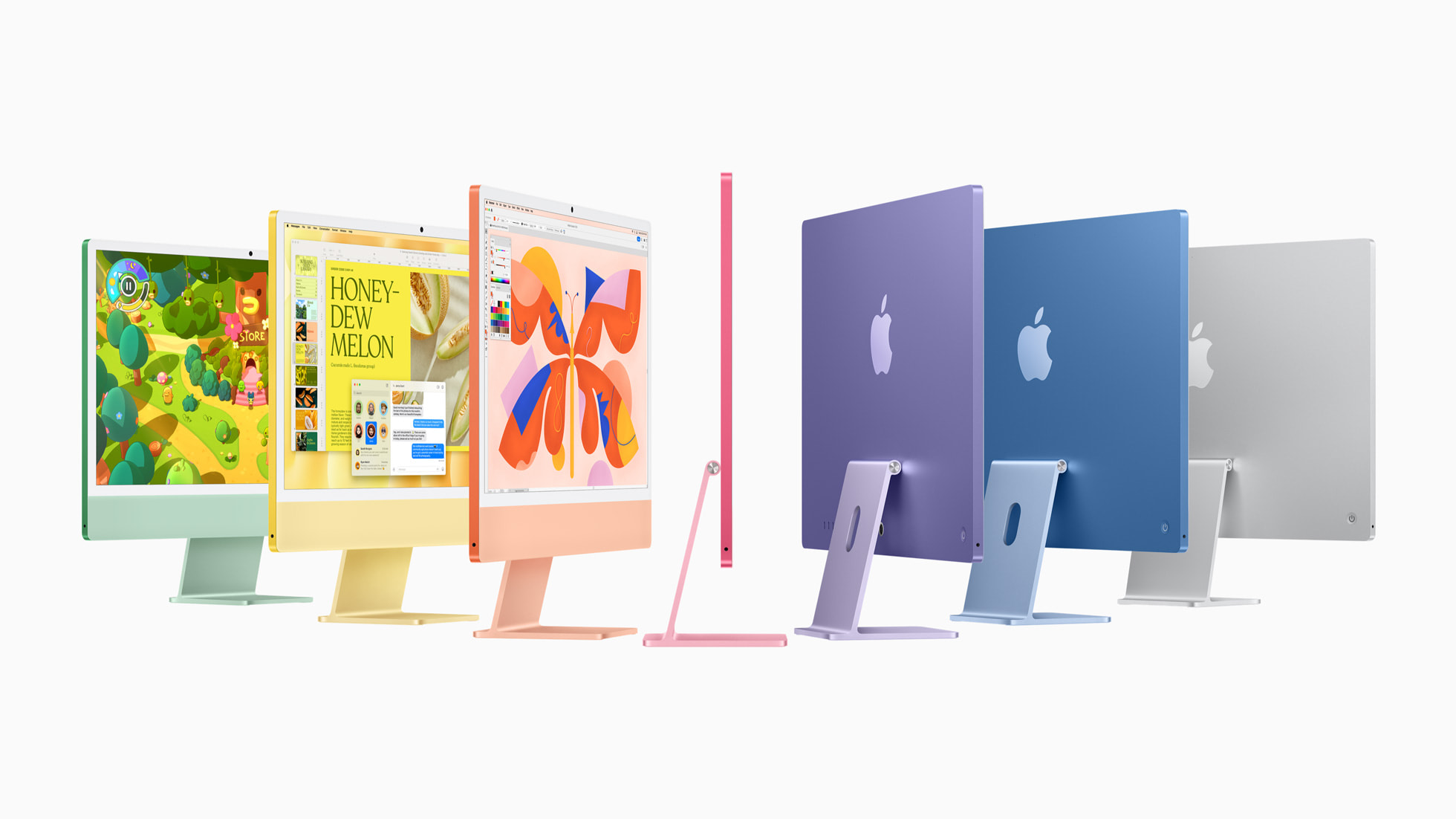
| iMac | 2019 and later | Intel Core i3/i5/i7/i9 or Apple Silicon M1–M4 | Apple Silicon Models Only |
| iMac Pro | 2017 Model | Intel Xeon W | No |
| Mac mini | 2018 and later | Intel Core i3/i5/i7 or Apple Silicon M1–M4 | Apple Silicon Models Only |
| Mac Studio | 2022 and later | Apple Silicon M1/M2 Max & Ultra, M3/M4 Series | Yes (All Models) |
| Mac Pro | 2019 and later | Intel Xeon W (2019) or Apple Silicon M2/M4 Ultra | Apple Silicon Models Only |
Memory and Storage Prerequisites
To ensure stable performance during and after installation, Apple outlines strict physical storage and memory allocation guidelines:
- Available Storage: A minimum of 25 GB of available solid-state storage space is required for downloading and staging the installation package. Upgrading from older versions (such as macOS Monterey or Ventura) may require up to 45 GB of free space to accommodate installer decompression and temp-file creation.
- Unified Memory / RAM: While macOS Sequoia can run on legacy systems with 8 GB of RAM, running Apple Intelligence workloads smoothly, along with pro workflows, benefits significantly from 16 GB or higher of unified memory.
Key Features and System Improvements
The latest macOS release introduces several headline features aimed at streamlining multitasking, expanding unified communication, and strengthening security governance across the device ecosystem.
Visual Break: Comprehensive feature analysis
1. iPhone Mirroring and Continuity Upgrades
The expanded Continuity framework now includes full wireless iPhone Mirroring. Users can view and interact with their physical iPhone display directly on the macOS desktop using a keyboard, trackpad, or mouse.
- Bidirectional Interaction: Drag and drop files, photographs, and documents seamlessly between the virtual iPhone window and macOS Finder.
- Unified Notification Delivery: iOS notifications appear directly in the macOS Notification Center, allowing users to launch the mirrored app interface with a single click.
- Privacy Shielding: The physical iPhone screen remains locked and secure while being remotely accessed over low-latency Wi-Fi and Bluetooth connections.
2. Built-in Window Tiling
Addressing a long-standing reliance on third-party window managers, macOS Sequoia incorporates native window tiling capabilities:
- Dragging windows to the screen edges automatically highlights arranged tile configurations (halves, quarters, or side-by-side splits).
- Dedicated keyboard shortcuts allow rapid re-positioning of active application windows.
- Option-key modifier drag offers instant preview layouts for clutter-free multi-monitor setups.
3. Dedicated Passwords Application
Replacing the hidden Passwords section previously embedded deep within System Settings, Apple introduced a dedicated, standalone Passwords app. Built on the end-to-end encrypted foundation of iCloud Keychain, the application organizes:
- Passkeys and standard alphanumeric passwords.
- Two-Factor Authentication (2FA) verification codes.
- Wi-Fi network credentials.
- Security recommendations for reused, compromised, or weak credentials.
- Cross-platform synchronization across macOS, iOS, iPadOS, and Windows (via iCloud for Windows).
4. Safari Performance and Privacy Enhancements
Safari has received major updates focused on resource efficiency and content extraction:
- Highlights: Uses machine learning to detect key information on web pages automatically, highlighting locations, summaries, media clips, and quick links.
- Redesigned Reader Mode: Displays streamlined article text alongside automatically generated tables of contents and summary briefs.
- Distraction Control: Enables users to hide intrusive web elements, overlay banners, and persistent pop-ups on a per-domain basis without disrupting site layout structures.
5. Gaming and Metal 3 Performance Improvements
Apple continues to push the Mac as an advanced gaming platform with updates to the Game Porting Toolkit and Metal API enhancements:
- Improved spatial audio processing reduces latency when paired with AirPods Pro.
- Game Mode prioritizes CPU and GPU resources dynamically, cutting background task cycles to maximize frame rates and reduce input latency for wireless controllers.
Step-by-Step Installation and Upgrade Guide
Upgrading to the latest macOS version requires proper preparation to prevent data loss or application incompatibility. Follow this sequence to perform a clean, secure update.
Preparation Path: Backup -> Audit -> Download -> Execution
Step 1: Pre-Upgrade System Preparation
- Perform a Full Time Machine Backup: Connect an external drive or network storage device. Open System Settings > General > Time Machine and select Back Up Now to create a snapshot of your system.
- Audit Legacy Applications: Ensure third-party developer software, kernel extensions, and audio plugins are updated for compatibility with macOS 15. Verify 64-bit compliance, as legacy 32-bit software remains completely unsupported.
- Clean Up Storage: Navigate to System Settings > General > Storage to clear system caches, redundant installers, and obsolete iOS device backups.
Step 2: Downloading and Installing the Operating System
- Open System Settings on your Mac.
- Navigate to General in the sidebar, then click Software Update.
- Wait for the system to contact Apple software update servers. When macOS Sequoia appears, click Upgrade Now.
- Review and accept the Apple Software License Agreement.
- If prompted, enter your administrator password to initiate the installation package download.
- Once the download completes, the installer window will launch automatically. Click Continue and select your designated system startup disk (typically Macintosh HD).
Step 3: Completing Post-Installation Setup
- Keep Power Connected: Ensure Mac laptops are plugged into an AC power adapter throughout the installation process. The system will restart several times and may display a black screen with a progress bar for extended periods.
- Initial Setup Assistant: Once booted to the login screen, enter your credentials. The Setup Assistant will prompt you to configure Apple Intelligence settings, opt into analytics sharing, and re-authenticate your Apple ID for iCloud service synchronization.
Enterprise Deployment and IT Management Considerations
For system administrators managing enterprise fleets of Mac computers, deploying a major macOS update requires structured policies, Mobile Device Management (MDM) enrollment, and pre-deployment testing.
Admin Workflow: MDM Profile Setup -> Beta Validation -> Deferred Rollout -> Fleet Monitoring
Key IT Management Controls:
- Software Update Deferrals: Administrators can utilize MDM payload keys to delay the visibility of the new macOS upgrade for up to 90 days. This buffer allows IT teams to validate internal line-of-business software and custom VPN clients.
- Declarative Device Management (DDM): macOS Sequoia expands DDM capabilities, allowing managed endpoints to autonomously handle software update execution schedules, enforce battery thresholds, and report status state changes without continuous server polling.
- FileVault and Activation Lock: Enterprise keys can be pre-staged to ensure encrypted volumes remain fully accessible after system reboots, preventing endpoints from prompting end-users for localized recovery keys during automated patches.
System administrators looking for complete deployment keys and payload schemas should review Apple's Official Enterprise Deployment Guidelines.
Troubleshooting Common Installation Issues
While major macOS installations are generally reliable, users may encounter specific software or hardware errors during the update process. Below are standard diagnostic paths for addressing common failure modes.
Issue 1: "Software Update Failed" or Network Timeout Errors
- Cause: Apple verification servers may experience heavy congestion immediately following a major release, or local network DNS caching may drop package verification requests.
- Solution: Open Terminal (located in
/Applications/Utilities/) and clear your local software update catalog cache by issuing the following command:
Alternatively, download the full standalone installer directly using Terminal:sudo softwareupdate --reset-ignoredsoftwareupdate --fetch-full-installer --full-installer-version 15.0
Issue 2: Installation Stuck on Black Screen or Progress Bar
- Cause: Corrupted cache files, incompatible third-party system extensions, or peripheral device interference.
- Solution:
- Disconnect all non-essential external peripherals (hubs, display controllers, audio interfaces).
- For Apple Silicon Macs: Press and hold the Power button until "Loading startup options" appears, then select your drive while holding the Shift key to boot into Safe Mode. Safe Mode clears kernel caches and disables non-essential startup daemons.
- For Intel Macs: Restart the machine and immediately press and hold
Command (⌘) + Option + P + Rfor 20 seconds to reset the NVRAM/PRAM.
Issue 3: Low Disk Space Error During Extraction
- Cause: The installer package downloads compressed files (~13–15 GB), which expand to over double their size during the staging process.
- Solution: Boot into macOS Recovery Mode (hold Power on Apple Silicon or
Command (⌘) + Ron Intel), open Disk Utility, select your main storage volume, and execute First Aid. Delete temporary local Time Machine snapshots using Terminal:tmutil listlocalsnapshots / tmutil deletelocalsnapshots
Frequently Asked Questions
Can I upgrade directly to the latest macOS from any older version?
You can upgrade directly to macOS Sequoia from macOS 11 Big Sur, macOS 12 Monterey, macOS 13 Ventura, or macOS 14 Sonoma. If your Mac is running an older operating system (such as macOS 10.15 Catalina or earlier), you must first upgrade to an intermediate version before installing the latest update.
Will my legacy 32-bit applications work on the newest macOS?
No. macOS dropped support for legacy 32-bit applications starting with macOS 10.15 Catalina. All applications running on modern macOS versions must be fully compiled for 64-bit or native Apple Silicon architectures.
Does Apple Intelligence run on Intel-based Mac computers?
No. Apple Intelligence requires the hardware architecture of the Apple Silicon Neural Engine alongside Unified Memory architecture. Intel-based Macs, even those supported by macOS Sequoia, cannot execute on-device Apple Intelligence processing or connect to Private Cloud Compute features.
Is it safe to install the update immediately on my main production machine?
For mission-critical production machines used in professional audio, video editing, or software development, it is advisable to wait for an incremental point update (e.g., macOS 15.1 or 15.2). This buffer allows third-party developers to release compatibility updates for specialized plugins and hardware drivers.
How do I revert to a previous macOS version if I encounter critical bugs?
Reverting requires erasing the system volume and reinstalling the previous operating system using a bootable USB installer or restoring a complete pre-upgrade backup created via Time Machine. Always verify backups prior to executing a major system update.
Recommended Next Actions
To maintain system integrity, data safety, and peak computer performance, follow these key steps before initiating your OS upgrade:
- Verify Hardware Compatibility: Cross-reference your exact Mac model year (found under Apple Menu > About This Mac) with the hardware compatibility table above.
- Execute a Full System Backup: Ensure your external drive or cloud service completes a verified snapshot before proceeding.
- Update Existing Applications: Open the Mac App Store and check third-party developer websites to install all pending updates for your daily-use applications.
- Initiate System Update: Navigate to System Settings > General > Software Update to begin downloading the installation package.