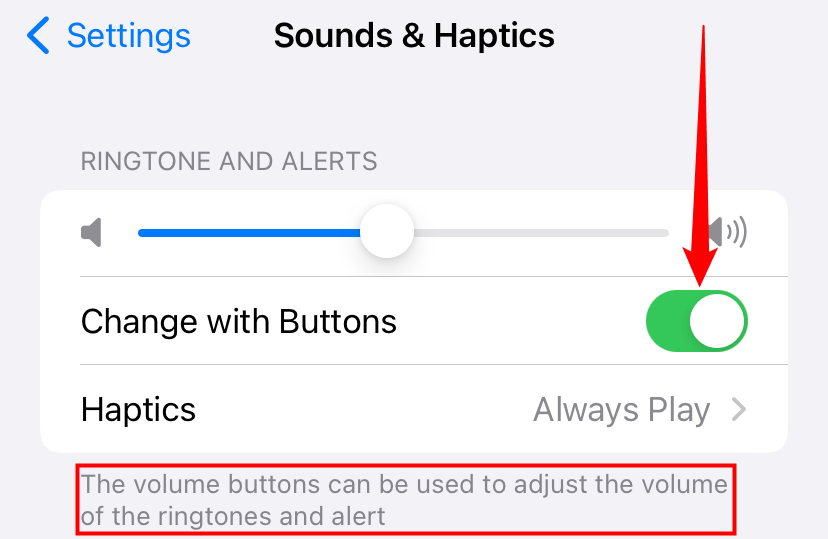
To adjust your iPhone alarm volume, navigate to Settings > Sounds & Haptics and drag the Ringer and Alerts slider to your preferred level. If you wish to use the physical side buttons for this adjustment, ensure the Change with Buttons toggle is switched on. Note that the "Sleep/Wake Up" alarm in the Health app uses a separate, dedicated volume control.
Understanding how to manage your iPhone's audio levels is essential for ensuring you wake up on time without being startled by an unnecessarily loud tone. While the interface is generally intuitive, the way iOS handles "system" sounds versus "media" sounds can lead to confusion. As of 2026, Apple continues to use a dual-track volume system that separates music and video audio from notifications and alarms. This guide provides an exhaustive look at every method available to control your alarm’s decibel levels, troubleshooting common issues, and optimizing your wake-up experience.
The Logic of iOS Audio: Ringer vs. Media Volume
Before diving into the steps, it is vital to understand the technical distinction between the two primary volume tracks on an iPhone.
- Media Volume: This controls the audio for music, videos, games, and third-party apps. When you are inside an app like YouTube or Spotify and press the volume buttons, you are adjusting this track.
- Ringer and Alerts Volume: This controls the loudness of your ringtone, text messages, system notifications, and—most importantly—the native Clock app alarms.
A common frustration occurs when a user lowers their volume while watching a video at night, assuming the alarm will also be quieter. However, unless specific settings are toggled, lowering the media volume has zero impact on the alarm volume. The alarm remains at the level set within the "Ringer and Alerts" section of the system settings.
Method 1: Using the Settings Menu (The Master Control)
The most reliable way to set your alarm volume is through the global system settings. This method ensures that your alarm is set to a fixed level that will not be accidentally changed by adjusting volume in other apps.
Steps to Adjust the Master Alarm Volume:
- Open the Settings app on your iPhone.
- Scroll down and tap on Sounds & Haptics.
- Locate the section labeled Ringer and Alerts.
- Drag the slider to the left (quieter) or right (louder). As you move the slider, your iPhone will play a brief sample of your ringtone so you can gauge the actual loudness.
Expert Tip: If you find that your alarm is consistently too loud or too quiet, check this slider first. It serves as the "ceiling" for most notification sounds on your device.
Method 2: Enabling Physical Button Control
By default, many iPhones are configured so that the side volume buttons only affect media playback. This prevents you from accidentally silencing your ringer while the phone is in your pocket. However, if you prefer the convenience of adjusting your alarm volume on the fly without opening menus, you must enable a specific toggle.
How to Enable "Change with Buttons":
- Go to Settings > Sounds & Haptics.
- Under the Ringer and Alerts slider, find the toggle for Change with Buttons.
- Switch this to the On position (green).
The Operational Logic: When this is enabled, the behavior of your volume buttons changes based on what the phone is doing. If no music or video is playing, the buttons will move the "Ringer and Alerts" slider. If media is playing, the buttons default to media volume.
Caution: While convenient, enabling this setting increases the risk of accidentally lowering your alarm volume to an inaudible level while attempting to silience a different notification. If you are a heavy sleeper, it is generally recommended to keep this toggle Off and maintain a fixed, high volume in the Settings menu.
Method 3: Adjusting the Sleep Schedule (Wake Up Alarm)
The iPhone offers two types of alarms: standard alarms (found in the "Alarm" tab of the Clock app) and the "Sleep | Wake Up" alarm (integrated with the Health app and Sleep Schedule). These two categories do not share the same volume logic.
The Sleep Schedule alarm is designed to be a more "gentle" wake-up experience. Consequently, it has its own independent volume slider that does not follow the master "Ringer and Alerts" settings.
How to Adjust Sleep Alarm Volume:
- Open the Clock app and select the Alarm tab.
- At the top, under Sleep | Wake Up, tap Change.
- Scroll down to the Alarm Options section.
- Adjust the Volume slider.
- Tap Done to save your changes.
This slider is unique because it allows you to have a very quiet, melodic wake-up call for your daily routine while keeping your standard "emergency" alarms (set for one-off appointments) at a much louder system volume.
Why Your Alarm Volume Might Decrease Automatically
One of the most frequent "technical issues" reported by iPhone users is an alarm that starts loud but suddenly becomes very quiet as soon as the user picks up the phone. This is not a bug; it is a feature called Attention Aware Features.
Understanding Attention Awareness
Since the introduction of Face ID (iPhone X and later), Apple devices use the TrueDepth camera system to detect if you are looking at the device. If the phone detects your gaze while an alarm or ringtone is sounding, it assumes you are now aware of the alert and automatically lowers the volume to reduce noise pollution.
How to Disable Attention Awareness:
If you find this behavior intrusive or if you often fall back asleep after glancing at your phone, you can turn it off:
- Open Settings.
- Go to Face ID & Passcode (or Accessibility > Face ID & Attention).
- Enter your passcode.
- Toggle off Attention Aware Features.
Comparison of Volume Control Methods
| Feature | Master Ringer Slider | "Change with Buttons" | Sleep Schedule Slider |
|---|---|---|---|
| Location | Settings > Sounds & Haptics | Settings > Sounds & Haptics | Clock App > Sleep/Wake Up |
| Affects Standard Alarms | Yes | Yes (when active) | No |
| Affects Media (Music/Apps) | No | No | No |
| Best For | Consistent, fixed loudness | Frequent manual adjustments | Gentle daily wake-up routines |
| Risk Level | Low (hard to change accidentally) | High (can be lowered by mistake) | Low (isolated setting) |
Troubleshooting Common Alarm Volume Problems
If your alarm is still not behaving as expected, consider these technical variables that can interfere with audio output.
1. Bluetooth Interference
If your iPhone is connected to Bluetooth headphones or a portable speaker, the alarm will typically play through both the iPhone's internal speakers and the connected device. However, certain third-party Bluetooth accessories may "hijack" the audio signal, leading to lower-than-expected volume on the phone itself. To be safe, disable Bluetooth before bed or ensure your iPhone is not paired with a device in another room.
2. The Mute Switch and Focus Modes
A common misconception is that the physical Silent/Mute switch (on the side of the iPhone) or Do Not Disturb (Focus) mode will silence alarms.
- Physical Mute Switch: Does not silence alarms set through the native Clock app.
- Do Not Disturb / Focus: Does not silence alarms. Alarms are classified as "critical alerts" and bypass these settings. If your alarm is silent, the cause is almost certainly the volume slider being at 0%, not the mute switch.
3. Third-Party Alarm Apps
If you use a third-party alarm app from the App Store, the rules change. These apps often operate under "Media Volume" rather than "Ringer Volume." Furthermore, if you switch your phone to silent or close the app, the alarm may not trigger at all, or it may only trigger a notification without sound. For maximum reliability, the native iOS Clock app is recommended.
4. Speaker Dust and Hardware Obstruction
If the volume slider is at 100% but the sound is muffled, check the speaker grilles at the bottom of the iPhone and the earpiece at the top. Lint and dust accumulation can significantly reduce decibel output. Clean these areas gently with a soft-bristled brush.
Advanced Tips for the Perfect Alarm
To ensure you never miss an alarm while maintaining a pleasant user experience, consider these professional configurations:
- Progressive Ringtones: Choose a ringtone that starts quiet and builds in intensity. "Sencha" and "By the Seaside" are classic examples. This allows the system to wake you gently before reaching full volume.
- Haptic Feedback: Ensure System Haptics are enabled in the Sounds & Haptics menu. The vibration of the phone on a hard nightstand provides a secondary sensory alert that complements the audio volume.
- Sound Verification: After adjusting your volume, always verify the sound by setting an alarm for one minute in the future. This confirms that your settings have been applied correctly and that the chosen tone is audible.
For further official technical support regarding iOS audio, you can visit Apple Support.
Frequently Asked Questions
Does "Do Not Disturb" silence my iPhone alarm?
No, the native iPhone alarm is designed to bypass Do Not Disturb, Silence Mode, and all Focus filters. As long as your iPhone is powered on and has sufficient battery, the alarm will sound at the volume level designated in your Sounds & Haptics settings.
Why is my alarm volume so low even when the volume is turned up?
This is usually caused by Attention Aware Features. If you are looking at your phone or if it is positioned in a way that the Face ID sensors detect your face, it will automatically dim the volume. You can disable this in Settings > Face ID & Passcode.
Can I set a different volume for each individual alarm?
No, the native iOS Clock app does not currently support individual volume levels for standard alarms. All standard alarms follow the master Ringer and Alerts slider. The only exception is the Sleep Schedule alarm, which has its own independent volume control.
Will my alarm go off if my iPhone is on "Silent" or "Vibrate"?
Yes. The physical Ring/Silent switch on the side of your iPhone only affects ringtones and notification alerts. It does not affect the alarms you set through the native Clock app.
How do I change the alarm sound to a song?
When editing an alarm in the Clock app, tap Sound. Scroll to the top and select Pick a song. This allows you to choose any track downloaded to your Music library. Note that the volume for the song will still be controlled by the "Ringer and Alerts" slider.
Does the volume of my music affect my alarm volume?
Generally, no. Media volume and alarm (ringer) volume are on two separate tracks. However, if you have Change with Buttons enabled and you are not currently playing media, your volume buttons will change your alarm volume.
Final Recommendation
For most users, the best setup is to disable "Change with Buttons" in the Sounds & Haptics menu and set the Ringer and Alerts slider to approximately 75%. This ensures a consistent, loud-enough alarm that cannot be accidentally lowered during the day. If you struggle with the harshness of loud alarms, utilize the Sleep Schedule feature in the Health app, which allows for a more granular, gentle volume ramp-up specifically for your morning wake-up call.