Google Forms provides an accessible, efficient way to gather information from individuals or groups through simple, cloud-based questionnaires. Whether you are conducting academic research, organizing an event, or assessing customer satisfaction, deploying well-structured templates saves valuable time. By utilizing pre-built or customized formats, users can capture structured data instantly without the complexities associated with traditional database design or advanced programming.
Understanding Google Forms for Rapid Information Gathering
Google Forms has evolved into a standard tool for digital data collection, valued for its seamless integration with Google Workspace, real-time collaboration features, and robust response management. The primary advantage of utilizing Google Forms lies in its low barrier to entry. Anyone with a Google account can design, deploy, and distribute a questionnaire in a matter of minutes. Furthermore, every response is automatically compiled into a linked Google Sheets spreadsheet, transforming raw input into organized rows and columns ready for immediate analysis, sorting, or charting.
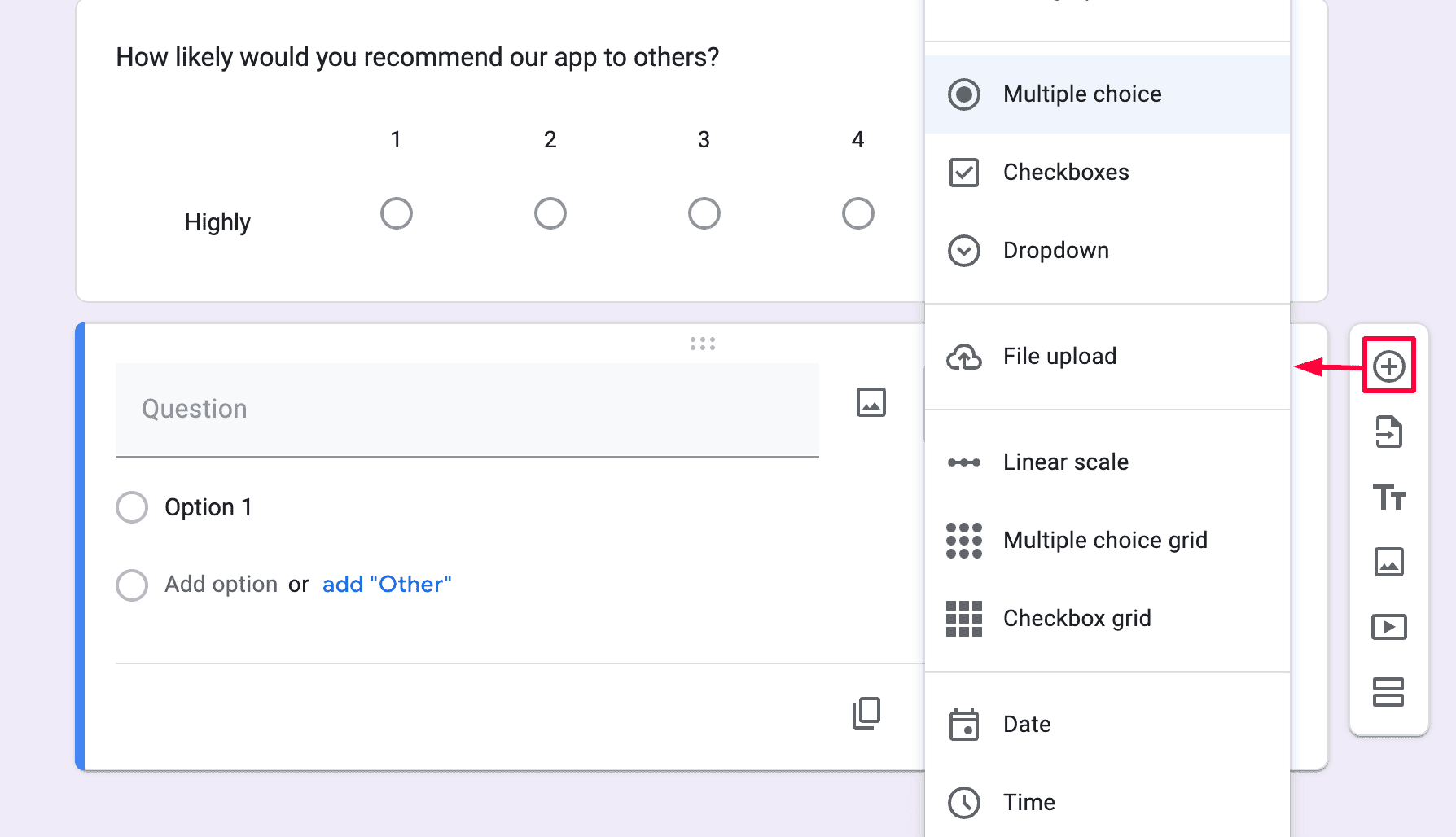
When executing rapid data collection initiatives, efficiency is paramount. Lengthy questionnaires often suffer from high drop-off rates, yielding incomplete data sets and skewed analytics. By focusing on concise, targeted survey structures, administrators respect respondents' time while maximizing completion rates. The platform supports a wide array of question types, including multiple choice, checkboxes, drop-down menus, linear scales, and short text responses. This variety ensures that creators can tailor each question to extract the exact qualitative or quantitative metric required.
Beyond basic functionality, rapid data collection requires careful consideration of layout, question phrasing, and distribution methods. A poorly designed form can confuse respondents, resulting in inaccurate inputs that require manual cleaning. Leveraging established templates and examples minimizes this risk, providing a proven framework for capturing clean data on the first attempt. The following five examples illustrate how different sectors and scenarios leverage Google Forms for rapid data gathering.
Example 1: Customer Feedback Survey
The Customer Feedback Survey is one of the most common applications for rapid data collection. Businesses, local shops, and digital service providers utilize this format to gauge buyer sentiment, evaluate product performance, and identify areas for operational improvement immediately following a transaction or interaction.
Core Elements and Structure
An effective customer feedback template remains brief—typically requiring no more than two to three minutes to complete. It generally opens with a polite greeting and a statement regarding the purpose of the collection. Standard structural components include:
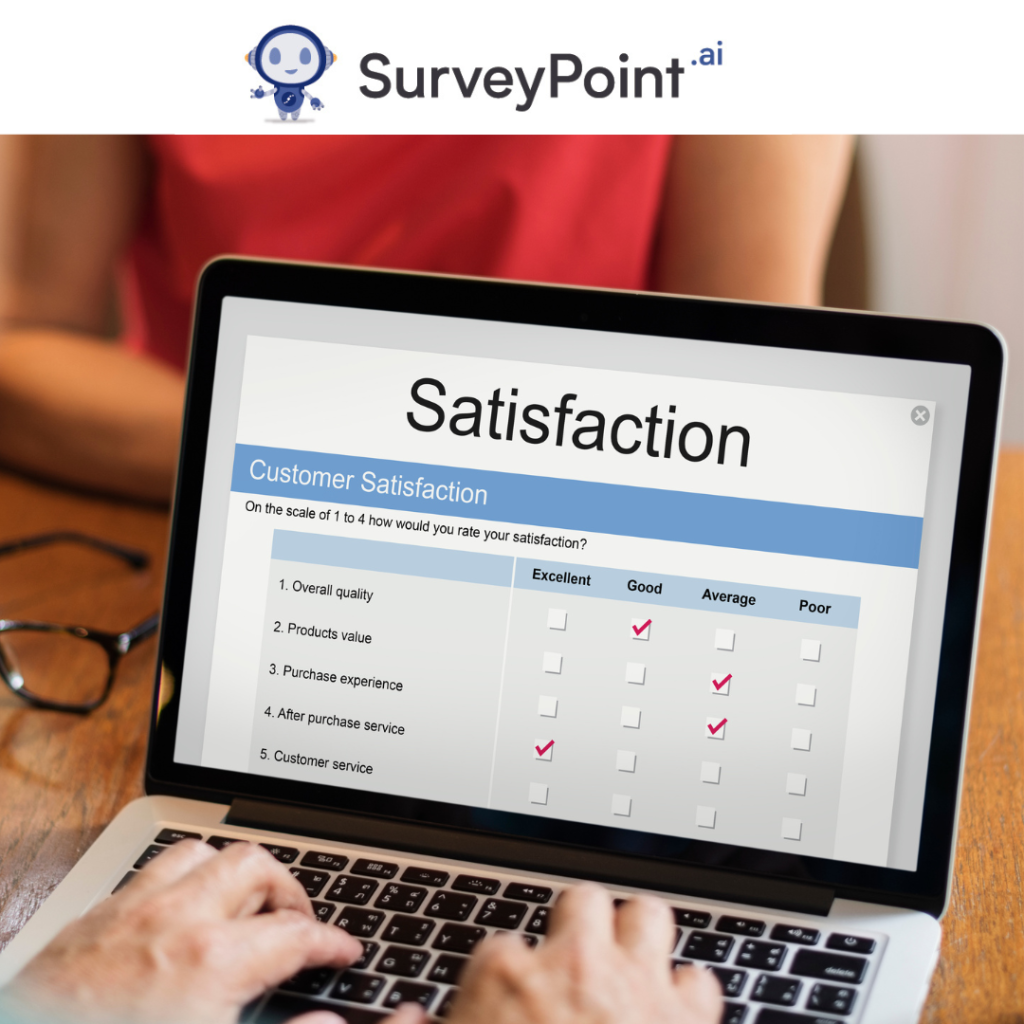
- Overall Satisfaction Rating: A linear scale (e.g., 1 to 5) or star rating measuring the client's general experience.
- Product or Service Specifics: Multiple-choice or check-box grids evaluating specific attributes such as quality, speed, pricing, and support.
- Open-Text Feedback: A mandatory or optional paragraph field allowing customers to explain their ratings or suggest specific improvements.
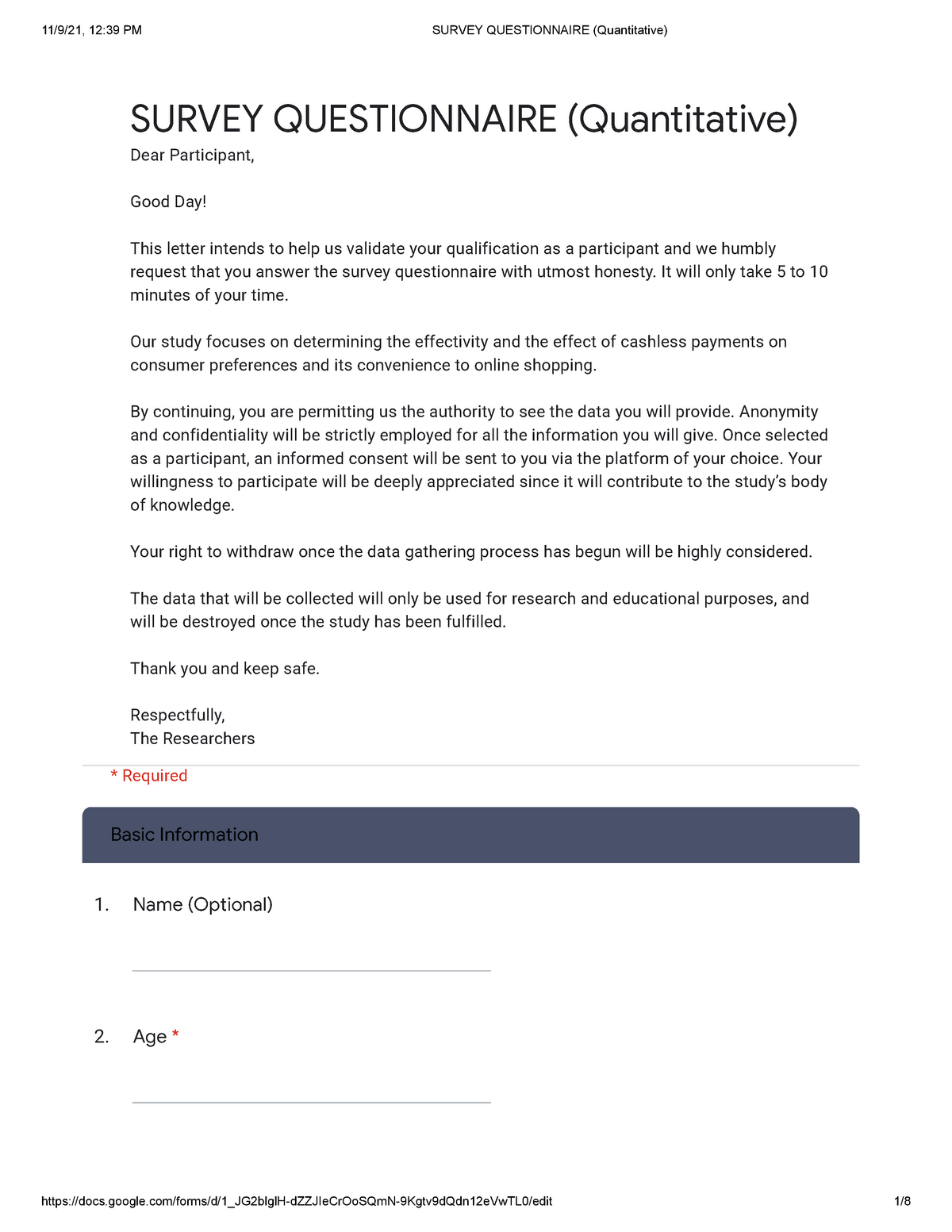
- Contact Information (Optional): Fields for name and email address, kept optional to encourage honest, anonymous submissions.
Operational Best Practices
To maximize response rates for customer feedback forms, deployment timing is critical. Sending the form immediately after a purchase or support interaction captures impressions while they remain fresh. Additionally, embedding the form link directly into an automated post-purchase email or via a QR code printed on a receipt streamlines access, reducing friction for the respondent.
Example 2: Event Registration Form
Organizing webinars, corporate workshops, community meetups, or social gatherings requires precise headcount tracking and logistical planning. An Event Registration Form collects attendee details, dietary preferences, and logistical requirements in a unified database.
Core Elements and Structure
An event registration template focuses heavily on administrative data capture. Key fields include:
- Contact Details: Full name, email address, and phone number for communication updates.
- Attendance Confirmation: Radio buttons or checkboxes allowing participants to select specific sessions, dates, or ticket tiers.
- Logistical Accommodations: Drop-down or conditional fields addressing dietary restrictions, accessibility requirements, or T-shirt sizes.
- Source Tracking: A short multiple-choice question asking how the attendee heard about the event to measure marketing channel effectiveness.
Operational Best Practices
Google Forms allows creators to limit responses or set maximum limits in conjunction with add-ons, though native features excel at real-time capacity monitoring. By setting the form to automatically collect email addresses and sending a confirmation receipt, organizers ensure participants possess a verifiable record of their registration. Furthermore, linking the form to a live Google Sheet enables automated dashboard tracking for event coordinators.
Example 3: Employee Pulse Check-In
Internal communications and human resources teams frequently rely on rapid pulse surveys to monitor team morale, gauge remote work effectiveness, and identify organizational bottlenecks without fatiguing staff with lengthy annual reviews.
Core Elements and Structure
An Employee Pulse Check-In must be concise, anonymous, and focused on immediate workplace climate indicators. Typical sections comprise:
- Workload Assessment: Linear scale questions evaluating whether current workloads feel manageable or overwhelming.
- Support and Resources: Checkbox or rating items assessing access to necessary tools, software, and managerial guidance.
- Well-being Indicators: Quick check-ins on stress levels and work-life balance.
- Open-Ended Input: Space for team members to voice concerns or propose workflow optimizations.
Operational Best Practices
Anonymity is vital for accurate internal data collection. Creators should disable the "Collect email addresses" setting if honesty is paramount, assuring staff that individual responses cannot be traced back to them. Regular, recurring deployment—such as bi-weekly or monthly cadence—establishes longitudinal data trends, allowing managers to spot declining morale before it impacts retention or productivity.
Example 4: Educational Quiz or Assessment
Educators, trainers, and instructional designers use Google Forms to test knowledge retention, conduct formative assessments, and evaluate training effectiveness across academic and corporate environments.
Core Elements and Structure
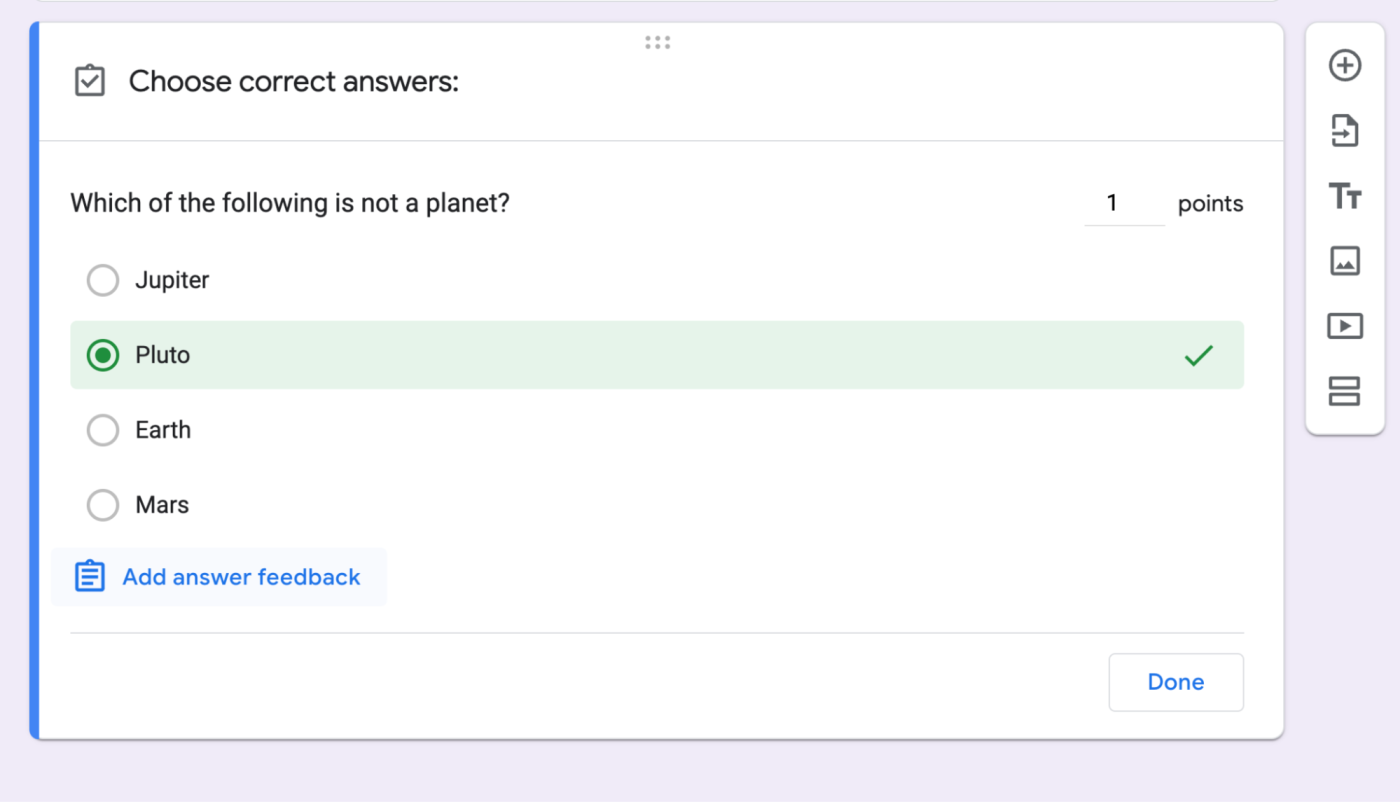
Unlike standard data collection forms, an Educational Quiz leverages the "Quizzes" setting within Google Forms to assign point values and automatic grading. Key structural components feature:
- Identifier Fields: Student name, identification number, or class section.
- Selected Response Questions: Multiple-choice, true/false, or checkbox items assigned specific point values.
- Automated Answer Keys: Pre-configured correct answers that allow the system to grade submissions instantly.
- Immediate Feedback: Configured settings that display scores to respondents upon submission or release manual feedback later.
Operational Best Practices
To maintain academic integrity during remote assessments, instructors utilize built-in settings such as shuffling question order, restricting access to institutional email domains, and limiting submissions to a single response. Utilizing the summary tab within the responses section allows educators to quickly identify which specific questions caused widespread confusion, guiding subsequent review sessions.
Example 5: Research or Project Intake Form
Academic researchers, freelance consultants, and project managers often need to intake project proposals, initial research screening data, or client project briefs rapidly. A Research or Project Intake Form standardizes incoming requests to ensure all necessary parameters are captured uniformly.
Core Elements and Structure
This form type acts as a gatekeeper for incoming projects, requiring structured inputs to filter and prioritize tasks. Standard fields encompass:
- Submitter Information: Name, organization, and department.
- Project Scope: Short answer and paragraph fields detailing objectives, target deliverables, and proposed timelines.
- Resource Requirements: Checkbox matrices detailing budget ranges, software dependencies, and required personnel.
- Priority Level: Drop-down menus allowing submitters to classify urgency based on predefined organizational criteria.
Operational Best Practices
Conditional logic—referred to as "Go to section based on answer" in Google Forms—is exceptionally useful for intake forms. If a submitter selects a specific project category, the form can dynamically route them to specialized follow-up questions tailored exclusively to that domain, keeping the initial path clean and uncluttered.
Comparative Analysis of Google Form Survey Types
Selecting the correct survey example depends heavily on your specific collection objective, target audience, and required analytical depth. The following table contrasts the primary characteristics of each discussed form type:
| Survey Type | Primary Use Case | Recommended Question Types | Typical Length | Data Output Format |
|---|---|---|---|---|
| Customer Feedback | Measuring buyer sentiment and service quality | Linear scale, multiple choice, short text | 3–5 questions | Real-time ratings and text logs |
| Event Registration | Headcount tracking and logistical planning | Checkboxes, short text, drop-down menus | 5–8 questions | Structured attendee roster spreadsheet |
| Employee Pulse | Internal morale and workload assessment | Linear scales, multiple choice, open text | 4–6 questions | Anonymous sentiment analytics |
| Educational Quiz | Knowledge checks and formative testing | Multiple choice, checkboxes, short answer | 10–20 questions | Graded score sheets and item analysis |
| Project Intake | Standardizing incoming proposals and requests | Conditional logic, drop-downs, paragraph fields | 8–15 questions | Categorized project backlog database |
Step-by-Step Guide to Creating a Quick Google Form
Deploying a functional data collection instrument takes minimal time when following a systematic workflow. Review the following sequence to build, test, and launch an efficient survey.
- Access the Platform: Navigate to Google Forms using any standard web browser while logged into your Google account.
- Select a Starting Point: Click the "Blank form" option to build from scratch, or select "Template gallery" to browse pre-designed layouts suitable for event registration, customer feedback, or quiz creation.
- Define Title and Description: Enter a clear, descriptive title in the form header and provide a brief introductory sentence explaining the purpose of the collection and estimated completion time.
- Add and Configure Questions: Insert questions using the floating toolbar on the right. Select appropriate input types (multiple choice, linear scale, paragraph) and toggle the "Required" switch for mandatory fields.
- Configure Settings: Click the gear icon to adjust parameters such as collecting email addresses, limiting submissions to one per user, or enabling quiz grading features.
- Preview and Test: Click the eye icon in the top right corner to test the user interface from a respondent's perspective, ensuring conditional logic and formatting function correctly.
- Distribute and Monitor: Click the "Send" button to generate a shareable link, embed code, or email distribution list, and monitor incoming responses via the "Responses" tab linked to Google Sheets.
Common Mistakes to Avoid in Rapid Data Collection
Even with user-friendly tools, structural errors can compromise data integrity. Avoiding common pitfalls ensures higher completion rates and cleaner analytical outputs.
- Overcomplicating the Questionnaire: Adding excessive optional questions increases cognitive load, resulting in survey abandonment. Keep forms ruthlessly focused on core informational needs.
- Failing to Test on Mobile Devices: A significant percentage of respondents access forms via smartphones. Always preview layouts on mobile screens to ensure drop-down menus and linear scales render without horizontal scrolling.
- Asking Leading Questions: Phrasing questions to elicit a desired response distorts data validity. Maintain objective, neutral language across all items.
- Neglecting Data Privacy: Failing to inform participants how their data will be stored or whether responses are anonymous can deter honest participation, particularly in internal employee surveys.
Frequently Asked Questions
Can Google Forms be used offline?
No, Google Forms requires an active internet connection to load, edit, and submit responses. Respondents cannot access or submit a live Google Form without connectivity.
How many responses can a single Google Form collect?
Google Forms supports up to 10 million responses per form, provided the linked Google Sheet does not exceed cell limits. This capacity easily accommodates standard academic, business, and event data collection needs.
Can I customize the branding of my Google Form?
Yes, clicking the customize theme icon (palette symbol) at the top right allows you to upload custom headers, adjust brand color palettes, and modify font styles to match corporate or institutional branding guidelines.
Are Google Form responses secure and private?
Responses are stored securely within your Google Drive account, protected by standard Google Workspace encryption protocols in transit and at rest. Access can be restricted strictly to authorized collaborators.
Can I collaborate with others to build the survey?
Yes, clicking the three-dot menu icon in the top right and selecting "Add collaborators" allows you to grant editing permissions to colleagues, enabling team-based questionnaire development.
Conclusion and Next Actions
Deploying effective data collection instruments relies on balancing brevity with analytical depth. By reviewing established survey examples—ranging from customer feedback to project intake—creators can select the structural framework best suited to their immediate objectives. Begin your next data gathering project by mapping out your core information requirements, selecting a clean template, and conducting a live test run before widespread distribution.