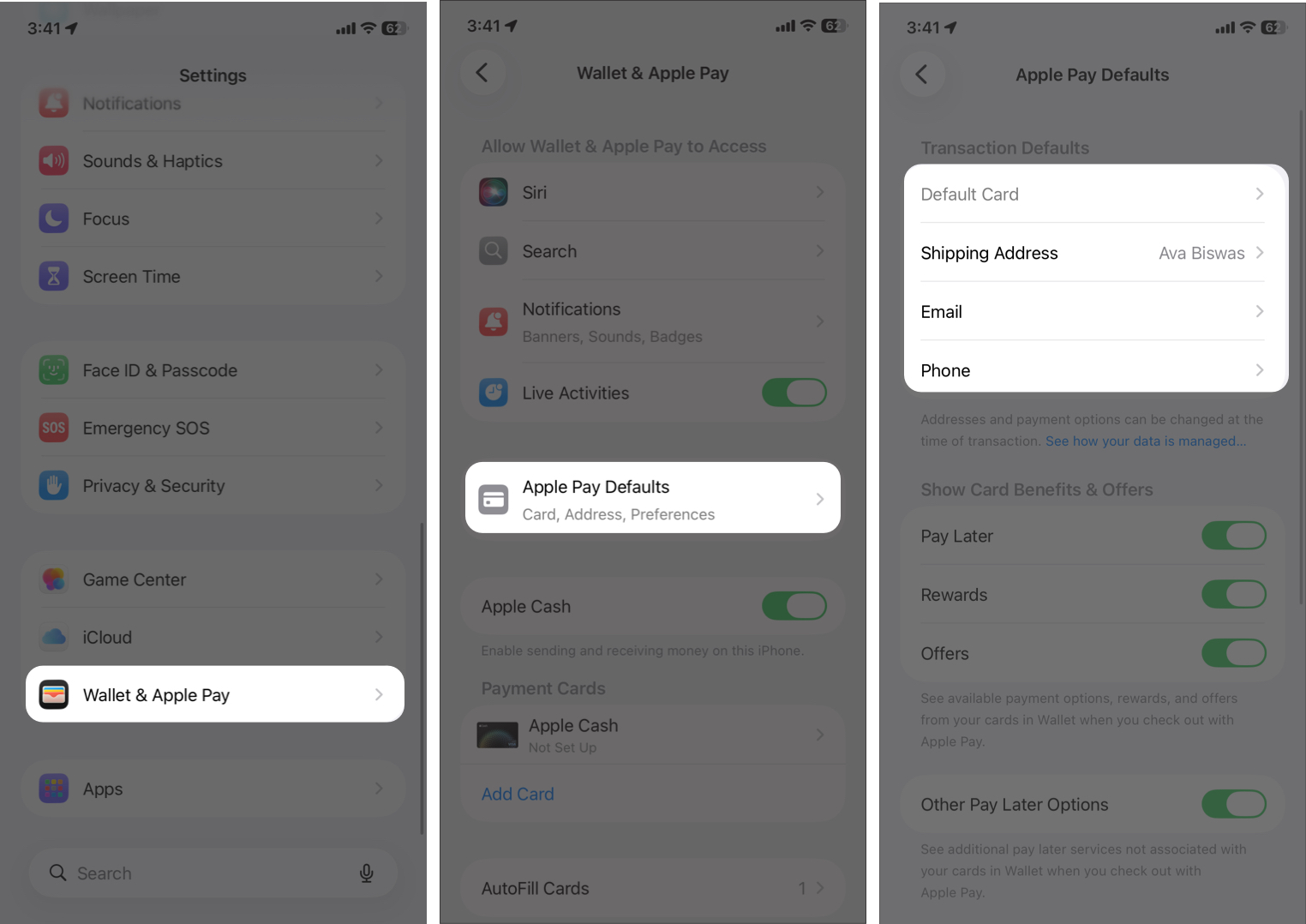
When Apple Pay fails to authorize a transaction or refuses to launch at a payment terminal, the issue typically stems from a temporary communication handshake error, an expired card configuration, or a localized software glitch. To resolve these issues, ensure your iPhone is positioned correctly near the NFC reader, verify your internet connection, and confirm that your default card is still authorized by your banking institution.
Understanding the Apple Pay Ecosystem
Apple Pay is a contactless payment technology that relies on the Secure Element—a dedicated, industry-standard certified chip—within your iPhone. This chip stores your payment information in an encrypted format, ensuring that your actual card numbers are never shared with merchants or transmitted during the payment process. When you hold your iPhone near a contactless reader, the device uses Near Field Communication (NFC) to transmit a unique, dynamic security code for that specific transaction.
If the system fails, it is rarely due to a hardware failure of the NFC antenna. More commonly, the breakdown occurs during the verification handshake between your bank, the Apple Pay server, and the merchant’s point-of-sale terminal. By systematically checking each link in this chain—from your device settings to the merchant's hardware—you can pinpoint the source of the failure.
Initial Diagnostics and Hardware Positioning
The most common reason for a failed Apple Pay transaction is improper physical alignment. The NFC antenna is located at the top of the iPhone, near the camera module. If you hover the bottom of your phone or the screen itself over the reader, the signal may be too weak to complete the encrypted handshake.
- Correct Alignment: Hold the top of your iPhone within a few centimeters of the contactless symbol on the payment terminal.
- Remove Obstructions: Thick, metallic, or battery-integrated cases can interfere with NFC signals. If you are using a rugged case with a metal kickstand or a magnetic mounting plate, remove the case temporarily to see if the transaction completes.
- Check for Physical Damage: While rare, if your iPhone has sustained significant impact damage near the top-rear housing, the NFC antenna may be physically compromised. If other Apple Pay features (like using the Wallet for transit passes) also fail, this may indicate a hardware limitation.
Verifying Software and Connectivity
While Apple Pay does not require an active cellular data connection to authorize a transaction already stored in your device, it does require that the "Express Transit" or primary card settings be correctly synchronized. If you have recently changed your Apple ID password or updated your iOS, your wallet credentials may require a fresh authentication.
- Software Updates: Ensure your iPhone is running the latest version of iOS. Apple frequently patches security protocols that govern how your device interacts with banking servers.
- Toggle Connectivity: Turn Airplane Mode on, wait ten seconds, and turn it back off. This refreshes your device’s radio state, which can sometimes clear "stuck" background processes interfering with the NFC controller.
- Restart the Device: A simple restart often clears temporary cache files that may be blocking the Wallet app from initiating the secure payment token.
Resolving Card-Specific Issues
Sometimes the failure is not with the iPhone, but with the payment card itself. If the terminal displays "Declined" or "Card Not Accepted," you should verify the status of the card within the Wallet app.
- Expired Credentials: Even if your physical card is still valid, the digital token stored in Apple Pay may have expired. Open the Wallet app and check if any cards show an "Update Needed" or "Expired" notification.
- Bank Verification: If you see a "Card Suspended" message, your bank may have flagged the account for suspicious activity or requires manual re-verification. You may need to call your bank’s support line to authorize the continued use of the token on your device.
- Remove and Re-add: If a specific card continues to fail, delete it from the Wallet app entirely. Restart your iPhone, then add the card again as if it were new. This forces the device to request a fresh token from your bank, effectively bypassing any corrupted data from the previous setup.
Comparative Troubleshooting Matrix
| Issue Symptom | Likely Cause | Primary Action |
|---|---|---|
| Terminal does not react | Poor NFC alignment | Align top of iPhone with reader |
| "Declined" on terminal | Bank or card issue | Check Wallet app for card status |
| Wallet app crashes | Software conflict | Update iOS and restart device |
| "Connection Error" | Network/Server issue | Use cellular data instead of Wi-Fi |
| Face ID fails to trigger | Biometric sensor error | Use device passcode to verify |
Addressing Merchant and Terminal Limitations
Not all contactless terminals are created equal. Some older legacy terminals may be configured to only accept specific types of NFC signals or may have outdated software that does not recognize the latest Apple Pay security tokens.
If you are at a specific merchant and Apple Pay repeatedly fails, observe the behavior of other customers. If they are also having trouble with mobile payments, the issue likely resides with the merchant’s terminal. In such cases, there is no troubleshooting step you can perform on your device to fix the merchant’s hardware. You must use a physical card or an alternative payment method.
Furthermore, some terminals require you to select the "Credit" or "Debit" option on the screen before you present your phone, while others require you to do so after. Pay close attention to the prompts on the terminal display, as ignoring these can lead to a timeout in the communication sequence.
Security and Privacy Considerations
Apple Pay is designed to protect your privacy, which means the process happens locally on your device. Apple does not see your transaction history or the amount of your purchase. Because of this, when a transaction fails, Apple does not have a "transaction log" for you to view in your settings.
If you suspect your financial data has been compromised or if you see unauthorized charges alongside frequent failed attempts, contact your card issuer immediately. They can track the "token" used by your phone and tell you exactly which merchant attempted the connection.
FAQ: Apple Pay Troubleshooting
Why does my phone vibrate but the terminal says "Declined"? A vibration indicates that the NFC handshake was successful and your iPhone successfully passed the token to the terminal. If the terminal declines it, the issue is on the merchant side or the bank side. Ensure your card is active in your Wallet and that your bank is not blocking the transaction for security reasons.
Do I need to be on Wi-Fi for Apple Pay to work? No. Apple Pay works offline by generating a secure token on your device. However, your device must have been online recently to receive updated banking tokens. If you have been offline for an extended period (several days), connect to a network to allow your Wallet to refresh its credentials.
Can I use Apple Pay if my Face ID is broken? Yes. If Face ID or Touch ID is unavailable, your iPhone will prompt you to enter your device passcode. Once the passcode is entered, you can hold the phone to the reader to complete the payment.
What should I do if my card is "suspended"? A suspended card usually means your bank has placed a hold on the token. You must open the Wallet app, tap on the suspended card, and follow the instructions provided. Often, this requires contacting your bank’s customer service department to confirm your identity.
Is there a daily limit for Apple Pay? Apple Pay itself does not impose transaction limits; however, your individual bank or the merchant may have limits on contactless payments. Check your bank's mobile app to see if there are specific "Contactless" or "Digital Wallet" spend limits associated with your account.
Final Recommendations
To ensure a seamless experience, keep your iPhone’s software updated and periodically audit your Wallet app to ensure all payment methods are active and up to date. If you find yourself in a situation where Apple Pay is failing consistently, perform a "forced restart" of your device—this is the most effective way to clear the NFC controller’s temporary state. If persistent issues remain after removing and re-adding your card, the final step is to contact your financial institution, as they are the only entity that can see the specific reason why a token transaction was rejected by their network.