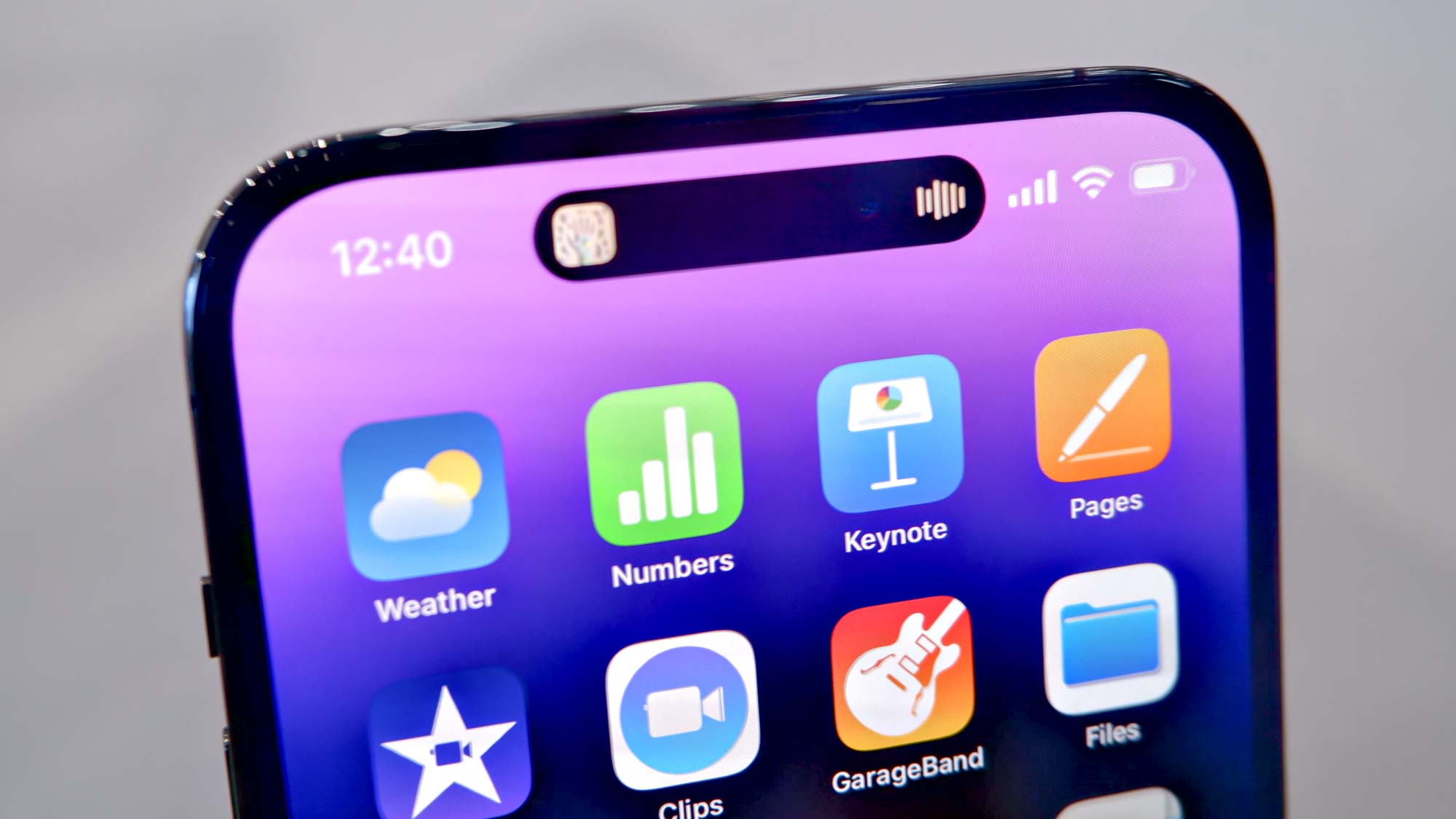
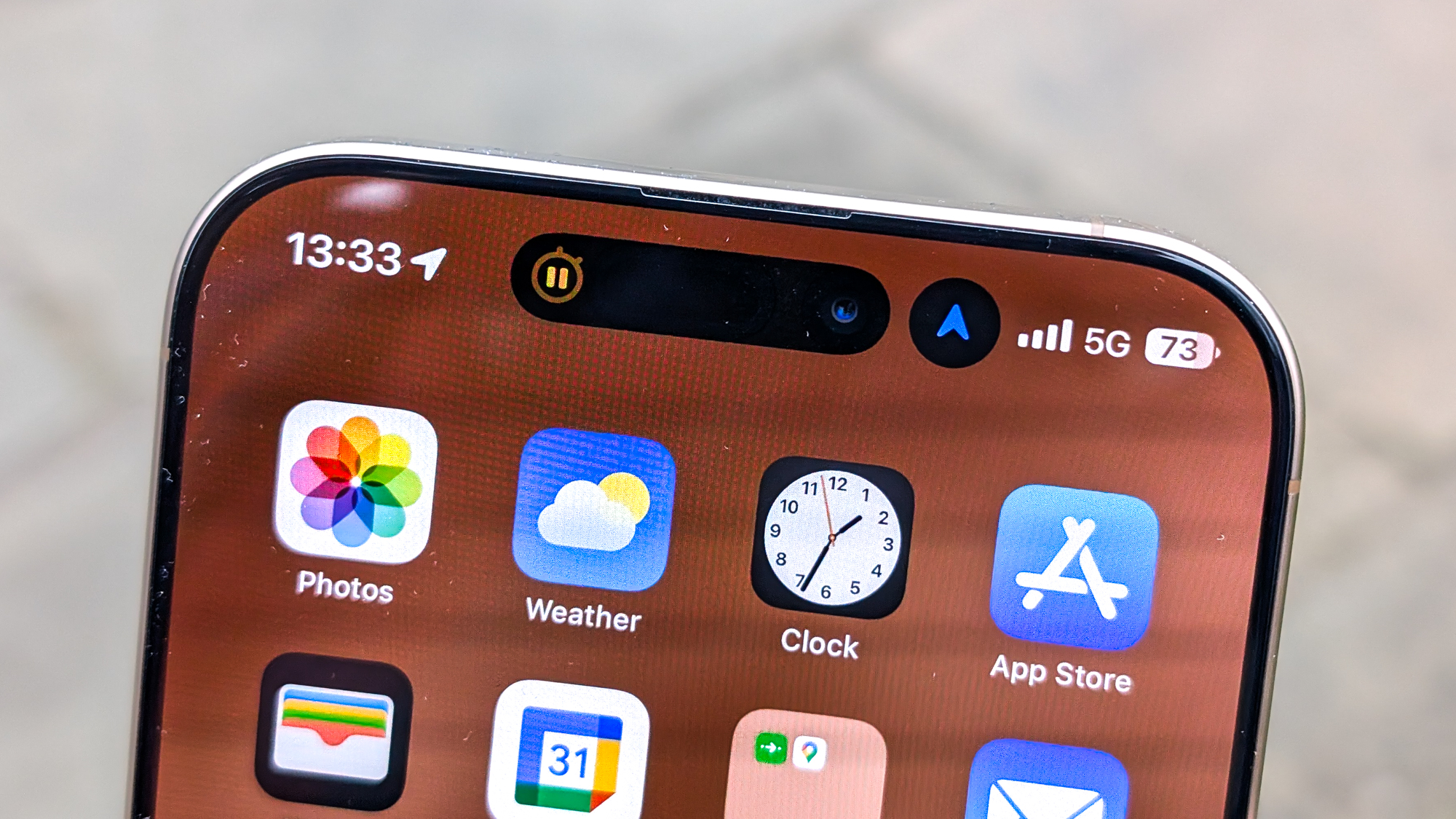
The Apple Dynamic Island is a transformative user interface design introduced with the iPhone 14 Pro and 14 Pro Max in 2022, effectively replacing the traditional static display notch. It serves as an adaptive, software-driven notification and activity hub that expands and contracts to provide real-time information, such as timers, navigation directions, and media playback controls, directly from the top of your iPhone screen.
The Evolution of the iPhone Display Cutout
For years, the design language of the iPhone was defined by the "notch," a static black cutout at the top of the display housing the TrueDepth camera system and sensors required for Face ID. While functional, this hardware constraint occupied valuable screen real estate. Apple’s decision to transition from the notch to the Dynamic Island represents a shift in philosophy: rather than hiding the necessary hardware, the company chose to integrate the physical cutout into the operating system’s visual feedback loop.
By utilizing OLED display technology—where black pixels are effectively turned off and indistinguishable from the physical bezel—Apple created a fluid, "living" shape. When an action occurs, the Dynamic Island expands, changes shape, and displays information, making the hardware feel like a deliberate component of the software experience rather than an obstacle to it.
Core Functionality and User Interaction
The Dynamic Island operates through three primary states: the collapsed state, the expanded state, and the split state.
- Collapsed State: When no background activity is active, the Dynamic Island remains a small, inactive pill shape. It occupies minimal space while maintaining the functionality of the camera and sensors.
- Expanded State: Triggered by system notifications or user interaction, the island grows to present relevant data. For example, when you connect AirPods or toggle the silent switch, the island expands to confirm the action.
- Split State: This state allows the iPhone to display two simultaneous activities. If you are listening to music and have a timer running, the Dynamic Island splits into two distinct sections: a larger, primary bubble showing the active media and a smaller, secondary bubble showing the timer countdown.
Interaction is primarily driven by touch. A simple tap on the Dynamic Island typically opens the associated app (e.g., tapping a navigation bubble opens Apple Maps). A long-press on the island expands it to reveal additional controls, such as media play/pause buttons, track skipping, or call management tools, without forcing the user to leave their current application.
Practical Applications and Use Cases
The utility of the Dynamic Island is most apparent in scenarios where users frequently switch between an primary task and a background activity. It effectively manages "live" data so that you are constantly aware of progress without needing to open a full-screen application.
- Live Activities: This API allows third-party developers to push real-time updates to the Dynamic Island. Whether you are tracking the status of a food delivery order, monitoring a sports score, or waiting for a ride-share service, these updates appear directly in the island, providing a glanceable view of the information.
- System Alerts: Crucial status indicators such as battery warnings, Face ID authentication progress, payment confirmations (Apple Pay), and charging status are routed through the island. This creates a consistent notification hierarchy, moving alerts away from the center of the display where they might obstruct your view.
- Media Playback: When playing music, podcasts, or audiobooks, the island displays a small waveform animation and artwork, providing a direct point of access to playback controls.
Comparison of iPhone Display Cutout Technologies
Understanding how the Dynamic Island sits within the broader ecosystem requires looking at how different iPhone models manage their front-facing hardware.
| Feature | Dynamic Island Models | Notch (Standard Models) |
|---|---|---|
| Interface Style | Adaptive, interactive, and functional | Static, fixed size, passive |
| User Interaction | Tap to open, long-press for controls | No interactivity |
| Activity Tracking | Yes (Live Activities support) | No |
| Hardware Integration | Integrated via software "blackout" | Physical barrier |
| Availability | iPhone 14 Pro/Pro Max and later | iPhone X through iPhone 13 |
Prerequisites and Requirements
To utilize the Dynamic Island effectively, you must be using an iPhone model that supports the feature. As of 2026, this includes all models in the iPhone 14 Pro series, the iPhone 15 series, the iPhone 16 series, and subsequent releases. It is not a software update that can be applied to older devices with the traditional notch, as the functionality relies on both specific hardware placement and the associated OLED display drivers.
Beyond hardware requirements, ensuring the feature is effective requires that you keep your apps updated. Because the Dynamic Island relies on the Live Activities API, third-party apps must be specifically coded to communicate with the system interface. If you find that a particular app is not appearing in the island, checking the App Store for an update is the most effective troubleshooting step.
Customization and Limitations
While the Dynamic Island is highly intuitive, it is not a fully customizable widget space. Apple maintains strict control over the visual aesthetics to ensure that the interface remains readable and that the camera sensors are never permanently obscured by intrusive design elements. Users cannot move the Dynamic Island, change its base size, or disable it entirely, as it serves as a central hub for essential system notifications.
One minor point of friction for some users is the "smudge factor." Because the Dynamic Island draws attention to the top of the display—an area frequently touched when managing notifications—the area around the front-facing camera lens can accumulate fingerprints more rapidly than other parts of the screen. Keeping a microfiber cloth available for the display is recommended for maintaining visual clarity.
Troubleshooting Common Issues
If you find that the Dynamic Island is not behaving as expected, consider these troubleshooting steps:
- Restart the Device: A simple restart clears temporary background processes that might be preventing an activity from "hooking" into the island.
- Check Background App Refresh: Go to Settings > General > Background App Refresh and ensure that the app you are attempting to use is enabled. If background refresh is disabled for an app, it may fail to send live updates to the island.
- App Permissions: Some Live Activities require specific permissions. Ensure that the relevant application has the necessary notification permissions granted in the Settings menu.
- Software Updates: Always ensure your iOS version is current. Apple frequently iterates on the Dynamic Island's animation and stability in minor software updates.
Frequently Asked Questions
Can I turn off the Dynamic Island? No, you cannot turn it off. It is a fundamental part of the iPhone user interface for supported models and is integrated into the system's notification delivery and hardware status monitoring.
Does the Dynamic Island consume extra battery? The impact on battery life is negligible. Because it utilizes the efficiency of the OLED display, the pixels required to create the "island" shape are effectively off (drawing no power), while the animation processing is handled by the iPhone’s high-efficiency internal chip cores.
Why do some apps work with the Dynamic Island and others do not? The Dynamic Island requires developers to integrate Apple’s Live Activities API. If an application developer has not updated their app to support this framework, the app will continue to function normally, but it will not display information in the island.
Does the camera lens get in the way of the display? No. The Dynamic Island software is designed to accommodate the physical camera hardware. When the island expands, it encompasses the camera hardware in a way that feels intentional and clean, ensuring that your view of the content is not interrupted by the physical sensors.
Can I move the Dynamic Island to the bottom of the screen? No, the position is fixed. The interface is specifically designed to sit at the top of the display to maintain alignment with the TrueDepth camera system and to preserve the ergonomic flow of the iOS operating system.
Recommendation for Users
To get the most out of your iPhone, treat the Dynamic Island as your primary notification center. Instead of habitually swiping down to see your notifications or opening full apps to check the status of a delivery or navigation, rely on the visual cues provided by the island. By developing the muscle memory to tap and long-press the island, you can navigate your digital life significantly faster and keep your screen focused on your current content.