Adding another email account to your Gmail interface allows you to centralize communication by pulling external emails—such as those from Outlook, Yahoo, or custom domain addresses—into a single, unified workspace. Gmail handles multiple inboxes through two distinct mechanisms: account linking via IMAP/POP3, which aggregates external mail into your primary account, and multi-login sessions, which allow you to switch between multiple Google-owned accounts without logging out.
Understanding the Two Ways Gmail Handles Multiple Accounts
It is essential to distinguish between the two methods Gmail uses to manage multiple email addresses, as they serve different purposes and function on different technical architectures.
1. Consolidation via POP3/IMAP (The "Check Mail" Method)
This method involves adding an external email account (e.g., an email address hosted on a different provider) to your main Gmail inbox. Gmail acts as an email client, using the POP3 protocol to fetch messages from the other server. Once configured, emails sent to your external address appear directly in your primary Gmail inbox. You can also configure Gmail to send emails "as" that external address, allowing you to manage a professional or secondary account entirely within the Gmail ecosystem.
2. Multi-Login (The "Switch Account" Method)
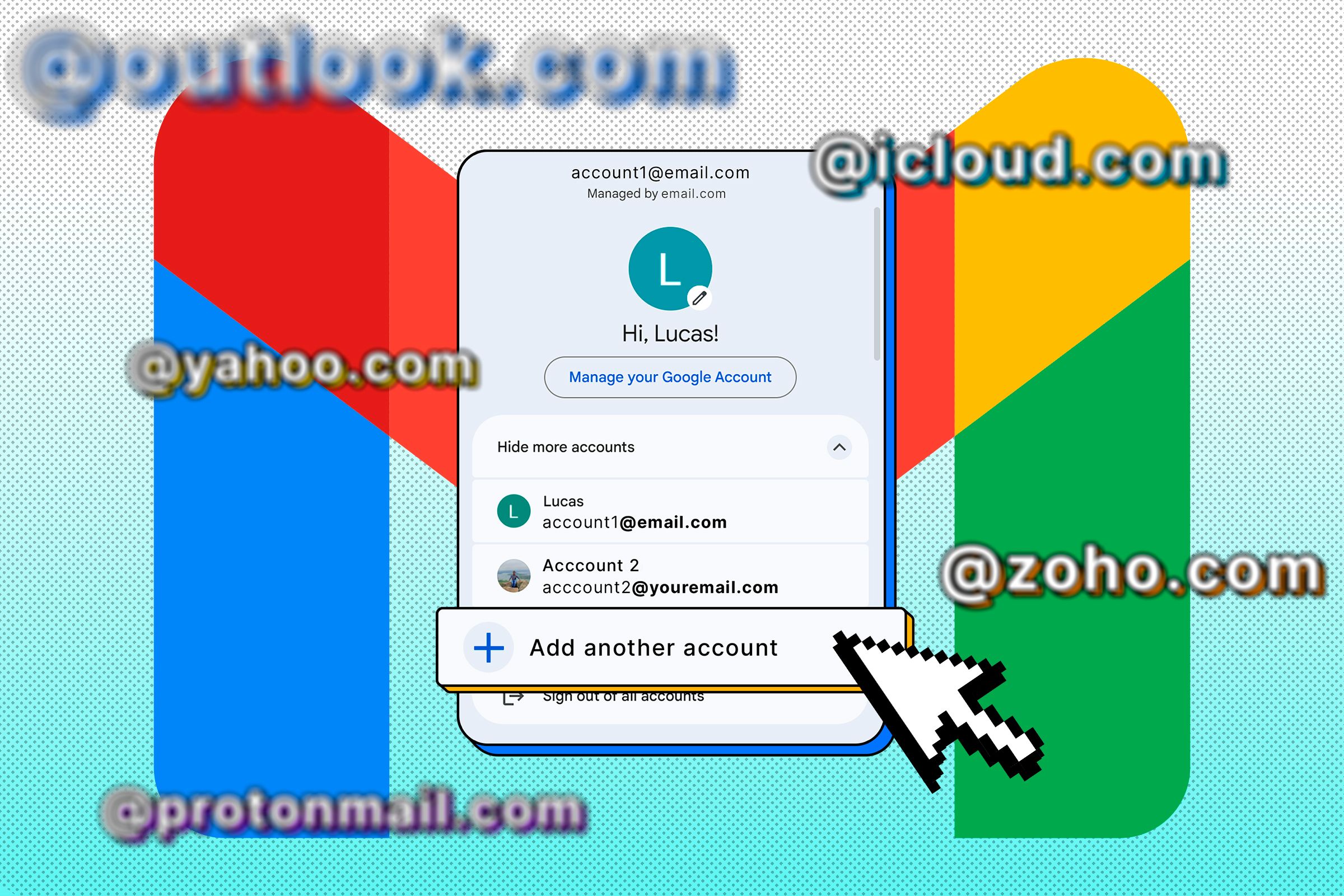
If you have multiple Google accounts—for example, a personal @gmail.com account and a Google Workspace account for work—you do not need to add these via server settings. Instead, you use the "Add another account" feature in the Google profile menu. This keeps the accounts separate; they do not share an inbox, but you can toggle between them instantly in your browser or mobile app without logging out.
Step-by-Step: Adding an External Account to Gmail
If your goal is to have an external, non-Google email address arrive in your primary inbox, follow these steps. Note that you will need the incoming and outgoing server details (SMTP/POP3) from your other email provider.
Prerequisites for External Accounts
- Access Credentials: Ensure you have the full email address and the specific password for the account.
- Server Settings: If you are using a provider other than Gmail, you need the "POP server" and "SMTP server" addresses (e.g.,
mail.example.com) and the correct port numbers. - App Passwords: If you are connecting a secure provider (like Outlook or Yahoo), you may need to generate an "App Password" rather than using your primary account password.
Configuring Incoming Mail
- Open Gmail on a desktop computer.
- Click the Settings (gear icon) in the top right and select See all settings.
- Go to the Accounts and Import tab.
- Under the section titled Check mail from other accounts, click Add a mail account.
- Enter the email address and follow the wizard. Choose "Import emails from my other account (POP3)" and click Next.
- Input the POP server settings provided by your email host. Ensure you check the box to "Label incoming messages" if you want to keep these emails organized separately within your primary inbox.
Configuring Outgoing Mail (Send As)
Once the incoming mail is established, you should configure your outgoing settings so you can reply from the address where you received the message.
- In the same Accounts and Import tab, find Send mail as.
- Click Add another email address.
- Enter the name and the address.
- Input the SMTP server details provided by your email host.
- Gmail will send a verification code to the external address. You must enter this code in your Gmail settings to finalize the link.
Mastering the Multi-Account Interface
Once you have multiple accounts active—either through account linking or simply by signing into multiple Google accounts—the way Gmail handles your "inbox" changes.
Using Gmail Filters for Organization
When you pull external accounts into one inbox, it is common for messages to become cluttered. To prevent this, use Filters. Go to Settings > Filters and Blocked Addresses. Create a filter where the "To" field is your external email address, and instruct Gmail to "Apply the label" (create a specific label for that account) and "Skip the Inbox" if you prefer to keep them separate from your primary messages.
Managing Sign-ins for Multiple Google Accounts
For users with multiple Google-based accounts, the interface provides a profile switcher in the top right corner. Clicking your profile icon reveals all signed-in accounts. When you click on a different account, Gmail opens that inbox in a new tab or switches the current view.
- Default Account: Your first logged-in account is designated as the "Default." Some Google services (like Google Drive or Google Calendar) may default to this account when you open them. If you frequently encounter permission errors, sign out of all Google accounts and sign back in, starting with your primary account.
Comparison of Methods
| Feature | POP3/IMAP Linking | Google Multi-Login |
|---|---|---|
| Best For | Centralizing non-Google mail | Switching between Google accounts |
| Storage | Uses Primary account quota | Each account uses its own quota |
| Security | Requires App Passwords | Requires standard OAuth/2FA |
| Privacy | Mail exists in two places | Mail is strictly segregated |
| Setup | High (Requires server settings) | Low (Single-click sign-in) |
Troubleshooting Common Issues
Even with careful setup, users often encounter synchronization errors. Here are the most frequent hurdles experienced in 2026.
The "Connection Denied" Error
This usually occurs because your email provider blocks external access by default. Log into your other email account's web interface and ensure that "POP access" or "IMAP access" is toggled to Enabled. Without this toggle, Gmail’s servers will be rejected during the initial handshake.
Verification Failures
If you are adding a professional domain email, ensure your DNS records include the appropriate SPF and DKIM tags. If the external provider identifies Gmail's server as an unauthorized sender, your emails may be marked as spam or rejected entirely.
Lag in Email Retrieval
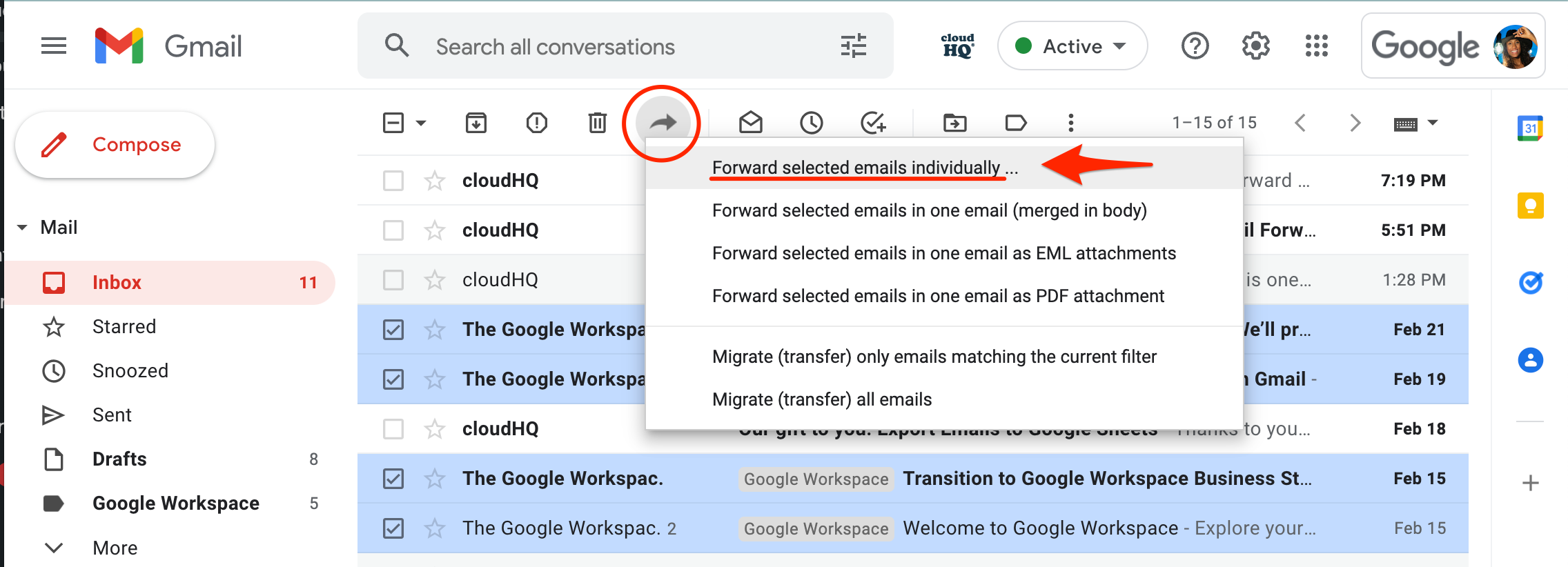
When using POP3, Gmail does not check your external account in real-time. It checks periodically based on usage volume. If you need instantaneous delivery, consider setting up a "Forwarding" rule on the external email provider's side to push emails to your Gmail address automatically, rather than waiting for Gmail to "pull" them via POP3.
Frequently Asked Questions
1. Can I link a work or school account to my personal Gmail? Yes, but check with your organization's IT policy. Many organizations disable POP/IMAP access for security reasons. If your organization uses Google Workspace, they may have enforced a policy that prevents you from adding their address to a personal Gmail account.
2. Does linking an account reveal my password to Google? Yes, in the sense that you must provide your credentials to the Google server so it can authenticate with the external provider. For high-security needs, verify if your provider supports OAuth2 (which uses a secure token instead of a password) to avoid storing your primary password in the Gmail settings.
3. What happens if I delete an email in my primary inbox? If you have linked the account via POP3, deleting an email in Gmail will generally not delete it from the external server, unless you have specifically configured the settings to "Delete copy on server." Always verify these settings in the "Accounts and Import" tab to prevent accidental data loss.
4. How many accounts can I add to one Gmail interface? You can add up to five external email accounts for sending and receiving via the "Check mail" feature. Regarding the Google Multi-Login feature (switching between Google accounts), there is no official hard limit, though performance may degrade if you are logged into more than ten accounts simultaneously.
5. Does using "Send mail as" hide the fact that I am using Gmail? Generally, yes. However, technical email headers may still contain information about the server that sent the message. For most casual or professional use, the recipient will only see the "From" address you configured, not the underlying Gmail infrastructure.
Recommendations for Setup
To maintain an organized workspace, always use the Labels feature the moment you add a new account. Create a label specifically for the new account and set a filter to automatically color-code incoming messages. This prevents "inbox fatigue," where all your communications—personal, work, and newsletters—blend into a single, unmanageable feed. If you are managing more than three accounts, consider using a dedicated email client software, which often provides more robust multi-account management tools than a web browser.