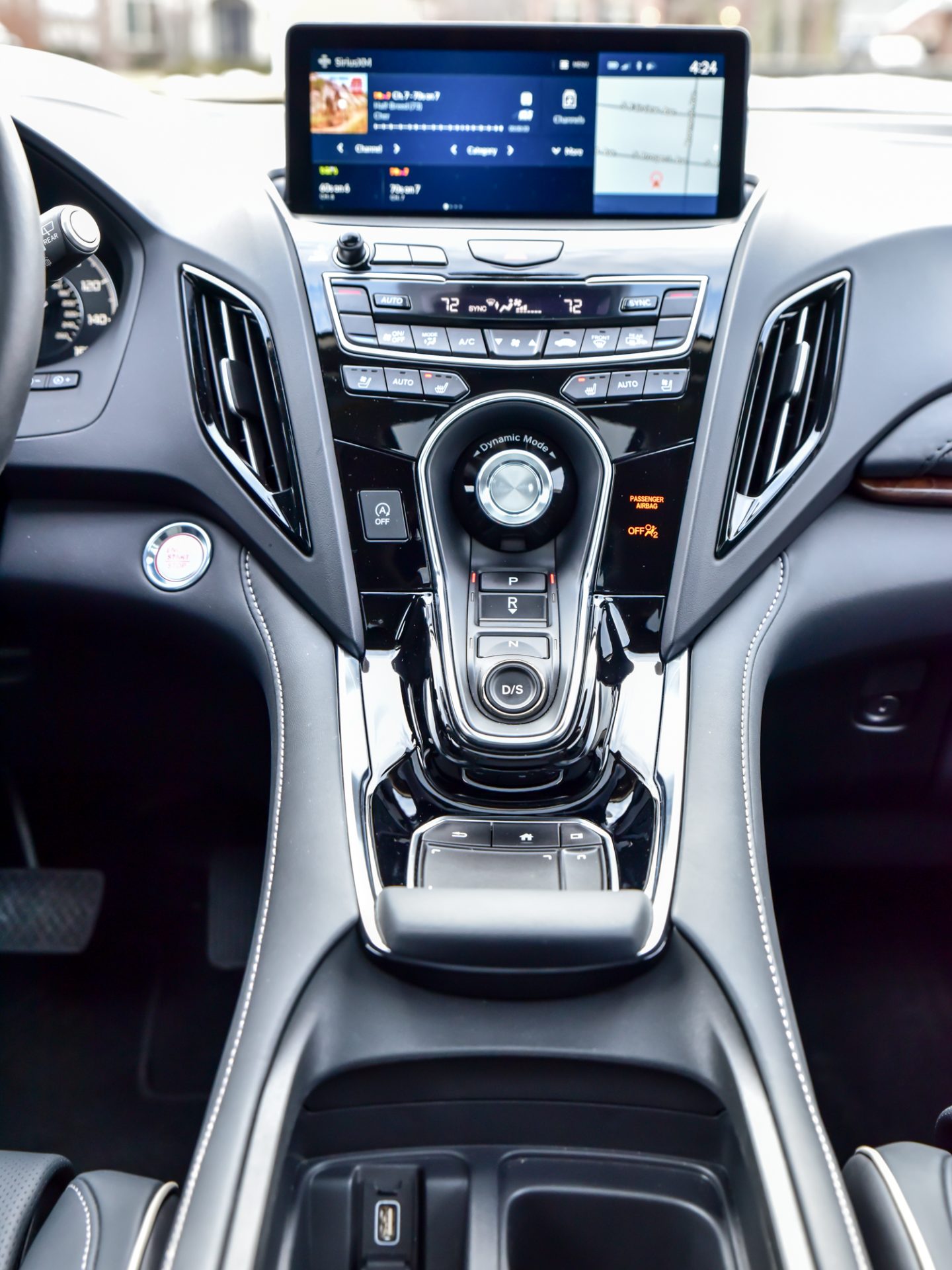
The Acura RDX utilizes a proprietary "True Touchpad Interface" (TTI) designed around the concept of absolute positioning. Unlike a traditional laptop trackpad where you swipe to move a cursor, the RDX touchpad maps every point on the pad directly to a corresponding location on the 10.2-inch infotainment display. To select an item, you simply tap the specific area on the pad that aligns with the icon’s position on the screen.
Since its introduction in the third-generation RDX, the True Touchpad Interface has represented one of the most significant departures from industry-standard infotainment controls. While most manufacturers shifted toward direct touchscreens or rotary dial controllers, Acura’s engineers sought a solution that allowed the display to be mounted high on the dashboard—closer to the driver’s line of sight—without requiring the driver to lean forward to reach it. As of 2026, this system remains a central part of the RDX driving experience for many owners, necessitating a clear understanding of its unique mechanics and ergonomic intentions.
The Engineering Philosophy: Why Absolute Positioning?
To understand how to use the RDX touchpad, one must first understand why it was designed. Conventional touchscreens require the driver to look at the screen, extend their arm, and hit a precise target while the vehicle is in motion. This often leads to "screen crawl," where the driver’s torso moves, potentially affecting steering input.
Acura’s "Absolute Positioning" solves this by keeping the driver’s back against the seat. The touchpad is located exactly where the driver's hand rests naturally on the center console. Because the pad is a one-to-one map of the screen, it leverages human proprioception—the sense of self-movement and body position. After a short learning period, the driver no longer needs to look at the pad to find a button; they simply "know" where the top-right corner is relative to their hand position.
Relative vs. Absolute Positioning
- Relative Positioning (Laptop Style): You slide your finger to move a cursor from point A to point B. The starting point of your finger doesn't matter; only the direction of the slide does.
- Absolute Positioning (Acura Style): If you want to click the icon in the top-left corner of the screen, you tap the top-left corner of the touchpad. No sliding is required. This is more akin to a digitizer tablet used by graphic artists.
Hardware Components and Layout
The interface is not just a single flat surface; it is a multi-zoned input device designed to manage different layers of information simultaneously.
The Primary Zone (Large Pad)
The largest portion of the touchpad controls the main infotainment screen. This is where you spend 90% of your time, navigating through navigation, music, and vehicle settings. The surface is slightly concave, helping your finger stay centered and providing tactile feedback of the pad's boundaries.
The Secondary Zone (Narrow Vertical Strip)
To the right of the main pad is a smaller, vertical strip. This corresponds to the "Split Screen" or secondary information panel on the right side of the dashboard display. This allows the driver to toggle through different data sets—such as the clock, current fuel economy, or "now playing" media—without interrupting the primary navigation or map view on the main screen.
Physical Tactile Buttons
Surrounding the touchpad are physical "hard" buttons that provide shortcuts to the most essential functions:
- Home: Returns the main screen to the primary app grid.
- Back: Reverts to the previous menu level.
- Cards: Swaps the content shown on the secondary screen.
- Power/Volume Knob: A physical dial for immediate audio control, located just above the pad for easy reach.
Step-by-Step Guide to Using the Interface
Transitioning to the TTI requires retraining your muscle memory. If you attempt to use it like a mouse, the experience will be frustrating. Use these steps to master the interaction:
1. Initial Positioning and Tapping
Rest your wrist on the padded palm rest behind the touchpad. Instead of sliding your finger across the surface to find a button, look at the screen first. Identify the icon you want to press. If it is in the center of the screen, press the center of the pad. The "selection" or "highlight" will follow your finger instantly. Once the desired icon is highlighted, press down firmly on the pad until it clicks. The entire pad acts as a physical button.
2. Swiping for Pagination
While the primary interaction is tapping, the system supports swiping for specific tasks. To move between different pages of the home screen, perform a quick horizontal flick across the pad. Unlike a mouse-slide, this is a gesture-based movement that tells the software to "turn the page."
3. Using the Secondary Screen
To change what is displayed on the right-hand 1/3 of the dashboard display, use your finger on the narrow vertical strip on the right side of the touchpad. Tapping this strip will select the item currently displayed in that small window. Swiping up or down on this strip allows you to scroll through the available "cards" (e.g., weather, compass, or audio).
4. Handwriting Recognition
For navigation entry, the RDX touchpad supports handwriting. When a search bar is active, you can draw letters with your fingertip on the main pad. The system is surprisingly robust, recognizing cursive and overlapping characters. However, for 2026 users, voice recognition via the "AcuraLink" or integrated assistants often proves faster for complex address entry.
Smartphone Integration: The CarPlay and Android Auto Exception
A critical point of confusion for many Acura RDX owners is that Apple CarPlay and Android Auto do not support absolute positioning.
Because Apple and Google designed their automotive interfaces for touchscreens or rotary controllers, they do not have the native code to map 1:1 with Acura's touchpad. When you launch these apps, the touchpad reverts to Relative Positioning.
- In CarPlay/Android Auto, you must swipe your finger to move the "focus box" from one icon to the next, much like using a remote control on a Smart TV.
- Once you exit these apps and return to the native Acura menus, the system immediately switches back to Absolute Positioning.
Understanding this "dual-mode" behavior is essential for reducing frustration when switching between Spotify/Google Maps and the vehicle's internal settings.
Comparing Infotainment Control Methods
The following table compares the Acura True Touchpad Interface with other common industry standards as of 2026.
| Feature | Acura True Touchpad | Standard Touchscreen | Rotary Controller (e.g., iDrive) |
|---|---|---|---|
| Interaction Type | Absolute Positioning (1:1) | Direct Touch | Directional Scrolling |
| Driver Reach | Minimal (Consol-mounted) | High (Requires leaning) | Minimal (Consol-mounted) |
| Learning Curve | High (Requires practice) | Low (Intuitive) | Moderate |
| Eye-Off-Road Time | Low (Once mastered) | High | Moderate |
| Fingerprint Smudges | None on screen | Significant | None on screen |
| Handwriting Support | Excellent | Difficult (Arm extension) | Good (Top of dial) |
Optimization and Customization
To make the most of the interface, you should customize the layout to match your usage patterns.
Reorganizing the Home Screen
You can move icons on the RDX screen just like on a smartphone. To do this, press and hold on an icon until the "edit mode" is triggered. You can then move the icon to a more convenient location. It is recommended to place your most-used apps (Navigation, Phone, Music) along the edges of the screen, as the edges of the touchpad are the easiest to find by feel without looking.
Adjusting Feedback and Sensitivity
Within the System Settings menu, you can adjust the "haptic" or "beep" feedback of the touchpad. If you find yourself overshooting targets, check the pointer sensitivity settings. While the absolute positioning doesn't change, the speed at which the system registers your "hover" can be tuned.
Software Updates
By 2026, most RDX models have received multiple Over-the-Air (OTA) updates. These updates have significantly improved the responsiveness of the TTI and reduced the lag previously seen in the 2019–2021 models. Always ensure your vehicle is connected to Wi-Fi periodically to download the latest firmware, which often includes refinements to the touchpad's recognition logic.
Maintenance and Troubleshooting
The touchpad is a capacitive surface, similar to a smartphone screen, but with a more durable, textured finish.
- Cleaning: Use a dry or slightly damp microfiber cloth. Avoid spraying liquids directly onto the pad, as moisture can seep into the clicking mechanism. Do not use harsh chemicals or "armor-all" type protectants, which can leave a residue that interferes with the electrical conductivity of your finger.
- Unresponsiveness: If the pad stops responding, it is often a software glitch rather than a hardware failure. You can usually perform a "soft reset" of the infotainment system by holding the Power, Home, and Back buttons simultaneously (though the specific key combination may vary slightly by model year).
- Environmental Factors: Extremely cold temperatures can occasionally slow the response time of the capacitive sensor. Once the cabin warms up, the pad should return to normal functionality.
Frequently Asked Questions
Why does the touchpad feel different when I use Google Maps?
This is because Google Maps (via CarPlay or Android Auto) uses relative positioning. You have to swipe to move the cursor because those platforms are not designed for Acura's 1:1 mapping technology. The native Acura Navigation system will still use absolute positioning.
Can I use the touchpad while wearing gloves?
Most standard leather or fabric gloves will not work because the pad requires the natural electrical capacitance of your skin. However, "touchscreen-compatible" gloves with conductive fingertips will work perfectly with the RDX interface.
Is it possible to disable the secondary (right-side) screen?
You cannot turn it off entirely, but you can change it to a "blank" or minimal clock display if you find the information distracting. Use the secondary strip on the right of the pad to cycle through the options until you find the least intrusive one.
Does the RDX have a touchscreen backup?
For models produced between 2019 and 2024, there is no touchscreen; the TTI is the only way to interact with the screen. However, starting with some 2025/2026 mid-cycle refreshes, Acura began introducing dual-input systems in certain trims, though the touchpad remains the primary ergonomic focus for the RDX interior architecture.
Can I click anywhere on the pad to select something?
Yes. The entire surface of the touchpad is a physical button. Once you have navigated the "highlight" to the icon you want, you can press down anywhere on the pad to "click" and select that item.
Practical Recommendation for New Owners
If you are new to the Acura RDX, the best way to master the touchpad is to spend 15 minutes in your driveway while the vehicle is parked. Practice jumping from the far-left icon to the far-right icon without sliding your finger. Trust the 1:1 mapping. Within a week, the "absolute positioning" will feel more natural than a touchscreen, as you will be able to operate the system using peripheral vision and muscle memory, keeping your focus where it belongs: on the road ahead.