Removing a ytmp3 cc virus requires a systematic approach involving network disconnection, safe mode diagnostics, specialized anti-malware scanning, browser extension cleansing, and system file verification to restore device security and stop malicious browser redirects or adware behavior.
Free online media conversion platforms have long been popular targets for threat actors seeking to distribute adware, potentially unwanted programs (PUPs), and browser hijackers. Websites associated with domains like ytmp3.cc often utilize aggressive advertising networks, deceptive notification prompts, and malicious redirect scripts. When users interact with these portals, they may inadvertently authorize unwanted browser extensions, download bundled software installers containing adware, or grant malicious permissions to push intrusive pop-up advertisements directly to their desktop or mobile operating systems. Addressing this issue requires a calm, methodical cleanup process that ensures all traces of the infection are eradicated without risking data loss.
Before diving into specific removal steps, it helps to understand how these threats operate, what symptoms indicate an infection, and how to prepare your machine for a deep cleaning session.
Understanding the YTMP3 CC Threat Profile
Online media conversion websites themselves function primarily as web-based utilities that extract audio from video streaming services. However, the ecosystem surrounding free conversion tools is frequently monetized through high-risk advertising networks. These networks may serve deceptive "Update Required" pop-ups, fake media player alerts, or forced redirects to phishing landing pages.
When people search for "ytmp3 cc virus," they are rarely dealing with a self-replicating system worm or encrypted ransomware. Instead, they are usually battling one or more of the following components:
- Browser Hijackers: Scripts or unauthorized extensions that alter your default search engine, home page, or new tab behavior.
- Adware and PUPs: Standalone executable programs bundled with downloaded software that inject advertisements into web pages or open background browser windows.
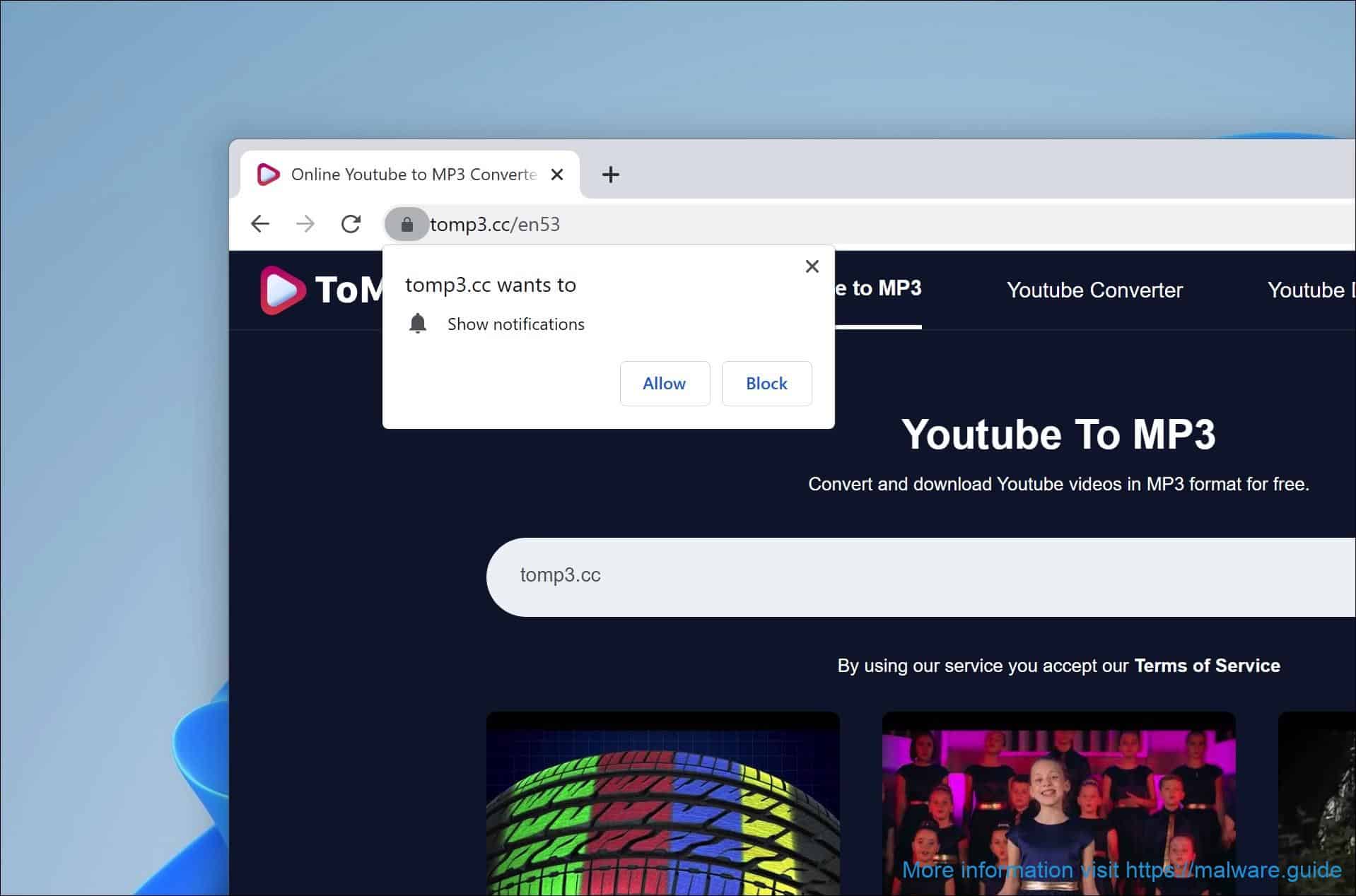
- Push Notification Spam: Malicious website permissions that trigger native operating system or browser notifications advertising dubious products, fake security alerts, or scams.
Recognizing these vectors allows you to apply the correct remediation strategies rather than relying on unverified registry cleaners or random scripts found on internet forums.
Preparation: Disconnect and Protect
Before executing any removal steps, you must isolate the infected machine to prevent any active scripts from communicating with Command and Control (C&C) servers or downloading secondary payloads.
- Disconnect from the Internet: Unplug your Ethernet cable or disable Wi-Fi immediately. This stops ongoing data exfiltration and prevents malicious scripts from fetching updates.
- Back Up Essential Data: If you have unbacked-up personal documents, photos, or work files, copy them to an external, write-protected storage drive before proceeding with deep system repairs.
- Prepare Remediation Media: If your primary browser is completely locked or unresponsive, ensure you have access to a clean secondary device or installation media if you need to download security tools.
Method 1: Isolate and Terminate Malicious Processes via Task Manager
Often, adware or browser hijackers run background processes that continually respawn malicious browser windows or monitor your web traffic. Terminating these processes is a critical first step.
Step-by-Step Process
- Open Task Manager on Windows by pressing
Ctrl + Shift + Esc, or Activity Monitor on macOS via Spotlight. - Review the list of running applications and background processes. Look for unfamiliar executable files running with random strings of letters, high CPU usage from unknown scripts, or suspicious background helper apps.
- Right-click any suspicious process and select End Task (or force quit on macOS).
- Note the file location of any persistent malicious process by right-clicking and selecting Open file location—this helps you delete the underlying files later.
Do not terminate critical system services (such as svchost.exe or explorer.exe on Windows, or kernel_task on macOS). If you are unsure what a process does, perform a quick web search on another device before ending it.
Method 2: Purge Malicious Browser Extensions and Reset Settings
Browser hijackers tied to conversion site adware almost always embed themselves directly into Google Chrome, Mozilla Firefox, Microsoft Edge, or Apple Safari via malicious extensions or altered configuration profiles.
Cleaning Chromium-Based Browsers (Chrome, Edge, Brave)
- Open the browser menu and navigate to Extensions (or type
chrome://extensionsin the address bar). - Carefully examine every installed extension. Remove any extension you did not install intentionally, or any extension with generic names, vague descriptions, or excessive permission requests.
- Navigate to Settings > Reset settings and select Restore settings to their original defaults. This clears custom startup pages, search engines, and temporary cookies without deleting saved passwords or bookmarks.
Cleaning Mozilla Firefox
- Type
about:addonsin the address bar and select Extensions. - Disable and remove any unfamiliar or suspicious add-ons.
- Click the menu button, select Help > More troubleshooting information, and click Refresh Firefox to reset browser settings to factory defaults while preserving essential personal data.
Method 3: Revoke Unauthorized Browser Push Notifications
A common symptom of the ytmp3 cc adware experience is an influx of native operating system alerts displaying sensationalized security warnings or flashing promotional offers. These originate from malicious website permissions, not necessarily a deep system infection.
How to Clear Notification Spammers
- Google Chrome: Go to
Settings > Privacy and security > Site settings > Notifications. Under the "Allowed to send notifications" section, click the three dots next to any unfamiliar or suspicious domains (look for random alphanumeric URLs or domains mimicking security alerts) and select Remove or Block. - Mozilla Firefox: Go to
Settings > Privacy & Security > Permissions > Notifications, click Settings next to the entry, and change the status of suspicious sites to Block. - Microsoft Edge: Navigate to
Settings > Cookies and site permissions > Notifications, and clean out unrecognized entries under the "Allow" list.
Once these permissions are revoked, the persistent pop-up alerts appearing in the corner of your desktop will immediately cease.
Method 4: Run Deep Scans with Reputable Anti-Malware Software
Manual cleaning removes surface-level hooks, but hidden adware files, scheduled tasks, and registry modifications often require automated security software to ensure complete eradication.
Executing a Comprehensive Scan
- Download and install a trusted security suite (such as Malwarebytes, Windows Defender Offline, Bitdefender, or Sophos Home) from an official vendor website.
- If the malware blocks standard installations, boot your computer into Safe Mode with Networking (Windows) or restart in Safe Mode (macOS).
- Update the anti-malware virus definitions to the latest version.
- Perform a Deep Scan or Custom Full System Scan covering all local drives, system directories, and user profiles.
- Review the scan detection log and allow the software to Quarantine or Delete all identified adware, PUPs, and hijacked shortcuts.
| Security Tool | Primary Function | Safe Mode Compatibility | Cost Model |
|---|---|---|---|
| Malwarebytes | Adware & PUP Removal | Yes | Free / Premium |
| Windows Defender | Native OS Protection | Yes (Offline Scan) | Built-in (Free) |
| Bitdefender Free | Behavioral Threat Detection | Yes | Free / Paid Tiers |
| Sophos Home | Remote & Local Management | Yes | Subscription |
Method 5: Inspect System Files, Shortcuts, and Network Configurations
Advanced adware variants often modify browser shortcut properties to force your browser to launch malicious landing pages every time you open it, or alter DNS settings to redirect traffic.
Verifying Shortcut Targets (Windows)
- Locate your browser shortcut icons on the desktop or taskbar.
- Right-click the shortcut and select Properties.
- Check the Target field. Ensure the file path points strictly to the legitimate browser executable (e.g.,
"C:\Program Files\Google\Chrome\Application\chrome.exe"). If there is an appended URL or suspicious argument at the end of the file path, delete the extra text or recreate the shortcut entirely.
Checking Network Proxy and DNS Settings
- On Windows, open Control Panel > Network and Internet > Network and Sharing Center > Change adapter settings, right-click your active connection, select Properties, and check Internet Protocol Version 4 (TCP/IPv4) properties. Ensure DNS servers are set to obtain addresses automatically or point to verified providers like Cloudflare (
1.1.1.1) or Google (8.1.8.8). - On macOS, go to System Settings > Network > Details > DNS and clear out any unrecognized or unauthorized DNS server addresses injected by malicious configuration profiles.
Prevention Strategies for Safe Media Conversion
To avoid encountering similar adware threats in the future, adopt safe browsing habits when utilizing online utilities and media tools.
- Deploy an Advanced Content Blocker: Install a reputable, open-source content blocker (such as uBlock Origin) to neutralize malicious redirect scripts and aggressive advertising networks before they load in your browser.
- Avoid Bundled Installers: When downloading freeware, always select "Custom" or "Advanced" installation setups to uncheck bundled third-party software, sponsored toolbars, and unwanted browser extensions.
- Never Grant Notification Permissions: Treat browser notification prompts from unfamiliar media converters, streaming portals, or file-sharing sites with extreme skepticism. Always click Block or Deny.
- Use Native Software Alternatives: Where possible, replace web-based conversion portals with well-audited, open-source desktop command-line utilities or dedicated offline software run locally in a sandboxed environment.
Frequently Asked Questions
Can a ytmp3 cc virus steal my personal passwords?
While most adware associated with media conversion sites focuses on displaying advertisements, generating pay-per-click revenue, or hijacking search queries, aggressive variants may include keylogging or session-hijacking components. If you suspect your browser was compromised, change your critical financial and email passwords immediately after completing the removal steps, and enable multi-factor authentication (MFA).
Do I need to reinstall my operating system to remove this virus?
No. Infections originating from conversion site adware are almost always superficial and affect user-space directories, browser profiles, and application settings rather than deep kernel-level system files. Following the manual cleanup and anti-malware scanning procedures outlined above is sufficient to restore the machine to a secure state.
Why do free MP3 conversion sites trigger so many virus warnings?
Free conversion websites operate on high-volume, low-margin business models. To monetize traffic, they frequently partner with unscrupulous ad networks that serve malicious or deceptive JavaScript code, fake update alerts, and drive-by download prompts designed to trick users into installing unwanted software.
Are mobile devices vulnerable to ytmp3 cc adware?
Yes. Smartphone users navigating to these portals via mobile browsers (Safari on iOS or Chrome on Android) frequently experience aggressive tab redirects, full-screen pop-up ads, and malicious calendar or notification spam. Mobile cleanup involves clearing browser cache and data, removing unauthorized calendar subscriptions, and deleting malicious downloaded apps.
Conclusion and Next Actions
Successfully resolving a browser hijacking or adware incident tied to media conversion portals requires diligence across multiple layers of your operating system. By terminating rogue processes, purging malicious extensions, revoking unwanted notification permissions, running a deep anti-malware scan, and verifying browser shortcut properties, you can completely eliminate the threat. Moving forward, maintain active content filtering and exercise caution when interacting with pop-ups on free utility websites to ensure long-term device security.