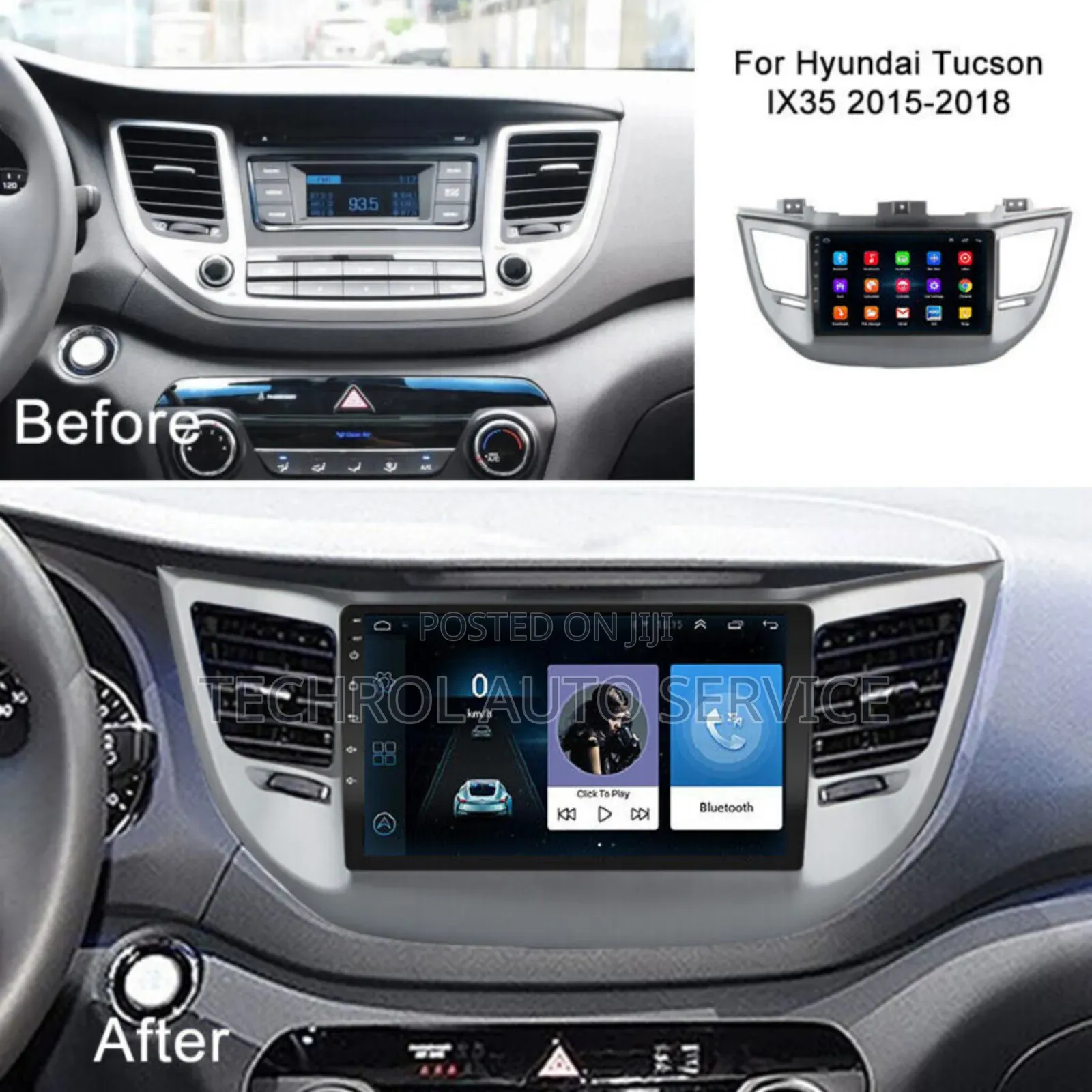
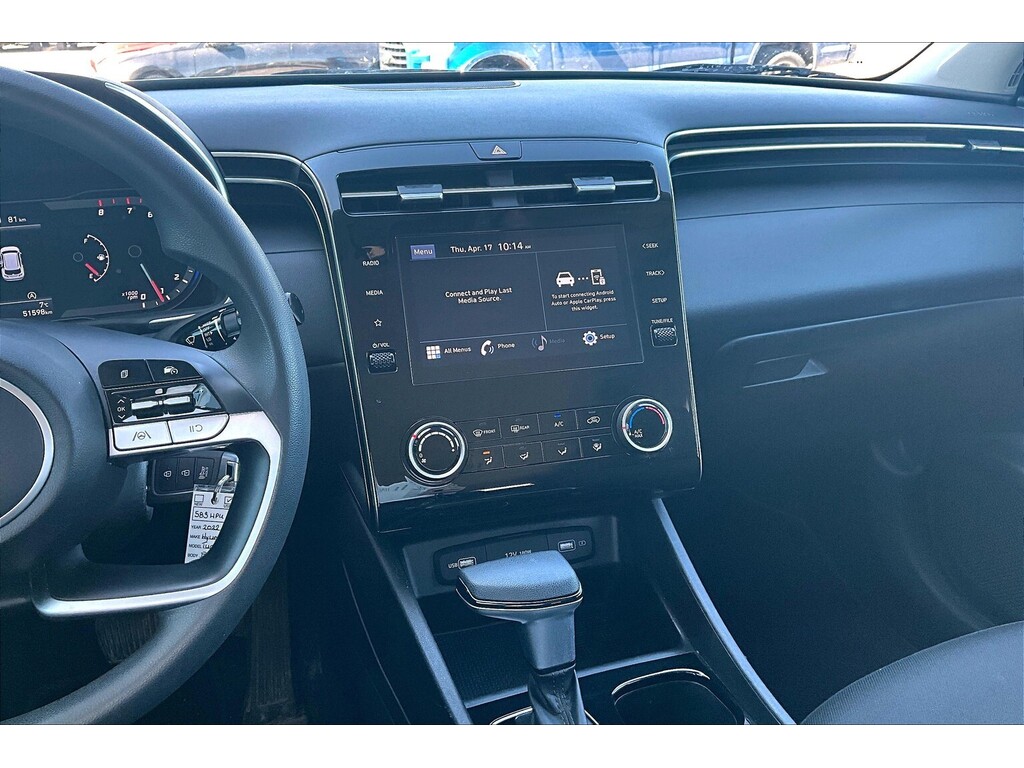
Apple CarPlay availability on the 2017 Hyundai Tucson depends on the factory trim level and infotainment display. The Limited trim with the 8-inch navigation system includes native Apple CarPlay support. Lower trims featuring the 5-inch display (SE, Eco, Sport, and Night) lack the hardware required for OEM software updates, requiring an aftermarket head unit installation costing $300 to $800.
Factory Apple CarPlay Availability Across 2017 Hyundai Tucson Trims
When Hyundai released the 2017 Tucson, Smartphone Integration (Apple CarPlay and Android Auto) was transitioning from a premium novelty to a standard driver expectation. However, Hyundai limited OEM Apple CarPlay hardware support to specific infotainment systems across the trim lineup.
Understanding which 2017 Tucson models support factory Apple CarPlay requires looking at the trim level and the original touchscreen display installed from the factory.
- 2017 Hyundai Tucson Trim Level Spectrum:
- 5-Inch Audio Display (No OEM CarPlay) (Requires Aftermarket Upgrade):
- SE
- Eco
- Sport
- Night
- 8-Inch Navigation System (Native OEM CarPlay Supported):
- Limited
- 5-Inch Audio Display (No OEM CarPlay) (Requires Aftermarket Upgrade):
SE Trim
The entry-level SE trim came standard with a 5-inch color touchscreen display audio system. This base hardware platform lacks the onboard processor, display resolution, and video decoding modules necessary to run Apple CarPlay. As a result, the SE trim does not support native Apple CarPlay, and it cannot be updated via software to enable the feature.
Eco Trim
Designed for fuel efficiency, the Eco trim shared its central stack electronics with the SE trim. It features the standard 5-inch color touchscreen display without built-in navigation or smartphone mirroring capabilities. Apple CarPlay is not available natively on the 2017 Tucson Eco.
Sport Trim
The Sport trim added safety features, 19-inch alloy wheels, and comfort options, but it retained the standard 5-inch color touchscreen audio display. Despite its sportier styling and upgraded interior amenities, the factory head unit cannot run Apple CarPlay via official updates.
Night Edition
Introduced mid-model year as a special appearance package, the Night trim offered dark exterior accents, gloss-black wheels, and an aluminum pedal set. However, its interior technology configuration mirrored the Sport trim, utilizing the standard 5-inch display. Native Apple CarPlay is not supported on the Night Edition.
Limited Trim
The top-tier Limited trim came equipped with an 8-inch touchscreen display paired with Hyundai’s high-definition navigation system and an eight-speaker Infinity premium audio setup. Apple CarPlay is fully supported on all 2017 Tucson Limited models.
Early-production 2017 Limited units shipped from the factory before the software push required a simple SD card software update provided by Hyundai, while later-production 2017 Limited models included CarPlay pre-activated directly from the showroom floor.
Technical Requirements: 5-Inch vs. 8-Inch Infotainment Systems
The division between supported and unsupported 2017 Tucson trims comes down to physical hardware, memory allocation, and system architecture rather than a software paywall.
| 5-Inch Display Audio System | 8-Inch Navigation Display System |
|---|---|
| Standard on: SE, Eco, Sport, Night | Standard on: Limited |
| Screen Resolution: ~480x272 | Screen Resolution: 800x480 (WVGA) |
| Operating System: Proprietary OS | Operating System: Android/Linux OS |
| Navigation: None (Analog Radio) | Navigation: Flash-based SD Maps |
| USB Port: Audio Passthrough Only | USB Port: High-Speed Data Protocol |
| CarPlay Upgrade Path: Aftermarket | CarPlay Upgrade Path: OEM Update |
Why the 5-Inch Display Cannot Be Software-Updated
Many vehicle owners assume that any touchscreen radio can receive an over-the-air (OTA) or USB patch to enable smartphone projection. On the 2017 Tucson's 5-inch display:
- Operating Architecture: The 5-inch unit operates on low-level firmware designed solely to handle basic Bluetooth audio streaming, AM/FM radio tuning, and rearview camera projection. It lacks an underlying high-level operating system (like Linux or Automotive Android) capable of running Apple’s H.264 video decoding protocol.
- Resolution and Scalability: Apple CarPlay mandates specific screen resolution minimums and touch-input refresh rates that the 5-inch resistively styled digitizer cannot meet.
- USB Hub Circuitry: The USB port connected to the 5-inch radio acts strictly as a basic mass-storage reader for MP3 files. It lacks the data transport controller required for continuous dual-way high-speed data transmission between an iPhone and the vehicle's head unit.
Hardware Architecture of the 8-Inch Navigation Unit
The 8-inch head unit found on the Limited trim contains a dedicated graphics chip, an external SD card slot for navigation data, and expanded RAM. Because this system was engineered to run Hyundai’s internal flash-based navigation, it possesses the computational capability to render Apple CarPlay interfaces smoothly at 60 frames per second over a wired lightning connection.
Overview of 2017 Hyundai Tucson CarPlay Availability and Costs
| Trim Level | Screen Size | OEM CarPlay Support | OEM Software Update Available? | Upgrade Method | Estimated Upgrade Cost |
|---|---|---|---|---|---|
| SE | 5-Inch Touchscreen | No | No | Aftermarket Head Unit | $300 – $800 |
| Eco | 5-Inch Touchscreen | No | No | Aftermarket Head Unit | $300 – $800 |
| Sport | 5-Inch Touchscreen | No | No | Aftermarket Head Unit | $300 – $800 |
| Night | 5-Inch Touchscreen | No | No | Aftermarket Head Unit | $300 – $800 |
| Limited | 8-Inch Touchscreen | Yes | Yes (If not pre-installed) | Free DIY Update / SD Card | $0 – $50 |
How to Verify and Enable Apple CarPlay on Compatible 2017 Tucson Models
If you own or are considering buying a 2017 Hyundai Tucson Limited, verify whether Apple CarPlay is already enabled or requires activation within the system settings.
- Step 1: Verify Hardware: Ensure 8-Inch Screen & Native Nav Button are present
- Step 2: Check Settings: Menu > Setup > Connectivity > Apple CarPlay [ENABLE]
- Step 3: Connect Device: Plug Apple MFi Cable into Center Console USB Port
- Step 4: Launch Interface: Select Apple CarPlay Icon on Main Screen
Step 1: Checking Current System Software
- Turn on the vehicle ignition and allow the 8-inch display to boot fully.
- Press the physical SETUP hard key located below or beside the display screen.
- Scroll on the screen and tap General, then select System Info (or SW Info).
- Inspect the Software Version string. If the version begins with or includes
TL.USA.SOP, your system possesses the underlying firmware structure to support Apple CarPlay.
Step 2: Enabling Apple CarPlay in Vehicle Settings
Before an iPhone will project its interface, the setting must be toggled on inside the Hyundai system:
- Press SETUP on the infotainment panel.
- Tap the Connectivity (or Device Connections) icon on the touchscreen.
- Select Apple CarPlay.
- Check the box marked Enable Apple CarPlay. (Note: When this box is checked, certain secondary Hyundai voice command features on the steering wheel shift primary operation to Apple Siri).
Step 3: USB Cable Requirements and Physical Connection
The 2017 Hyundai Tucson uses wired Apple CarPlay. Wireless CarPlay was not offered by Hyundai on this generation of navigation head units.
- Port Location: You must plug your iPhone into the single USB data port located in the storage tray at the base of the center console stack (next to the 12V auxiliary power outlets).
- Cable Standard: Use an official Apple Lightning/USB-C cable or an Apple MFi-Certified cable. Non-certified aftermarket charging cables frequently cause random disconnections, black screens, or failed handshakes.
- Initial Pairing: Connect your iPhone while unlocked. A prompt will appear on your iPhone asking: "Allow CarPlay with 'Tucson' while phone is locked?" Select Allow.
Official OEM Software Update Procedure (Hyundai Navigation Updates)
For 2017 Tucson Limited owners whose 8-inch screen displays navigation but shows no option for Apple CarPlay in the settings menu, a system software update is required.
Free Downloads vs. Paid SD Card Replacement Costs
Hyundai provides system firmware updates alongside map updates through their official portal managed by Hyundai AutoEver.
- Self-Service DIY Download ($0): Owners can download the official Navigation Updater software onto a PC or Mac, insert the vehicle's original SD card into a computer, and update the software for free.
- Pre-Loaded SD Card Purchase ($25 – $50): If you prefer not to download large image files (which can exceed 25 GB), or if your vehicle's original SD card is missing or corrupted, a pre-loaded replacement SD card can be ordered directly from Hyundai Navigation Updates.
Step-by-Step Software Update via Hyundai Update Portal
- Locate the SD Card Slot: On the 2017 Tucson Limited head unit, the SD card slot is situated directly below the 8-inch display screen, protected by a plastic cover labeled SD Map. Gently open this cover and push the card inward to release it.
- Download the Updater Tool: On a computer equipped with an SD card reader, visit the official Hyundai Navigation Update portal. Download and install the Navigation Updater application for Windows or macOS.
- Select Model and Year: Launch the application, log in or proceed as a guest, and select 2017 Hyundai Tucson (or input your vehicle’s exact software version number).
- Download and Flash: Insert the 32GB (Class 10) SD card into your computer reader. The Navigation Updater tool will format the card (FAT32/exFAT) and write the latest firmware, map files, and Apple CarPlay modules onto the card.
- Install in Vehicle:
- Turn the vehicle engine ON and keep it running in Park (do not turn off the engine during update execution).
- Insert the freshly updated SD card into the Tucson’s dash slot.
- Go to SETUP > General > System Info and tap Update.
- The installation process takes approximately 25 to 45 minutes. The screen will reboot several times during this process.
Retrofitting CarPlay on Non-Supported Trims (SE, Eco, Sport, Night)
If you drive a 2017 Tucson SE, Eco, Sport, or Night trim, adding Apple CarPlay requires replacing the factory 5-inch radio with an aftermarket multimedia receiver.
- AFTERMARKET INSTALLATION STACK:
- Double-DIN Receiver: Sony / Pioneer / Alpine ($200 - $500)
- Dash Fitting Kit: Metra 99-7369B ($30 - $60)
- Wiring & SWC Harness: Crux SWRHK-65D or Maestro RR ($60-$150)
- Camera Adapter Step: 12V to 6V Step-Down Converter ($10-$20)
Choosing an Aftermarket Double-DIN Head Unit
The 2017 Tucson dashboard features a standard Double-DIN opening space behind the factory radio bezel. Top car audio manufacturer head units compatible with this dashboard include:
- Entry-Level Wired CarPlay Receivers: Boss Audio Elite, Dual Electronics ($180 – $250)
- Mid-Range Wired/Wireless Receivers: Sony XAV-AX3200, Pioneer AVH-W4500NEX, Kenwood DMX7706S ($320 – $500)
- Premium Capacitive Wireless Receivers: Alpine iLX-507, Pioneer DMH-WT7600NEX ($600 – $900)
Retaining Steering Wheel Controls and Factory Backup Camera
When swapping out the factory 5-inch radio, retaining the factory backup camera and steering wheel audio controls requires specific adapter kits:
- Dash Kit: A dash installation kit (such as the Metra 99-7369B or Scosche HY1627B) adapts the aftermarket head unit to fit the Tucson’s curved dashboard cutout seamlessly.
- Steering Wheel Control Interface: Interfaces like the PAC RP4-HD11 or Crux SWRHK-65D retain volume up/down, track skip, and hands-free phone buttons on the steering wheel.
- Backup Camera Retention: The 2017 Tucson’s OEM backup camera runs on 6 Volts, whereas standard aftermarket radios output a 12-Volt trigger signal. Installing an aftermarket head unit requires a 12V-to-6V step-down voltage converter (e.g., Metra AX-CAM6V) to avoid damaging the factory camera module.
Cost Breakdown for Aftermarket CarPlay Installation
| Component / Service | Cost Range (USD) |
|---|---|
| Aftermarket Receiver (Wired/Wlss) | $200 – $500 |
| Dash Fitting Kit (Metra/Scosche) | $35 – $60 |
| Wiring Harness & Control Interface | $60 – $150 |
| Antenna & Backup Camera Adapters | $15 – $35 |
| Professional Installation Labor | $120 – $250 |
| TOTAL ESTIMATED COST | $430 – $1,000 |
Converting Factory Wired CarPlay to Wireless CarPlay
Owners of the 2017 Tucson Limited who want to eliminate cable connection clutter can convert the native wired Apple CarPlay system into a wireless configuration using an aftermarket plug-and-play adapter.
How Plug-and-Play Wireless Adapters Work
Wireless CarPlay adapters (manufactured by brands such as Carlinkit, Ottocast, or Quad Lock) connect directly into the 2017 Tucson’s center-console USB data port.
The adapter tricks the Tucson's head unit into detecting a standard wired iPhone connection.
The adapter emits its own local 5GHz Wi-Fi network and Bluetooth signal inside the car.
Your iPhone connects wirelessly via Bluetooth to establish an initial handshake, then transfers data over the 5GHz Wi-Fi link to transmit CarPlay visuals and audio.
iPhone
Wireless Adapter (connected via 5GHz Wi-Fi / Bluetooth)
2017 Tucson 8" Head Unit (connected via Wired USB)
Recommended Setup and Limitations
- Average Adapter Cost: $45 to $100.
- Latency: Wireless adapters introduce a slight input lag (typically 1 to 2 seconds) when skipping audio tracks or speaking during phone calls compared to a direct Lightning cable.
- Battery Consumption: Using wireless CarPlay drains your iPhone's battery faster during long road trips; using a wireless charging pad or secondary 12V fast charger is recommended.
Troubleshooting Common 2017 Hyundai Tucson Apple CarPlay Issues
If Apple CarPlay fails to launch or freezes on your 2017 Tucson Limited, work through these diagnostic steps to isolate the issue.
- Problem: CarPlay Won't Launch
- Check iPhone: Ensure Siri is ON (Settings > Siri & Search)
- Check Screen: Verify CarPlay box is checked in Setup > Connectivity
- Check Cable: Replace with an official MFi-certified USB cable
- System Freeze: Perform pinhole reset next to the volume knob
Black Screen or Unresponsive Connection
- Pinhole Reset: The 2017 Hyundai Tucson Limited head unit features a hardware reset button—a tiny pinhole located right next to the volume knob or map slot. Insert a paperclip into the hole and hold it down for 5 seconds until the screen turns black and reboots. This resets the system memory without deleting saved radio stations or navigation history.
- Clear Mobile Cache: On your iPhone, go to Settings > General > CarPlay, select Tucson, tap Forget This Car, and re-pair the phone via USB.
Siri Not Responding or Audio Muted
Apple CarPlay requires Siri to be enabled on your iPhone to process voice control commands and route audio.
- Open your iPhone Settings.
- Navigate to Siri & Search.
- Verify that Listen for "Hey Siri" and Press Side Button for Siri are both switched ON.
- Ensure that Allow Siri When Locked is toggled ON.
USB Port Connection Drops
Intermittent connection drops are frequently caused by lint buildup inside the iPhone’s charging port or loose pin connections inside the car's USB port.
- Use a wooden toothpick or small soft brush to gently clear debris out of your iPhone's port.
- Ensure the USB cable fits firmly inside the center console port without side-to-side wiggle.
Frequently Asked Questions
Is Apple CarPlay standard on all 2017 Hyundai Tucson models?
No. Apple CarPlay was only available from the factory on the Limited trim, which featured the 8-inch navigation system. Trims equipped with the base 5-inch display (SE, Eco, Sport, and Night) do not support native Apple CarPlay.
How much does it cost to add Apple CarPlay to a 2017 Hyundai Tucson SE?
Adding Apple CarPlay to an SE trim requires an aftermarket head unit replacement. DIY hardware packages cost between $300 and $550, while professional car audio installation adds $120 to $250 in labor, bringing total costs to roughly $430 to $800.
Can I update my 2017 Hyundai Tucson system to get CarPlay without visiting a dealership?
Yes. If you own a Limited trim with an 8-inch navigation screen, you can download the latest free firmware and map update directly from the official Hyundai Navigation Update Portal onto an SD card, which can then be inserted directly into your car's dash slot.
Does 2017 Hyundai Tucson Apple CarPlay support wireless connections natively?
No. The factory system on the 2017 Tucson Limited requires a wired connection via an MFi-certified USB cable plugged into the lower console port. However, you can add wireless connectivity by purchasing a 3rd-party USB wireless CarPlay adapter for around $45 to $100.
Why is my Apple CarPlay icon greyed out on the screen?
The CarPlay icon remains greyed out if your iPhone is not detected by the head unit. This usually happens because you are using a charge-only USB cable, the center console USB port is dirty, or Apple CarPlay has not been enabled inside the vehicle’s menu (SETUP > Connectivity > Apple CarPlay).
Final Recommendations for 2017 Hyundai Tucson Owners
- For Tucson Limited Owners: Check your infotainment software version under SETUP > General > System Info. If Apple CarPlay is not visible in your connectivity menu, download the free software update via the official Hyundai AutoEver portal using a 32GB SD card. Avoid paying dealership service fees for software updates you can complete at home in under an hour.
- For Tucson SE, Eco, Sport, and Night Owners: Do not purchase SD cards or software updates online promising to unlock CarPlay on your factory screen—the 5-inch display hardware cannot physically support it. Budget for a quality Double-DIN aftermarket head unit (such as Sony, Pioneer, or Alpine) along with a 12V-to-6V camera step-down module to retain your factory backup camera functionality.