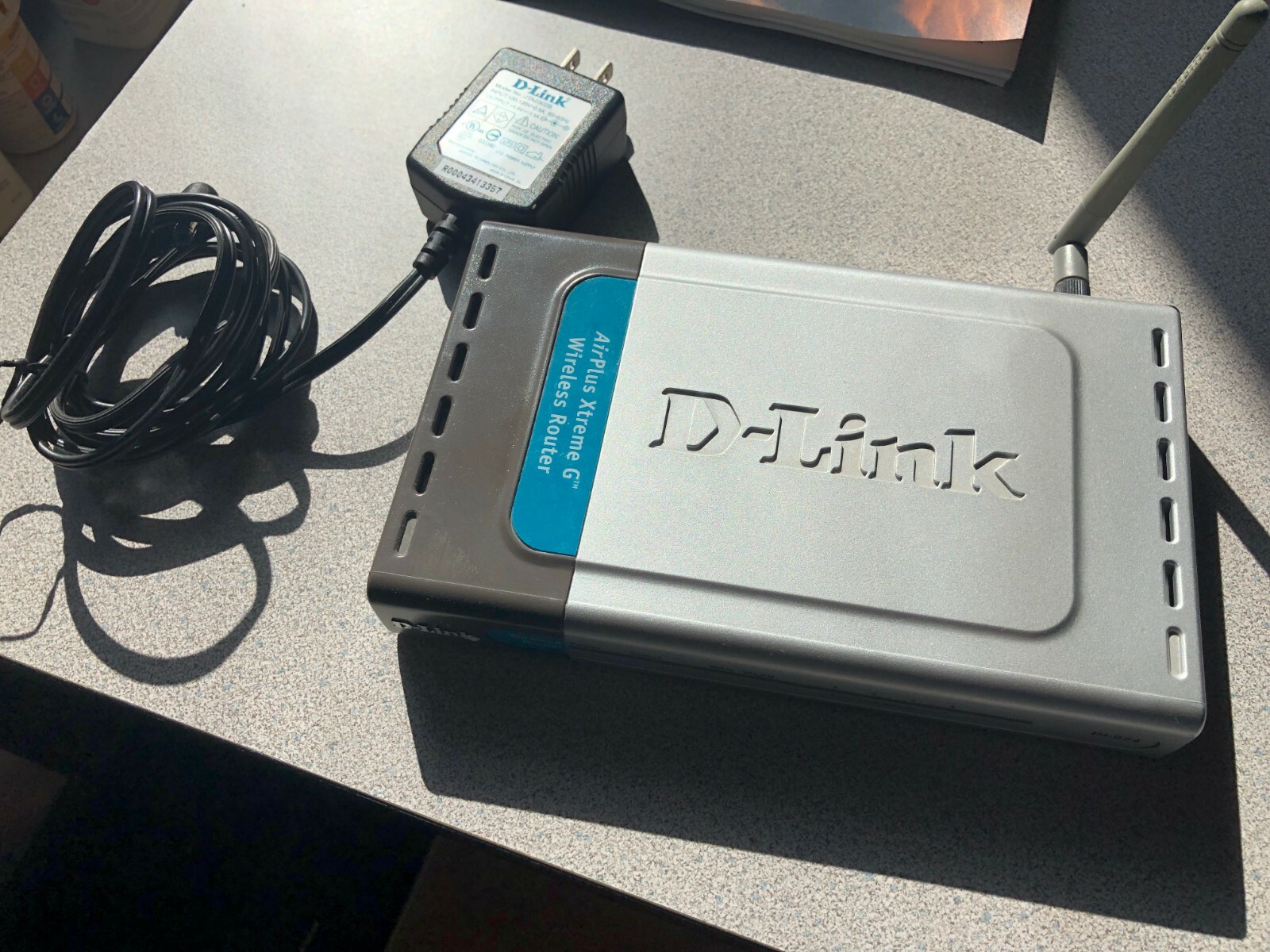
Upgrading to 108 Mbps firmware for the D-Link DI-624 wireless router involves flashing a proprietary performance-boosting software package that leverages channel bonding technology to exceed standard 802.11g speeds, though doing so requires precise hardware revision matching and carries inherent risks of device bricking.
The D-Link DI-624 stands as a classic piece of networking hardware from the era of early consumer wireless networking. Released during the rapid expansion of the 802.11g standard, this router promised high-speed internet sharing for homes and small offices. Among its most notable features during its commercial lifecycle was the capability to achieve up to 108 Mbps speeds through proprietary speed-boosting technologies. For enthusiasts, historians of technology, or those maintaining legacy equipment, understanding the firmware updates required to reach this speed threshold remains a specific technical undertaking. This guide examines the background, technical requirements, installation procedures, and operational limitations of applying 108 Mbps firmware to the D-Link DI-624.
Historical and Technical Background of the D-Link DI-624
The D-Link DI-624 AirPlus Xtreme G router was introduced in the mid-2000s, operating primarily on the IEEE 802.11g protocol, which natively specified a maximum theoretical data rate of 54 Mbps in the 2.4 GHz frequency band. At a time when broadband connections were rapidly accelerating past dial-up speeds, local network bottlenecks became a primary concern for home users sharing files, streaming early digital media, and playing multiplayer video games.
To address these limitations while the IEEE 802.11n draft standards were still years away from final ratification, manufacturers developed proprietary frame-bursting and channel-bonding solutions. D-Link’s implementation was known as Super G technology, powered by Atheros chipset architectures. By combining two adjacent 20 MHz channels into a single 40 MHz channel and utilizing packet-bursting techniques, the DI-624 could theoretically double the throughput of standard 802.11g devices, reaching up to 108 Mbps under optimal laboratory conditions.
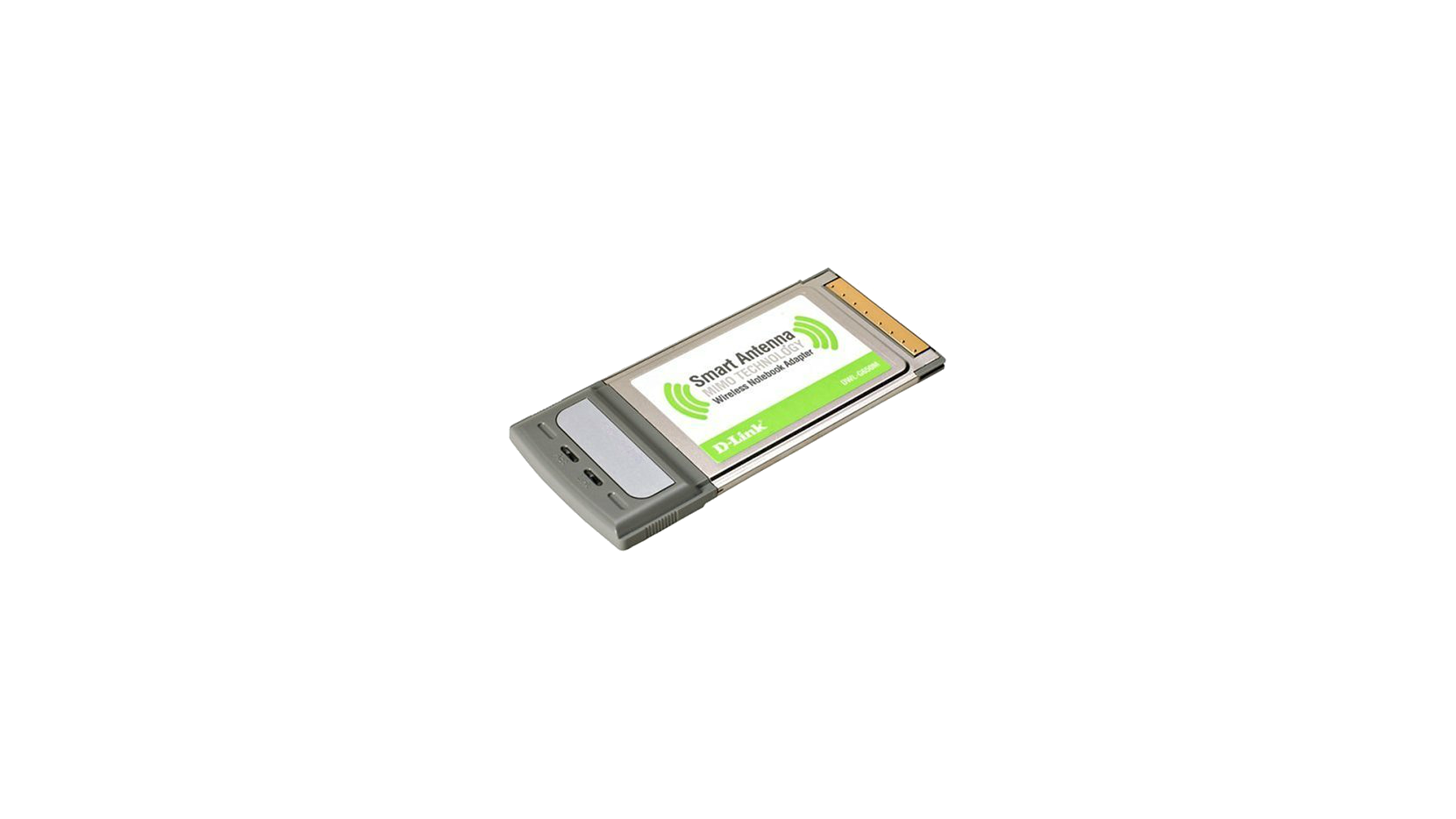
However, achieving this speed was not automatic. It required both the wireless router (the DI-624) and the client adapter (such as a compatible D-Link CardBus or PCI adapter utilizing the same Atheros chipset) to support Super G technology. Out-of-the-box firmware versions on early hardware revisions often lacked these optimizations or contained bugs that required targeted firmware flashes to unlock stable performance.
Prerequisites and Hardware Identification
Before attempting any firmware modification on a D-Link DI-624, proper preparation and hardware verification are mandatory. Applying the wrong firmware version is the primary cause of permanent device failure, rendering the router an unrecoverable paperweight—a condition colloquially known as "bricking."
Identifying the Hardware Revision
D-Link frequently updated the internal component architecture of its routers without significantly changing the external product name. A DI-624 with Revision A might have completely different flash memory and processing chips than a Revision C, D, or G.
- Locate the physical label on the bottom of the D-Link DI-624 router.
- Find the field labeled H/W Ver. (Hardware Version) or Rev.
- Note the exact letter or number (e.g., Rev. C2, Rev. D1).
- Cross-reference this revision with the downloaded firmware file. Firmware designed for Revision C will not work on Revision D and will corrupt the bootloader if flashed.
Preparing the Environment
Flashing firmware over a wireless connection is a critical operational mistake. Interference, packet loss, or a dropped association during the write process will corrupt the flash memory. Ensure the following conditions are met:
- Wired Connection: Connect a desktop computer or laptop directly to one of the LAN ports (Ports 1–4) on the DI-624 using an Ethernet cable. Disable the computer's Wi-Fi adapter to prevent routing conflicts.
- Stable Power Supply: Plug the router into a reliable power source or, ideally, an uninterruptible power supply (UPS). A power outage during a firmware write leaves the device unbootable.
- Static IP Configuration: Configure the management workstation with a static IP address within the router's default subnet (typically
192.168.0.x, with the router residing at192.168.0.1) if DHCP services are unstable.
Step-by-Step Firmware Installation Procedure
Once the correct firmware binary file is secured and the workstation is connected via Ethernet, the flashing process must be executed methodically through the router's web-based management interface.
Step 1: Accessing the Web Management Interface
- Open a web browser on the connected computer.
- Enter the default gateway address in the URL bar:
http://192.168.0.1and press Enter. - Enter the administrator credentials. By default, factory configurations use the username
adminand leave the password field blank. - Click Log In to access the dashboard status page.
Step 2: Backing Up Current Settings
Before altering system software, preserve the current configuration to minimize downtime if the new firmware behaves unexpectedly.
- Navigate to the Tools tab at the top of the management console.
- Select System from the left-hand navigation menu.
- Locate the Save Device Settings section and click the Save button to download the configuration file (
config.bin) to the local hard drive.
Step 3: Uploading the 108 Mbps Firmware Binary
- Remain in the Tools section and select Firmware from the sub-menu.
- Locate the Upgrade Firmware section.
- Click the Browse or Choose File button and select the extracted firmware binary file (typically bearing a
.binextension) that matches the exact hardware revision of the DI-624. - Verify that the correct file is selected to avoid flashing corrupted data.
- Click the Apply or Upload button to initiate the transfer.
Step 4: Waiting for the Flash and Reboot Cycle
Upon clicking apply, the router uploads the binary file into its temporary RAM and begins writing the image to the flash EEPROM.
- A progress bar or countdown timer will appear on the screen. This process typically takes between 60 to 180 seconds.
- Critical Warning: Do not power off the router, unplug the Ethernet cable, or close the browser window during this phase. Interruptions guarantee firmware corruption.
- Once the write cycle completes, the router will automatically reboot. The status lights on the front panel will cycle through their diagnostic routine.
Step 5: Post-Flash Verification and Factory Reset
After the router reboots, clear the browser cache or open a private browsing window to log back into 192.168.0.1.
- Check the firmware version string on the device info page to confirm it reflects the newly flashed 108 Mbps release.
- It is strongly recommended to perform a Factory Reset after a major firmware upgrade to clear legacy configuration flags in the NVRAM. Press and hold the recessed reset button on the back of the router for approximately 10 seconds using a paperclip until the status LED begins flashing.
- Re-configure the router settings manually or restore them selectively using the backup file saved earlier, keeping in mind that major version changes may require manual reconfiguration.
Technical Specifications and Comparative Performance
Understanding what 108 Mbps Super G firmware actually achieves helps manage expectations when comparing legacy 802.11g hardware against modern networking standards. The table below outlines the core specifications of the D-Link DI-624 across its standard and Super G firmware states.
| Feature / Specification | Standard 802.11g Operation | Upgraded 108 Mbps Super G Firmware | Modern Baseline Comparison (Wi-Fi 5 / Wi-Fi 6) |
|---|---|---|---|
| Max Theoretical PHY Rate | 54 Mbps | 108 Mbps (Proprietary Burst/Bond) | 867 Mbps to 1200+ Mbps |
| Frequency Band | 2.4 GHz | 2.4 GHz | Dual-Band (2.4 GHz / 5 GHz / 6 GHz) |
| Channel Width | 20 MHz | 40 MHz (Channel Bonding) | 20 MHz, 40 MHz, 80 / 160 MHz |
| Security Protocols | WEP, WPA-PSK (TKIP) | WPA-PSK (TKIP/AES), WPA2 (depending on late revisions) | WPA3-Personal / Enterprise |
| Processor & RAM | Low-power RISC, ~16MB RAM | Same physical hardware | Multi-core ARM, 256MB+ RAM |
| Wired Switching | 4-Port 10/100 Fast Ethernet | 4-Port 10/100 Fast Ethernet | Multi-Gigabit (1G / 2.5G / 10G) |
Operational Limitations and Security Considerations
While flashing 108 Mbps firmware unlocks the maximum capability of the DI-624 hardware, several real-world limitations and security concerns apply, particularly when operating legacy devices in modern networking environments.
Channel Interference and Spectrum Congestion
Super G technology achieves its speed gains by bonding two 20 MHz channels together in the crowded 2.4 GHz spectrum. In a modern residential or office environment, the 2.4 GHz band is typically congested with overlapping signals from neighboring Wi-Fi networks, Bluetooth devices, microwaves, and baby monitors. Operating a 40 MHz wide channel in this band leaves fewer non-overlapping channels available, often leading to increased packet loss, high interference, and degraded real-world performance that performs worse than standard 20 MHz 802.11g connections.
Client Compatibility Constraints
The 108 Mbps mode is not a universal standard. Standard Intel, Realtek, or Apple wireless client cards from different eras will not connect at 108 Mbps to a DI-624 running Super G firmware. Both ends of the wireless link—router and client adapter—must feature compatible Atheros chipset technology supporting the same proprietary frame-bursting and channel-bonding protocols. Standard clients will drop back to standard 54 Mbps 802.11g speeds.
Security Vulnerabilities
Firmware for the D-Link DI-624 has not received security updates in many years. Consequently, these routers lack modern security frameworks. Most versions support only WEP encryption or early implementations of WPA-PSK with TKIP encryption—both of which are cryptographically broken and vulnerable to modern packet inspection and cracking tools. Connecting a DI-624 directly to an active modern internet connection introduces significant security risks unless it is placed behind a modern primary firewall or used strictly in isolated, offline lab environments.
Troubleshooting Common Firmware Update Failments
If an update procedure encounters errors, systematic troubleshooting can identify the root cause before permanent hardware damage occurs.
- Browser Upload Error / File Rejection: If the router interface rejects the firmware file with an error message stating the file is invalid, verify the hardware revision. A mismatch between the firmware binary and the physical board revision will trigger this safety check on most D-Link bootloaders.
- Unresponsive Router (Brick State): If the router fails to boot after a flash attempt—indicated by a solid power light or continuous flashing diagnostic LEDs with no network response—the standard web interface will be inaccessible. Recovery requires entering the router's emergency recovery mode (often accessible by holding the reset button while powering on the device and accessing
192.168.0.1to upload a stock firmware image) or using a JTAG/serial interface cable to rewrite the flash chip directly. - Inability to Reach 108 Mbps Speeds: If the firmware flashes successfully but client devices refuse to connect above 54 Mbps, verify that Super G acceleration features are explicitly enabled within the router's wireless settings menu and ensure the client wireless adapter has its proprietary speed-boosting settings enabled in its device manager properties.
Frequently Asked Questions
Can I upgrade my D-Link DI-624 to support modern Wi-Fi 6 standards via firmware?
No. Firmware updates can only optimize the capabilities of existing physical radio components and microchips. The D-Link DI-624 hardware was manufactured with 802.11g radio chips operating strictly in the 2.4 GHz band. Software updates cannot add physical 5 GHz radios, OFDMA, MU-MIMO, or the encoding schemes required for Wi-Fi 6.
Where can I safely download legitimate legacy D-Link firmware files?
Official D-Link support portals have largely phased out direct downloads for vintage hardware revisions like the DI-624. When searching for files, rely on reputable archival repositories, such as router enthusiast forums and hardware preservation databases that maintain checksum-verified backups of original manufacturer binaries. Always verify MD5 or SHA checksums if available to ensure the binary has not been altered.
Will running the router at 108 Mbps overheat the device?
While Super G mode pushes the Atheros wireless chipset to operate at higher duty cycles and wider channel widths, normal operational heat remains within design tolerances provided the router is placed in a well-ventilated area. However, because these units are vintage hardware, degraded internal electrolytic capacitors are a common failure point that can cause thermal instability under heavy network loads.
Is it safe to use a D-Link DI-624 for everyday internet browsing in 2026?
Using a D-Link DI-624 as a primary gateway for modern internet access is strongly discouraged. Due to outdated cryptographic protocols, unpatched vulnerabilities, and slow Fast Ethernet switching ports, it poses significant security risks and will severely bottleneck modern broadband speeds. It is best suited for retrocomputing setups, isolated local test benches, or legacy equipment maintenance.
Final Recommendations
Applying 108 Mbps firmware to a D-Link DI-624 is a precise technical task suited primarily for vintage hardware collectors, networking hobbyists, or those maintaining closed-circuit legacy networks. Before proceeding, verify the exact hardware revision on the physical device label, use a stable wired Ethernet connection for the upload, and maintain realistic expectations regarding modern spectrum congestion and security limitations. For daily networking needs, deploying modern wireless hardware remains the only secure and performant solution.