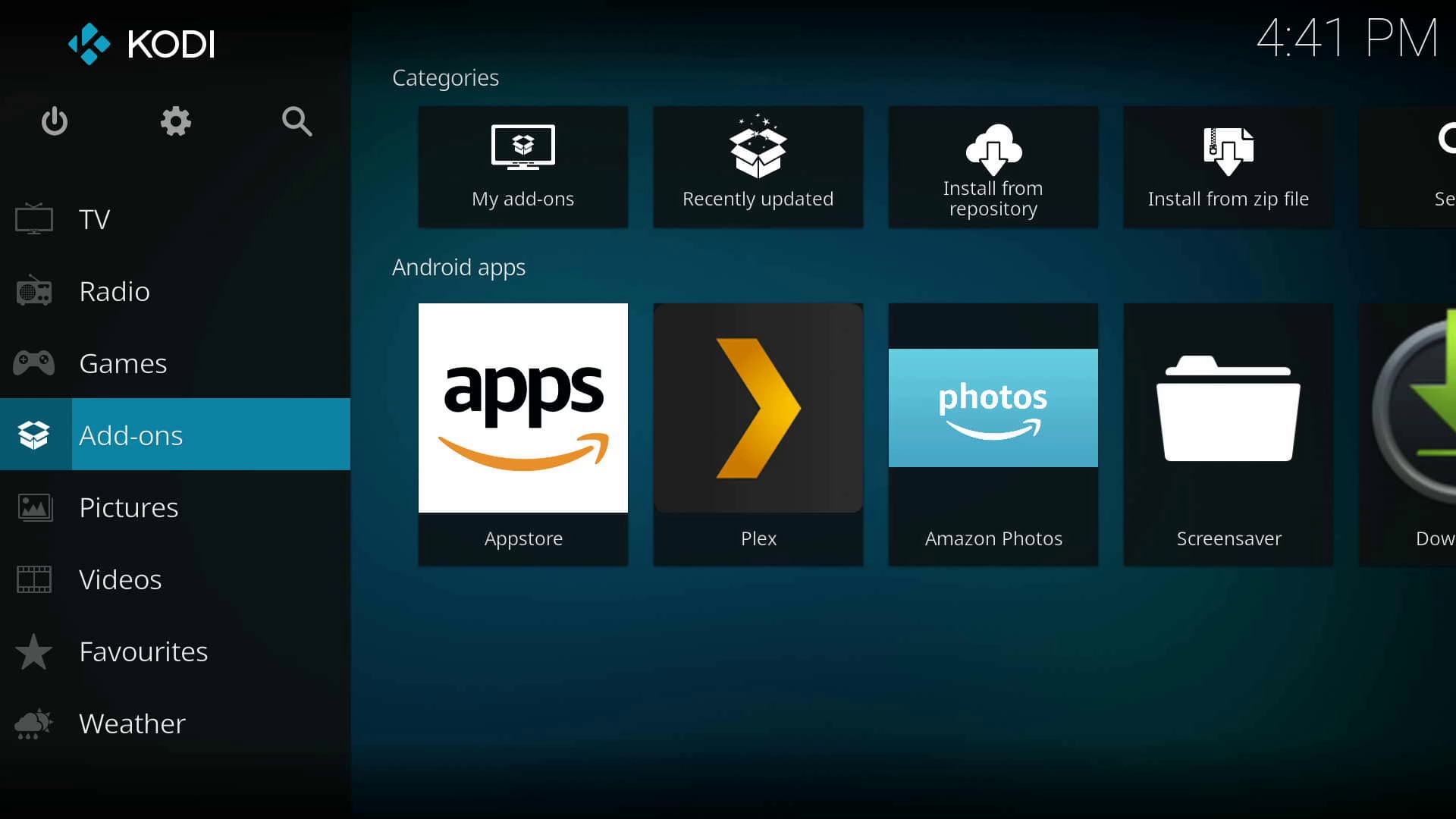
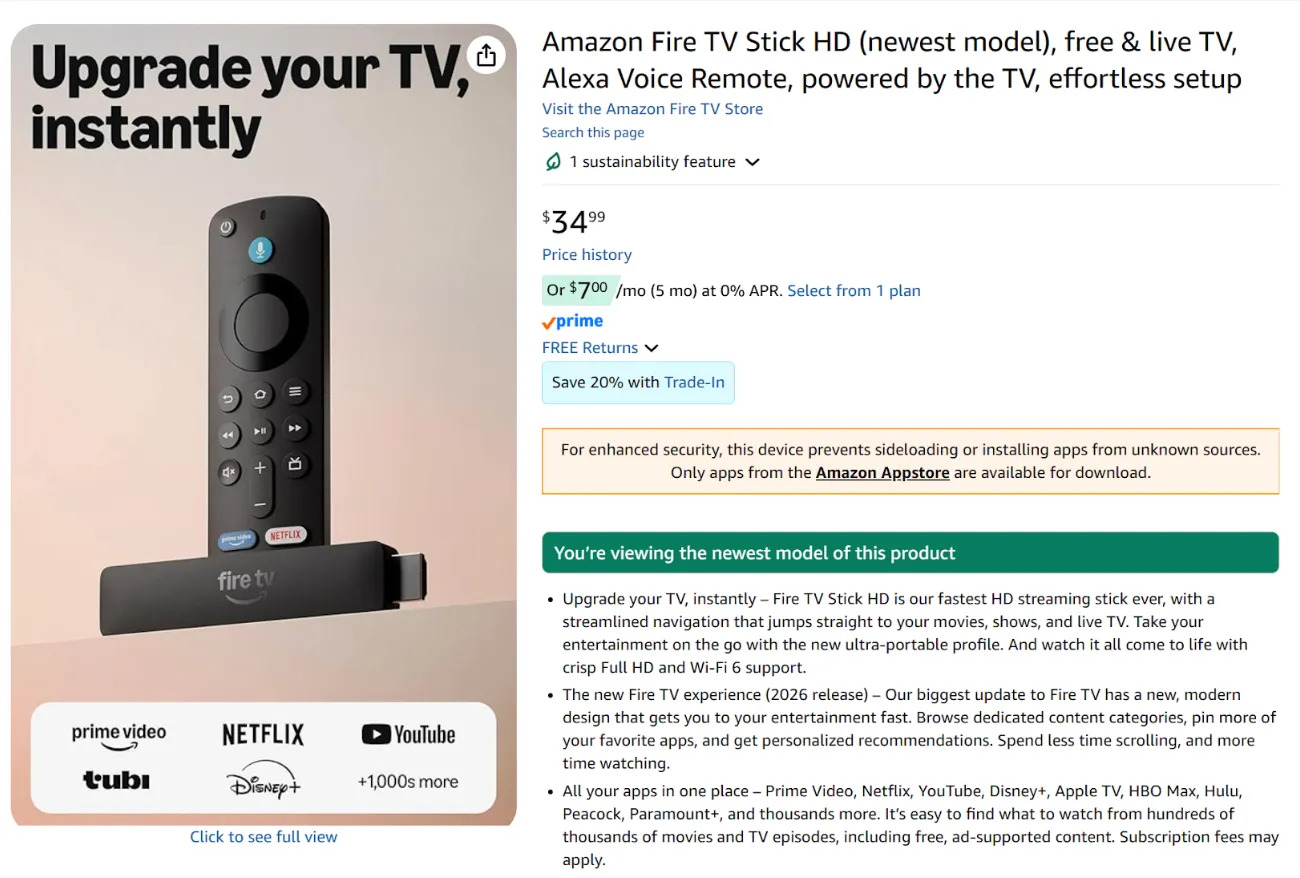
Sideloading an APK on Amazon Fire TV involves enabling developer permissions in your Fire OS settings, obtaining an Android application package (APK) file from a trustworthy repository using a tool like the Downloader app or ADB (Android Debug Bridge), and installing it directly onto your streaming device to access apps outside the official Amazon Appstore.
Understanding Fire OS and APK Compatibility
Amazon Fire TV hardware runs Fire OS, an operating system built on top of the Android Open Source Project (AOSP). Because Fire OS shares its core architecture with Android, Fire TV devices can execute standard Android package (APK) files. However, installing applications outside the official Amazon Appstore—a process universally referred to as sideloading—requires an understanding of how Fire OS handles system permissions, hardware architectures, and background services.
Fire TV devices do not ship with Google Play Services installed. Instead, Amazon replaces Google’s proprietary frameworks with its own Amazon Mobile Analytics, In-App Purchasing, and Maps APIs. Consequently, any APK that strictly requires Google Play Services (such as official YouTube Studio, Google Drive, or apps heavily reliant on Google Device Registration) will fail to run or crash immediately upon launch unless helper frameworks like MicroG are manually configured. Most third-party media players, utility applications, web browsers, and alternative file managers function without issue.
System compatibility also depends heavily on the underlying Fire OS version and hardware architecture:
- Fire OS 7 (based on Android 9 Pie): Found on devices such as the Fire TV Stick Lite, Fire TV Stick 3rd Gen, and Fire TV Cube 2nd Gen. It supports applications targeting API level 28 and lower.
- Fire OS 8 (based on Android 11): Found on devices such as the Fire TV Stick 4K 2nd Gen and Fire TV Stick 4K Max 2nd Gen. It implements stricter Android 11 security policies, scoped storage rules, and requires apps targeting API level 30 or compatible backward parameters.
- Processor Architecture: The vast majority of Fire TV streaming sticks and boxes utilize 32-bit ARM hardware (
armeabi-v7a), even if the underlying System-on-Chip (SoC) features 64-bit CPU cores. When downloading an APK manually, selecting the ARMv7a variant ensures standard execution. Downloading anarm64-v8aorx86variant will typically trigger a parsing failure during installation.
Essential Prerequisites Before Sideloading
Before your Fire TV device will permit the installation of third-party APK files, you must configure two internal system settings located within the developer controls. By default, Fire OS restricts installations to verified applications distributed through Amazon's app store catalog to prevent unauthorized system modifications.
Step 1: Unhide the Developer Options Menu
In recent Fire OS updates, Amazon aligned its user interface with stock Android by hiding the Developer Options sub-menu behind a hidden button trigger.
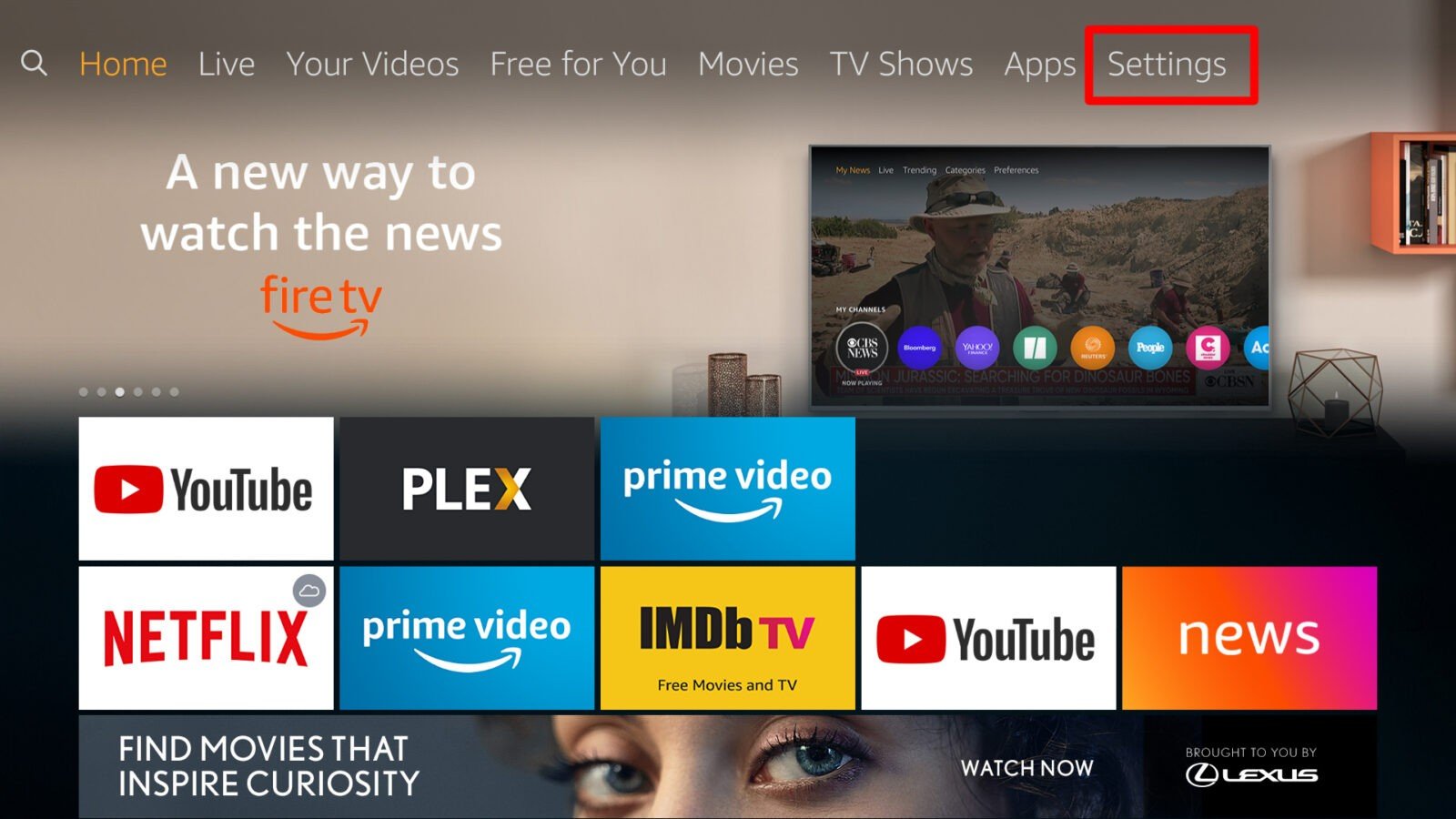
- Navigate to Settings from the main Fire TV home screen menu bar.
- Select My Fire TV (or Device & Software on select Smart TV editions).
- Select About.
- Highlight the first item, which displays the exact name of your device (for example, Fire TV Stick 4K Max).
- Click the Select button on your Fire TV remote control rapidly 7 times.
- A toast notification will appear at the bottom of the screen stating: "No need, you are already a developer."
- Press the Back button once to return to the My Fire TV menu. You will now see Developer Options listed.
Step 2: Grant Permissions to Install Unknown Apps
Depending on your exact Fire OS release, managing installation permissions follows one of two paths within the Developer Options menu:
- On Fire OS 7 and Fire OS 8: Open Developer Options, select Install Unknown Apps, and locate the specific utility you intend to use for installation (such as Downloader or File Commander). Toggle the state for that specific app to ON.
- On Older Fire OS Releases: Open Developer Options, locate Apps from Unknown Sources, and toggle the system-wide setting to ON. Confirm the security warning prompt by selecting Turn On.
- ADB Debugging: While inside Developer Options, set ADB Debugging to ON. This step is required if you plan to push applications wirelessly from a computer or mobile device.
Safe Sources for Obtaining Amazon Fire TV APKs
Installing software from external sources introduces potential security risks. Unverified third-party websites may repackage popular Android applications with malicious code, cryptojackers, or unauthorized data trackers. Maintaining software safety requires sourcing your APK files strictly from reputable, community-audited archives.
Trusted Repositories
- APKMirror: Maintained by the team behind Android Police, this archive cryptographically verifies that all uploaded APK signatures match the original signatures created by the app developers. If an APK signature has been tampered with, APKMirror rejects the file.
- F-Droid: The primary repository for free and open-source Android software (FOSS). Applications hosted here are compiled directly from public source code, eliminating proprietary tracking scripts.
- APKPure: A long-standing alternative library hosting original APK and XAPK package files, verified against official developer digital certificates.
Verifying File Safety
Before transferring or launching an APK file on your streaming hardware, perform basic cryptographic verification:
- Check the Cryptographic Hash: Compare the SHA-256 hash provided on the repository download page with the hash of your downloaded file using local command-line tools (such as
certutil -hashfile filename.apk SHA256on Windows orshasum -a 256 filename.apkon macOS/Linux). - Scan via VirusTotal: Submit the direct download link or the actual
.apkfile to VirusTotal prior to installation to screen the package against dozens of antivirus engines simultaneously.
Method 1: Installing APKs via the Downloader App (Recommended)
The most efficient method for sideloading applications directly on a Fire TV without auxiliary hardware is using the Downloader utility developed by AFTVnews. Downloader combines a basic web browser, an integrated file transfer engine, and a native package installer into a D-pad friendly interface.
- STEP 1: Get Downloader: Search "Downloader" on Amazon Appstore
- STEP 2: Grant Access: Allow Storage Permissions & Install Apps
- STEP 3: Enter Target URL: Input direct link or numeric shortcode
- STEP 4: Install APK: Confirm Fire OS Installation Prompt
Step-by-Step Downloader Workflow
- Install Downloader: Open the Find or Search menu from the Fire TV home screen. Type
Downloader, select the application with the orange icon, and click Get or Download to install it directly from the Amazon Appstore. - Launch and Grant Storage Permissions: Open Downloader. When prompted to grant access to photos, media, and files on your device, select Allow. This step is mandatory for Downloader to save
.apkfiles to internal flash storage. - Configure Browser Mode: Navigate to the left-hand menu bar inside Downloader and select Home or Browser.
- Input URL or Shortcode: Click into the URL input field. You can enter the full, direct download web link of an APK file (e.g.,
https://example.com/app.apk) or enter a numerical shortcode generated by the AFTVnews URL shortener service. - Download the File: Click Go. Downloader will connect to the remote web server and stream the
.apkfile into your local/sdcard/Downloader/directory. - Execute Installation: Upon completion of the download, Downloader automatically triggers the Fire OS Package Installer interface. Click Install in the lower-right corner of the screen.
- Clean Up System Storage: Once the installation finishes, select Done (rather than Open). Downloader will return to its main interface and display a prompt asking whether to keep or remove the installation file. Click Delete, and confirm by clicking Delete again. Removing the leftover
.apkpackage reclaims valuable flash storage space.
Method 2: Wireless Sideloading via Mobile Apps (Easy Fire Tools)
If you already have an Android smartphone or tablet containing the applications you wish to transfer, you can stream the installed apps or saved .apk packages directly across your local network to your Fire TV using ADB protocol management apps like Easy Fire Tools.
Requirements for Mobile Transfer
- Your Android phone and Amazon Fire TV must be connected to the exact same Wi-Fi network subnet (e.g., both on the same 2.4 GHz or 5 GHz network router).
- ADB Debugging must be turned ON under Fire TV Settings > My Fire TV > Developer Options.
Step-by-Step Mobile Transfer Instructions
- Find Fire TV IP Address: On your Fire TV, go to Settings > My Fire TV > About > Network. Write down the sequence of numbers listed next to IP Address (e.g.,
192.168.1.150). - Install Easy Fire Tools: Download and install Easy Fire Tools from the Google Play Store onto your Android smartphone.
- Configure the App Connection: Open Easy Fire Tools on your phone. Tap the menu icon in the upper-left corner, enter Settings, and tap IP Address. Replace the existing number with the IP address of your Fire TV noted in Step 1.
- Initiate Pairing: Return to the Easy Fire Tools main screen. Tap the Fire TV Connection Icon located in the upper-right corner.
- Accept Debugging Prompt: Look at your television screen connected to the Fire TV. A prompt will appear stating "Allow ADB debugging?" Check the box marked Always allow from this computer and select OK using your remote.
- Select and Transfer App: Once the connection icon on your phone turns green, navigate to the Installed Apps tab (to push apps currently running on your phone) or the Download Manager / Custom APK file tab. Select your target app, click Install, and wait for the status bar to finish pushing the package data over Wi-Fi.
Method 3: Advanced Sideloading using ADB Commands from PC
For software developers, system administrators, or users performing bulk installations across multiple devices, executing Android Debug Bridge (ADB) commands directly from a Windows, macOS, or Linux command-line terminal provides maximum control and detailed error output.
Setting Up ADB Tools on PC
Download the official SDK Platform-Tools package directly from the Android Developers Platform Tools repository. Extract the downloaded ZIP archive to an accessible folder on your computer (such as C:\platform-tools on Windows or ~/platform-tools on macOS/Linux).
Terminal Command Sequence
Open your system command prompt or terminal window, navigate into the platform-tools directory, and execute the following sequence of commands (substituting your actual device IP address and file paths):
Establish a remote network connection to your Fire TV:
adb connect 192.168.1.150:5555Check your television screen. If an authorization prompt appears, select Always allow from this computer and click OK.
Verify that the device status shows as connected:
adb devices(The output must list your IP address followed by the status worddevice.)Install the target APK file stored on your PC:
adb install application_name.apkIf updating an existing app while preserving its local data and settings, use the reinstall flag:
adb install -r application_name.apkIf the terminal returns
Success, the application has successfully registered within the Fire OS app drawer. Disconnect the ADB session:adb disconnect
Method 4: USB Drive Installation (Fire TV Cube & Selected Models)
Physical media transfer offers a useful offline alternative for hardware models equipped with native USB ports—such as the Fire TV Cube series—or for Fire TV Sticks expanded via a hardware On-The-Go (OTG) micro-USB or USB-C Y-splitter cable.
Formatting and File Transfer Rules
- File System Formatting: The USB flash drive must be formatted using the FAT32 file system. Fire OS cannot natively read drives formatted with NTFS, exFAT, or APFS without specialized third-party mounting drivers.
- Directory Management: Create a clear folder on the root of the USB drive named
APKsand copy your downloaded.apkfiles directly into this directory using your computer.
Installation Steps via File Manager
- Connect the formatted USB flash drive to your Fire TV device using direct ports or an OTG cable adapter.
- Launch the Amazon Appstore on your Fire TV, search for a recognized file manager utility such as File Commander or AnExplorer, and install it.
- Open Developer Options in Settings and grant your chosen file manager permission under Install Unknown Apps.
- Open the file manager app and navigate to External Storage (or USB Drive).
- Open the
APKsfolder, select the target.apkfile, and press the Select button on your remote. - Review the system permission request and click Install.
Comprehensive Comparison of Fire TV Sideloading Methods
| Method | Technical Complexity | Hardware Required | Transfer Speed | Best Used For |
|---|---|---|---|---|
| Downloader App | Very Low | Fire TV Remote only | High (Depends on Internet) | Direct web downloads, individual app installations without external hardware. |
| Mobile App (Easy Fire Tools) | Low | Android Smartphone | Medium (Local Wi-Fi dependent) | Copying apps already installed on your smartphone to the TV. |
| PC ADB Command Line | High | Windows/macOS/Linux PC | Very High (Direct local link) | Developers, batch installations, troubleshooting detailed installation failure logs. |
| USB Flash Drive (OTG) | Medium | USB Drive + OTG Cable | High (Direct bus speed) | Offline installations, large file transfers without active internet access. |
Navigation and Usability Solutions for Sideloaded Apps
Installing an APK file on Fire OS does not guarantee that the user interface will respond naturally to standard remote control inputs. Applications designed strictly for touchscreens (smartphones and tablets) lack native D-pad navigation logic, causing the Fire TV remote to skip over interactive buttons, forms, and menus.
| App Type | App Navigation Adaptation Matrix |
|---|---|
| D-Pad Native | Standard Fire TV Remote Works Seamlessly |
| Touchscreen | Requires Mouse Toggle or Physical Mouse |
| Google-Based | Requires MicroG / Alternative API Framework |
Implementing Virtual Cursor Tools (Mouse Toggle)
When an app fails to respond to D-pad directional clicks, you can install specialized cursor utilities designed for Fire OS, such as Mouse Toggle for Fire TV. These tools hook into the system accessibility layer to convert the D-pad arrows into a moving mouse cursor driven by double-clicking the Play/Pause button on your remote control.
Alternatively, you can connect a physical Bluetooth mouse or a 2.4 GHz wireless mini-keyboard with an integrated touchpad directly to your Fire TV:
- Navigate to Settings > Controllers & Bluetooth Devices.
- Select Other Bluetooth Devices > Add Bluetooth Devices.
- Put your peripheral into pairing mode, select it from the scanned list, and confirm pairing.
Creating Accessible Home Screen Shortcuts
Recent Fire OS updates sometimes conceal sideloaded, non-TV optimized applications from the main home screen application row. To access these applications without digging through Settings > Applications > Manage Installed Applications:
- Navigate to the Your Apps & Channels menu by holding the Home button on your remote and selecting Apps.
- Scroll down to the bottom of the list where newly sideloaded items appear.
- Highlight the sideloaded application, press the Options button (three horizontal lines) on your remote control, and select Move to front.
- If an application icon displays as a generic transparent placeholder, install an alternative launcher manager or a app launcher bridge utility to assign proper high-resolution icons to your Fire OS dashboard.
Troubleshooting Common Fire TV Sideloading Errors
Even when adhering to standard installation procedures, system security checks or architectural mismatches can cause sideloading attempts to fail. Below are technical resolutions for common system warnings and installation faults.
1. "App Not Installed" Error
This generic error message usually indicates one of three distinct system conflicts:
- Architecture Mismatch: You attempted to install a 64-bit (
arm64-v8a) or x86 package on a 32-bit (armeabi-v7a) Fire OS system. Download the 32-bit ARM variant of the APK and retry. - Signature Conflict: An app with the exact same package name (e.g.,
com.example.app) is already installed on the Fire TV, but it was signed using a different cryptographic key (such as an official Amazon Appstore key vs. an unverified third-party key). You must completely uninstall the existing version of the app from Settings > Applications > Manage Installed Applications before installing the new APK. - Storage Exhaustion: Fire TV devices require at least 500 MB to 1 GB of free internal flash memory to unpack, verify, and execute an installation script. Check storage availability in Settings > My Fire TV > About > Storage. Delete cached app data or unused programs to free space.
2. "Parse Error" (There Was a Problem Parsing the Package)
A parsing error occurs before installation begins when the Fire OS package manager cannot parse the APK's AndroidManifest.xml manifest structure.
- Incompatible Minimum SDK Version: The application requires a higher Android operating system version than your Fire OS version supports. For example, if an app mandates Android 12 (API level 31), it will throw a Parse Error when installed on Fire OS 7 (Android 9 / API level 28).
- Corrupted File Transfer: The download process was interrupted, resulting in an incomplete file. Redownload the APK or re-verify its SHA-256 hash value.
3. Missing Developer Options Menu
If Developer Options does not appear under Settings > My Fire TV, your device's firmware has received an update that hides developer options by default. Go to Settings > My Fire TV > About, highlight the top device name item, and click the remote Select button rapidly 7 times to unlock the menu.
4. ADB Connection Timeout or Refused Error
If your command-line interface or remote smartphone app fails to connect via ADB:
- Ensure ADB Debugging is toggled to ON in Developer Options.
- Verify both devices share the exact same local Wi-Fi network subnet and IP range.
- Restart the ADB daemon on your computer using
adb kill-serverfollowed byadb start-server. - Power cycle your Fire TV by unplugging its power adapter for 10 seconds.
Frequently Asked Questions
Is sideloading APK files on Amazon Fire TV safe and legal?
Sideloading itself is a native operating system capability designed for software developers testing applications. The technical action of installing an APK is entirely legal. However, safety and legal liability depend entirely on the origin and contents of the APK file. Installing open-source, free, or self-developed software from trusted repositories like APKMirror is safe. Conversely, downloading modified ("cracked") APKs designed to bypass paywalls or stream copyrighted content without authorization exposes your local network to security vulnerabilities and software piracy liabilities.
Why don't all sideloaded Android apps work on Fire TV?
Standard Android applications are built for smartphones equipped with touchscreens, GPS modules, telephony stacks, and Google Play Services. Fire OS runs on a TV platform without native touchscreen hardware or Google Play APIs. If an application depends strictly on Google Services for authentication or relies heavily on multi-touch gestures without D-pad navigation support, it will fail to operate correctly unless modified or augmented with helper utilities.
How do I update sideloaded apps on Fire OS?
Because sideloaded applications exist outside the Amazon Appstore ecosystem, Fire OS will not update them automatically. You must manually manage updates by downloading the newer version of the target .apk file using the Downloader app, ADB, or a USB drive, and installing it over the existing app. Most Android apps preserve user configuration data, login states, and custom settings during an over-the-top update, provided the app developer signed both the old and new versions with the exact same cryptographic key.
How do I uninstall a sideloaded app from my Fire TV?
You can remove sideloaded applications using the standard Fire OS interface. Navigate to Settings > Applications > Manage Installed Applications. Scroll through the list to find the application you wish to remove, select it, click Uninstall, and confirm the prompt. Alternatively, if connected via ADB terminal commands, execute adb uninstall package.name (for example, adb uninstall org.xbmc.kodi).
Will sideloading void my Amazon Fire TV device warranty?
No. Sideloading applications using the built-in system developer toggles does not void your hardware warranty, nor does it root the operating system or alter the low-level bootloader firmware. If you encounter software issues, you can restore the device to its original factory configuration at any time by navigating to Settings > My Fire TV > Reset to Factory Defaults.
Recommended Next Steps for Optimizing Your Fire TV
To maintain system security and storage performance after sideloading applications, complete the following maintenance steps:
- Perform a Storage Audit: Open Settings > My Fire TV > About > Storage to confirm that remaining internal memory exceeds 1 GB.
- Clear Temporary Install Files: Launch your file manager or the Downloader app to verify that all leftover
.apkpackages inside theDownloaderorDownloadsdirectories have been deleted. - Audit App Permissions: Go to Settings > Applications > Manage Installed Applications, select your newly sideloaded application, and review its granted permissions (such as access to storage or microphone hardware) to ensure data privacy.
- Disable Unnecessary ADB Debugging: If you used ADB network debugging to transfer files, return to Settings > My Fire TV > Developer Options and set ADB Debugging to OFF to close open administrative network ports on your local network.