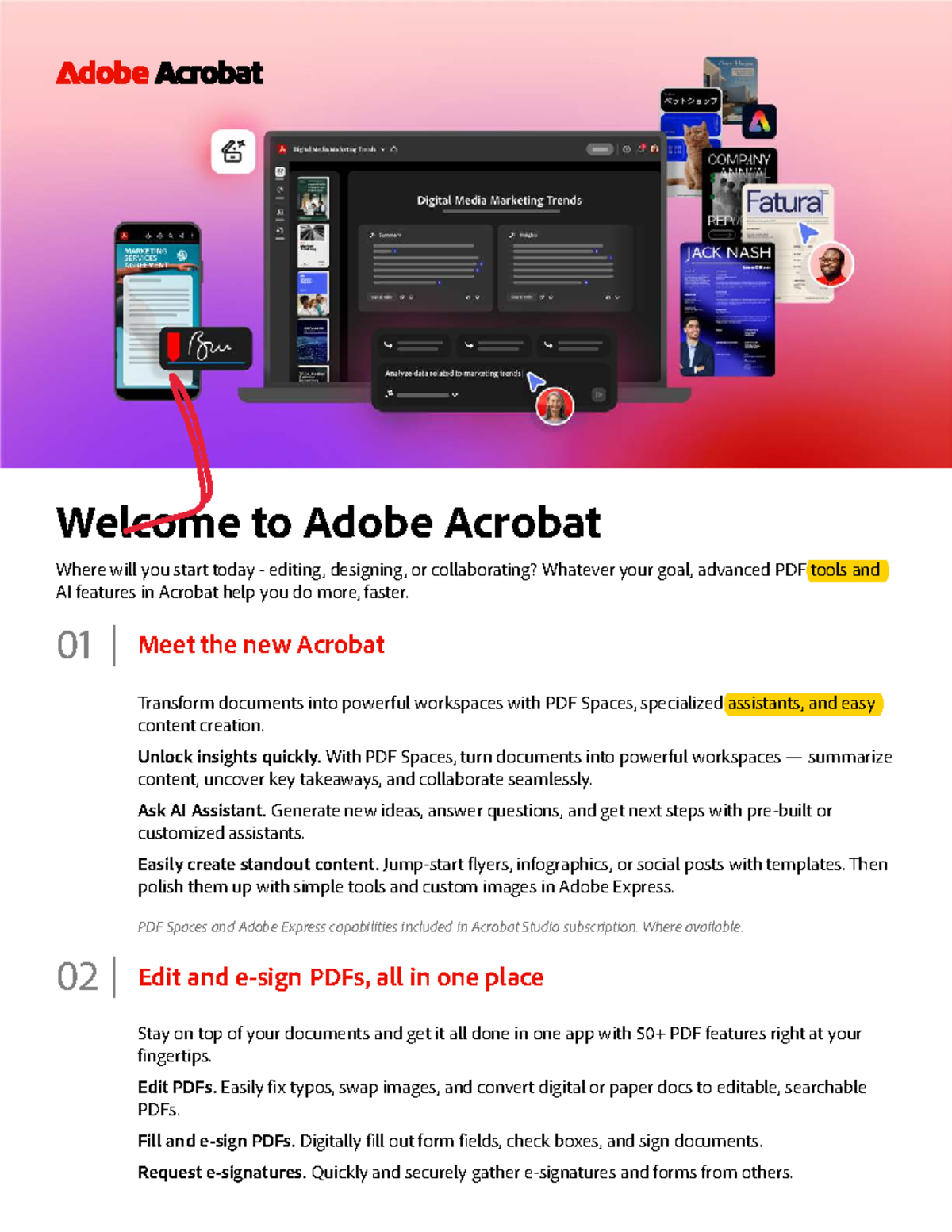
Adobe Acrobat is a professional software suite developed by Adobe Inc. to create, view, edit, manage, and secure files in the Portable Document Format (PDF). While Acrobat Reader provides basic viewing capabilities, the Standard and Pro versions offer advanced tools for document conversion, electronic signatures, and cloud-based collaboration across desktop, web, and mobile platforms.
In 2026, Adobe Acrobat remains the industry standard for document management, having evolved from a simple file viewer into a comprehensive productivity platform. The PDF format itself, which Adobe released as an open standard (ISO 32000), ensures that documents look exactly the same regardless of the device or operating system used to open them. For businesses, legal professionals, and students, Acrobat is the bridge between static paper documents and dynamic, searchable, and secure digital assets.
The ecosystem is primarily divided into three tiers: Acrobat Reader (free), Acrobat Standard (subscription-based, Windows only), and Acrobat Pro (the full-featured flagship). Each version serves a specific need, but they all share the core mission of maintaining document integrity while providing users with the tools to manipulate content without needing the original source file.
Decoding the 2026 Adobe Acrobat Ecosystem
Understanding which version of Acrobat fits a specific workflow is the first step toward efficient document management. By 2026, Adobe has moved almost entirely to a cloud-subscription model under the Document Cloud (DC) umbrella, ensuring that users have access to their files and tools across any device.
Adobe Acrobat Reader
The free version, Acrobat Reader, is the most widely distributed PDF viewer in the world. Its primary function is to allow users to open, view, and print PDF files. However, modern iterations of Reader have expanded to include basic commenting tools, the ability to fill and sign simple forms, and limited integration with Adobe Cloud storage. It does not allow for the editing of existing text or the conversion of PDFs back into editable formats like Microsoft Word.
Adobe Acrobat Standard
Acrobat Standard is designed for individual users who need to create, edit, and sign documents but do not require advanced features like professional print production tools or high-end document security. As of 2026, it remains largely restricted to the Windows operating system, offering a streamlined interface for basic PDF manipulation, including merging files and basic password protection.
Adobe Acrobat Pro
Acrobat Pro is the comprehensive solution for power users and organizations. It is cross-platform (Windows and macOS) and includes every feature Adobe offers. This includes advanced redaction tools for sensitive information, "Compare Files" functionality to identify differences between two versions of a document, and specialized accessibility tools to ensure PDFs are compliant with Section 508 and WCAG standards. Pro also includes high-end Optical Character Recognition (OCR) for converting scanned documents into searchable, editable text.
Core Functionality: Content Editing and Manipulation
One of the most significant reasons users upgrade from the free Reader to a paid version of Acrobat is the ability to edit content directly within the PDF. This is a complex task because the PDF format was originally designed to be "final" and non-editable.
Text and Image Editing
Adobe Acrobat uses sophisticated "reflow" technology. When a user enters the "Edit PDF" mode, the software identifies individual text blocks, fonts, and images. Users can change the text, adjust formatting, and replace images as if they were working in a word processor. In 2026, the software's ability to match fonts—even those not installed on the local system—has reached near-perfection, allowing for seamless corrections to typos or layout adjustments.
Organizing Pages
Acrobat provides a visual interface for managing the structure of a document. Users can drag and drop thumbnails to reorder pages, rotate pages that were scanned upside down, or delete unnecessary sections. The "Insert From File" feature allows users to combine multiple PDFs, or even different file types like JPEGs and Excel sheets, into a single cohesive document.
Header, Footer, and Bate Stamping
For legal and corporate environments, organization often requires standardized identification. Acrobat allows for the automated insertion of headers, footers, and page numbers across thousands of pages. Bates Stamping, a specific type of legal indexing used to identify and retrieve information, is a core feature of the Pro version, allowing for prefixing and suffixing page numbers for discovery and evidence management.
The Art of Conversion and Exporting
Acrobat acts as a universal translator for digital documents. The ability to move files into and out of the PDF format while preserving layout and data integrity is a cornerstone of its utility.
Creating PDFs from Any Source
Adobe Acrobat installs a virtual "Adobe PDF" printer on your system. This means any application that can print (Word, Chrome, CAD software) can create a PDF. Additionally, Acrobat features specialized plugins for Microsoft Office that allow for "one-click" PDF creation, which preserves hyperlinks, bookmarks, and document metadata that a standard print-to-PDF function might lose.
Exporting to Editable Formats
Perhaps more impressively, Acrobat can reverse-engineer a PDF back into Microsoft Word, Excel, or PowerPoint files. This is not a simple copy-paste operation; Acrobat attempts to recreate the original document's layout, tables, and styles. This is particularly useful when the original source file has been lost, but updates are required.
Optical Character Recognition (OCR)
When a document is scanned, it is essentially a picture of text. Acrobat’s OCR engine analyzes the shapes of the letters and converts them into "real" text. By 2026, this technology supports over 25 languages with high accuracy, enabling users to search for keywords within a scanned 500-page legal brief or copy a table of data from a scanned financial report directly into an Excel spreadsheet.
Security, Redaction, and Compliance
In an era of increasing data privacy regulations, Acrobat’s security suite is vital for maintaining confidentiality and meeting legal requirements.
Password Protection and Encryption
Users can apply two levels of passwords to a PDF. The "Document Open" password prevents unauthorized viewing, while the "Permissions" password restricts what an authorized viewer can do, such as preventing them from printing, copying text, or editing the file. These protections use AES-256 bit encryption, which is the standard for securing sensitive government and corporate data.
Permanent Redaction
Unlike simply drawing a black box over text—which can often be removed or searched underneath—Acrobat’s Redaction tool permanently "burns" the content out of the file. It removes the underlying metadata and pixel data, ensuring that social security numbers, trade secrets, or private names cannot be recovered. This is a critical function for government agencies and law firms complying with privacy laws.
Digital Standards and Archiving
Acrobat supports specialized PDF standards designed for long-term preservation and specific industry needs:
- PDF/A: Used for long-term archiving, ensuring the file can be opened decades from now.
- PDF/X: Optimized for high-quality professional printing and color accuracy.
- PDF/E: Used by engineers and architects for high-resolution technical drawings.
Acrobat Sign and Electronic Signatures
By 2026, the integration of Acrobat Sign into the core Acrobat experience has streamlined the way contracts and agreements are handled. This goes beyond simply drawing a signature on a screen.
Acrobat Sign provides a legally binding framework that complies with the ESIGN Act in the United States and eIDAS regulations in the European Union. When a document is sent for signature through Acrobat, the software tracks the document’s journey, recording the IP address, timestamp, and email verification of each signer. Once completed, a tamper-evident seal is applied to the PDF, ensuring that any subsequent changes to the document will invalidate the signature.
Users can create "Fill & Sign" forms for quick personal use or "Request Signatures" for complex multi-person workflows. The ability to track who has opened the document and send automated reminders has reduced contract turnaround times from days to minutes.
Feature Comparison: Acrobat Versions (2026)
| Feature | Acrobat Reader | Acrobat Standard | Acrobat Pro |
|---|---|---|---|
| View, Print & Comment | Yes | Yes | Yes |
| Edit Text & Images | No | Yes | Yes |
| Convert to/from PDF | No | Yes | Yes |
| Password Protect | No | Yes | Yes |
| Request E-Signatures | Limited | Yes | Yes |
| Redact Sensitive Info | No | No | Yes |
| Compare Two Versions | No | No | Yes |
| Accessibility Tools | No | No | Yes |
| OCR (Scanned to Text) | No | Yes | Yes (Advanced) |
| Mobile App Editing | No | Yes | Yes |
AI Assistant and the Future of PDF Interaction
In 2026, the most transformative update to Adobe Acrobat is the AI Assistant. This generative AI tool allows users to "talk" to their documents. Instead of reading a 100-page whitepaper, a user can ask the AI Assistant to "summarize the key financial takeaways" or "list all mentions of regulatory deadlines."
The AI Assistant can also help in drafting content, suggesting improvements to the tone of a document, or formatting citations. Importantly, Adobe has built these AI tools with "enterprise-grade" privacy, meaning the data processed by the AI is not used to train global models, addressing a major concern for corporate and legal users.
Collaboration and Cloud Integration
The "DC" in Acrobat DC stands for Document Cloud, emphasizing that Acrobat is no longer a localized desktop application. Files are synced across the Adobe cloud, allowing a user to start an edit on their desktop at the office and finish it on an iPad during their commute.
The "Share for Review" feature has replaced the old method of emailing attachments back and forth. A creator can send a link to a PDF, and multiple reviewers can add comments, highlights, and drawings simultaneously. The owner of the document can see all feedback in a single sidebar, reply to comments in real-time, and mark resolved issues, effectively turning a static document into a collaborative workspace.
Common Troubleshooting and Optimization
Despite its power, Acrobat can be resource-intensive. To ensure optimal performance in 2026, users should keep the following in mind:
- File Size Optimization: Large PDFs with high-resolution images can be difficult to email. Use the "Reduce File Size" or "PDF Optimizer" tool to downsample images and remove redundant metadata without significantly sacrificing visual quality.
- Plugin Conflicts: Acrobat often installs plugins for browsers and office suites. If these applications crash, disabling the Acrobat plugin and re-enabling it frequently resolves the issue.
- OCR Failures: If OCR isn't working, check the scan quality. High-contrast scans at 300 DPI (dots per inch) are the baseline for accurate text recognition.
- Font Issues: If text looks strange after editing, it is likely because the original font was not embedded in the PDF. Acrobat will attempt to substitute it with a similar font, but for perfect fidelity, ensure "Embed All Fonts" is selected during the initial PDF creation.
Frequently Asked Questions
Is Adobe Acrobat a one-time purchase or a subscription?
As of 2026, Adobe has transitioned almost exclusively to a subscription model. While some perpetual "Classic" versions may exist for specific enterprise environments, the vast majority of users access Acrobat Standard or Pro through monthly or annual subscriptions. This ensures users always have the latest security patches and AI features.
Can I edit a PDF without Adobe Acrobat?
Yes, there are several alternatives including browser-based editors, macOS Preview (for basic annotations), and other third-party software like Nitro PDF or Foxit. However, for complex tasks like reflowing text across paragraphs, professional redaction, or advanced OCR, Adobe Acrobat remains the most reliable and feature-rich option.
What is the difference between an electronic signature and a digital signature?
In Acrobat, an electronic signature is a broad term for any mark (a typed name or a drawn signature) used to show intent to sign. A digital signature is a more secure type of electronic signature that uses a certificate-based digital ID to encrypt the signature, providing a higher level of verification and security, often required for government or highly regulated documents.
How do I make my PDFs accessible to visually impaired users?
Acrobat Pro includes an "Accessibility Checker" that scans the document for issues like missing "Alt-text" for images, incorrect reading orders, or lack of tagging. You can use the "Autotag" feature to quickly add structure to a document, making it readable for screen-reading software used by people with visual impairments.
Can Acrobat handle 3D models and multimedia?
Yes, Acrobat Pro supports the embedding of 3D models (in U3D or PRC formats), video files, and interactive buttons. This is widely used in technical manuals and interactive presentations where a static 2D image is insufficient to explain a complex concept or product.
Recommendation for Next Actions
If you are currently using the free Acrobat Reader and find yourself frequently needing to combine documents or sign contracts, consider a trial of Acrobat Standard. For those in legal, medical, or design fields where security, redaction, and accessibility are mandatory, Acrobat Pro is the necessary choice.
To begin, verify your hardware compatibility with the 2026 system requirements—specifically ensuring you have enough RAM to handle the AI Assistant's background processing. Start by organizing your most common document workflows into "Action Wizard" toolsets within Acrobat to automate repetitive tasks like watermarking and file compression.