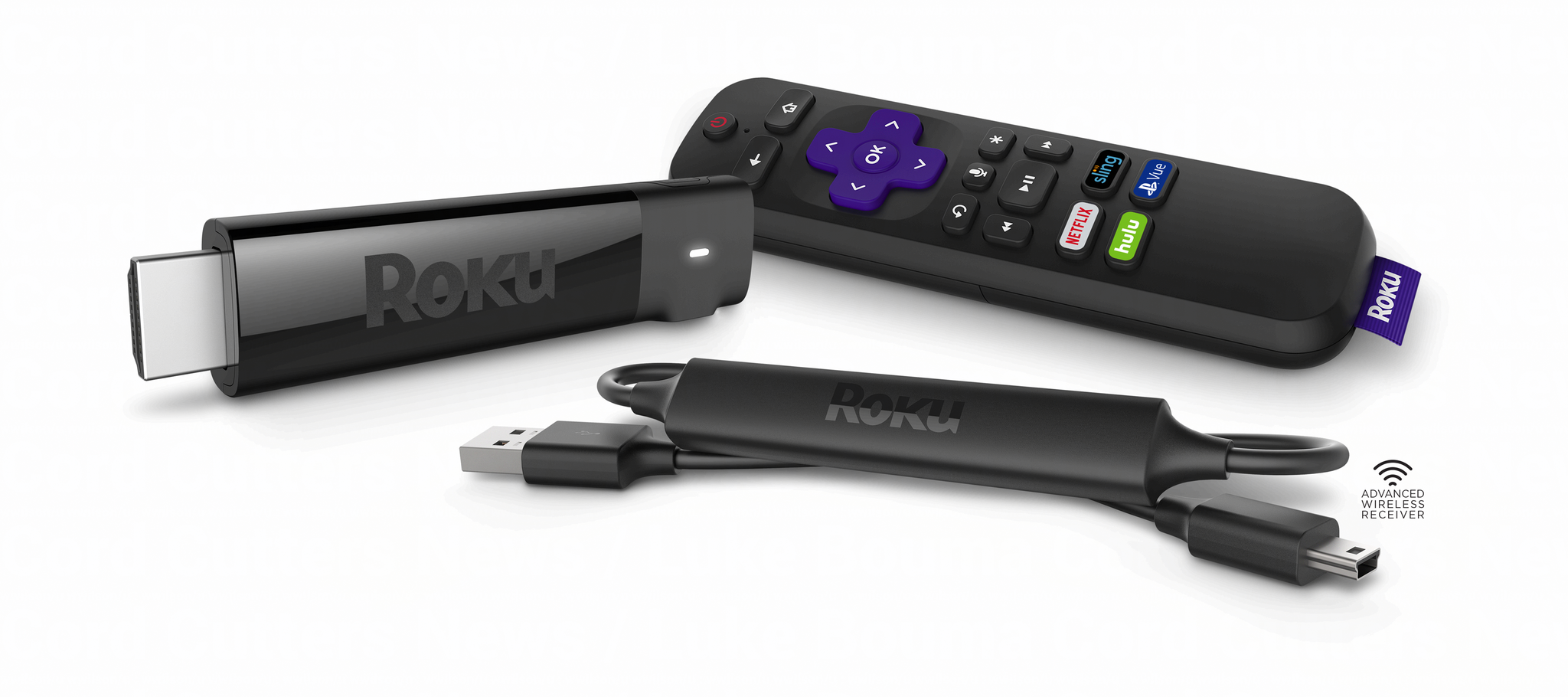
Activating the DIRECTV streaming service on your Roku device requires linking your active subscription credentials to the channel installed on your player. By navigating the Roku home screen, identifying the correct application, and authenticating through an external web browser, you can synchronize your television access with your account profile to begin streaming live and on-demand content immediately.
Understanding the Service Evolution
It is important to clarify terminology regarding the service. While the brand "DIRECTV NOW" was the original name for AT&T’s over-the-top streaming service, the platform underwent several transitions and rebrandings over the years, ultimately becoming part of the broader DIRECTV streaming ecosystem. When you attempt to activate the service on a Roku, you are generally interacting with the modern DIRECTV app. Ensure your Roku device is compatible with the latest version of the DIRECTV application, as older hardware or outdated firmware may experience performance limitations or connectivity errors.
Prerequisites for Activation
Before beginning the installation and activation process, verify that you have the necessary components in place. Failure to meet these prerequisites is the most common cause of failed activation attempts.
- A Stable Internet Connection: Ensure your Roku is connected to a stable Wi-Fi or wired network. High-definition streaming requires consistent bandwidth; unstable connections often cause the activation screen to freeze or timeout.
- Valid Subscription Credentials: You must have a registered DIRECTV account. If you do not have a login, you cannot activate the device. Ensure you have your username and password readily available.
- Secondary Device: You will need a smartphone, tablet, or computer to complete the web-based authentication step. This secondary device must be connected to the internet to receive the activation code and relay it to the DIRECTV servers.
- Roku Firmware Updates: Roku devices periodically update their operating system. If your device has not been updated recently, navigation errors may occur. Navigate to Settings > System > System update > Check now to ensure your device is running the current version.
Step-by-Step Installation Process
If you have not yet added the channel to your Roku home screen, follow these instructions to install the application.
- Navigate to the Home Screen: Press the Home button on your Roku remote.
- Access the Channel Store: Scroll down to the "Store" or "Streaming Store" option, depending on your Roku interface version.
- Search for DIRECTV: Select the search icon and type "DIRECTV." Be aware that searching for legacy terms like "DIRECTV NOW" may redirect you to the current application.
- Add the Channel: Highlight the application and select "Add channel." If you have a Roku PIN enabled, you will be prompted to enter it at this stage.
- Launch the App: Once the installation completes, return to your home screen or select "Go to channel" to open the application.
The Authentication Procedure
Once the application is launched, you must link your Roku device to your subscription. The DIRECTV app uses a token-based authentication system to ensure security.
- Open the App: Upon opening the DIRECTV application for the first time, you will typically be greeted with a "Sign In" or "Activate" screen.
- Request the Code: Select the activation option. The application will display a unique alphanumeric code on your television screen.
- Access the Activation URL: On your computer or mobile device, navigate to the official activation website provided on your TV screen.
- Enter the Credentials: Input the code exactly as it appears on your television. Following the input, you will be prompted to sign in with your DIRECTV username and password.
- Finalize the Link: Once the web portal confirms the code and your login, the TV screen will automatically refresh and transition to the main dashboard of the application.
Troubleshooting Common Activation Errors
If the activation process fails, do not immediately assume your subscription is invalid. Many issues are related to network latency or browser cache settings.
- Invalid Code Errors: If the screen reports an invalid code, ensure you have not waited too long. These codes usually expire after 15 to 30 minutes for security purposes. If it has expired, simply close the app and reopen it to generate a fresh code.
- Sign-In Loops: If the browser authentication page repeatedly asks for your credentials despite successful entry, clear your browser’s cache and cookies, or try using an Incognito/Private window.
- Network Timeouts: If the Roku application fails to connect after entering the code, check your router’s firewall settings. Occasionally, restrictive DNS settings can block the handshake between the Roku device and the activation server.
Comparison of Roku Activation Requirements
The following table outlines the technical requirements and behaviors for activating streaming services on Roku to help you identify if your issue is device-specific or account-specific.
| Feature | Requirement | Importance |
|---|---|---|
| Roku OS Version | 10.0 or higher | Ensures compatibility with modern UI. |
| Authentication Type | Web-based (OAuth) | Protects account credentials from TV input. |
| Network Speed | Min 8 Mbps for HD | Required for stable channel loading. |
| Account Status | Active subscription | Mandatory for content playback. |
| Geographic Limits | Localized content access | Some channels are region-locked. |
Optimizing Your Experience
Once activated, the DIRECTV app on Roku provides several features to customize your viewing. You can organize your "Guide" to show preferred channels, set up "My Library" for recorded content, and enable parental controls.
If you find that your streams are buffering, navigate to the Roku Settings menu and check your network connection strength. If the signal is weak, consider repositioning your router or connecting the Roku via an Ethernet cable if your device model supports it. While Roku handles the hardware interface, the quality of your stream remains dependent on your ISP (Internet Service Provider) and the current server load on the DIRECTV infrastructure.
Frequently Asked Questions
Can I use my old DIRECTV NOW login credentials? Yes, if your account was migrated during the transition to the current DIRECTV streaming service, your existing username and password will work. If your account was cancelled long ago, you may need to re-subscribe to access the current platform.
Why is my screen stuck on the activation code? This usually indicates that the Roku device is struggling to communicate with the activation server. Try restarting your Roku device by unplugging it from the power source for 30 seconds and plugging it back in, then re-launching the app.
Do I need a separate cable box for this? No, the purpose of the application on Roku is to eliminate the need for traditional cable hardware. Your Roku device acts as the receiver, provided you have a valid internet-based subscription.
Is there a cost to add the DIRECTV channel? The application itself is free to download from the Roku store. However, the content within the application requires a paid subscription. Be wary of any "third-party" sites claiming to offer free activation or bypassing subscription fees, as these are typically fraudulent.
Can I activate multiple Roku devices with one account? Yes, most DIRECTV streaming plans allow for multiple simultaneous streams. You can repeat the activation process for every compatible Roku device in your household using the same subscription credentials.
Final Next Steps
After successfully completing the activation, ensure you have set up your "Favorite Channels" within the application. This customization makes navigation significantly faster on the Roku interface. If you encounter persistent playback issues that reoccur across multiple devices, contact the official support channel for your specific service tier, as this may indicate a deeper issue with your account provisioning or regional billing settings.