Adding a checkmark to a PDF document involves inserting a graphical symbol or a form field into a file that is typically locked for editing. Because PDFs are designed to preserve document formatting, you must either use a tool capable of annotation and commenting or leverage the built-in form-fillable capabilities if the document was originally created as an interactive form.
The Portable Document Format (PDF) was developed to ensure that documents appear identical regardless of the software, hardware, or operating system used to view them. Because of this architectural intent, the PDF format is not natively "editable" in the same way a Word document is. To add a checkmark, you must treat the mark as an overlay or an object. Depending on your objective—whether you need to sign a form, mark a checklist, or simply indicate approval—the method you choose will depend on the software available to you and the permission settings of the specific file.
Identifying the PDF Type: Flat vs. Interactive
Before attempting to modify your PDF, you must distinguish between a "flat" document and an interactive form. A flat document is essentially a digital snapshot; it contains no functional fields, and any text or images are static. An interactive PDF, conversely, contains specific layers designated as form fields, which may include checkboxes, radio buttons, or text boxes.
Working with Interactive Forms
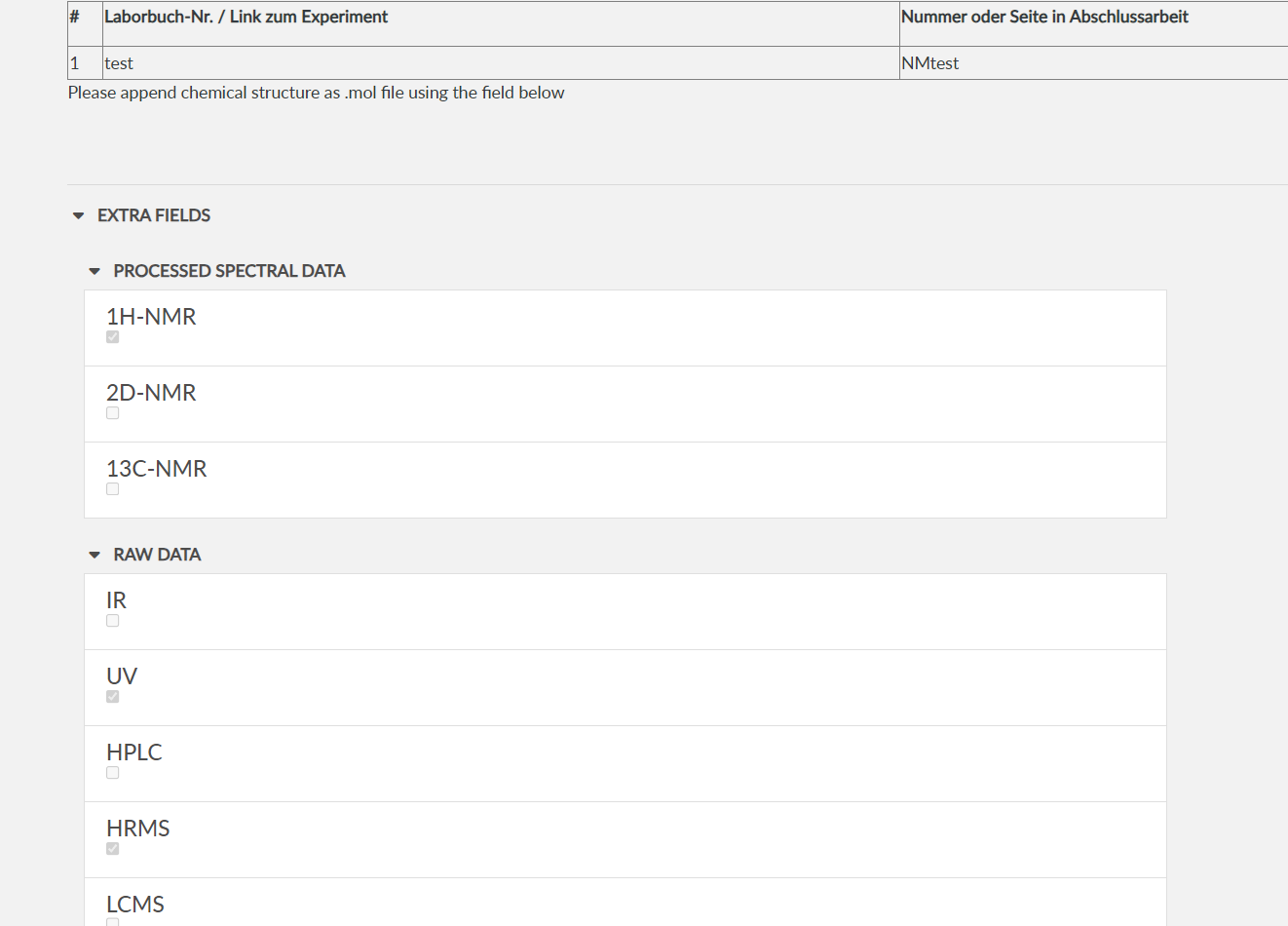
If you open a document and discover that certain areas are highlighted or responsive when you click on them, you are working with an interactive form. In this case, adding a checkmark is straightforward: you simply click the designated checkbox field. The PDF viewer will automatically render a checkmark, an 'X', or a solid block depending on the document’s design properties. If you find the field is not responding, ensure your PDF software is set to "Hand Tool" or "Select Tool" mode rather than "Edit" mode, as some software locks interactive fields when in text-editing mode.
Working with Flat Documents
Most PDFs encountered in professional environments are flat. These files do not contain pre-defined fields. To place a checkmark on these documents, you must use an annotation or markup tool. This effectively places a transparent layer over the document, allowing you to position symbols like checkmarks, arrows, or text boxes exactly where you need them.
Methods for Adding a Checkmark to Flat PDFs
To modify a flat document, you will require software that supports commenting or object insertion. Below are the most common workflows categorized by the type of tool used.
Using Dedicated PDF Editors
Professional-grade software such as Adobe Acrobat Pro or reputable third-party editors (like Foxit PDF Editor or Nitro PDF) allows for the direct insertion of stamps or drawing objects.
- The Stamp Tool: Most professional editors include a "Stamps" palette. Many users find a standard green checkmark within the "Sign Here" or "Dynamic" categories. Selecting this stamp allows you to place the checkmark anywhere on the document by clicking the desired location.
- The Comment/Drawing Tool: If a specific checkmark stamp is unavailable, use the drawing or annotation tool. Select the "Pen" or "Draw" tool, set the color to your preference, and draw a checkmark manually. Alternatively, insert a text box, type a large "v" or use a checkmark character from your system’s character map, and move it to the required position.
Using Web-Based PDF Services
If you do not have desktop software, browser-based tools provide a convenient alternative. Services like Smallpdf, Sejda, or Adobe’s online portal allow you to upload a file, add elements, and download the resulting version. These services typically treat your document as an image-based layer. You can select "Add Text" or "Add Symbol," position the character, and then flatten the file upon export to ensure the checkmark remains fixed in place.
Leveraging System-Level Tools (macOS Preview)
For macOS users, the Preview app is a highly capable, built-in PDF tool that does not require third-party subscriptions.
- Open your PDF in Preview.
- Click the "Show Markup Toolbar" button (the icon depicting a pen tip inside a circle).
- Use the "Shapes" menu to insert a circle or square, or use the "Sketch" tool to draw a checkmark directly.
- You can adjust the line thickness and color using the properties inspector to make the mark appear professional.
Comparison of PDF Modification Methods
The following table summarizes the suitability of different tools based on the document type and user requirements.
| Method | Best For | Technical Depth | Cost Profile |
|---|---|---|---|
| Interactive Form | Official applications/forms | Low (Point & Click) | Included |
| PDF Desktop Editor | Professional workflows/security | High | Paid Subscription |
| Browser-based Tools | Quick, one-off edits | Low | Often Free/Limited |
| OS-Built-in Apps | Informal/Personal documents | Medium | Included with OS |
Potential Pitfalls and Troubleshooting
When adding a checkmark to a PDF, users often encounter issues regarding document security and formatting. Understanding these limitations is essential to maintaining the integrity of your document.
Security and Permissions
Some PDFs are protected by "Permissions Passwords." If the creator of the PDF has disabled commenting, signing, or editing, you will not be able to add a checkmark or any other annotation. If you encounter a message indicating the document is "Secured" or "Locked," you must contact the owner or author of the document to request an unlocked version or provide the necessary credentials.
Flattening the Document
After adding a checkmark as an annotation, the symbol exists as a separate layer. If you send the file to another party, they might be able to move or delete your checkmark. To prevent this, "flatten" the document. Flattening merges all layers—including your added checkmarks—into a single, static image layer. You can usually achieve this by "Printing to PDF" or using the "Flatten" function found in the advanced settings of most PDF editors.
Troubleshooting Misaligned Marks
If your checkmark appears out of alignment or behind text, it is likely a matter of object layering. Most PDF editors have "Send to Front" or "Bring to Front" functions. Right-click the checkmark object and ensure it is set to the highest layer, which will ensure it appears over the document content rather than beneath it.
Frequently Asked Questions
Can I use Microsoft Word to add a checkmark to a PDF? Yes, you can open a PDF in Microsoft Word. However, Word will convert the PDF into an editable document, which may cause the original layout, fonts, or images to shift significantly. While effective for adding a checkmark, this method is generally discouraged for complex documents where layout preservation is critical.
Will my checkmark be visible if the recipient uses a mobile device? Yes, if you use a standard annotation tool, the mark becomes part of the file’s data. Provided you save the file correctly, the checkmark will render on all standard PDF viewers, including mobile apps and web browsers.
Is it possible to add a checkmark to a scanned PDF? Scanned PDFs are essentially images. Because they lack text or object layers, you cannot add a digital checkmark in the traditional sense. You must use a tool that allows you to draw or place an image over the top of the existing scan.
What if I need the checkmark to look like an official symbol? For official documents, do not rely on hand-drawn marks. Use the "Stamp" feature in a professional editor like Adobe Acrobat. These stamps are designed to mimic ink-based marks and can be customized with dates or initials, providing a more professional appearance.
Does adding a checkmark change the file size? Generally, adding a simple annotation adds a negligible amount to the file size. However, if you import a high-resolution image of a checkmark, it could slightly increase the file size. Always optimize or compress your PDF after making final edits to keep the file size manageable for email or uploading.
Practical Recommendation for Best Results
For the most professional and reliable results, identify whether your document is an interactive form first. If it is, use the native fields. If the document is a flat PDF, use a dedicated PDF editor’s "Stamp" tool. This ensures the mark is consistently placed, correctly sized, and maintains the visual integrity of the original document. Always "flatten" the PDF before distributing it to ensure your annotations cannot be tampered with by the recipient.