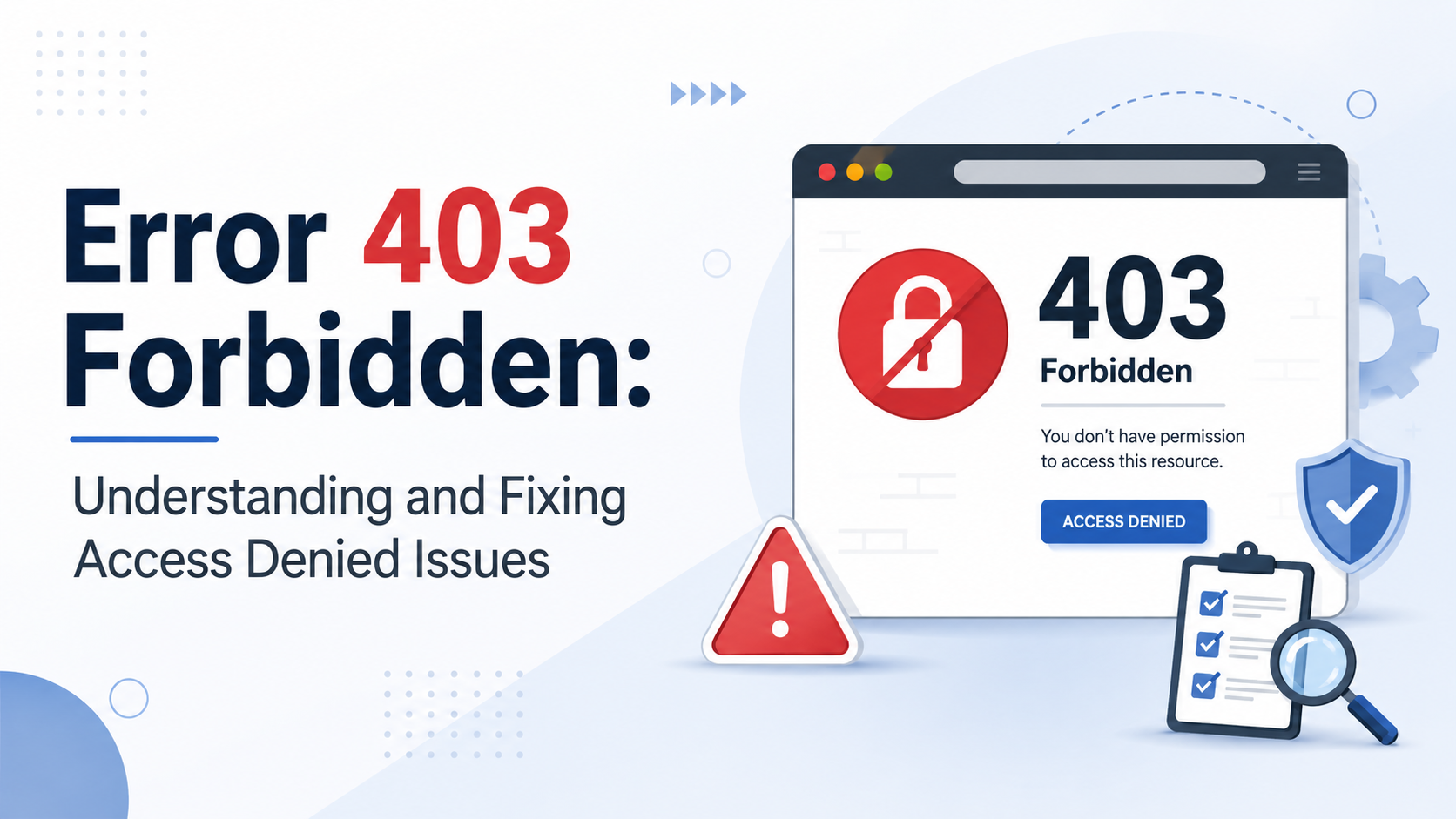
Receiving an "Access Denied" or HTTP 403 Forbidden message when attempting to visit Kroger.com or open the Kroger mobile app usually means that Kroger’s security network has temporarily blocked your internet protocol (IP) address, browser session, or network connection.
This error is most frequently caused by an active Virtual Private Network (VPN), aggressive browser ad-blockers, corrupted local tracking cookies, or browsing from outside the United States. To resolve the issue quickly, turn off your VPN, clear your browser cookies and cache, or switch from Wi-Fi to mobile data.
What Does the Kroger "Access Denied" Error Mean?
When you encounter a screen stating "Access Denied: You don't have permission to access 'http://www.kroger.com/' on this server," accompanied by a long alphanumeric Reference Number, you are seeing a security firewall block. Kroger operates one of the largest retail web platforms in the United States, managing millions of online grocery orders, pharmacy refills, digital coupons, and loyalty accounts daily. To safeguard customer payment details and protect their servers from automated attacks, Kroger relies on enterprise-grade Web Application Firewalls (WAF) and content delivery networks (CDNs) such as Akamai.
Access Denied You don't have permission to access "http://www.kroger.com/" on this server. Reference #18.82647c12.1678901234.abcdef
These automated security filters inspect every incoming connection request. If a request exhibits characteristics typically associated with automated web scrapers, credential-stuffing bots, malicious code, or suspicious traffic surges, the security provider intercepts the connection before it ever reaches Kroger's main server infrastructure.
While these security systems are essential for cyber defense, they frequently produce "false positives." A legitimate customer browsing for weekly digital coupons can accidentally trigger a firewall block simply by using privacy tools, accessing the site from a flagged public Wi-Fi network, or making rapid clicks across multiple browser tabs.
Primary Causes Behind the Kroger Block
Understanding why the firewall flagged your connection makes troubleshooting significantly faster. The security filters evaluate several technical signals during your session:
1. Active VPNs and Proxy Networks
Virtual Private Networks route your internet traffic through shared data center servers. Cybercriminals often route automated attack scripts through these exact same VPN IP ranges. Because hundreds of users share a single VPN IP address, security providers like Akamai frequently flag and black-list entire ranges of commercial VPN IP addresses. If your VPN is connected to a node heavily utilized by background scripts, Kroger will instantly refuse the connection.
2. Corrupted Browser Cookies and Stale Sessions
Browsers store small files called cookies to track your active login, preferred store location, and digital shopping cart. If Kroger updates its digital infrastructure or security protocols, older cookies stored on your device can conflict with the new site instructions. This session mismatch can cause the server to treat your browser request as malformed or compromised, resulting in an immediate 403 Forbidden response.
3. Strict Browser Extensions and Ad-Blockers
Privacy-focused browser extensions (such as uBlock Origin, Privacy Badger, or NoScript) block tracking scripts, cookies, and fingerprinting tools. However, Kroger's website relies on JavaScript tools to verify that an actual human is interacting with the page. If your ad-blocker strips out these essential security verification scripts, the security firewall assumes the incoming traffic is a headless browser bot and cuts access.
4. Geographic and Out-of-Country Blocks
Kroger operates primarily within specific regions of the United States. To minimize international cyber threats and unauthorized data collection, security rules frequently restrict or tightly filter web traffic originating from outside North America. If you are traveling abroad, using an international proxy, or using an ISP that routes data through foreign gateways, Kroger's servers may block your device automatically.
5. Suspicious Household IP Reputation
If your home internet provider assigns you a dynamic IP address recently used by a infected device (such as a computer enrolled in a botnet without the owner's knowledge), your entire home network might carry a poor IP reputation score. Similarly, shared networks in apartment complexes, universities, or coffee shops are frequently rate-limited due to high volume.
Step-by-Step Troubleshooting for Desktop Browsers
If you are experiencing the "Access Denied" prompt on a desktop or laptop computer using Chrome, Edge, Firefox, or Safari, work through these proven fixes sequentially.
- Disable Active VPN / Proxy Connections
- Open Incognito / Private Window to Test Access
- Clear Site-Specific Cookies and Browser Cache
- Pause Privacy & Ad-Blocking Browser Extensions
- Flush DNS Cache and Renew Network IP Address
Step 1: Turn Off VPNs and Privacy Proxies
- Open your VPN client software (e.g., NordVPN, ExpressVPN, Surfshark, or Zscaler).
- Disconnect the active connection.
- If you use browser-based proxy extensions, toggle them off.
- Refresh the Kroger homepage (
https://www.kroger.com).
Note: If you require a VPN for general internet privacy, set up a "split tunneling" rule in your VPN client software to allow Kroger traffic to bypass the encrypted tunnel directly through your local ISP.
Step 2: Test in Private or Incognito Mode
Private browsing modes disable most browser extensions and load web pages without reading existing cookies.
- Google Chrome / Microsoft Edge: Press
Ctrl + Shift + N(Windows) orCmd + Shift + N(Mac). - Mozilla Firefox: Press
Ctrl + Shift + P(Windows) orCmd + Shift + P(Mac). - Apple Safari: Press
Cmd + Shift + N.
Navigate to kroger.com. If the page loads normally in incognito mode, the underlying issue is directly caused by a browser extension or corrupted cookies on your primary browsing profile.
Step 3: Clear Kroger Cookies and Site Data
You do not need to delete your entire browsing history; clearing data specifically for Kroger is sufficient.
In Google Chrome:
- Click the padlock or tune icon on the far left side of the address bar while attempting to visit Kroger.
- Select Site settings.
- Under the settings menu, click Delete data or Clear data.
- Alternatively, navigate to
chrome://settings/siteData, search forkroger, and click the trash icon next to all listed entries. - Close all browser windows, reopen the browser, and try logging in again.
In Mozilla Firefox:
- Click the padlock icon next to the address bar.
- Select Clear cookies and site data.
- Click Remove to confirm, then reload the page.
Step 4: Disable Script and Ad-Blocking Extensions
If clearing cookies does not resolve the issue, temporarily pause your browser extensions:
- Access your extensions page (e.g.,
chrome://extensions/in Chrome). - Toggle off ad-blockers, script blockers, and custom user-agent switchers.
- Reload Kroger.com. If the block disappears, add
*.kroger.comto your ad-blocker's "Allow List" or whitelist.
Step 5: Flush Local DNS Cache
An outdated Domain Name System (DNS) cache can direct your request to an outdated or decommissioned Kroger server node, triggering an automated refusal.
On Windows: Open the Command Prompt as an administrator and type:
ipconfig /flushdnsPress Enter. You should see a confirmation message stating that the DNS Resolver Cache was successfully flushed.
On macOS: Open Terminal and execute:
sudo dscacheutil -flushcache; sudo killall -HUP mDNSResponderEnter your system administrator password when prompted.
Step-by-Step Troubleshooting for the Kroger Mobile App
When the Kroger iOS or Android mobile application displays an "Access Denied" banner or fails to load digital coupons and loyalty balances, the underlying cause is typically network-related or tied to cached app tokens.
1. Toggle Wi-Fi to Cellular Data
Mobile carrier networks (like AT&T, Verizon, or T-Mobile) assign fresh cellular IP addresses that rarely trigger CDN firewall flags.
- Swipe down to access your smartphone's Control Center or Notification Shade.
- Turn off Wi-Fi.
- Force close the Kroger app.
- Relaunch the app using cellular data. If the app functions properly, your local Wi-Fi router's external IP address is being flagged by Kroger's security provider.
2. Reset App Storage and Cache (Android)
Android allows users to clear persistent temporary storage without losing installed application data:
- Open your phone's Settings.
- Tap Apps or Applications.
- Scroll down and select Kroger.
- Select Storage & cache.
- Tap Clear Cache, then tap Clear Storage (or Clear Data).
- Reopen the Kroger app and log back in.
3. Offload or Reinstall the App (iOS / iPhone)
iOS does not offer a direct "clear cache" button for individual third-party apps, so resetting requires offloading or reinstalling:
- Open Settings on your iPhone.
- Tap General > iPhone Storage.
- Locate and tap Kroger.
- Tap Offload App (this removes the core app binary while preserving your local preferences).
- Tap Reinstall App once the offloading process finishes.
Troubleshooting Employee Portal Access (Feed, MyInfo, ExpressHR)
Kroger associates attempting to view work schedules, tax documents, or paystubs through internal portals like The Feed, MyInfo, or ExpressHR frequently encounter "Access Denied" screens. Employee networks operate under strict identity verification protocols that differ slightly from consumer grocery channels.
| Rule / Setting | Requirement |
|---|---|
| Required SSO Protocol | Azure AD / Entra ID Single Sign-On |
| MFA Requirement | Duo Security or Microsoft Authenticator |
| Allowed Browsers | Updated Edge, Chrome, or Safari |
| Network Restrictions | Store Wi-Fi or Unblocked Home ISP |
1. Ensure Correct URL Entry
Bookmark paths frequently break when corporate applications update their Single Sign-On (SSO) links. Avoid using old saved browser bookmarks. Always enter the official portal entrance directly:
- Access corporate systems via official landing gateways such as
feed.kroger.comormyinfo.kroger.com.
2. Resolve Multi-Factor Authentication (MFA) Desync
If your enterprise session expires while your multi-factor token remains active, the authentication broker may throw a 403 Access Denied status:
- Log out completely from all Microsoft 365, enterprise, and identity portal sessions in your browser.
- Close all active browser windows.
- Open a completely new, clean Incognito window.
- Access
myinfo.kroger.comand complete the login and Duo/Authenticator challenge from scratch.
3. Avoid Out-of-Store Corporate Restrictions
Certain administrative links inside ExpressHR or internal payroll modules are restricted to store-level intranet connections (in-store computers or secure corporate networks). If you attempt to access an internal-only portal from a personal home network without authorized enterprise VPN permissions, the system will deny access by design.
Technical Comparison of Error Causes and Fixes
Use this breakdown to identify the exact behavior of your device and apply the corresponding fix.
| Error Symptom / Code | Primary Root Cause | Most Effective Solution | Time to Resolve |
|---|---|---|---|
Akamai Reference Error (Reference #18...) |
IP blocked by Web Application Firewall due to VPN or bad IP score | Disable VPN or switch to mobile data | < 1 minute |
| HTTP 403 Forbidden | Stale security cookies or blocked JavaScript files | Clear site cookies and disable ad-blockers | 2–3 minutes |
| App Network Request Failed | Mobile app cache corruption or local Wi-Fi flag | Toggle to cellular data; clear app storage | 1–2 minutes |
| Associate SSO Access Denied | Stale MFA session or restricted intranet URL | Use fresh Incognito tab and direct portal URL | 2–4 minutes |
| Blank Screen / Loop | Browser extension blocking verification scripts | Add kroger.com to extension Allow List |
1 minute |
How Kroger Security Systems Work (and Why False Positives Occur)
To understand why your connection was interrupted, it helps to understand how modern cloud defense platforms operate. Kroger employs defense-in-depth strategies to secure their e-commerce platforms.
Web Application Firewalls (WAF)
When you type www.kroger.com into your address bar, your request travels to an edge server managed by a global CDN (such as Akamai). The edge server acts as a protective shield in front of Kroger's actual physical infrastructure. It checks your request against thousands of threat rules per millisecond:
- Header Analysis: The WAF verifies your browser's "User-Agent" string to ensure it matches standard web browser software instead of automated scraping code (such as Python scripts or curl commands).
- Rate Limiting: If an IP address requests dozens of pages per second, the WAF flags that IP address for automated bot behavior and drops further requests.
- Reputation Lookup: The system cross-references your IP address against known threat databases. Commercial VPN endpoints, public proxy nodes, and compromised home routers frequently carry poor reputation scores.
When any of these automated rules flag your browser, the CDN responds with an immediate HTTP 403 Access Denied payload, preventing your request from reaching Kroger's application servers.
When to Contact Kroger Customer Support
If you have tried disabling your VPN, clearing your cache, switching browser profiles, and using mobile data without success, your home IP address may have been accidentally included in an extended IP block list.
When contacting support, follow these steps to expedite your request:
- Copy the Reference Code: Take a screenshot or copy the exact text string of the error message. The line reading
Reference #18.82647c12...contains the precise log identifier that allows security engineers to see why your IP was stopped. - Identify Your Public IP: Visit a tool like
whatismyip.comand write down your public IPv4 and IPv6 addresses. - Contact Customer Service: Call Kroger Customer Care at 1-800-KROGER-9 (1-800-576-4377) or use their official help center to submit a technical ticket. Provide the representative with your public IP address and the Akamai Reference Number so they can request an IP unblock from their network infrastructure team.
Frequently Asked Questions
Why does Kroger block VPNs?
Kroger blocks VPN connections to protect customer accounts from automated attack scripts, credential stuffing, and unauthorized scraping. Cybercriminals routinely route malicious traffic through commercial VPN providers to hide their origins. To maintain platform security, Kroger’s automated Web Application Firewall restricts access from IP ranges known to host high volumes of automated bot traffic.
How do I clear my browser cookies just for Kroger?
In Google Chrome or Microsoft Edge, click the lock/settings icon on the left side of the address bar while visiting Kroger. Select Site settings or Cookies and site data, then click Clear data. This removes saved session tokens specifically for Kroger without logging you out of other websites.
Can I place a Kroger delivery or pickup order while traveling abroad?
Accessing Kroger.com from outside North America often triggers regional security blocks. To place an order for family or friends while overseas, connect to a residential US-based VPN node or use a trusted web access service. If access remains blocked, consider placing the order through an authorized third-party grocery partner like Instacart.
What should I do if the Kroger app works on 5G but not on my home Wi-Fi?
If the app functions on cellular data but shows an "Access Denied" error on your home Wi-Fi network, your router's assigned public IP address has been flagged by Kroger's security provider. To fix this, reboot your home internet modem and router for 5 minutes to request a fresh dynamic IP address from your ISP.
Why do I see an Access Denied message on the Feed employee portal?
Employee portal errors typically happen when an associate attempts to access internal store systems from an unauthorized personal network, or when their Single Sign-On (SSO) session expires. Log out of all corporate Microsoft accounts, open a new Incognito browser tab, and navigate directly to feed.kroger.com to log in with your credentials and dual-factor authentication tool.
Recommended Next Steps
To quickly restore your access to Kroger.com or the Kroger app, perform the following actions in order:
- Immediate Quick Fix: Turn off any active VPN or proxy software on your device, close your browser completely, open an Incognito/Private window, and navigate directly to
https://www.kroger.com. - Mobile Device Fix: If using a smartphone, turn off Wi-Fi and attempt to log in over cellular data. Clear the app cache via your phone’s application settings if the error persists.
- Long-Term Configuration: If you rely on a VPN for daily internet activity, configure split tunneling within your VPN application settings to exclude
kroger.comtraffic from the VPN pathway. - Persistent Block Resolution: If you remain blocked across all devices on your home network without a VPN, power cycle your home internet modem for 5 to 10 minutes to obtain a new public IP address from your Internet Service Provider.