The single most essential fact about the EFI System Partition (ESP) in Windows 10 is that it is a critical, hidden storage volume formatted in FAT32 that houses the boot loader files, device drivers, and firmware necessary for the Unified Extensible Firmware Interface to successfully initialize and load the operating system.
When managing, troubleshooting, or backing up a Windows 10 installation, encountering system partitions is practically unavoidable. Among the hidden volumes created automatically during a clean installation of Windows 10, the EFI (Extensible Firmware Interface) System Partition stands out as the most vital component for hardware-level boot operations. Without it, your computer cannot transition from the hardware POST (Power-On Self-Test) stage into the operating system environment. Understanding the exact role, mechanics, and structural importance of this partition helps system administrators and everyday users prevent catastrophic boot failures, handle drive upgrades safely, and execute effective recovery procedures.
The Architecture of UEFI and the Role of the EFI System Partition
The transition from the legacy Master Boot Record (MBR) partitioning scheme to the modern GUID Partition Table (GPT) standard fundamentally changed how computers start up. In the legacy MBR era, boot information was stored exclusively in the first sector of the storage drive. This left the system vulnerable to accidental overwrites, sector corruption, and strict capacity limitations.
Modern Windows 10 installations rely on GPT disks paired with UEFI firmware. Within this architecture, the EFI System Partition acts as an independent storage container. It is completely isolated from the main operating system volume (typically drive C:) and does not natively feature a drive letter in File Explorer. This isolation is intentional: it prevents users from accidentally deleting, modifying, or filling up critical boot files during daily computer use.
The ESP contains the Boot Manager (bootmgfw.efi), hardware-specific drivers supplied by motherboard manufacturers, and the non-volatile RAM (NVRAM) boot entries that instruct the motherboard firmware on precisely where to look for operating system loaders. Because the UEFI firmware can natively read FAT32 file systems, the ESP is formatted specifically in FAT32, regardless of whether the primary Windows 10 partition uses the NTFS or ReFS file system.
1 Essential Fact: The EFI System Partition Is the Sole Gatekeeper to the Windows 10 Boot Sequence
While Windows 10 utilizes numerous system folders, registry hives, and background services to function smoothly, the EFI System Partition is the absolute gatekeeper for system startup.
When you press the power button on a modern Windows 10 PC, the motherboard's UEFI firmware executes its initialization routines and scans all connected storage drives for a valid GPT structure. Upon locating the GUID designated for the EFI System Partition, the firmware mounts it temporarily into memory, reads the boot configuration data (BCD), and executes the Windows Boot Manager. If this partition is missing, corrupted, unformatted, or accidentally deleted, the UEFI firmware will halt the startup process and display an error message such as "No bootable device found" or "Reboot and Select proper Boot Device."
Core Components Stored Within the EFI Partition
To understand why this partition is indispensable, examine the directory structure typically found inside a functional Windows 10 ESP:
- EFI/Microsoft/Boot: Contains the Boot Configuration Data (BCD) store, localized resource files, and the primary Windows Boot Manager executable (
bootmgfw.efi). - EFI/Boot: Serves as a fallback directory containing a generic bootloader (
bootx64.efion 64-bit systems) to allow removable media or standard UEFI shells to locate the OS. - OEM-Specific Folders: Hardware manufacturers often place diagnostic tools, firmware update utilities, or recovery environment pointers inside subfolders within the ESP.
| Partition Attribute | Legacy MBR System | Modern UEFI / GPT System (Windows 10) |
|---|---|---|
| Boot Mechanism | MBR Sector 0 + Active Partition | EFI System Partition (FAT32) + GPT |
| Maximum Drive Support | 2 TB limit per disk | Exceeds 9.4 Zettabytes (Virtually unlimited) |
| File System Compatibility | None (Raw sector reading) | FAT32 file system format |
| Visibility in OS | Hidden or active flag | Completely hidden without explicit mounting |
| Vulnerability | High vulnerability to sector overwrites | Protected container, requires administrative privilege to access |
Common Scenarios Involving the Windows 10 EFI Partition
Users typically interact with or encounter the EFI System Partition during specific maintenance, migration, or recovery operations. Recognizing these scenarios helps prevent accidental data loss.
Disk Cloning and Operating System Migration
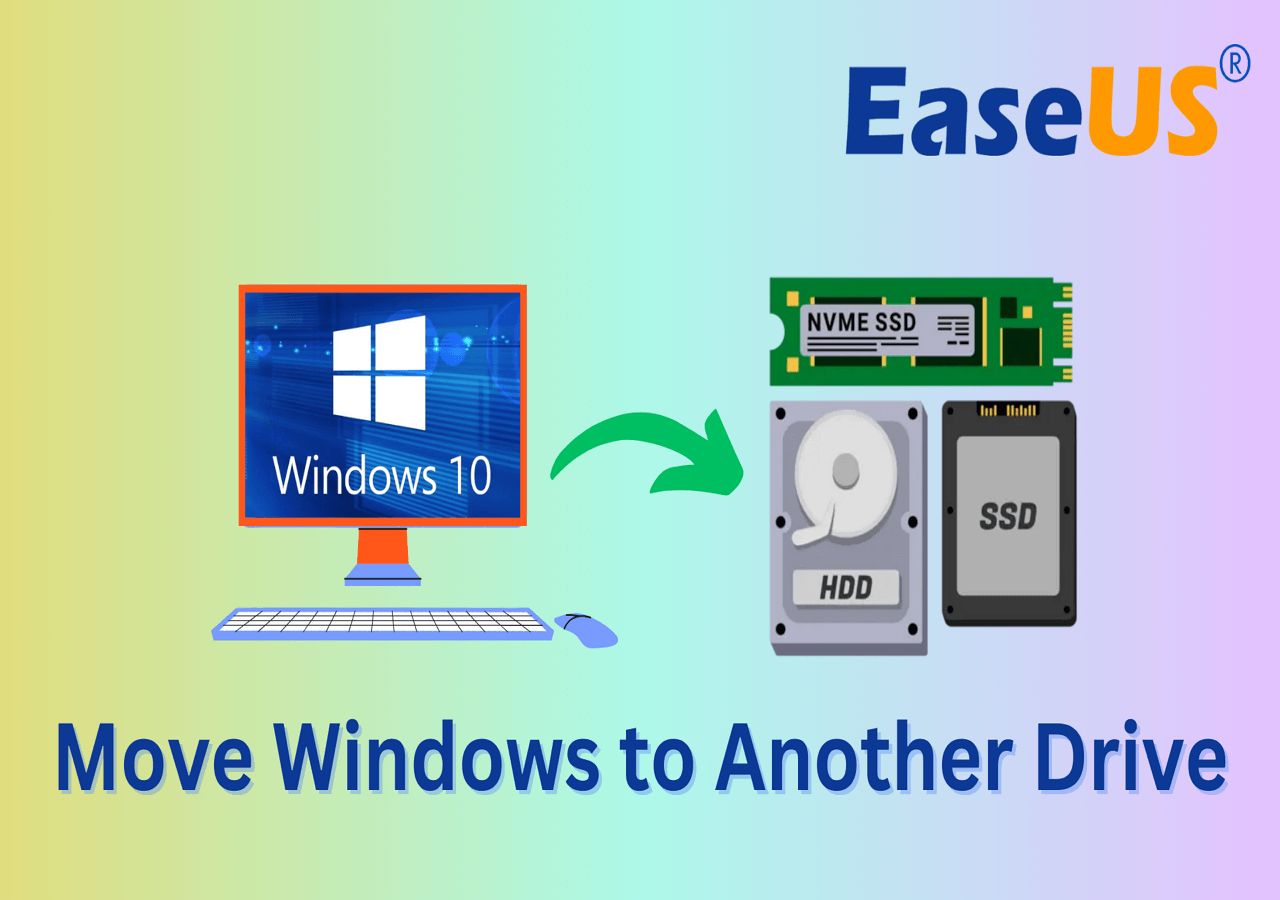
When upgrading from a traditional hard disk drive (HDD) to a Solid State Drive (SSD), users frequently clone their Windows 10 installation using third-party cloning software. A common mistake during this process is copying only the primary OS partition (C:) while omitting the EFI System Partition and the Microsoft Reserved (MSR) partition. Without copying the ESP to the new target drive, the destination SSD will fail to boot independently.
Multi-Boot Configurations
Windows 10 shares the EFI System Partition when installed alongside other modern operating systems, such as Linux distributions or newer iterations like Windows 11. Each operating system writes its respective bootloader files into distinct subdirectories within the same FAT32-formatted ESP. While this conserves partition slots on the GPT disk, it also means that modifying or formatting the EFI partition carelessly can compromise every operating system installed on the machine.
How to View, Mount, and Verify the EFI Partition
Because Windows 10 hides the EFI partition by default to protect system integrity, normal users cannot view it in Disk Management or File Explorer without assigning a drive letter. Advanced users and technicians occasionally need to inspect or repair the contents of the ESP.
Inspecting via Disk Management
- Right-click the Start button and select Disk Management.
- Locate your primary system disk (usually Disk 0).
- Identify the partition labeled EFI System Partition, typically sized between 100 MB and 500 MB.
- Note that unlike standard data partitions, right-clicking the EFI partition grays out options like "Change Drive Letter and Paths" to prevent accidental modifications.
Mounting the ESP Using Command Prompt
If you need to access the partition for troubleshooting or manual backup, you can assign it a temporary drive letter using administrative command-line tools:
- Type
cmdin the Windows search bar, right-click Command Prompt, and select Run as administrator. - Type
diskpartand press Enter. - Type
list diskto view connected storage drives. - Type
select disk X(replacing X with your system disk number). - Type
list partitionto view partitions on that disk. - Type
select partition Y(replacing Y with the EFI partition number). - Type
assign letter=S(or any available drive letter). - Type
exitto close DiskPart.
Once assigned, you can access the drive via S: in the command prompt or by using PowerShell with administrative rights. Always remove the temporary assignment or restart your computer when finished to restore normal system security states.
Troubleshooting and Repairing a Corrupted EFI Partition
Partition corruption, failed Windows feature updates, or mistaken partition management can render the EFI partition unreadable. When this occurs, Windows 10 will fail to boot, presenting startup repair loops or error codes.
Rebuilding the BCD and Repairing the ESP
If the files inside the EFI partition are damaged or missing, you can reconstruct them using the Windows Recovery Environment (WinRE) or installation media:
- Boot the PC using a Windows 10 bootable USB installation media.
- On the setup screen, click Next, then select Repair your computer.
- Navigate to Troubleshoot > Advanced options > Command Prompt.
- Use DiskPart to identify and mount the EFI partition as outlined in the previous section (e.g., assigning letter
S:). - Run the following command to rebuild the boot files, substituting
S:with your assigned EFI drive letter andC:with your Windows installation drive:bcdboot C:\Windows /s S: /f UEFI - Close the command prompt and restart the system.
This utility copies fresh boot loader files from the main Windows directory directly into the mounted EFI System Partition, repairing broken BCD stores and restoring standard boot functionality.
Frequently Asked Questions
What happens if I accidentally delete the EFI System Partition in Windows 10?
Deleting the EFI partition removes the boot instructions and files your computer needs to start. Upon rebooting, the system will fail to find a valid operating system and display a boot device error. However, your personal files and applications on the main C: drive remain intact; you can restore boot capability by using a bootable USB recovery drive to rebuild the partition and its files.
Can I resize or move the EFI partition in Windows 10?
Yes, but it requires specialized third-party partition management software or careful command-line execution. Standard Windows 10 Disk Management tools lack the flexibility to move system-locked partitions easily. If you are expanding your C: drive into unallocated space adjacent to the EFI partition, you must move the EFI partition without deleting its contents to avoid breaking the boot sequence.
Why is the EFI partition formatted as FAT32 instead of NTFS?
The UEFI firmware built into your motherboard's hardware lacks complex file system drivers. It is designed to natively read simple, universally supported file systems. Because FAT32 has low overhead and is universally understood by UEFI firmware implementations across different motherboard vendors, it was chosen as the standard file system for all EFI partitions.
How large should the EFI System Partition be on Windows 10?
On clean installations of Windows 10, the EFI partition is typically created with a size of 100 MB. However, modern Windows 10 feature updates and multi-boot environments often require more space to accommodate multiple recovery tools and manufacturer drivers. Newer installations or systems upgraded through multiple major builds frequently feature EFI partitions sized between 260 MB and 500 MB to prevent space-exhaustion errors during updates.
Can I run Windows 10 without an EFI partition?
Only if your system is configured to boot using Legacy BIOS mode rather than UEFI. If your Windows 10 installation was initialized on a GPT disk using UEFI, an EFI partition is strictly mandatory. Attempting to remove or bypass it will prevent the operating system from booting entirely.
Conclusion and Best Practices
The EFI System Partition is a small yet indispensable component of any modern Windows 10 environment. Operating silently behind the scenes, it bridges the gap between low-level motherboard hardware and the Windows operating system. When performing disk clones, system upgrades, or multi-boot configurations, always ensure the ESP is preserved, backed up, or correctly reconstructed. Maintaining awareness of its FAT32 structure, hidden status, and bootloader responsibilities guarantees that you can quickly diagnose and resolve unexpected startup failures.