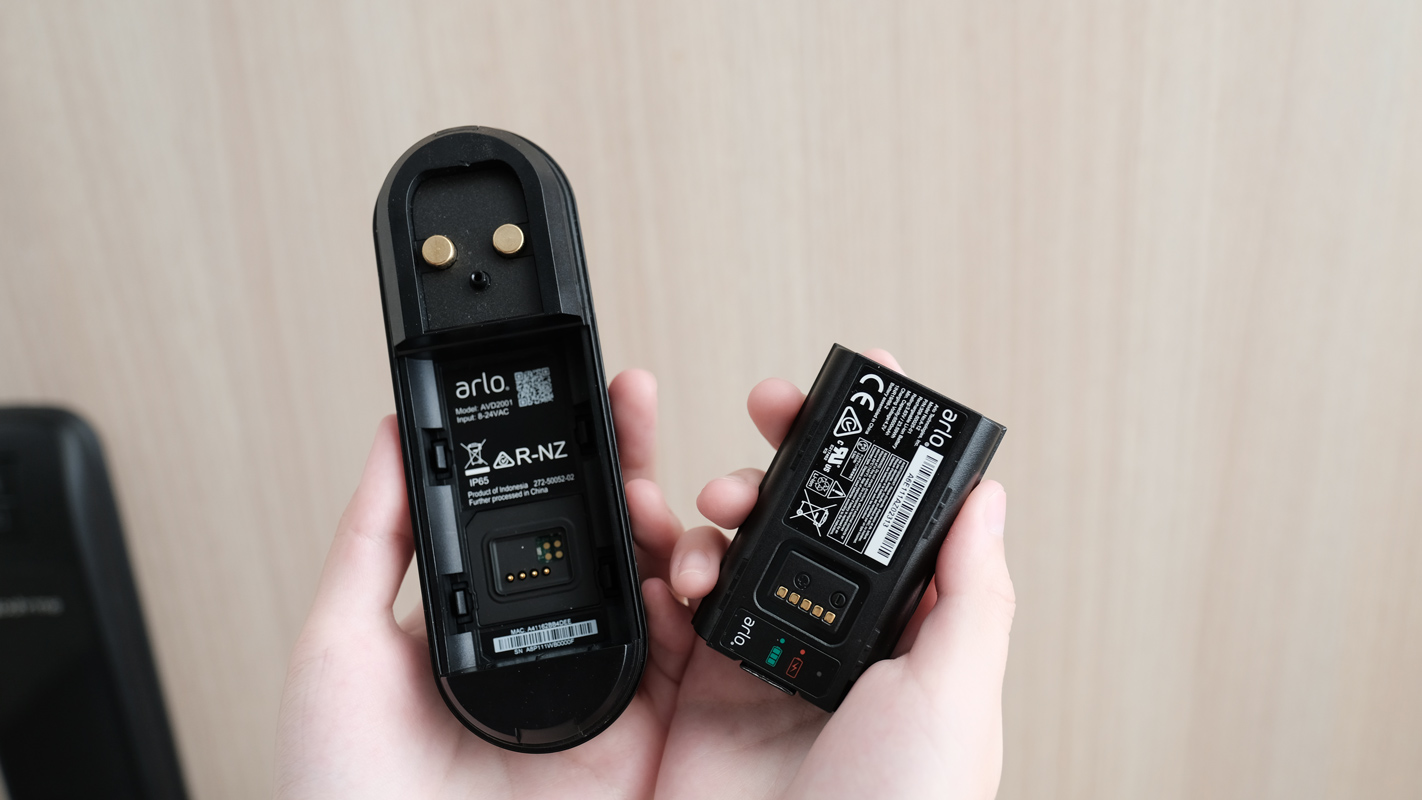
To reset your Arlo doorbell, press and hold the physical Reset button on the back of the device for approximately 15 seconds until the LED ring flashes amber. Alternatively, you can perform a factory reset by selecting the device in the Arlo Secure app, navigating to Device Settings, and choosing Remove Device.
Resetting an Arlo doorbell is a fundamental troubleshooting step that resolves persistent connectivity issues, prepares the device for a new owner, or clears firmware glitches. As smart home ecosystems become more complex in 2026, understanding the distinction between a "soft restart" and a "factory reset" is essential for maintaining a secure and functional front-door surveillance system. Whether you own the original Wired Video Doorbell, the Wire-Free version, or the latest Essential 2nd Generation models, the reset process follows specific protocols designed to protect your data and hardware integrity.
Understanding the Need for an Arlo Doorbell Reset
In the context of modern home security, a reset is rarely the first step, but it is often the most effective one. By 2026, Arlo devices have integrated deeper into AI-driven monitoring and multi-frequency Wi-Fi environments, which can occasionally lead to software conflicts.
Soft Reset vs. Factory Reset
A soft reset or power cycle is akin to rebooting a computer. It clears the temporary memory (RAM) of the doorbell without deleting your settings, Wi-Fi credentials, or cloud subscription links. This is the preferred method for minor lag or temporary "offline" statuses in the Arlo Secure app.
A factory reset, however, wipes the device’s internal storage and returns it to its "out-of-the-box" state. This is necessary when:
- The doorbell is being transferred to a new user or a different Arlo account.
- The doorbell cannot find or connect to a new Wi-Fi router or SSID.
- A firmware update has failed, leaving the device unresponsive.
- The LED ring is stuck on a specific color (e.g., solid amber).
The Role of NVRAM in Smart Doorbells
Arlo doorbells utilize Non-Volatile Random-Access Memory (NVRAM) to store configuration data. When you perform a physical hardware reset, you are sending an electrical signal to the processor to clear this specific memory block. This ensures that old, potentially corrupted network configurations are completely purged, allowing for a clean handshake with your router during the re-setup phase.
Prerequisites for a Successful Reset
Before initiating a reset, ensure you have the following items and conditions met to avoid "bricking" the device or encountering setup loops.
- Arlo Reset Tool or Paperclip: Most Arlo Wire-Free models require a specialized pin tool (included in the original box) or a standard thin paperclip to reach the recessed reset button.
- Stable Power Source: If you are resetting a Wired Arlo Doorbell, ensure the transformer provides between 16-24V AC. For Wire-Free models, ensure the battery is charged to at least 30%. A shutdown during a reset cycle can corrupt the firmware.
- The Arlo Secure App: Ensure you are running the latest version of the app on your smartphone. By 2026, older versions of the app may not properly handshake with devices that have been factory reset.
- 2.4GHz Wi-Fi Band: While many 2026 routers are Quad-band (Wi-Fi 7), Arlo doorbells primarily communicate over the 2.4GHz frequency for better wall penetration. Ensure your phone is connected to the 2.4GHz band during the post-reset setup.
How to Factory Reset an Arlo Doorbell via the App
The "cleanest" way to reset your device is through the software. This method automatically unbinds the doorbell from your Arlo account and the Arlo Secure cloud, preventing "Device Already Claimed" errors for the next user.
Step-by-Step Software Reset
- Open the Arlo Secure App on your mobile device.
- Locate the Devices tab and select your doorbell.
- Tap the Settings (gear icon) in the upper right corner of the device feed.
- Scroll to the bottom of the menu and select Remove Device.
- Confirm the action. The doorbell’s LED ring will usually flash amber to indicate it has been released from the account and is ready for a new setup.
Removing the device from the app is a crucial step if you are selling the unit. Arlo’s security protocols link the device's hardware ID (MAC address) to a specific user account. If you perform a hardware reset without removing it from the app, the next user will be unable to sync the device to their own account.
Physical Hardware Reset Instructions by Model
If your doorbell is offline and unresponsive to app commands, you must use the physical hardware button. The location and method vary significantly between the Wired and Wire-Free versions.
Arlo Video Doorbell Wired (AVD1001)
The wired model requires you to remove the device from its mounting plate to access the reset button.
- Insert the Arlo release pin (or a paperclip) into the hole at the top of the doorbell mount.
- Pull the doorbell forward and off the mounting plate.
- On the back of the doorbell, locate the small Reset button.
- Press and hold the button for about 15 seconds.
- Watch the LED ring on the front of the device. It will flash amber. Once it stops flashing and begins to pulse white, the reset is complete.
Arlo Essential Video Doorbell Wire-Free (AVD2001)
Because this model is battery-powered, the reset button is located near the battery compartment or on the back, depending on the specific production batch.
- Use the release pin to remove the doorbell from its wall mount.
- Locate the Reset hole. Note that on some Wire-Free models, the reset button is a small pinhole near the charging port or the battery latch.
- Press and hold the button for 15 seconds.
- The LED ring will flash amber multiple times. Release the button and wait for the LED to pulse white, signaling that the device is in "Pairing Mode."
Arlo Essential Video Doorbell (2nd Generation)
The 2nd Generation models, prominent in 2026, often feature a combined sync/reset button.
- Locate the button on the bottom or back of the unit.
- Hold the button until the LED ring flashes Amber, then release.
- If the LED flashes Blue, the device is attempting to sync. If it flashes Amber, it is resetting. Ensure you hold it long enough to trigger the amber state.
Comparative Reset Specifications
The following table outlines the technical variations in the reset process across the most common Arlo models available through 2026.
| Model Name | Physical Button Location | Tool Required | Reset Duration | LED Indicator |
|---|---|---|---|---|
| Arlo Wired (AVD1001) | Back of unit | Release Pin | 15 Seconds | Flashing Amber |
| Arlo Wire-Free (AVD2001) | Back/Inside | Pin/Paperclip | 15 Seconds | Flashing Amber |
| Arlo Essential (1st Gen) | Back of unit | Finger/Pin | 10-15 Seconds | Amber to White |
| Arlo Essential (2nd Gen) | Bottom/Base | Finger | 15 Seconds | Flashing Amber |
| Arlo Chime 2 | Side of device | Finger | 10 Seconds | Flashing White |
Troubleshooting LED Light Patterns During Reset
The LED ring is your primary diagnostic tool during a reset. In 2026, Arlo firmware has standardized these patterns to help users identify the state of the hardware.
- Solid Amber: This usually indicates the doorbell is not receiving enough power. If this happens during a reset, check your wiring (for wired models) or charge your battery. A reset cannot proceed if the voltage is below the operational threshold.
- Double Flashing Amber: The reset has failed. This often occurs if the button was released too early. You must hold the button continuously until the flashing sequence completes.
- Rapidly Flashing White: The doorbell has successfully reset and is now in "Discovery Mode." It is broadcasting its temporary setup SSID to be found by the Arlo app.
- No Lights: If the LED does not respond at all after holding the button for 20+ seconds, the device may be in a "deep discharge" state (Wire-Free) or the internal fuse has blown (Wired).
Reconnecting Your Arlo Doorbell Post-Reset
Once the reset is successful, the doorbell is essentially a new device. The reconnection process is vital for ensuring you don't lose access to features like Arlo Foresight or Smart Notifications.
- Clear the Bluetooth Cache: On your smartphone, toggle Bluetooth off and on. Arlo doorbells often use Bluetooth Low Energy (BLE) for the initial handshake.
- Disable 5GHz Wi-Fi Temporarily: If your 2026 router uses a single SSID for both 2.4GHz and 5GHz (Band Steering), your phone might stay on 5GHz, causing the doorbell setup to fail. Temporarily disabling the 5GHz band in your router settings can ensure a smooth connection.
- Scan the QR Code: The app will prompt you to show a QR code to the doorbell. Hold your phone about 8–12 inches away. Listen for a "chime" sound from the doorbell, which confirms it has read the network credentials.
- Firmware Update: Immediately after reconnecting, the app will likely prompt for a firmware update. Do not interrupt this process. Firmware updates in 2026 include critical security patches for modern WPA3 encryption standards.
Common Mistakes and Expert Maintenance
Avoiding common pitfalls can extend the life of your Arlo doorbell and prevent the need for frequent resets.
- Holding the Button Too Long: While 15 seconds is standard, holding the button for over 30 seconds on some models can trigger a "test mode" intended only for factory diagnostics. Stick to the 15-second rule.
- Ignoring Transformer Health: For wired doorbells, an aging 16V transformer can cause the doorbell to reset itself randomly. If you find yourself needing to reset the device frequently, use a multimeter to verify the voltage at the doorbell wires.
- Neglecting the App Update: Many "connectivity" issues that lead users to reset their hardware are actually bugs in the mobile app. Always check the App Store or Google Play Store before performing a hard factory reset.
- Environmental Factors: In extremely hot or cold climates, the physical reset button can become stuck or unresponsive due to material expansion/contraction. Ensure the device is within its operating temperature range (-4°F to 113°F / -20°C to 45°C) before attempting a hardware reset.
Frequently Asked Questions
Will resetting my Arlo doorbell delete my cloud recordings?
No, resetting the hardware does not delete videos already saved to the Arlo Secure cloud. Those videos are tied to your account, not the physical device. However, if you "Remove Device" from the app and do not have an active subscription or local backup, you may lose access to the history associated with that specific device ID until it is re-added.
Why won't my Arlo doorbell enter pairing mode after a reset?
If the LED isn't pulsing white after an amber reset, the most common culprit is insufficient power. For Wire-Free models, the battery may have enough power to trigger the reset but not enough to broadcast the Wi-Fi signal. Charge the battery for at least two hours and try again. For wired models, ensure the bypass kit (Power Kit) is correctly installed in your internal chime box.
Do I need to reset my Arlo SmartHub as well?
If your doorbell is connected directly to your Wi-Fi, you do not need to touch the SmartHub. If the doorbell is synced to a SmartHub or Base Station, you should first try rebooting the Hub before resetting the doorbell. Often, the communication break is at the Hub level rather than the doorbell itself.
Can I reset the Arlo doorbell if I don't have the original pin tool?
Yes. A standard office paperclip, a SIM card removal tool, or a very thin precision screwdriver will work. Avoid using needles or toothpicks, as these can break off inside the reset hole or damage the internal micro-switch.
How often should I reset my Arlo doorbell?
You should only reset the doorbell when troubleshooting a specific problem or changing network environments. There is no benefit to "preventative" factory resets. Frequent resetting can actually wear out the internal flash storage over many years.
Summary of Next Actions
After successfully resetting and reconnecting your Arlo doorbell, verify that your Motion Detection Zones and Smart Notifications are still active. A factory reset often reverts these settings to default, meaning you may receive more "false positive" alerts from street traffic until you re-configure your activity zones. Additionally, check the Arlo Secure app for any available "Silent Mode" or "Chime" settings that may have been toggled off during the transition.