Apple does not recommend or endorse any specific third-party antivirus software for macOS because the platform includes comprehensive, integrated security features designed to protect users from malware and unauthorized access. These native defenses, such as XProtect and Gatekeeper, operate automatically in the background, rendering traditional, resource-heavy antivirus suites largely unnecessary for the vast majority of Mac users.
The Philosophy Behind Apple’s Security Architecture
Apple’s approach to security is rooted in a "defense-in-depth" strategy, where multiple layers of protection work in concert to secure the operating system, the hardware, and user data. Unlike legacy computing environments that relied heavily on signature-based antivirus scanning—which constantly monitors files for known patterns of malware—Apple has engineered macOS to prevent the execution of malicious code before it ever takes root.
The primary goal of this architecture is to minimize the "attack surface." By sandboxing applications, requiring digital signatures for software, and utilizing hardware-level verification, Apple ensures that even if a single component is compromised, the broader system remains intact. This design philosophy removes the reliance on third-party security utilities, which often require deep system access (kernel extensions) that can themselves introduce vulnerabilities or performance bottlenecks.
Core Security Technologies in macOS
To understand why Apple does not suggest third-party antivirus tools, it is essential to examine the specific technologies currently protecting the platform in 2026.
1. XProtect
XProtect is Apple’s built-in malware detection engine. It works by scanning files for known signatures of malicious software. While it functions similarly to traditional antivirus, it is uniquely integrated into the system’s launch processes. When you attempt to open a file or run an application, XProtect checks it against a database of known threats. Crucially, Apple updates this database silently and frequently, ensuring protection against emerging threats without requiring the user to install or pay for a subscription-based security suite.
2. Gatekeeper
Gatekeeper ensures that only trusted software runs on your Mac. It enforces code signing, meaning that any application must be digitally signed by an identified developer whose identity has been verified by Apple. If an application is unsigned or comes from an unidentified developer, macOS will block its execution by default. This mechanism is one of the most effective ways to prevent the installation of unwanted or malicious software, as it forces users to bypass system protections intentionally if they wish to run unauthorized code.
3. System Integrity Protection (SIP)
SIP is a security policy that restricts the root user account and limits the actions that the root user can perform in protected parts of the macOS operating system. Even if a user were to inadvertently grant administrative privileges to a malicious script, SIP prevents that script from modifying critical system files or injecting code into system processes. This makes it extremely difficult for persistent malware to gain deep, hidden control over your Mac.
Performance and Reliability Considerations
One of the most common reasons users seek out third-party antivirus is the belief that "more protection is better." However, in the context of macOS, adding third-party security software often results in more harm than good.
Third-party antivirus programs often require deep integration with the operating system to perform real-time scanning. In recent years, Apple has significantly tightened its restrictions on kernel extensions to enhance stability and security. Many older antivirus solutions rely on these extensions, which can lead to system panics, unexpected crashes, and significant performance degradation. Because these programs constantly monitor every file read and write operation, they can cause a noticeable "lag" when opening applications or browsing the web—problems that native macOS security tools are specifically optimized to avoid.
Comparing Traditional Antivirus and Native macOS Security
The following table highlights the functional differences between typical third-party antivirus suites and the native protections provided by macOS.
| Feature | Third-Party Antivirus | Native macOS Security |
|---|---|---|
| Malware Detection | Signature & Heuristic-based | XProtect (Signature & Behavior) |
| Software Verification | Often Optional | Gatekeeper (Mandatory) |
| System Impact | High (Background resource usage) | Low (Optimized at kernel level) |
| User Intervention | Frequent updates & prompts | Automatic silent updates |
| Kernel Access | Often requires elevated rights | Protected by SIP |
| Cost | Subscription or License fees | Free (Included with macOS) |
When Might You Need Specialized Tools?
While Apple does not recommend antivirus, there are specific scenarios where specialized tools might be beneficial. These are typically not "antivirus" in the traditional sense, but rather "malware removal" or "privacy management" utilities.
- Adware Removal: Sometimes, users encounter adware that installs browser extensions or redirects search results without technically qualifying as "malware." In such cases, specialized, reputable removal tools can help clean browser settings.
- Enterprise Environments: Businesses managing hundreds of Macs may require centralized security management, endpoint detection and response (EDR) tools, or compliance auditing software. These are distinct from consumer antivirus and are intended for regulatory reporting rather than basic malware protection.
- Cross-Platform File Sharing: If you frequently handle files that are shared with Windows users, you might inadvertently become a carrier for Windows-based malware. While your Mac might not be affected, you could pass a threat to a Windows-using colleague. In this specific scenario, a security tool that scans for Windows-specific malware can be a useful courtesy.
Common Misconceptions About Mac Security
A pervasive myth is that Macs are "immune" to viruses. This is inaccurate. Macs can be targeted by malware, particularly through social engineering—tricking a user into downloading and opening a malicious file. However, Apple’s security is designed to create roadblocks that make successful exploitation significantly more difficult than on less controlled platforms.
Another misconception is that paid security suites provide "extra" layers of protection. In reality, most third-party security software for macOS is essentially a wrapper for standard scanning techniques that mirror what XProtect already does, only with a different user interface and higher system resource requirements. Relying on these tools can sometimes create a false sense of security, leading users to engage in riskier browsing behaviors, such as downloading software from unverified sources.
Best Practices for Mac Security
Instead of investing in third-party antivirus, you can significantly enhance your security by following these Apple-recommended practices:
- Keep macOS Updated: Always install the latest software updates. These updates frequently include critical security patches for newly discovered vulnerabilities.
- Use Strong, Unique Passwords: Use the built-in Password Manager or a reputable third-party password manager to ensure every account has a unique, complex password.
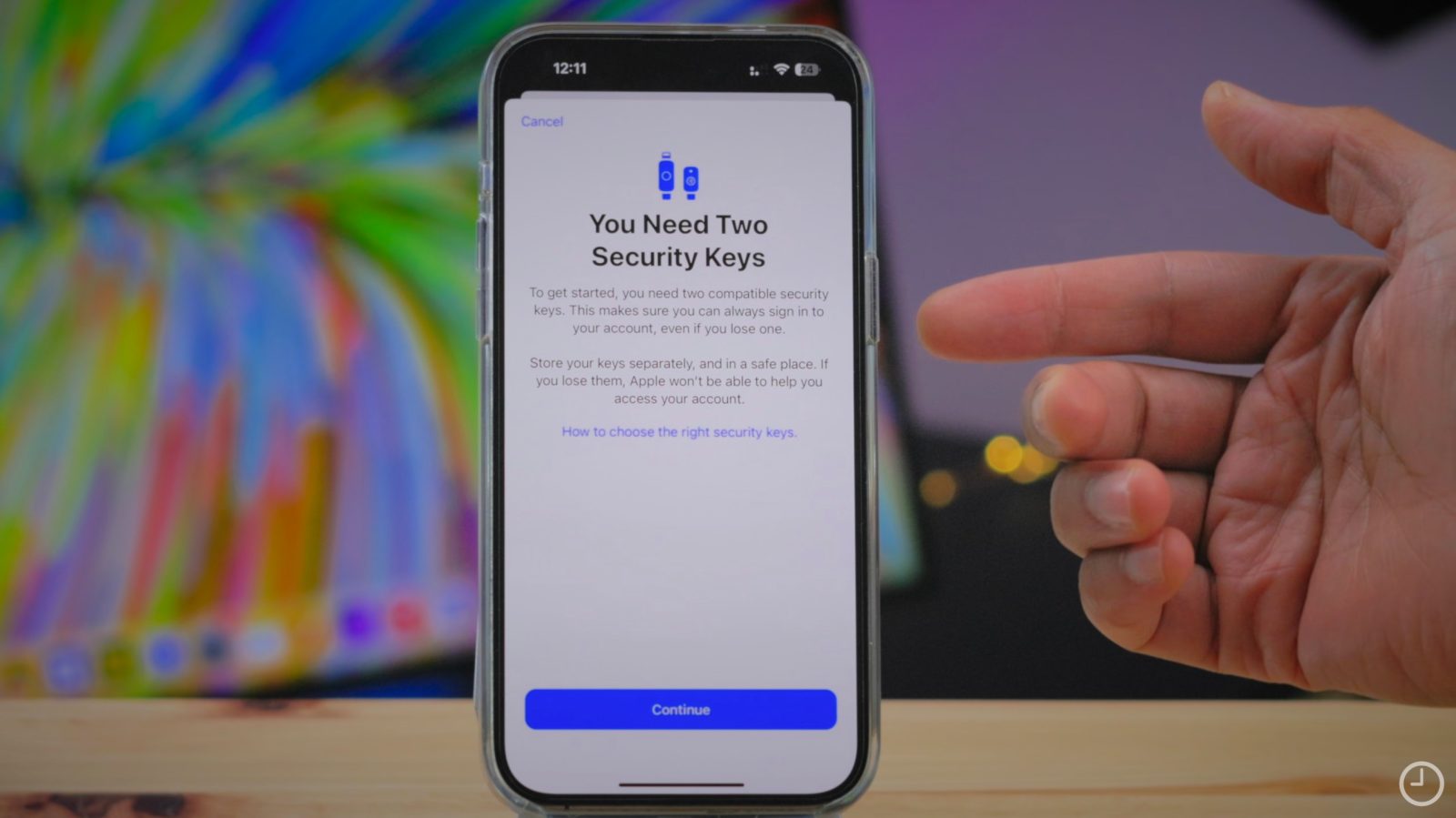
- Enable Two-Factor Authentication: Secure your Apple ID and all third-party accounts with 2FA to prevent unauthorized access even if your password is stolen.
- Download Only from Trusted Sources: Stick to the Mac App Store or software downloaded directly from known, reputable developer websites. Avoid "cracked" software or "free" versions of paid apps found on file-sharing sites, as these are the primary vectors for malware distribution.
- Be Skeptical of Phishing: No software can prevent you from voluntarily giving your password to a malicious website. Always double-check the URL and remain vigilant against emails that create a false sense of urgency.
Frequently Asked Questions
Does Apple sell or partner with any antivirus companies? No. Apple maintains a neutral stance, neither endorsing nor creating partnerships with third-party antivirus vendors. The company relies entirely on its own suite of integrated protections.
Can my Mac get a virus? Yes, it is possible for a Mac to be infected by malware. However, the macOS security architecture is designed to make it very difficult for malware to execute or persist, provided the user follows safe computing practices.
Do I need a "cleaner" or "optimizer" app? Generally, no. These apps often do more harm than good by deleting system cache files that macOS uses to speed up performance. Modern versions of macOS are highly efficient at self-maintenance.
What should I do if my Mac is acting strangely? Instead of installing antivirus, check your "Login Items" in System Settings to see if suspicious apps are launching on startup. You may also want to use the "Force Quit" menu to close unresponsive applications. If issues persist, consider booting in Safe Mode to isolate the problem.
Is it safe to run two different security programs? No. Running multiple security programs simultaneously is strongly discouraged, as they will conflict with each other, consume excessive system resources, and likely cause your Mac to become unstable.
Final Recommendation
In 2026, the best approach to securing your Mac is to trust the native security stack provided by Apple. The focus should be on user behavior—avoiding suspicious downloads, keeping the system updated, and utilizing standard security features like FileVault and 2FA—rather than relying on third-party antivirus software. If you suspect your Mac has been compromised, perform a clean reset of the operating system or consult Apple Support directly, as they are the authoritative source for troubleshooting your device's security health.