Accessing Netflix on a smart television involves ensuring your device is connected to the internet, navigating to the pre-installed application or downloading it from your television's app store, and signing in with an active account subscription. Modern smart TVs integrate streaming platforms directly into their home menus, allowing users to transition from broadcast channels to on-demand video entertainment with minimal configuration.
Understanding Smart TV Compatibility and Prerequisites
Before attempting to stream video content, it is essential to understand the technical prerequisites required to run the Netflix application. Smart televisions rely on internal operating systems, internet bandwidth, and hardware capabilities to decode high-definition and ultra-high-definition streams.
Internet Connection Requirements
Streaming high-definition (HD) or 4K Ultra HD content requires a stable, high-speed broadband connection. Netflix specifies different minimum download speed recommendations depending on the desired video quality:
- Standard Definition (SD): 3 megabits per second (Mbps)
- High Definition (HD - 1080p): 5 Mbps
- 4K Ultra HD (UHD): 15 Mbps or higher
A wired Ethernet connection provides the most stable performance, minimizing packet loss and latency. Alternatively, a Wi-Fi connection routed through a modern dual-band or tri-band router positioned close to the television can deliver adequate speeds, provided there is minimal physical interference from walls and heavy appliances.
Smart TV Operating Systems
Different television manufacturers utilize distinct operating systems (OS) to manage applications and user interfaces. Identifying your television's platform helps determine how you locate, install, and update the application:
- Tizen OS: Found on Samsung smart televisions.
- webOS: Found on LG smart televisions.
- Google TV / Android TV: Found on Sony, TCL, Philips, and Hisense televisions.
- Roku TV: Integrated directly into sets manufactured by brands like Roku, TCL, and RCA.
- Fire TV Edition: Integrated into smart televisions manufactured by Toshiba, Insignia, and Amazon.
Step-by-Step Guide to Accessing Netflix
While the user interface varies across different television brands, the core process of launching and signing into the application follows a standardized sequence.
Step 1: Connect Your Television to the Internet
- Turn on your smart television using the remote control.
- Press the Home or Settings button to open the main menu.
- Navigate to Network or Settings, then select Wi-Fi or Network Settings.
- Choose your home network SSID from the list and enter your security password.
- Verify the connection status to ensure the television has active internet access.
Step 2: Locate the Netflix Application
On the vast majority of modern smart TVs, Netflix comes pre-installed. Manufacturers often include a dedicated Netflix button on the physical remote control.
- Using the Remote: Press the dedicated Netflix button to launch the application instantly.
- Using the Home Menu: If your remote lacks a dedicated button, navigate to the television's home screen, scroll through the application launcher or app ribbon, and select the Netflix icon.
- Using the App Store: If the application is missing, navigate to your TV's application marketplace (such as Google Play Store, LG Content Store, or Samsung Apps), search for "Netflix," and select Download or Install.
Step 3: Sign In to Your Account
- Open the Netflix application.
- Select Sign In. If you do not have an active subscription, you will need to sign up via a web browser on a computer or mobile device before proceeding on the television.
- Enter the email address and password associated with your account using the on-screen keyboard.
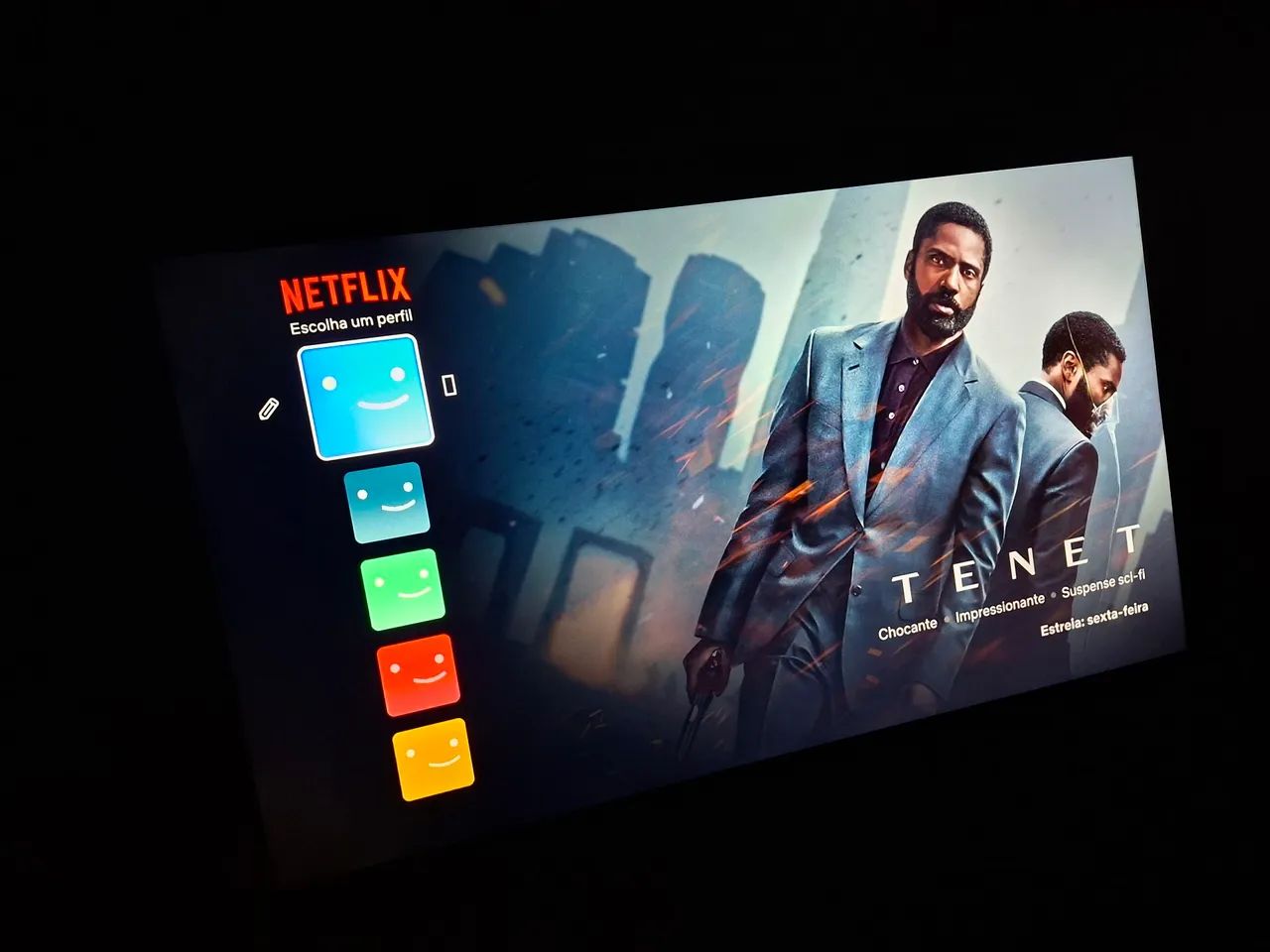
- Select your user profile to begin browsing and streaming content.
Account Plans, Pricing Structures, and Cost Considerations
Choosing the correct subscription tier ensures that your smart television displays content at its optimal resolution while aligning with your household budget. Netflix offers structured tiers that vary by simultaneous streams, maximum video resolution, and advertising presence.
| Plan Tier | Maximum Resolution | Simultaneous Streams | Ad-Supported | Spatial Audio |
|---|---|---|---|---|
| Standard with Ads | 1080p (Full HD) | 2 | Yes | Supported |
| Standard | 1080p (Full HD) | 2 | No | Supported |
| Premium | 4K (Ultra HD) + HDR | 4 | No | Supported |
Note: Features and availability vary by geographic region and third-party billing partners. Upgrading or downgrading plans can be managed directly through your account settings via a web browser.
Troubleshooting Common Access Issues
When attempting to access Netflix on a smart television, users occasionally encounter technical hurdles. System caches, outdated firmware, and network disruptions are the most frequent culprits.
1. The App Fails to Open or Freezes
If the application crashes upon startup or freezes on the red loading screen, a power cycle often resolves the problem:
- Unplug the smart television from the electrical wall outlet.
- Unplug your internet router and modem.
- Wait approximately 60 seconds to allow residual power to dissipate.
- Plug the router and modem back in first, waiting for the internet connection to re-establish fully.
- Plug the television back into the wall outlet and turn it on, then attempt to open Netflix again.
2. Error Codes and Connectivity Messages
Specific error codes can help diagnose network or account discrepancies quickly:
- NW-2-5: This indicates a network connectivity issue. Verify that your television is connected to the internet and that your router is transmitting data. Restarting your home network equipment usually clears this error.
- tvq-st-103: This suggests information stored on your device needs to be refreshed. Signing out of the application and signing back in typically resolves this issue.
- UI-800-3: This error points to cached data on the smart TV that needs updating. Clearing the app cache or reinstalling the application will restore functionality.
3. Outdated Firmware
Smart televisions rely on system updates to maintain application compatibility. If your TV's operating system is outdated, security certificates or streaming protocols may fail.
- Navigate to the television's Settings menu.
- Select Support or System.
- Choose Software Update and select Update Now to check for and install available system patches.
Alternative Methods for Accessing Netflix on a TV
If your smart television is older, lacks native app support, or features an operating system that no longer receives software updates, external streaming devices offer a reliable workaround.
- Streaming Media Players: Devices such as Roku, Amazon Fire TV Stick, Google Chromecast, and Apple TV plug directly into an available HDMI port on your television, instantly transforming any display into a modern smart entertainment hub with full access to the Netflix application.
- Gaming Consoles: Modern video game consoles, including PlayStation and Xbox systems, feature dedicated Netflix applications that can be downloaded from their respective digital stores.
- Laptop or PC Connection: Connecting a computer to your television via an HDMI cable allows you to mirror your desktop or extend your display, streaming Netflix through a web browser directly onto the big screen.
Frequently Asked Questions
Can I watch Netflix on my smart TV without an internet connection?
No, an active internet connection is strictly required to stream content on Netflix. The platform relies on continuous data transmission to deliver video and audio feeds. However, if you use a mobile device, you can download titles locally for offline viewing, though this feature is not natively supported for playback directly on a smart television's internal application.
Why is my Netflix app missing from my smart TV?
Some older smart televisions manufactured before specific operational thresholds no longer support modern streaming updates and have had application support discontinued by developers. If your television model is affected, connecting an external streaming media stick via HDMI provides an immediate solution.
How do I log out of Netflix on a smart TV if the menu is unresponsive?
If the user interface is frozen, you can sign out of all devices remotely by logging into your account via a web browser on a computer or mobile device. Navigate to Account, select Security & Privacy or Manage Access and Devices, and choose Sign Out next to the specific television device.
Does watching 4K content require a special HDMI cable?
If you are streaming natively through an application built directly into your smart television, an HDMI cable is not required for the app itself. However, if you are using an external streaming device like an Apple TV or Roku to watch 4K content, you must use a High-Speed or Premium High-Speed HDMI cable connected to an HDCP 2.2-compliant port on your television.
Why does my video quality drop while watching Netflix?
Video quality fluctuates dynamically based on your current internet bandwidth. If multiple devices on your home network are consuming high amounts of data (such as online gaming, large file downloads, or other video streams), your television's bandwidth may be restricted, forcing the Netflix application to downgrade resolution to prevent buffering.
To ensure an optimal viewing experience, regularly update your television's firmware and verify that your internet speed meets the recommended thresholds for your chosen subscription plan. If native application issues persist, utilize an external streaming device to restore uninterrupted access to your favorite series and films.