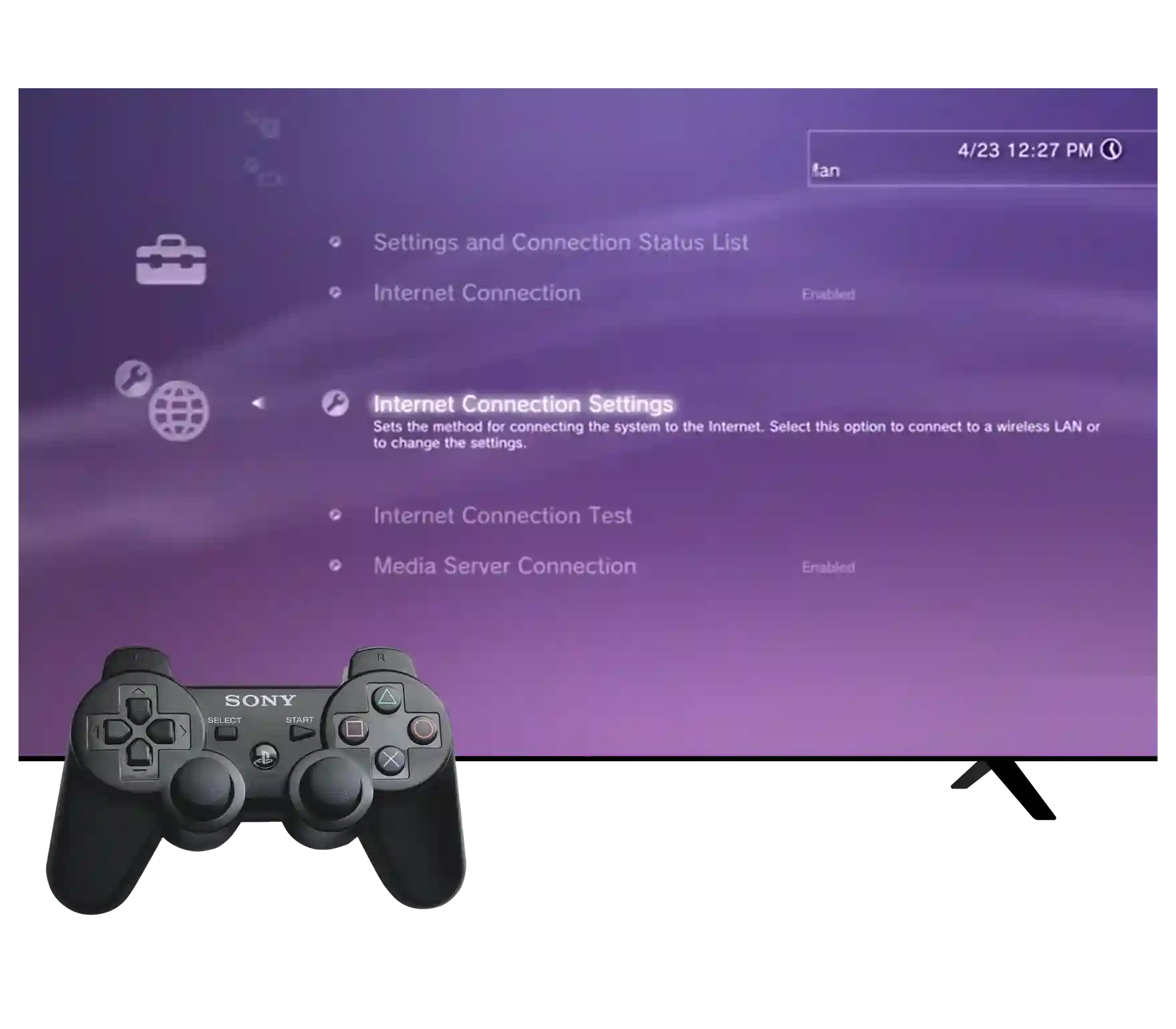
Downloading and setting up RPCS3, the open-source PlayStation 3 emulator for Windows, Linux, and macOS, requires a precise sequence of steps to ensure the software functions correctly. By following the official deployment procedures, users can configure the emulator to manage firmware and library requirements effectively, allowing for the execution of compatible titles within the application’s environment on a modern desktop computer.
Understanding the RPCS3 Ecosystem
RPCS3 is an experimental, open-source emulator designed to bridge the gap between PlayStation 3 hardware architecture and modern x86-64 processors. Unlike traditional software, RPCS3 requires a specific "system software" environment to function, mirroring the way a real console requires an operating system. This is achieved through the integration of the official PlayStation 3 firmware, which the emulator uses to interface with game files.
Before attempting the download, it is important to understand that RPCS3 is not a "plug-and-play" tool. It relies on high-performance hardware, specifically CPUs with advanced instruction set support (such as AVX-512 or AVX2) and dedicated graphics hardware that supports Vulkan. The software is frequently updated by a dedicated community, meaning that maintaining the current version is essential for hardware compatibility and performance stability.
System Prerequisites and Hardware Considerations
Before initiating the download, ensure your hardware meets the necessary benchmarks to prevent runtime errors or inadequate performance. Because RPCS3 performs real-time translation of complex Cell Broadband Engine instructions, the burden on the CPU is significant.
- Operating System: Windows 10/11 (64-bit), Linux distributions (recent kernels with support for Vulkan-capable drivers), or macOS (Apple Silicon).
- Processor: A modern multi-core processor is mandatory. While an Intel Core i5 or AMD Ryzen 5 is a functional baseline, a high-frequency i7 or Ryzen 7 (or better) is recommended to maintain stable frame rates.
- Memory: 8GB of RAM is the absolute minimum, though 16GB is the industry standard for stable performance.
- Graphics: A GPU supporting Vulkan 1.3 is required. Most NVIDIA GeForce (GTX 10-series or newer) and AMD Radeon (RX 500-series or newer) cards are sufficient.
- Storage: Solid State Drives (SSDs) are highly recommended. The emulator’s shader compilation process can cause severe stuttering if the data is being read from a mechanical hard drive (HDD).
Step-by-Step Download and Installation Process
To ensure the integrity and security of the emulator, always obtain the files directly from the official website. Do not download RPCS3 from third-party "gaming" sites, as these often contain bundled installers or outdated, unstable builds.
1. Navigating to the Official Source
Navigate your web browser to the official RPCS3 website. Locate the "Download" button prominently featured on the homepage. You will be presented with options for various operating systems. Select the version corresponding to your platform.
2. Preparing the Installation Directory
Once the compressed folder is downloaded, do not simply run the executable from your "Downloads" folder. Create a dedicated folder on a primary storage drive, preferably one with significant space, as the emulator creates a substantial "dev_hdd0" folder that stores game data, patches, and save states. Extract the contents of the zip file into this dedicated directory.
3. Initial Launch and Security Permissions
When you launch rpcs3.exe for the first time, your operating system may trigger a security warning. This is common with open-source software that lacks a paid digital signature. Verify that the file property matches the official release hash if you are concerned, then authorize the application to proceed. The emulator will generate its necessary configuration files and directory structures upon its first run.
4. Acquiring the PlayStation 3 System Firmware
The emulator will prompt you to install the PS3 firmware. You must acquire the official PS3UPDAT.PUP file from Sony’s official PlayStation website or a verified source.
- Open the RPCS3 application.
- Navigate to File > Install Firmware.
- Select the
PS3UPDAT.PUPfile from your local storage. - Wait for the installation process to complete; the emulator will verify the firmware and finalize the setup of the internal emulated file system.
Comparative Hardware Requirements
The following table provides a breakdown of how hardware choices impact the emulation experience.
| Component | Minimum Specification | Recommended Specification | Impact |
|---|---|---|---|
| CPU | 4-Core / 8-Thread | 8-Core / 16-Thread | Directly dictates simulation speed |
| GPU | Vulkan 1.3 Compatible | Modern Dedicated Card | Controls resolution and shader rendering |
| RAM | 8GB DDR4 | 16GB+ DDR5 | Manages assets and frame buffer cache |
| Storage | 100GB HDD | 500GB NVMe SSD | Reduces load times and stuttering |
Managing Game Libraries and Compatibility
Once the firmware is installed, the emulator is ready, but it contains no playable content. You must provide the software with game files. RPCS3 typically recognizes games in two formats: folders containing the game structure or ISO files.
To add a game, go to File > Add Games and point the browser to the directory where your content is stored. RPCS3 will automatically scan the folder and generate a list of titles.
Before playing, check the RPCS3 Compatibility List on their official website. Games are color-coded:
- Playable: The game runs from start to finish without major glitches.
- Ingame: The game can reach the main menu and play, but may have critical bugs or crashes.
- Loadable: The game boots but cannot progress into gameplay.
- Nothing: The game fails to launch entirely.
Common Troubleshooting and Optimization
New users often encounter "Shader Compilation" lag. This occurs when the emulator translates graphics instructions for the first time. The stuttering will diminish over time as the emulator caches these shaders. To optimize performance:
- Vulkan Settings: Always ensure your GPU driver is updated to the latest release to ensure the best Vulkan performance.
- Configuration Presets: Do not change advanced settings (such as SPU threads or GPU clock scaling) unless you are troubleshooting a specific game. Most games run best on the default configuration provided by the developers.
- Log Files: If the emulator crashes, the log file (usually found in the
logsfolder within the RPCS3 directory) is your most valuable resource. You can share these logs on the official support forums to get expert feedback on your specific hardware configuration.
Frequently Asked Questions
Does RPCS3 include any games when I download it? No. RPCS3 is an emulator, not a distribution platform. It does not include any copyrighted game files, ROMs, or PS3 software. Users must provide their own legally acquired game backups to use the software.
Is it legal to use RPCS3? The development of emulators is generally legal as it involves reverse-engineering for the purpose of interoperability. However, the use of copyrighted software (games) without owning the original media or obtaining proper licenses is a matter of copyright law. Always consult local regulations regarding software backups.
How do I update RPCS3? RPCS3 features an integrated update system. When you launch the application, it will periodically check the official server for new builds. You can also manually trigger this by navigating to the "Help" menu and selecting "Check for Updates."
Why does my game run slowly even with good hardware? Performance issues are often caused by background processes or outdated GPU drivers. Ensure you have closed resource-heavy applications like web browsers or video editing software. Additionally, ensure that your power profile is set to "High Performance" in your operating system settings.
Can I use a PS3 controller with RPCS3? Yes. RPCS3 supports XInput (Xbox controllers), DualShock 3, DualShock 4, and DualSense controllers. Go to the "Pads" menu to configure your input method and map buttons to your preferred layout.
Next Steps and Recommendations
After you have successfully installed the firmware and confirmed the emulator is operational, start by testing a single game known to have a "Playable" status. This confirms that your configuration is correct before attempting to load more complex titles. Keep the emulator folder clean, keep your graphics drivers updated, and regularly check the official RPCS3 compatibility page for updates on specific titles you intend to play. Should you encounter persistent issues, refer to the official Discord or the GitHub issue tracker for guidance from the developers and community experts.