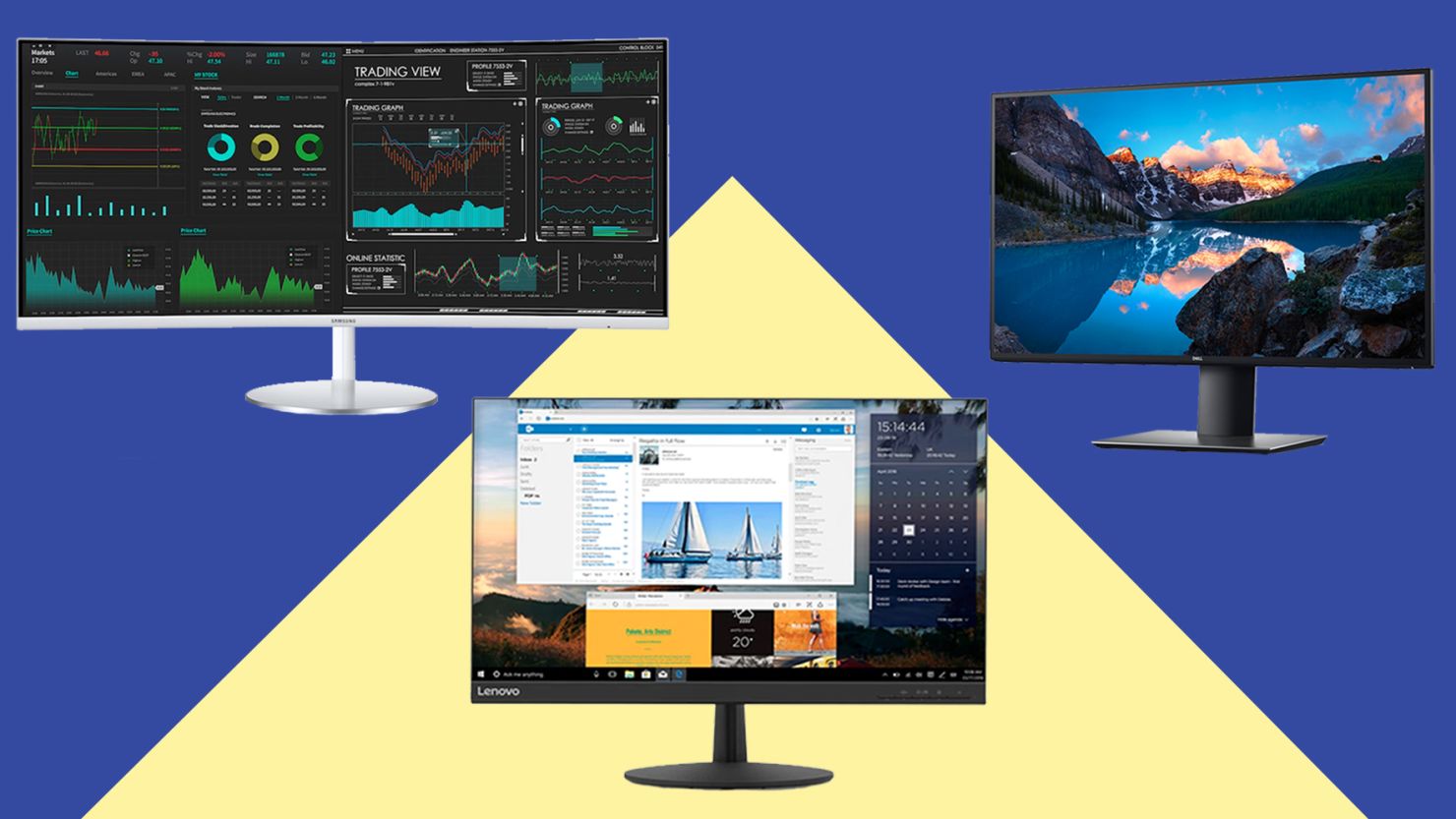
The best desktop monitors for work in 2026 prioritize high pixel density, advanced eye-care technologies, and seamless single-cable connectivity via Thunderbolt 5 or USB4. Top-tier choices like the Dell UltraSharp U2727WE and the Apple Studio Display lead the market by balancing color accuracy with ergonomic flexibility to enhance professional efficiency across diverse industries.
As the professional landscape continues to favor hybrid and remote models, the desktop monitor has evolved from a simple output device into a sophisticated central hub for the modern workstation. In 2026, a "work monitor" is no longer defined merely by its screen size, but by its ability to reduce physical strain, simplify cable management, and provide the visual clarity necessary for long-term focus. Whether you are managing complex financial spreadsheets, coding software, or designing high-resolution assets, the hardware on your desk directly dictates your daily output and long-term health.
Selecting the right display requires navigating a landscape of technical specifications including panel types, refresh rates, and color gamuts. This guide analyzes the seven best desktop monitors for work currently available, detailing why they stand out in the 2026 market and how they solve specific professional challenges.
1. The Best Overall: Dell UltraSharp U2727WE
The Dell UltraSharp series has long been the gold standard for office environments, and the U2727WE (the 2026 flagship of the 27-inch line) continues this legacy. This monitor utilizes the latest iteration of IPS Black technology, which provides a 2000:1 contrast ratio—double that of traditional IPS panels. This results in deeper blacks and more vibrant colors without the text-fringing issues sometimes found in OLED displays.
Why It Excels for Work
The U2727WE is designed as a productivity powerhouse. It features a 120Hz refresh rate, a standard that has finally moved from gaming into the professional sphere. This higher refresh rate reduces motion blur during document scrolling and window transitions, significantly lowering eye fatigue over an eight-hour workday. Furthermore, its integrated Thunderbolt 4 hub provides up to 90W of power delivery, allowing you to charge a high-performance laptop while transmitting data and video through a single cable.
Connectivity and Ergonomics
Dell’s "ComfortView Plus" is an always-on, built-in low blue light screen that reduces harmful blue light emissions without sacrificing color accuracy. The stand offers a full range of motion, including 150mm of height adjustment, tilt, swivel, and 90-degree pivot for vertical orientation—ideal for programmers and data analysts.
2. The Creative Professional’s Choice: Apple Studio Display (2026 Edition)
For those within the macOS ecosystem, the Apple Studio Display remains the benchmark for visual fidelity. Featuring a 27-inch 5K Retina display, it offers 14.7 million pixels, providing a level of sharpness that 4K monitors cannot match at this size. This pixel density is critical for professionals who require "pixel-perfect" accuracy in photo editing, UI/UX design, or video production.
Optimized for the Mac Ecosystem
The 2026 update to the Studio Display includes improved thermal management and a refined nano-texture glass option that scatters light to further minimize glare in bright office settings. It also houses an A-series chip to manage its high-fidelity six-speaker sound system and the 12MP Ultra Wide camera with Center Stage, making it an all-in-one solution for high-stakes video conferencing.
Technical Limitations
While it is the best for Mac users, its lack of ProMotion (120Hz) compared to the MacBook Pro screens remains a point of contention for some. However, its factory-calibrated P3 wide color gamut and 600 nits of brightness ensure that what you see on the screen is exactly what will appear in the final product.
3. The Multitasking Powerhouse: LG 40WP95C-W Curved Ultrawide
If your work involves managing multiple windows, large timelines, or massive spreadsheets, the LG 40WP95C-W is the premier choice. This 40-inch curved monitor offers a 5K2K resolution (5120 x 2160), providing 33% more screen real estate than a standard 16:9 4K monitor.
Horizontal Real Estate
The subtle 2500R curve helps maintain a consistent focal distance for your eyes as you look from the center to the edges of the screen. In 2026, this model remains highly relevant due to its Thunderbolt 4 support, which enables "Daisy Chaining." This allows you to connect a second 4K monitor directly to the LG display rather than running another cable to your computer.
Specialized Features
- Auto Brightness: A built-in ambient light sensor adjusts the screen brightness based on your room's lighting conditions.
- DCI-P3 98%: Despite its size, it maintains professional-grade color accuracy.
- PBP (Picture-by-Picture): Allows you to display input from two different computers simultaneously, a must-have for IT professionals or those using both a PC and a Mac.
4. The Best for Eye Comfort: BenQ PD3225U DesignVue
BenQ has carved out a niche by focusing on "Eye-Care" technology, and the PD3225U is the culmination of those efforts. This 32-inch 4K monitor is TUV Rheinland certified for flicker-free performance and low blue light. What sets it apart in 2026 is its M-Book mode, which performs a precise color match to the Liquid Retina XDR displays found on modern MacBooks.
Ergo Arm and Flexibility
Many versions of the PD3225U ship with the BenQ Ergo Arm, which clamps to the back of the desk. This frees up significant desk space and allows the monitor to be moved in 3D space—extending, retracting, and swiveling with minimal effort. This is particularly useful for collaborative work where you need to show your screen to a colleague.
The Hotkey Puck G2
A unique feature of BenQ’s professional line is the Hotkey Puck, a physical dial that sits on your desk. You can program it to switch color modes (e.g., from sRGB to CAD/CAM mode) or adjust brightness and volume instantly, removing the need to fumble with awkward buttons on the back of the monitor.
5. The Premier High-End Specialist: ASUS ProArt PA32UCXR
For professionals working in HDR video or high-end color grading, the ASUS ProArt PA32UCXR is an industry leader. It utilizes Mini-LED backlighting with over 2,300 local dimming zones. In 2026, this technology is essential for achieving a peak brightness of 1600 nits, allowing for true HDR10 and Dolby Vision workflows.
Built-in Calibration
One of the most impressive features of the PA32UCXR is its integrated motorized colorimeter. The sensor flips out from the bottom bezel to calibrate the screen automatically or on a schedule. This ensures that the monitor’s color accuracy (Delta E < 1) never drifts over time, a common issue with high-brightness displays.
Professional Connectivity
It supports dual Thunderbolt 4 ports, DisplayPort 1.4, and HDMI 2.1. This wide array of ports makes it compatible with everything from high-end workstations to the latest gaming consoles used for game development testing.
6. The Best Budget Efficiency: Samsung ViewFinity S9 (S90PC)
The Samsung ViewFinity S9 offers a 5K resolution at a significantly lower price point than the Apple Studio Display, making high-resolution work accessible to a broader range of professionals. It features a matte display as standard, which is excellent for offices with heavy overhead lighting.
Integrated Smart Features
Unlike most monitors, the ViewFinity S9 comes with built-in Smart TV apps and a gaming hub. While this might seem unnecessary for work, it allows the monitor to function as a standalone media device during breaks. More importantly, it supports Wireless DeX and Apple AirPlay, allowing you to project your smartphone or tablet onto the screen for quick presentations or mobile app testing.
Calibration via Smartphone
Samsung introduced a "Smart Calibration" feature that allows users to calibrate the screen using a smartphone camera. While not as precise as the ASUS built-in sensor, it is remarkably effective for ensuring color consistency for general professional tasks without purchasing expensive external hardware.
7. The Corporate Standard: Lenovo ThinkVision P27h-30
For large-scale office deployments or a reliable home office setup, the Lenovo ThinkVision P27h-30 is the most practical choice. It is a QHD (2560 x 1440) monitor that focuses on connectivity and "docking" capabilities.
The Ultimate Docking Station
This monitor effectively replaces a $200 laptop dock. It features an RJ45 ethernet port, four USB-A ports, and a USB-C port that provides power, data, and video. By plugging your ethernet and peripherals into the monitor, you only need to connect one cable to your laptop to be fully operational.
Modular Design
The P27h-30 is designed to work with Lenovo’s modular soundbars and webcams, which clip directly onto the top or bottom of the frame. This "stackable" approach keeps the workspace clean and professional, which is why it remains a top choice for corporate procurement in 2026.
Comparison of Top Desktop Monitors for Work
| Model | Size / Resolution | Panel Tech | Best Use Case | Key Feature |
|---|---|---|---|---|
| Dell U2727WE | 27" / 4K | IPS Black | General Office | 120Hz Refresh & 90W PD |
| Apple Studio Display | 27" / 5K | Retina | Mac Creative | 5K Clarity & Integration |
| LG 40WP95C-W | 40" / 5K2K | Nano IPS | Multitasking | Ultrawide Curved Screen |
| BenQ PD3225U | 32" / 4K | IPS | Design/Mac | Ergo Arm & Eye-Care |
| ASUS ProArt PA32UCXR | 32" / 4K | Mini-LED | HDR/Video | Auto-Calibration Sensor |
| Samsung ViewFinity S9 | 27" / 5K | IPS (Matte) | High-Res Budget | 5K for less / Smart Apps |
| Lenovo P27h-30 | 27" / QHD | IPS | Corporate/Docking | Built-in Ethernet & USB Hub |
Critical Factors When Choosing a Work Monitor in 2026
When selecting a monitor, don't just look at the screen size. The technical specifications below determine the longevity and usability of your investment.
Resolution and Pixel Density
In 2026, 4K is the minimum recommended resolution for a 27-inch screen or larger. High pixel density (measured in Pixels Per Inch or PPI) ensures that text is crisp. If you work primarily with text, such as in law or software development, a lower-resolution 27-inch screen (like 1080p) will result in "fuzzy" letters that contribute to eye strain. Aim for a PPI of at least 110 for standard work and 160+ for design work.
Ergonomics and Physical Health
A monitor with a fixed stand is a liability. You should be able to adjust the height so that the top third of the screen is at eye level. This prevents neck strain and "tech neck." If a monitor you like has a poor stand, ensure it is VESA compatible (usually 100x100mm), which allows you to attach it to a third-party monitor arm.
Connectivity: The USB-C Revolution
The shift to USB-C and Thunderbolt is complete. A modern work monitor should act as a hub. Look for "Power Delivery" (PD) of at least 65W; however, 90W or 100W is preferable for modern high-performance laptops. This ensures your computer stays charged even during CPU-intensive tasks without needing its original power brick.
Panel Technology: IPS vs. OLED vs. Mini-LED
- IPS (In-Plane Switching): Best for general work. It offers wide viewing angles and consistent colors.
- OLED: Offers incredible contrast, but in a work context, be wary of "burn-in" from static taskbars and "text fringing" caused by non-standard subpixel layouts.
- Mini-LED: The best middle ground for professionals who need high brightness and deep blacks without the risks associated with OLED.
Frequently Asked Questions
Is a curved monitor better for office work?
Curved monitors are beneficial primarily at sizes 34 inches and larger. The curve helps maintain a consistent focal distance for your eyes, which reduces the effort of refocusing as you look from the center to the edges of a wide screen. For standard 27-inch monitors, a curve is generally unnecessary and can sometimes distort straight lines, which is problematic for architects or designers.
Why does the refresh rate matter for non-gamers?
While 60Hz was the standard for decades, 120Hz or higher is significantly better for productivity. It makes the cursor move more fluidly and makes scrolling through long PDF documents or spreadsheets much smoother. This "fluidity" reduces the micro-stresses on your visual system, leading to less fatigue by the end of the day.
Can I use a gaming monitor for professional work?
Yes, but with caveats. Gaming monitors often prioritize response time over color accuracy and text clarity. They also frequently use aggressive aesthetic designs that may not be suitable for a professional office. However, high-end gaming monitors with IPS panels can be excellent work displays if they allow you to disable "gaming" color presets in favor of sRGB or Adobe RGB modes.
What is "Daisy Chaining" and do I need it?
Daisy chaining (officially Multi-Stream Transport or MST) allows you to connect one monitor to your computer and then a second monitor to the first one. This is incredibly useful for dual-monitor setups because it reduces the number of cables running to your laptop. To use this, the first monitor in the chain must have a DisplayPort-Out or Thunderbolt-Out port.
Should I choose two 27-inch monitors or one 49-inch super-ultrawide?
One 49-inch monitor provides a seamless experience without a bezel in the middle, which is great for immersive work. However, two separate monitors offer more flexibility; for example, you can pivot one to a vertical (portrait) orientation for reading code or long documents while keeping the other horizontal.
Practical Recommendation
For the vast majority of professionals in 2026, the Dell UltraSharp U2727WE offers the best balance of price, performance, and eye health features. If you are a Mac user who prioritizes aesthetics and extreme sharpness, the Apple Studio Display remains the unmatched choice. For those looking to maximize efficiency on a budget, the Lenovo ThinkVision P27h-30 provides all the necessary docking capabilities to keep a clean, productive workspace.