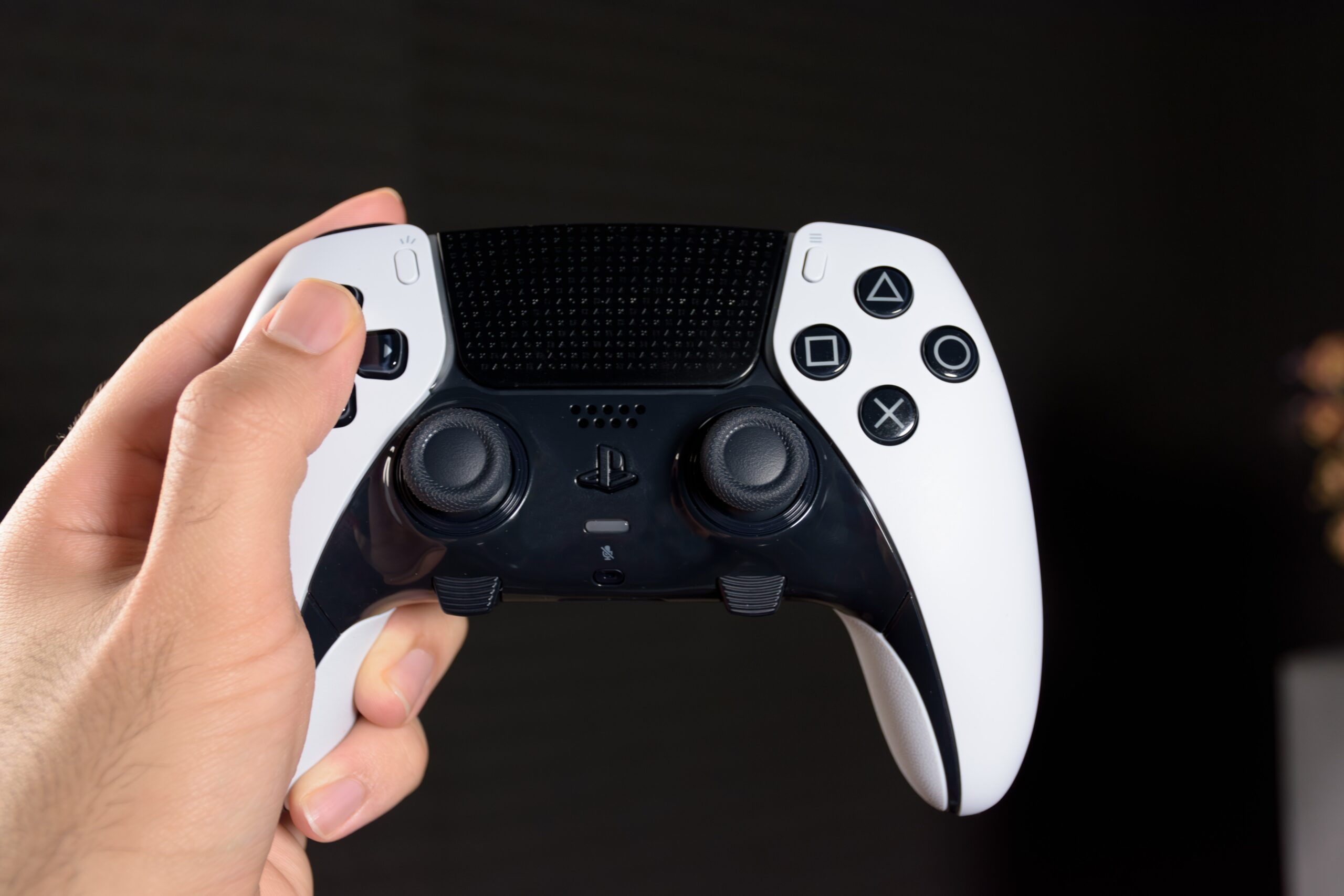
Connecting your DualSense wireless controller to your PlayStation 5 console is the foundational step in setting up your gaming environment. Whether you are unboxing a brand-new console, pairing a secondary controller for local multiplayer, or recovering from a synchronization error, the process remains consistent and straightforward. This guide provides a comprehensive breakdown of the methods required to establish a stable connection between your hardware, ensuring you can navigate the user interface and enjoy your software library without interruption.
At its core, connecting a PS5 controller involves either a physical tether via a USB cable or a wireless pairing sequence initiated through the console’s Bluetooth interface. Most users will primarily utilize the USB-to-console connection, as it serves as both the initialization method for new controllers and the charging medium for internal batteries. If you find your controller unresponsive or disconnected, the steps outlined below will resolve the vast majority of synchronization issues.
Understanding the DualSense Connection Ecosystem
The PlayStation 5 utilizes the DualSense wireless controller, which operates on Bluetooth connectivity for its standard gameplay input. Unlike legacy consoles that required cumbersome external dongles, the PS5 contains integrated wireless transceivers designed specifically for the DualSense protocol.
To maintain system stability, the console must "handshake" with the controller to verify its identity. This handshake typically occurs automatically when a physical connection is detected. Because the controller possesses its own internal firmware, it must be recognized by the PS5 operating system before the wireless radio can take over. When you connect your controller to the PS5 using a USB cable, the console automatically pairs the controller to its current user profile and synchronizes the wireless pairing keys, allowing the controller to function wirelessly as soon as the cable is detached.
Method 1: The USB Pairing Process (Standard Procedure)
The most reliable way to connect a controller—and the only way to register a new controller for the first time—is through a wired USB connection. This method ensures that the signal path is clear and that the controller firmware receives power and synchronization data simultaneously.
Prerequisites for Wired Pairing
Before attempting to connect, ensure you have the following:
- USB Cable: Use the USB-A to USB-C cable that was provided in the box with your PlayStation 5 console. While many third-party "charge and sync" USB-C cables may work, cables designed solely for charging (lacking data transfer pins) will fail to pair the controller.
- Console Status: The PS5 must be powered on or in Rest Mode. If the console is completely off, it will not register the device handshake.
Step-by-Step Connection Instructions
- Power on your PS5: Ensure the console is active. You can do this by pressing the power button on the console chassis or using a controller that is already synced.
- Connect the Cable: Insert the USB-A end of your cable into one of the USB ports on the front or rear of the PS5. Insert the USB-C end into the port at the top of the DualSense controller.
- Press the PS Button: Once the cable is connected, press the PlayStation button located in the center of the controller between the two analog sticks.
- Observe the Light Bar: The light bar surrounding the touchpad will flash briefly. Once the light bar changes to a solid color (typically blue, depending on the player profile number), the controller is successfully paired and the USB cable can be removed for wireless play.
Method 2: Wireless Pairing (Secondary Controllers)
If you already have a functional controller and need to add a second or third DualSense to your console, you can use the wireless pairing mode. This is useful if you have multiple controllers and want to avoid constant cable swapping.
Entering Pairing Mode
- Prepare the Console: Navigate to your PS5 home screen. Go to Settings (the gear icon in the top right corner).
- Navigate to Accessories: Select Accessories, then select General, and finally Bluetooth Accessories.
- Trigger Controller Pairing: On the controller you wish to connect, press and hold the Create button (the small button to the left of the touchpad) and the PS button simultaneously.
- Observe the Light Bar: Keep holding both buttons until the light bar under the touchpad begins to pulse rapidly. This blinking sequence indicates that the controller is actively searching for a console signal.
- Finalize the Sync: Within the "Bluetooth Accessories" menu on your PS5 screen, you should see the new controller appear in the list of available devices. Select the controller name using your primary, working controller to complete the handshake.
Troubleshooting Common Connectivity Failures
Even with a straightforward process, hardware interference or firmware glitches can occasionally prevent a connection. If your controller fails to pair, systematically address these variables.
Cable Limitations
The most common cause of failure is a faulty USB cable. Many USB cables bundled with smartphones or charging stations are designed strictly for power delivery and do not contain the wires necessary for data synchronization. If you suspect your cable is the issue, attempt the connection using the original cable that came with the console or a high-quality data-transfer-rated USB-C cable.
The Hard Reset Solution
If the controller flashes and then stops, or if the light bar stays off entirely, the controller’s internal connection cache may need to be cleared.
- Locate the small hole on the back of the controller near the Sony logo. This is the reset button.
- Using a paperclip or a specialized SIM-eject tool, press and hold the button inside this hole for five seconds.
- Once the internal memory is reset, reconnect the controller to the PS5 using the USB cable and attempt the pairing process from the beginning.
Software and Firmware Conflicts
Sometimes, the PS5 operating system requires an update to recognize new hardware revisions. If you are trying to connect a new third-party controller or a replacement DualSense, ensure your console is running the latest system software by navigating to Settings > System > System Software > System Software Update and Settings.
Comparison of Connection Methods
| Method | Best For | Requirement | Stability |
|---|---|---|---|
| USB Wired | First-time setup / Firmware updates | USB-A to USB-C Data Cable | High |
| Wireless Pairing | Adding additional players | Existing active controller | Moderate |
| Hard Reset | Persistent connection errors | Paperclip / Reset Tool | Diagnostic |
Frequently Asked Questions
Why won't my PS5 controller turn on even after charging?
If your controller is unresponsive, it may be stuck in a state where it is not communicating with the console. Try performing the hard reset mentioned earlier in this guide using the pinhole on the back of the controller. If the light bar does not illuminate after a reset and a verified data cable connection, the issue may be a hardware battery failure or a damaged charging port.
Can I use my PS5 controller on a PC or Mac?
Yes, the DualSense controller supports Bluetooth and can be paired with PCs and Macs. To connect, hold the PS button and Create button simultaneously until the light bar pulses, then select "Wireless Controller" from your computer's Bluetooth settings menu.
How many controllers can I connect to one PS5 at once?
The PlayStation 5 supports up to four DualSense controllers connected simultaneously. This allows for four-player local gaming sessions on supported titles. If you attempt to connect a fifth controller, the system will prompt you to disconnect one of the existing players.
What should I do if my controller disconnects during gameplay?
First, verify that your controller has sufficient battery life. If the battery is full, ensure there are no physical obstacles between the controller and the PS5 console that might interfere with the Bluetooth signal. Finally, perform a system restart; persistent disconnections can sometimes be caused by a software hang in the PS5 Bluetooth driver.
Is the "Create" button used for anything other than pairing?
Yes. The Create button is primarily used for capturing screenshots, recording gameplay video, and opening the "Create" menu to manage your media library. Its secondary function as a pairing initiator is specifically reserved for when the controller is powered off.
Final Recommendations for Optimal Performance
Maintaining a stable connection between your DualSense and your PS5 requires minimal intervention if you follow the best practices of using original or high-quality data-capable USB cables and keeping your system firmware updated. To ensure your gaming sessions remain uninterrupted, keep your controllers charged by placing them in the official DualSense Charging Station when not in use. This habit prevents the "dead battery" scenario that often leads users to believe their controller has developed a pairing fault. If you experience persistent issues despite following these steps, examine the USB ports on your console for debris, as a dusty port can prevent a reliable data connection, hindering the initial handshake required for wireless pairing.