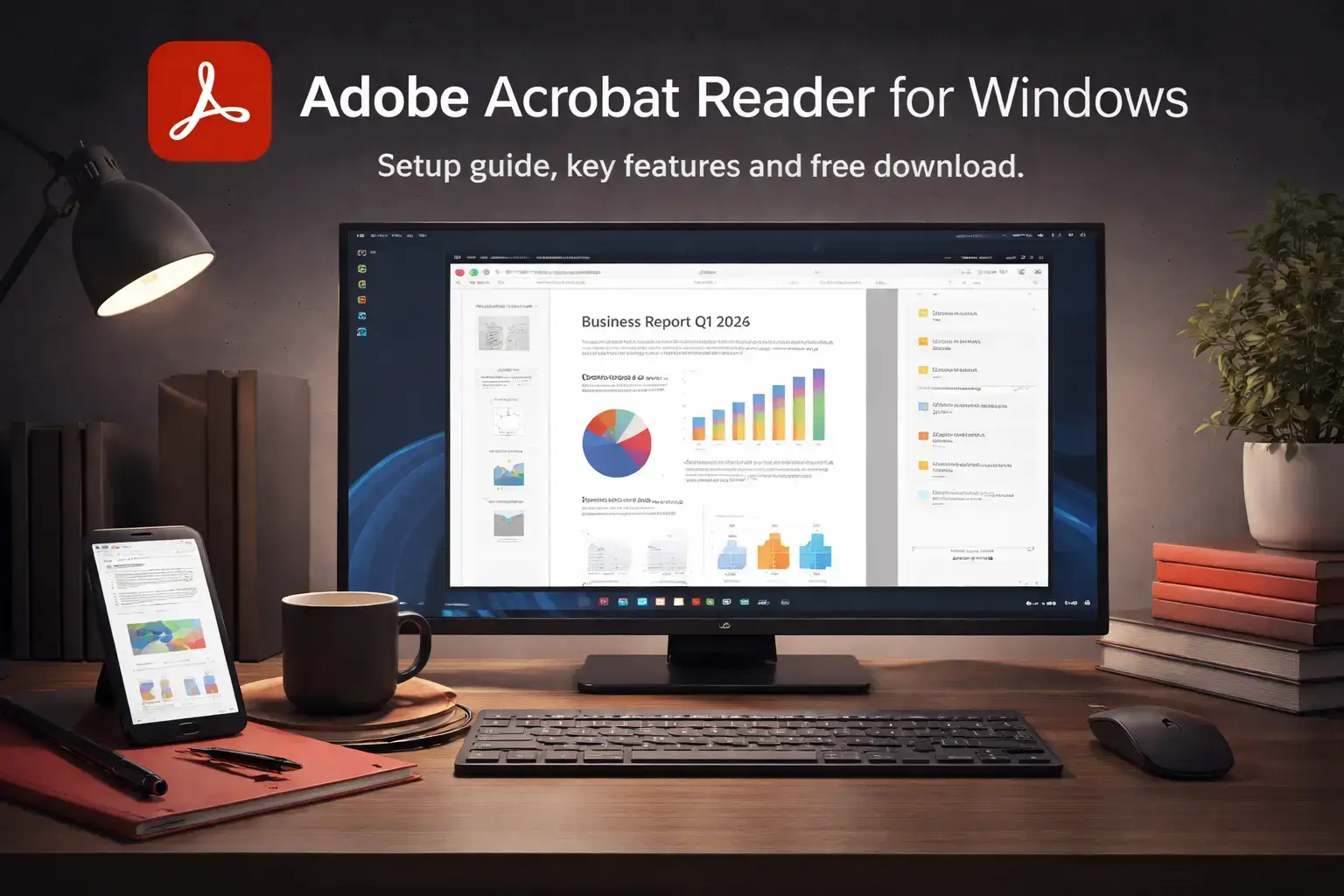
Adobe Acrobat remains the industry-standard solution for creating, managing, and securing PDF documents on Windows 10. As of 2026, it offers a unified ecosystem that integrates generative AI, cloud-based collaboration, and advanced editing tools, ensuring that users on the Windows 10 platform maintain full compatibility with modern document workflows and security standards.
The Evolution of Adobe Acrobat on Windows 10
Windows 10 continues to be a primary operating system for millions of professionals and organizations. While Microsoft has transitioned many users to newer iterations, the stability of Windows 10 makes it a preferred environment for Adobe’s document productivity suite. Adobe Acrobat has evolved from a simple PDF viewer into a sophisticated, multi-layered platform known as the Adobe Document Cloud.
In 2026, the software is primarily delivered through a subscription model, ensuring that Windows 10 users receive the latest security patches and feature updates. The integration between the Windows 10 file system and Acrobat allows for seamless "Right-Click" conversions and deep integration with the Microsoft Office suite. This overview explores the current state of the software, its technical requirements, and how it serves the needs of various user segments.
Understanding the Acrobat Ecosystem: Reader vs. Standard vs. Pro
Before deploying Adobe Acrobat on Windows 10, it is essential to distinguish between the three primary tiers available. Adobe has streamlined these versions to ensure that users only pay for the functionality they require.
Adobe Acrobat Reader
This is the free version used by the vast majority of Windows 10 users. While it is primarily a viewing tool, Adobe has expanded its capabilities in recent years. Users can now perform basic tasks such as:
- Viewing and printing PDFs with high fidelity.
- Adding "sticky note" comments and highlighting text.
- Filling and signing simple forms using the Fill & Sign tool.
- Searching for specific terms within indexed documents.
Adobe Acrobat Standard
Designed for individual users who need more than just a viewer, the Standard version provides the core editing and conversion tools. It allows users to create PDFs from almost any application, edit text and images directly within the PDF, and convert PDFs into editable Microsoft Word or Excel files. It is important to note that Acrobat Standard is limited to Windows and does not include some of the advanced features found in the Pro version, such as specialized print production tools.
Adobe Acrobat Pro
Acrobat Pro is the flagship version for Windows 10. It includes every feature of the Standard version plus high-end capabilities required by legal, medical, and design professionals. Key exclusive features include:
- Redaction tools: Permanently removing sensitive information.
- Accessibility checking: Ensuring documents comply with WCAG 2.1 and PDF/UA standards for users with disabilities.
- Comparison tools: Automatically identifying differences between two versions of a document.
- Advanced Preflight: Tools for professional print and color management.
Technical Specifications and System Requirements
To ensure optimal performance on Windows 10 in 2026, your hardware should meet or exceed the following specifications. While Acrobat can run on older hardware, the introduction of AI-driven features requires more robust processing power.
| Feature | Minimum Requirement | Recommended Specification |
|---|---|---|
| Operating System | Windows 10 (64-bit) version 1809+ | Windows 10 (64-bit) Latest Build |
| Processor | 1.5 GHz or faster processor | 2.0 GHz multi-core processor |
| RAM | 2 GB | 4 GB or higher |
| Hard Disk Space | 4.5 GB of available space | SSD with 10 GB available space |
| Monitor Resolution | 1024 x 768 screen resolution | 1920 x 1080 or higher |
| Browser | Edge, Chrome, or Firefox | Edge or Chrome with Acrobat Extension |
Key Features and Productivity Tools
The modern iteration of Adobe Acrobat for Windows 10 focuses on three pillars: intelligence, collaboration, and security.
AI Assistant and Generative Capabilities
In 2026, the most significant addition to the Acrobat experience is the Adobe AI Assistant. Integrated directly into the Windows 10 desktop application, this tool allows users to "talk" to their documents. You can ask the AI to summarize a 50-page report, extract the key action items, or explain complex technical jargon within the text. This feature drastically reduces the time spent on document analysis and is a major value-add for researchers and legal professionals.
Advanced PDF Editing and Conversion
Acrobat’s editing engine on Windows 10 is designed to mimic a word processor. You can adjust font styles, replace images, and reflow entire paragraphs without needing the original source file. The conversion engine is equally powerful, maintaining the layout, fonts, and tables of complex documents when exporting to Microsoft Office formats.
Security and Redaction
For users handling sensitive data, Acrobat Pro offers military-grade security. This includes AES-256 encryption and the ability to password-protect documents against unauthorized opening or editing. The redaction tool is a critical feature for Windows 10 enterprise users, as it doesn't just "cover" text with a black box—it removes the underlying metadata and search-indexed text to prevent data leaks.
The New Acrobat Experience (UI/UX)
Adobe recently overhauled the user interface for Windows 10. The "New Acrobat" experience features a simplified, modern look that aligns with Windows 10's Fluent Design principles.
- Unified Home View: A single dashboard to access local files, recent documents, and files stored in Adobe Cloud, OneDrive, or Google Drive.
- All-in-One Tool Menu: Tools are now grouped by task (e.g., Create & Edit, Share & Review, Forms & Signatures) rather than just listed alphabetically.
- Floating Toolbars: To maximize screen real estate on Windows 10 tablets (like the Surface Pro), toolbars can be collapsed or moved to the side.
Users who prefer the traditional layout can still toggle back to the "Classic" view via the View menu, though Adobe encourages the new interface for better performance and AI integration.
Installation and Deployment on Windows 10
Installing Adobe Acrobat is typically handled through the Adobe Creative Cloud Desktop application. This manager handles updates in the background, ensuring your software is always current.
Individual Installation
For home or small business users, the process involves signing in to the Adobe ID portal, downloading the installer, and following the on-screen prompts. Windows 10 may ask for Administrative privileges to install the "Acrobat PDF Printer" driver, which is essential for creating PDFs from other apps.
Enterprise Deployment
IT administrators can use the Adobe Customization Wizard to create tailored installers for large Windows 10 fleets. This allows for the pre-configuration of security settings, the disabling of cloud services if required by company policy, and the silent deployment of the software via Microsoft Endpoint Configuration Manager (MECM) or Intune.
Integration with Windows 10 Features
One of the primary reasons to use Acrobat over generic PDF editors is its deep integration with the Windows 10 ecosystem:
- Microsoft Office Add-ins: Acrobat installs a dedicated ribbon in Word, Excel, and PowerPoint. This allows for "one-click" PDF creation that preserves hyperlinks, bookmarks, and accessibility tags.
- Windows Explorer Preview: Users can preview the contents of a PDF directly in the Windows 10 File Explorer without opening the application.
- Outlook Integration: Large PDF files can be automatically converted into Adobe Cloud links when sent via Outlook, bypassing email size limits.
- Direct Print to PDF: Acrobat installs a virtual printer driver that allows any application with a "Print" function to generate a high-quality PDF.
Troubleshooting Common Windows 10 Issues
While Acrobat is stable, users occasionally encounter issues related to Windows updates or graphics drivers.
- Display Issues: If text appears blurry, navigate to Preferences > Page Display and adjust the "Smooth Text" setting to "For Laptop/LCD Screens."
- Printer Errors: If the "Adobe PDF" printer disappears after a Windows 10 update, you can manually reinstall it through the Devices and Printers control panel by pointing the driver to the Acrobat program folder.
- Performance Lags: Ensure that "Enable Protected Mode at Startup" is active in the Security (Enhanced) settings. While this is a security feature, it can sometimes conflict with third-party antivirus software, requiring an exclusion to be added.
Comparison: Acrobat Pro vs. Standard (2026)
| Feature | Acrobat Pro | Acrobat Standard |
|---|---|---|
| Edit Text & Images | Yes | Yes |
| Convert to Office Formats | Yes | Yes |
| Redact Sensitive Info | Yes | No |
| Add Branding to Forms | Yes | No |
| Mobile Editing | Yes | Yes |
| Advanced Preflight | Yes | No |
| ISO Standard Verification | Yes | No |
Frequently Asked Questions
Can I still use Adobe Acrobat 2020 on Windows 10?
Yes, you can still use Adobe Acrobat 2020, which was the last major perpetual (non-subscription) version. However, it reached its end-of-life (EOL) in June 2025. This means Adobe no longer provides security updates or technical support for it. For security reasons, Windows 10 users are strongly encouraged to move to the subscription-based Acrobat Pro or Standard to protect against new vulnerabilities.
Is there a 32-bit version of Acrobat for Windows 10?
Adobe has largely transitioned to a unified 64-bit application for Windows 10. While 32-bit versions existed in the past, the 64-bit version is now the standard as it offers better performance and improved memory handling, especially when working with very large or complex PDF files. The installer will automatically detect your system architecture and install the appropriate version.
How does the Adobe AI Assistant handle data privacy?
When using the AI Assistant on Windows 10, your document data is processed according to Adobe’s Privacy Policy. By default, Adobe does not use your document content to train its foundational AI models without your explicit permission. Enterprise users have additional controls to disable AI features across their organization if they have strict data residency requirements.
Why is Acrobat better than using "Save as PDF" in Microsoft Word?
While Microsoft Word's built-in "Save as PDF" is sufficient for basic tasks, Adobe Acrobat provides superior font embedding, color management, and interactive features. Acrobat ensures that the document looks exactly the same on every device, whereas Word's built-in converter can sometimes lead to minor layout shifts or missing decorative elements. Additionally, Acrobat allows for the creation of "Fillable Forms" and "Digital Signatures," which Word cannot do natively.
Can I use Acrobat on Windows 10 without an internet connection?
The desktop application itself resides on your hard drive and can be used offline for viewing and basic editing. However, the software must "check-in" with Adobe’s servers periodically (usually once every 30 days) to verify your subscription status. Furthermore, cloud-based features like the AI Assistant, Adobe Sign, and cloud storage synchronization require an active internet connection to function.
Final Recommendation
For Windows 10 users in 2026, Adobe Acrobat Pro remains the most capable and secure choice for professional document management. Its integration of generative AI tools and its seamless connection to the Microsoft 365 ecosystem make it an essential tool for productivity. If your needs are limited to simple editing and conversion, Acrobat Standard offers a more cost-effective entry point. For those who only need to read and sign documents occasionally, the free Acrobat Reader continues to be the most reliable viewer available for the Windows platform.