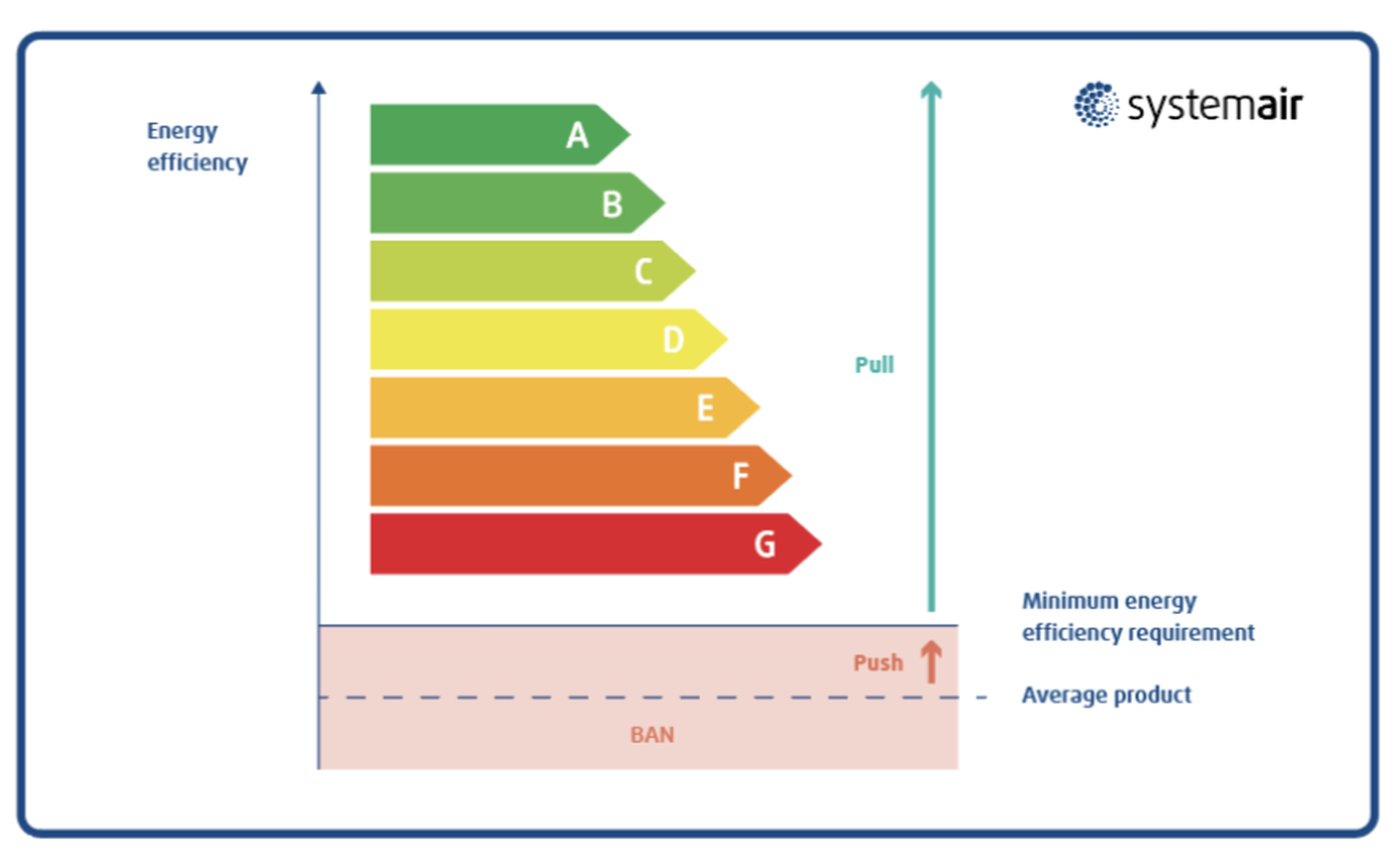
The ASUS ErP (Energy-related Products) Ready feature within the BIOS allows users to minimize power consumption when the computer is in shutdown or sleep modes. By restricting standby power draw to meet European Union environmental standards, this setting ensures that your motherboard consumes less than 1.0W of electricity while powered off, contributing to overall energy efficiency.
What is ErP and Why Does It Exist?
The term "ErP" refers to the Energy-related Products Directive (2009/125/EC), a regulatory framework established by the European Union to improve the environmental performance of products. Manufacturers of electronic goods, including motherboard giants like ASUS, must comply with these standards to sell their products within the European Economic Area.
The primary goal of ErP compliance is to reduce the "vampire power" or "phantom load"—the electricity consumed by devices while they are plugged into a power source but are not actively performing their primary function. Many computers, even when shut down, maintain power to components like USB ports, network interface cards (for Wake-on-LAN features), or RGB lighting controllers. The ErP Ready BIOS feature acts as a master switch to cut off power to these secondary components during standby, effectively forcing the system into a deeper, more restricted power state.
How ASUS Implements ErP in the BIOS
ASUS integrates ErP settings into the UEFI (Unified Extensible Firmware Interface) BIOS. Because ASUS produces a vast array of motherboards—from entry-level models to high-end enthusiast boards like the ROG (Republic of Gamers) series—the exact location of this setting can vary.
Typically, you can find the ErP setting within the Advanced menu of the BIOS. To access it, you must enter the BIOS setup during the system boot sequence by repeatedly pressing the "Delete" or "F2" key. Once in the interface, switch to Advanced Mode if you are currently in EZ Mode. Navigate to the Advanced tab, then look for a sub-menu labeled APM (Advanced Power Management) Configuration.
Within the APM menu, you will encounter the ErP Ready option. This setting usually provides three distinct choices:
- Disabled: The system operates without power restrictions. Features like Wake-on-LAN, power-on via USB, or keyboard wake-up will function normally.
- Enabled (S4+S5): This is the standard compliance mode. It restricts power consumption during hibernation (S4) and soft-off (S5) states.
- Enabled (S5): This is a more restrictive version that specifically targets the power state when the system is completely shut down.
Impacts of Enabling ErP on System Behavior
Enabling the ErP Ready feature is not without trade-offs. While the energy savings are beneficial, they directly interfere with features that rely on a continuous, albeit small, supply of electricity to the motherboard.
Loss of Wake-on-LAN (WoL)
Wake-on-LAN is a networking standard that allows a computer to be turned on or awakened by a network message. This is often used by administrators or home users to access a system remotely. Because ErP forces the motherboard to cut power to the network card during standby, WoL functionality will cease to operate once this setting is enabled.
USB Power Limitations
Many users rely on their computers to charge peripherals—such as smartphones, wireless mice, or headsets—while the PC is turned off. If you enable ErP, the motherboard will stop providing 5V current to the USB ports when the system is powered down. If your charging habit involves plugging a device into the PC overnight, you will find that the device does not charge unless the computer is left on.
Keyboard and Mouse Power-On
If your motherboard supports "Power On by Keyboard" or "Power On by Mouse," these features are usually disabled when ErP is active. You will be required to press the physical power button on the computer case to turn the machine on, rather than simply tapping a key on your keyboard.
Comparison Table: ErP Ready States
| Feature/State | Disabled | Enabled (S4+S5) | Enabled (S5 Only) |
|---|---|---|---|
| Power Consumption (Off) | Higher (>1W) | Minimal (<1W) | Minimal (<1W) |
| Wake-on-LAN | Supported | Disabled | Supported |
| USB Charging (Off) | Supported | Disabled | Disabled |
| Keyboard/Mouse Power-On | Supported | Disabled | Disabled |
| Compliance Goal | N/A | EU Directive | EU Directive |
Step-by-Step Guide: Enabling ErP for Power Optimization
If your goal is to reduce your household or office electricity footprint, follow these steps to configure your ASUS BIOS:
- Enter BIOS: Restart your computer. As the ASUS logo appears on the screen, repeatedly tap the Delete or F2 key on your keyboard.
- Access Advanced Mode: If your screen shows the "EZ Mode" dashboard (a simplified interface), press F7 to enter the Advanced Mode.
- Navigate to APM: Use your arrow keys or mouse to select the Advanced tab in the top menu bar. From the list that appears, click on APM Configuration.
- Locate ErP Ready: Find the ErP Ready setting. By default, it is usually set to "Disabled."
- Select State: Click the setting and select Enabled (S4+S5). This is the most common setting for general energy saving.
- Save and Exit: Press F10 on your keyboard to save your changes and exit the BIOS. The computer will reboot with the new settings applied.
Troubleshooting Common Issues After Enabling ErP
Users often enable ErP as part of a general "performance optimization" sweep in the BIOS without realizing how it affects external peripherals. If you suddenly notice your system behavior has changed, consider these troubleshooting steps:
My PC won't wake up from a network signal: If you require Remote Desktop access or media server functions that rely on waking your PC, you must set ErP to Disabled. This is the most common reason for remote access failure.
My mouse RGB lighting stays on or my keyboard won't power up: Some high-end gaming peripherals continue to draw power even when the system is off. If you notice your keyboard lighting remains active or your mouse isn't receiving power when it should, the ErP setting might be interfering with your power supply's interaction with the motherboard's power management circuit. Test by toggling ErP to Disabled to see if the behavior reverts to normal.
The system takes longer to boot: In some instances, enabling ErP causes the system to perform a more rigorous power-on self-test (POST) because the motherboard has effectively undergone a "hard" power reset. If you notice a marginal increase in boot time, this is generally expected, as the board is re-initializing circuits that were previously kept in a "warm" standby state.
Environmental Considerations and Practicality
The decision to use the ErP feature should be based on your specific use case. If you operate your workstation in a high-density office environment with dozens of machines, enabling ErP can result in a measurable reduction in aggregate power draw, especially over a 24-hour cycle. In a home setting, the cost savings on your monthly electricity bill will likely be negligible due to the small total wattage involved.
However, the environmental benefit remains. By reducing the idle draw of millions of computers, the aggregate effect on energy grid demand is significant. If you do not require Wake-on-LAN or off-state USB charging, there is essentially no downside to enabling this feature. It is a "set and forget" configuration that aligns your hardware with modern sustainability standards.
FAQ: Common Questions Regarding ErP
Does ErP affect my CPU or GPU performance? No. ErP only affects the power state of the motherboard components when the computer is in S4 (Hibernate) or S5 (Soft Off) modes. It has no impact on the performance, clock speeds, or cooling profiles of your CPU and GPU while the system is actively running or in the S3 (Sleep) state.
Is it safe to keep ErP enabled all the time? Yes, it is perfectly safe. The feature is designed specifically to bring the motherboard into compliance with international power consumption standards. It does not put your components at risk; it simply prevents them from drawing unnecessary current when you are not using the computer.
Why does my motherboard power light stay on even with ErP enabled? Some ASUS motherboards have secondary power LED indicators that are powered by the 5VSB (5V Standby) rail. Even with ErP enabled, the power supply must provide a minuscule amount of power to the "Power On" button circuit so that you can turn the PC on again. This small amount of power may be enough to keep a single diagnostic LED or the motherboard's built-in "Power" button light illuminated.
Can ErP solve power-related stability issues? Sometimes. If your system experiences power-related glitches during startup or if you are using an older power supply unit (PSU) that struggles with deep sleep states, setting ErP to "Disabled" can sometimes improve stability by forcing the board to keep more rails energized.
Does this setting work if I have a custom power supply? The ErP feature relies on your Power Supply Unit (PSU) being compliant with the ATX12V standard. Most modern power supplies manufactured after 2010 are fully compatible with ErP requirements. If you are using a very old or budget-tier power supply, it might not handle the transition into the low-power S5 state correctly, which could result in a failure to wake the system.
Recommendation
For the average home user, the best approach is to keep ErP Ready set to Disabled unless you have a specific need to maximize power efficiency. The loss of convenient features like USB charging and Wake-on-LAN often outweighs the pennies saved on a monthly utility bill. However, for office environments or setups where you want to ensure your system is completely powered down and "cold" when not in use, enabling ErP Ready (S4+S5) is a highly recommended practice to support energy conservation goals without compromising system safety or performance during operation.