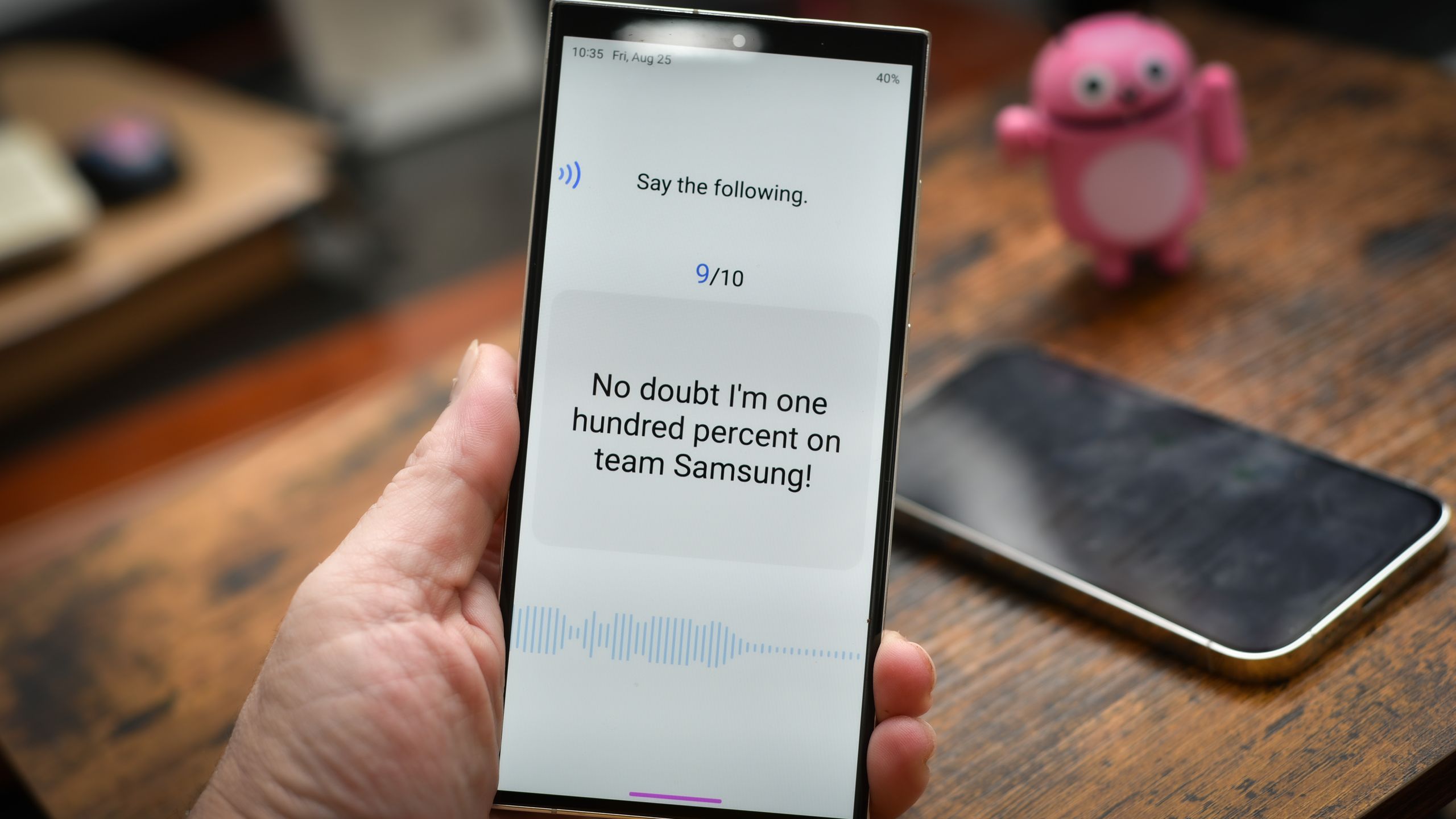
To activate Bixby on your Samsung Galaxy device, press and hold the Side button or say "Hi, Bixby" to initiate the setup wizard. You must sign in to your Samsung Account, grant necessary permissions for microphone and contacts, and complete the voice recognition training to ensure the assistant responds accurately to your commands.
As we move through 2026, Samsung’s Bixby has evolved from a simple voice command tool into a sophisticated, AI-driven interface integrated deeply into the One UI ecosystem. While many users initially rely on basic touch interactions, fully activating and configuring Bixby unlocks a layer of hands-free control that spans across system settings, third-party applications, and SmartThings home automation. Whether you are unboxing a brand-new Galaxy S26 or revitalizing an older model, understanding the nuances of the activation process is the first step toward a more automated digital lifestyle.
Prerequisites for Bixby Activation
Before attempting to activate Bixby, ensure your hardware and software environment meet the necessary criteria. While Bixby is ubiquitous on Samsung devices, its performance and available feature set—particularly the latest generative AI capabilities—depend heavily on the underlying system resources.
Hardware Compatibility
Bixby is available on most Samsung Galaxy smartphones and tablets released within the last several years. However, the "Side button" functionality differs between older models (which had a dedicated Bixby button) and modern devices (where the Power and Bixby buttons are consolidated). In 2026, the S-series, Z-series, and higher-end A-series devices support the full suite of Bixby features, including on-device processing for faster response times and improved privacy.
Software Requirements
Your device should be running the latest version of One UI (currently version 8.x in 2026). Software updates are critical because they contain the latest voice recognition models and security patches. To check for updates, navigate to Settings > Software update > Download and install. Additionally, the Bixby application itself must be updated via the Galaxy Store.
Samsung Account Integration
A Samsung Account is non-negotiable for Bixby. This account syncs your preferences, voice ID, and "Modes and Routines" across the Samsung ecosystem. If you skipped account creation during the initial phone setup, you must go to Settings > Samsung Account to sign in or create a new profile before Bixby will function.
The Step-by-Step Activation Process
The initial "getting up and running" phase is designed to be intuitive, but certain toggles are often overlooked, leading to inconsistent performance later on.
Initializing via the Side Button
The most direct way to trigger the setup is through the hardware. By default, long-pressing the Side button on a modern Galaxy device is mapped to Bixby rather than the power-off menu.
- Long-press the Side button for two to three seconds.
- The Bixby welcome screen will appear. Tap Start.
- Review Terms and Conditions: You will be asked to agree to the Samsung Privacy Policy and the Bixby Terms of Service. Note that some features, like Bixby Vision, require additional permissions for the camera and gallery.
- Language Selection: Choose your primary language. Bixby now supports a vast array of regional dialects, which is crucial for natural language processing.
Setting Up Voice Wake-Up
Voice wake-up allows you to activate the assistant without touching your phone. This is particularly useful while driving or cooking.
- During the setup, you will be prompted to enable "Hi, Bixby" wake-up.
- The system will ask you to repeat "Hi, Bixby" several times. Do this in a relatively quiet environment to ensure the assistant captures the unique frequency of your voice.
- Advanced Training: If the assistant fails to recognize you later, you can go to Bixby Settings and select "Respond to my voice" to retrain the model.
Configuring Bixby Settings for Optimal Performance
Once the initial activation is complete, "running" Bixby effectively requires fine-tuning the settings to match your usage patterns.
Voice Response and Feedback
In 2026, Bixby offers a variety of voice styles, ranging from professional to casual. You can also decide when Bixby should speak back to you. For instance, you can set it to "Hands-free only," meaning Bixby will only speak if you are connected to a Bluetooth headset or if you activated it via voice. This prevents the phone from talking out loud in quiet office environments.
Wake-up Sensitivity
If Bixby triggers too often when you aren't talking to it, or if it ignores you in loud rooms, you should adjust the Wake-up sensitivity. In the Bixby app settings, there is a slider ranging from Low to High. Users in urban environments often prefer a "Medium-Low" setting to prevent accidental triggers from television background noise.
Bixby on the Lock Screen
To make Bixby truly useful, you should enable "Use while phone is locked." This allows you to set timers, check the weather, or place calls without needing to enter your PIN or use biometrics. However, for security-sensitive tasks like reading messages or accessing emails, Bixby will still require authentication before proceeding.
The Side Button: Customizing the Trigger
Many users find the default Side button configuration frustrating if they prefer a traditional power-off menu. Understanding how to remap this button is a core part of getting the assistant running the way you want.
- Navigate to Settings.
- Tap on Advanced features.
- Select Side button.
- Under the "Press and hold" section, you can choose between Wake Bixby and the Power off menu.
- Under the "Double press" section, you can set it to Quick launch camera, Open Bixby, or open a specific app of your choice.
By 2026 standards, most power users keep the long-press for Bixby because the "Power off" function is easily accessible via the Quick Panel (swiping down from the top of the screen).
Integrating Bixby with Galaxy AI and Routines
In 2026, the distinction between "Bixby" and "Galaxy AI" has blurred. Bixby now acts as the voice interface for the generative AI features introduced in recent years.
Generative AI Commands
You can now ask Bixby to perform complex creative tasks. For example, "Hi Bixby, summarize the last three emails from my boss" or "Hi Bixby, rewrite this text message to sound more professional." These commands rely on the underlying AI engine, and activating Bixby gives you the fastest path to these tools.
Modes and Routines (Formerly Bixby Routines)
One of the most powerful ways to use Bixby is through automation. While Bixby is the voice, Routines are the brain. You can set Bixby to trigger specific routines.
- Example Routine: "Hi Bixby, I'm going to sleep."
- Resulting Action: The phone turns on "Do Not Disturb," lowers the brightness to 0%, enables the Blue Light Filter, and sets an alarm for 7:00 AM.
Comparison: Bixby vs. Other Assistants in 2026
When getting Bixby up and running, it is helpful to understand where it excels compared to competitors like Google Assistant (Gemini) or Alexa.
| Feature | Samsung Bixby | Google Assistant (Gemini) |
|---|---|---|
| System Control | Deep integration; can toggle almost any setting (e.g., "Turn on Flashlight"). | Moderate; limited to standard API calls. |
| Offline Functionality | Strong; processes many system commands locally. | Limited; mostly requires an active internet connection. |
| Ecosystem Sync | Best for Samsung SmartThings and Galaxy Buds. | Best for Google Home and Nest devices. |
| Natural Language | Advanced generative capabilities as of 2026. | Top-tier conversational AI with Gemini integration. |
| Customization | High; via Bixby Capsules and Modes. | Moderate; primarily through Google "Routines." |
Troubleshooting Common Activation Issues
Even with the streamlined process of 2026, you may encounter hurdles when trying to get Samsung’s assistant functional.
Bixby Not Responding to Voice
If "Hi, Bixby" isn't working, the first culprit is usually the Microphone permission. Ensure that the Bixby Voice app has permission to use the microphone at all times. Secondly, check if "Battery saving mode" is active. Many power-saving profiles disable the "Always-on" microphone listener to preserve battery life.
"Bixby is not supported in your country"
Bixby's availability can be restricted by your Samsung Account's region or your physical location. If you encounter this error, verify your account's region settings at the Samsung Account Portal. In some cases, using a VPN can interfere with the initial localization check during activation.
Persistent Lag or Crashes
If Bixby feels sluggish, it may be due to a bloated cache.
- Go to Settings > Apps.
- Find Bixby Voice.
- Tap Storage and select Clear cache.
- Restart your device. This often resolves synchronization issues with the Samsung cloud.
Managing Privacy and Data
Activating a voice assistant naturally raises privacy concerns. Samsung has introduced several features to give users control over their data in 2026.
On-Device Processing
Within the Bixby settings, look for the "On-device processing" toggle. Enabling this ensures that your voice commands are processed locally on your phone’s NPU (Neural Processing Unit) whenever possible. This means your voice recordings aren't sent to the cloud for simple tasks like setting an alarm or opening an app, significantly increasing privacy.
Deleting Voice Interactions
You can view and delete your interaction history at any time. In the Bixby app, go to Settings > Privacy > Delete voice interactions. You can set the history to auto-delete every 3 or 18 months, or choose to never save recordings at all.
Expanding Bixby's Capabilities with Capsules
To truly get Bixby "up and running" beyond the basics, you need to explore Bixby Capsules. These are essentially "skills" or "plugins" that allow Bixby to interact with third-party services like Spotify, Uber, or local news outlets.
- Open the Bixby Discover page (usually by tapping the Bixby icon or swiping in the app).
- Browse the Marketplace for Capsules that fit your lifestyle.
- Once added, you don't need to say "Open Spotify to play music." You can simply say "Hi Bixby, play my 2026 hits on Spotify," and the Capsule handles the bridge between the assistant and the app.
Frequently Asked Questions
Does activating Bixby drain the battery?
While Bixby's "Voice wake-up" feature requires the microphone to stay in a low-power listening state, the battery drain is minimal on modern Galaxy devices (typically less than 1-2% over a full day). Samsung’s specialized hardware in 2026 is designed to handle wake-word detection with extreme efficiency. If you are concerned about battery life, you can disable voice wake-up and rely solely on the Side button trigger.
Can I use Bixby and Google Assistant at the same time?
Yes, you can have both assistants active on a single Samsung device. You might use Google Assistant for general web queries and Bixby for device-specific commands, such as "Hi Bixby, optimize my battery." You can set one as the default "Digital Assistant App" in your phone settings, but both will respond to their respective wake words ("Hey Google" vs. "Hi Bixby").
How do I change the Bixby wake word?
In 2026, Bixby primarily responds to "Hi, Bixby." While Samsung has experimented with custom wake words in the past, the current focus is on the reliability of the standard phrase. However, you can change the "Sensitivity" and "Speak to Bixby without wake-up" settings in certain contexts, such as when an alarm is ringing or a call is coming in.
Why does Bixby keep popping up accidentally?
This usually happens because the Side button is being pressed in a pocket or bag, or the wake-up sensitivity is set too high. To fix this, you can enable "Accidental touch protection" in your display settings and lower the Bixby wake-up sensitivity in the Bixby settings menu.
Can Bixby work without an internet connection?
Yes, for certain tasks. Thanks to advances in on-device AI in 2026, Bixby can handle "offline" commands like turning on the flashlight, setting timers, opening apps, and changing system volume without a Wi-Fi or data connection. However, web searches, weather updates, and third-party Capsule interactions still require the internet.
Practical Recommendation for New Users
After activating Bixby, your first action should be to set up "Bixby Text Call." This feature allows the assistant to answer phone calls for you and transcribe what the caller is saying in real-time. You can then type a response, which Bixby will read back to the caller in a natural voice. This is arguably the most useful "day one" feature that demonstrates the power of having the assistant running on your device. To enable it, open the Phone app > Settings > Bixby Text Call and toggle it on.