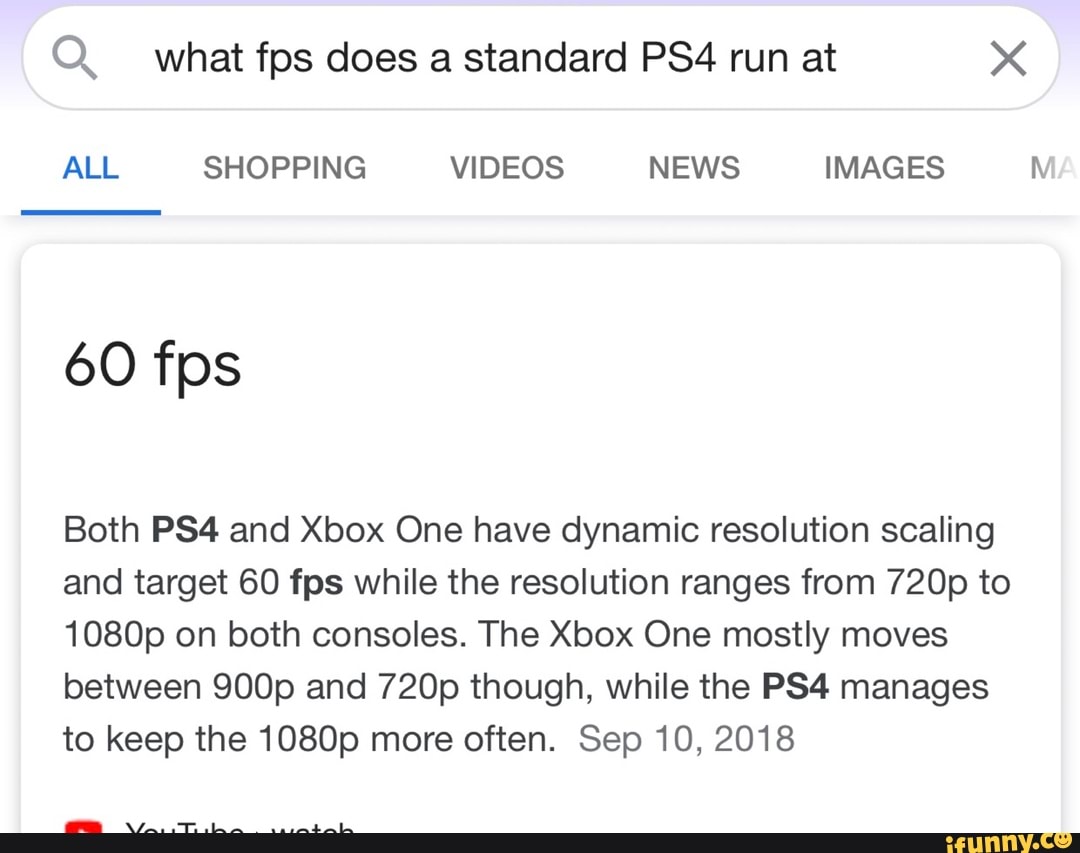
Achieving 60 frames per second (fps) on the PS4 Pro is possible through "Pro Enhanced" patches, dedicated Performance Modes, or by enabling the system's "Boost Mode" for older titles. While the console targets 4K resolution, many developers prioritize fluid gameplay by offering a 1080p/60 fps toggle in the settings.
Released a decade ago, the PlayStation 4 Pro remains a significant milestone in console history, bridging the gap between the standard high-definition era and the ultra-high-definition standards we see today in 2026. While the hardware has been superseded by two newer generations of consoles, the PS4 Pro remains a popular choice for budget-conscious gamers and collectors who value a massive library of physical and digital titles. One of the most sought-after features of this mid-generation refresh was its ability to push framerates beyond the standard 30 fps limit common on the base PS4.
Understanding which games support 60 fps on the PS4 Pro requires a look at how the hardware handles "Enhanced" titles and how developers balanced the limited Jaguar CPU architecture against the more robust GCN-based GPU. Even in 2026, the fluidity of 60 fps remains the gold standard for action, racing, and first-person shooter genres, making the search for compatible titles a priority for anyone still using this hardware.
The Technical Reality: Resolution vs. Performance
The PS4 Pro was marketed as a 4K machine, but in technical reality, it often utilized "checkerboard rendering" or temporal reconstruction to reach that target. Because pushing four times the pixels of 1080p is incredibly taxing, developers typically offered players a choice: Resolution Mode (often 4K at 30 fps) or Performance Mode (often 1080p at 60 fps).
The primary bottleneck for the PS4 Pro was not necessarily its GPU, which sits at 4.2 teraflops, but its aging CPU. High framerates require the CPU to process game logic, physics, and AI quickly enough to hand off instructions to the GPU 60 times every second. This is why many "open-world" games, such as Red Dead Redemption 2 or Horizon Zero Dawn, remained locked at 30 fps on the Pro; the CPU simply couldn't keep up with the complexity of the world at higher speeds, regardless of the resolution.
What is "Pro Enhanced"?
When browsing the PlayStation Store or looking at physical game cases, you will often see the "PS4 Pro Enhanced" logo. This signifies that the developer specifically programmed the game to detect the Pro hardware and utilize its extra power. Improvements generally fall into three categories:
- Higher Resolutions: Native or upscaled 4K.
- Visual Effects: Improved shadows, textures, or ambient occlusion.
- Higher Framerates: Unlocking the framerate or offering a stable 60 fps toggle.
Activating 60 FPS: Boost Mode and System Settings
Not every game that runs at 60 fps on the PS4 Pro does so through a specific developer patch. For older titles released before the Pro's launch (November 2016) that had "unlocked" framerates, Sony introduced a feature called Boost Mode.
How to Enable Boost Mode
To ensure you are getting the best possible performance out of your system, you must manually enable this feature if it isn't already active:
- Go to the Settings menu on your PS4 Pro dashboard.
- Navigate down to System.
- Locate Boost Mode and ensure the box is checked.
Boost Mode allows the PS4 Pro to run at higher GPU and CPU clock speeds for games that were not specifically optimized for the Pro. In games with unlocked framerates, this can turn a shaky 40 fps experience into a rock-solid 60 fps experience. However, it will not magically turn a game locked at 30 fps into a 60 fps game; for that, a developer-specific patch is required.
Supersampling Mode
Another critical setting is Supersampling Mode, found under Settings > Sound and Screen > Video Output Settings. If you are using a 1080p television, this setting forces the Pro to render the game at its higher "Resolution Mode" and then shrink it down to 1080p. While this makes the image sharper, it can occasionally lower the framerate. If your goal is strictly 60 fps, it is often better to disable Supersampling and select the "Performance Mode" within the game's own internal menu.
Essential 60 FPS Games on PS4 Pro
The following titles are confirmed to offer high-framerate support on the PS4 Pro. Some require choosing a specific mode in the options menu, while others run at 60 fps by default.
Action and Adventure
- God of War (2018): In the "Favor Performance" mode, the game unlocks its framerate. While it occasionally dips during heavy combat, it generally stays between 50 and 60 fps at a crisp 1080p.
- Shadow of the Tomb Raider: Offers a "High Framerate" mode that targets 60 fps at 1080p, providing a much smoother experience for platforming and combat than the 4K/30 fps mode.
- Nioh & Nioh 2: These titles were built with performance in mind. The "Action Mode" guarantees a stable 60 fps, which is essential for the precise timing required in "Souls-like" combat.
- Devil May Cry 5: A showcase of the RE Engine, this game runs at a near-flawless 60 fps on the Pro with high-fidelity visuals.
First-Person Shooters (FPS)
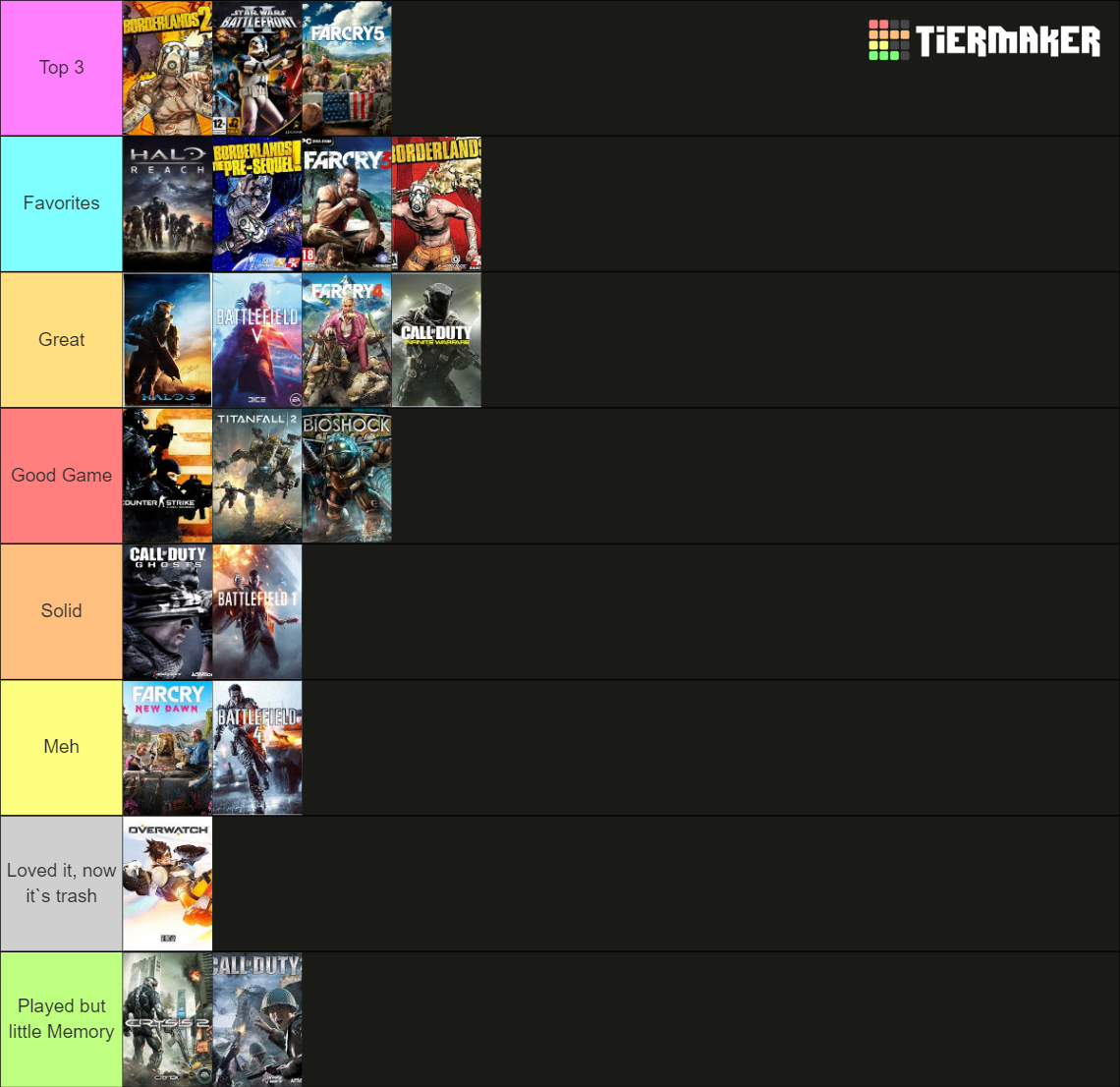
- Battlefield V & Battlefield 1: Both titles use a dynamic resolution scaler to maintain a target of 60 fps even during chaotic 64-player multiplayer matches.
- Call of Duty Series: From Modern Warfare (2019) to Cold War, the franchise has always prioritized 60 fps as a baseline, and the Pro handles these titles with higher resolution than the base console.
- Apex Legends: While it can fluctuate during heavy "Ult" usage, the Pro maintains a much more stable 60 fps than the base PS4.
- Titanfall 2: Known for its incredible movement system, this game is a locked 60 fps on the Pro, making it one of the smoothest shooters available.
Racing and Sports
- Gran Turismo Sport: The game targets 60 fps during gameplay to ensure the simulation physics are accurate. Replays often switch to 30 fps for higher visual fidelity, but the driving itself is fluid.
- Wipeout Omega Collection: This is a rare example of a game that hits both 4K and 60 fps simultaneously on the PS4 Pro, thanks to its stylized aesthetic and excellent optimization.
- FIFA/EA Sports FC Series: These titles traditionally run at 60 fps during gameplay, with 30 fps used for cutscenes and goal celebrations.
Performance Comparison Table
The following table outlines how popular titles behave on the PS4 Pro when configured for maximum performance.
| Game Title | FPS Target | Resolution | Optimization Method |
|---|---|---|---|
| God of War (2018) | 50–60 FPS | 1080p | "Favor Performance" Toggle |
| The Last of Us Remastered | 60 FPS | 1800p | Native Pro Patch |
| Metal Gear Solid V | 60 FPS | 1440p | Native Pro Patch |
| Sekiro: Shadows Die Twice | 40–60 FPS | 1080p | Unlocked Framerate |
| Resident Evil 2 (Remake) | 60 FPS | 1620p (Checkered) | Native Pro Patch |
| Dark Souls 3 | 45–60 FPS | 1080p | Patch 1.11 (Unlocked) |
| Overwatch 2 | 60 FPS | 1080p–1440p | Dynamic Scaling |
| Doom Eternal | 60 FPS | 1440p | Native Pro Patch |
| Gran Turismo Sport | 60 FPS | 1800p (Checkered) | Performance Prioritized |
Common Issues and Troubleshooting
Even with the correct settings, you may encounter issues where a game feels "choppy." In 2026, as hardware ages, these technical hurdles become more frequent.
Thermal Throttling
The PS4 Pro is notorious for its fan noise, often compared to a jet engine. If the internal heatsink is clogged with dust or the thermal paste has dried out, the system may lower its clock speeds to prevent overheating. This results in "stuttering" or frames dropping below the 60 fps target.
- Solution: Clean the intake vents with compressed air. For advanced users, replacing the thermal paste can significantly stabilize framerates in demanding titles.
Variable Refresh Rate (VRR) Limitations
It is important to note that the PS4 Pro does not support Variable Refresh Rate (VRR). Unlike the PS5 or modern PCs, if the PS4 Pro's output drops from 60 fps to 55 fps, you will see a visible "tear" or a slight stutter. This is why "locked" 60 fps games feel much better on this hardware than games with "unlocked" framerates (like Sekiro), which often fluctuate in the 45–55 fps range.
Hard Drive vs. SSD
While a Solid State Drive (SSD) does not directly increase your maximum framerate, it significantly reduces "frame time hitches." These are the micro-stutters that occur when a game is trying to stream data from a slow mechanical hard drive. In 2026, upgrading a PS4 Pro with a SATA SSD is a highly recommended and affordable way to make 60 fps gameplay feel more consistent.
Frequently Asked Questions
Does every PS4 game run at 60 fps on the Pro?
No. Many games are "hard-coded" to run at 30 fps. This is often because the game's physics or animations are tied to the framerate, or because the CPU cannot handle the logic required for 60 fps. Examples of games locked at 30 fps despite the Pro's power include Bloodborne, Horizon Zero Dawn, and Uncharted 4.
Can I play PS4 Pro games at 120 fps?
No. The PS4 Pro hardware and its HDMI 2.0 port are limited to a maximum output of 60Hz. Even if a game is visually simple enough to run at higher speeds, the system's architecture does not support 120 fps. This feature was introduced later with the PlayStation 5 and HDMI 2.1.
Why does my game look blurry in 60 fps mode?
To achieve 60 fps, the console often has to drop the resolution to 1080p. If you are playing on a 4K television, 1080p content can appear soft or blurry because the TV has to upscale the image. To mitigate this, ensure "Supersampling Mode" is off if you have a 4K TV, as the TV's internal scaler often handles the image better.
Does the PS4 Pro support 60 fps in PSVR?
Yes, in fact, Sony mandated that all PSVR games must run at a minimum of 60 fps (which is then "reprojected" to 120Hz in the headset) to prevent motion sickness. The PS4 Pro often provides better clarity and more stable 60 fps in VR titles compared to the base PS4.
Final Recommendation
For the best 60 fps experience on the PS4 Pro in 2026, focus on titles from developers known for optimization, such as Capcom (Resident Evil, DMC), DICE (Battlefield), and Bluepoint Games. Always prioritize "Performance Mode" in the in-game menus and ensure Boost Mode is enabled in your system settings. If a game still feels inconsistent, consider a SATA SSD upgrade to smooth out data streaming and eliminate micro-stutters.