When your iPhone 12 suddenly refuses to turn on or accept a charge, it can cause immediate panic, but the underlying issue is often a minor software glitch, a completely drained battery, or a simple obstruction in the charging port rather than permanent hardware failure.
Recovering an unresponsive device requires a methodical approach that rules out simple external failures before moving on to advanced troubleshooting and professional repair options. This comprehensive guide walks you through every verified diagnostic step to help you safely identify the root cause and restore your iPhone 12 to working order.
Understanding the Problem: Why an iPhone 12 Fails to Power Up
An iPhone 12 that displays a completely black screen and fails to respond to any button presses or power adapters is usually suffering from one of four primary issues:
- Deep Battery Discharge: When a lithium-ion battery falls below a critical voltage threshold, the phone requires an extended period of trickle charging before it possesses enough power to even display a low-battery charging graphic.
- Software Crash or Frozen State: The operating system may have crashed into a deep sleep loop, preventing the device from processing power inputs or displaying visuals.
- Hardware Obstructions or Cable/Adapter Failure: Lint, dust, or pocket debris tightly packed inside the Lightning port can physically block the charging pins, or a failing power adapter may lack the wattage required to jump-start the device.
- Internal Component Failure: A damaged logic board, water intrusion, or a physically degraded battery cell that has reached the end of its lifecycle.
Before assuming the worst, you must systematically test each variable to isolate the exact point of failure.
Step 1: Inspect and Clean the Charging Port
Physical debris is one of the most common reasons an iPhone 12 appears completely dead. Because users frequently carry their phones in pockets, lint and dust rapidly accumulate inside the Lightning port, compressing tightly against the contact pins over time.
How to Safely Inspect and Clean the Port
- Shine a bright flashlight directly into the Lightning port at the bottom of your iPhone 12. Look for grey or white lint, dust bunnies, or bent pins.
- If you see debris, take a non-conductive wooden or plastic toothpick—never use metal needles, paperclips, or sewing pins, as these can scratch the gold contacts or permanently short-circuit the internal pins.
- Gently insert the toothpick and scrape along the back wall and sides of the port to loosen compacted lint, then tilt the phone and shake it out.
- Once cleared, plug your charging cable back in, ensuring it clicks firmly into place with minimal side-to-side wobble.
Step 2: Test Power Accessories (Cable, Adapter, and Wall Outlet)
Faulty charging accessories frequently mimic a broken phone. A frayed Lightning cable or an underpowered wall block will fail to deliver the necessary current to a deeply discharged iPhone 12 battery.
Verification Steps
- Verify the Wall Outlet: Plug a lamp or another verified appliance into the wall outlet to ensure power is actively flowing. Avoid using extension cords or multi-plug adapters temporarily.
- Inspect the Cable: Check your Lightning-to-USB cable for visible cuts, exposed wiring, or bent connector pins. Swap the cable with a known working alternative.
- Check the Power Adapter: Apple devices require a stable power source. Ensure you are using a certified USB power brick (such as an official Apple 5W, 12W, or 20W USB-C adapter). Avoid cheap, uncertified third-party charging bricks that may deliver unstable voltage and trigger built-in safety protections on the iPhone.
- Test Wireless Charging: If you have an Apple MagSafe charger or a certified Qi-compatible wireless charging pad, place your iPhone 12 centered on the pad. If the phone begins charging wirelessly, you have successfully isolated the issue to either the Lightning port or your wired charging accessories.
Step 3: Perform a Forced Restart (Hard Reset)
If the device's software has crashed while running in the background, the screen will remain black and ignore normal power button presses. A forced restart cuts power directly to the logic board and forces the hardware to reboot from scratch.
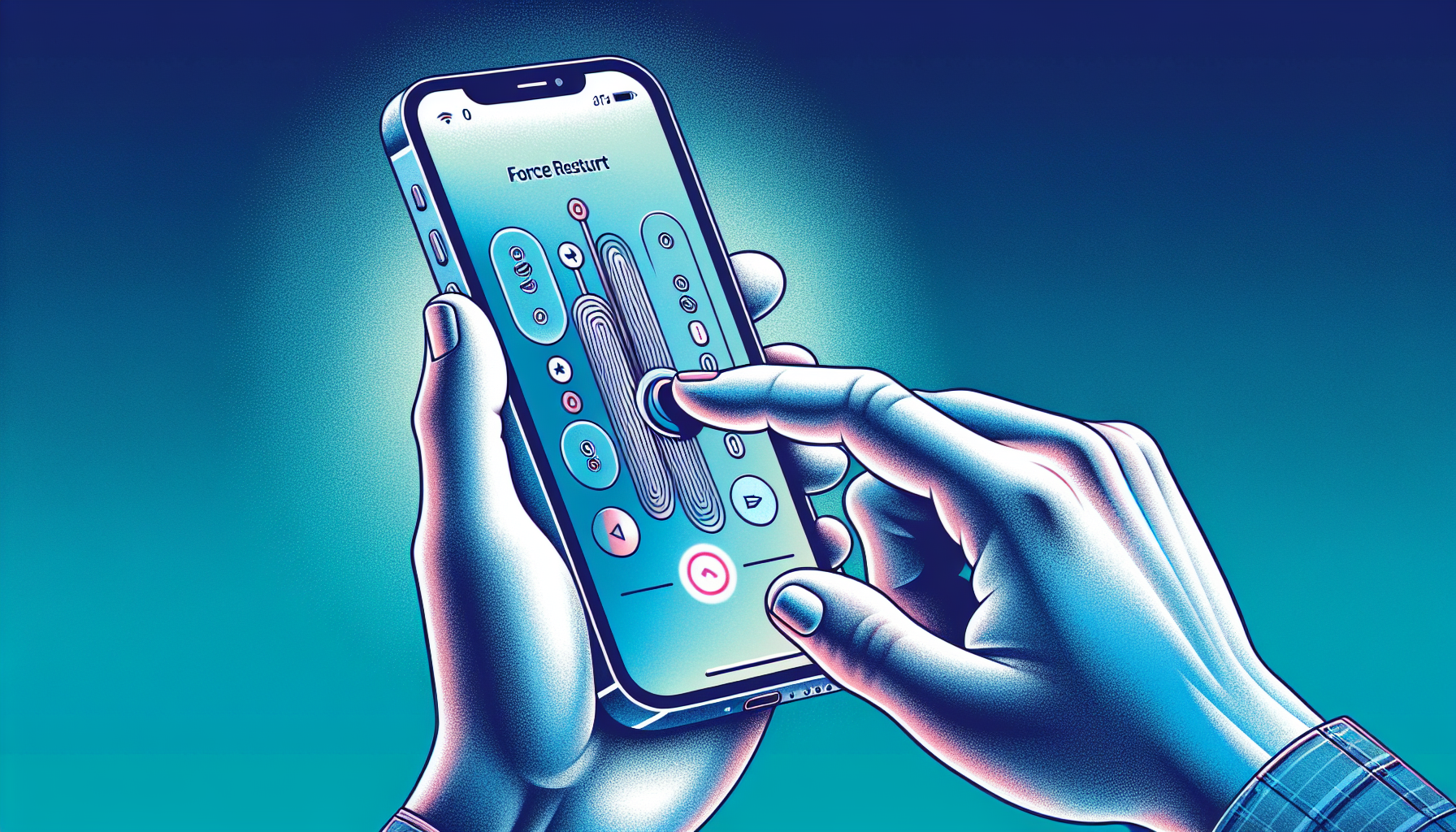
How to Force Restart an iPhone 12
- Quickly press and release the Volume Up button.
- Quickly press and release the Volume Down button.
- Press and hold the Side (Power) button continuously.
- Keep holding the Side button until the screen goes dark, the Apple logo appears, and the device boots up. This process can take anywhere from 10 to 20 seconds. Do not let go of the button when the power-off slider appears; keep holding until the Apple logo materializes.
Note: If the battery is completely drained, a forced restart will not work immediately. You must leave the phone plugged into a wall outlet for at least 15 to 30 minutes before attempting the button combination.
Step 4: Allow Time for a Deep-Discharge Recovery Charge
When an iPhone 12 sits uncharged for weeks or months, its lithium-ion battery enters a state of deep discharge. Built-in battery management systems temporarily shut down power flow to protect the cells from damage.
When you plug in a deeply discharged iPhone, it will not show a charging icon immediately. The internal circuit board needs time to trickle-charge the battery back to a safe operating voltage before the display controller can power on.
- Plug your iPhone 12 into a high-output wall charger (20W USB-C is recommended).
- Leave the device completely undisturbed for a minimum of 45 minutes to one hour.
- Check the device after this period; you should see the low-battery red battery graphic appear on screen, signaling that normal charging has resumed.
Step 5: Connect to a Computer and Attempt Recovery Mode
If your iPhone 12 still refuses to turn on or show a charging screen, but your computer detects a hardware connection, you may be able to revive the device using a Mac or Windows PC.
- Ensure your computer is running the latest version of macOS or iTunes (for Windows).
- Connect your iPhone 12 to the computer using a verified Lightning-to-USB cable.
- Quickly press and release Volume Up, quickly press and release Volume Down, and then press and hold the Side button.
- Continue holding the Side button even when the Apple logo appears—keep holding until you see the Recovery Mode screen (a cable pointing toward a computer icon).
- On your computer, open Finder or iTunes. A prompt will appear stating that there is a problem with the iPhone that requires it to be updated or restored.
- Select Update. The computer will attempt to reinstall iOS without erasing your personal data. If the update fails, a full Restore may be required, which will wipe the device clean.
Troubleshooting Summary Matrix
| Symptom / Behavior | Likely Cause | Recommended Immediate Action |
|---|---|---|
| No response, screen completely black | Deep battery discharge or frozen iOS | Leave plugged into a 20W charger for 45 minutes, then perform a forced restart. |
| Cable feels loose or falls out | Compacted pocket lint in Lightning port | Gently clean the port using a non-conductive wooden toothpick. |
| Charges wirelessly, but not via cable | Damaged Lightning cable or clogged port | Replace the cable or clean the port; test with a certified power brick. |
| Vibrates or rings, but screen stays black | Display panel failure or software crash | Perform a forced restart; if sound persists without display, screen hardware is damaged. |
| Loops endlessly on the Apple logo | Corrupted system software | Connect to a computer and use Recovery Mode to reinstall iOS via Finder/iTunes. |
Frequently Asked Questions
Why won't my iPhone 12 turn on even after charging it for an hour?
If an hour of wall charging yields zero response, the issue usually stems from a completely failed battery cell, a severely damaged charging IC (integrated circuit) on the logic board, or liquid damage. At this stage, attempting further software fixes is ineffective, and hardware inspection by a technician is required.
Can I use any USB charger to revive a dead iPhone 12?
While you can use older 5W USB-A blocks or computer USB ports, they deliver very low current and will significantly extend the time required to revive a deeply discharged battery. A certified 20W USB-C Power Delivery (PD) adapter provides the optimal voltage and current for quick diagnostic recovery.
How much does it cost to replace an iPhone 12 battery?
Out-of-warranty battery replacements through official channels typically carry a standard service fee. Independent repair shops may offer lower rates, but using genuine Apple parts ensures proper battery health reporting within iOS settings.
What should I do if my phone got wet before it stopped working?
If your iPhone 12 was exposed to liquids before shutting down, do not plug it into a charger and do not attempt to turn it on, as electrical current flowing through wet circuits can permanently fry the logic board. Place the phone in a dry area with ambient airflow and take it to an authorized service provider immediately.
Will a forced restart delete my photos and apps?
No. A forced restart simply interrupts power to the processor to clear temporary system memory loops. It does not touch your stored data, photos, messages, or installed applications.
Next Steps and Professional Repair Options
If you have thoroughly cleaned the Lightning port, tested multiple verified cables and wall adapters, performed a forced restart after a prolonged charge, and attempted a computer-assisted recovery without success, your iPhone 12 is likely suffering from a hardware defect.
At this point, your best course of action is to schedule an appointment at an Apple Store or an Apple Authorized Service Provider. Technicians can run diagnostic software to pinpoint whether the failure lies within the battery, charging port module, or the main logic board, providing you with transparent repair options and genuine replacement parts.