Enabling Safe Mode on a Dell computer running Windows 10 is a critical troubleshooting process used to isolate software issues, remove persistent malware, or rectify configuration errors. You can enter Safe Mode through the Settings menu, via the Windows Recovery Environment (WinRE) if the system fails to boot, or by using the System Configuration tool for forced reboots.
Understanding the Role of Safe Mode in Windows 10
Safe Mode is a specialized diagnostic state of the Windows operating system. When you initiate this mode, Windows loads only the most essential system files, services, and drivers required for the kernel to function. By excluding third-party drivers, non-essential background applications, and custom startup programs, Safe Mode creates a "clean" environment.
For Dell users, this is particularly valuable because it allows you to identify whether a technical problem—such as a "Blue Screen of Death" (BSOD), a freezing interface, or a failed driver update—is caused by the operating system itself or by installed software and peripheral hardware. If your computer runs smoothly in Safe Mode but crashes during normal operation, the culprit is almost certainly an application or driver you installed recently.
Method 1: Enabling Safe Mode from within Windows 10
If your Dell computer is currently booting correctly and you have access to the desktop, this is the most straightforward method. It utilizes the "Advanced Startup" feature built into the Windows 10 settings.
- Open Settings: Click the Start button (the Windows icon in the bottom-left corner) and select the gear icon labeled Settings.
- Navigate to Recovery: In the Settings window, select Update & Security, then click on the Recovery tab in the left-hand sidebar.
- Initiate Advanced Startup: Look for the Advanced startup section and click the Restart now button.
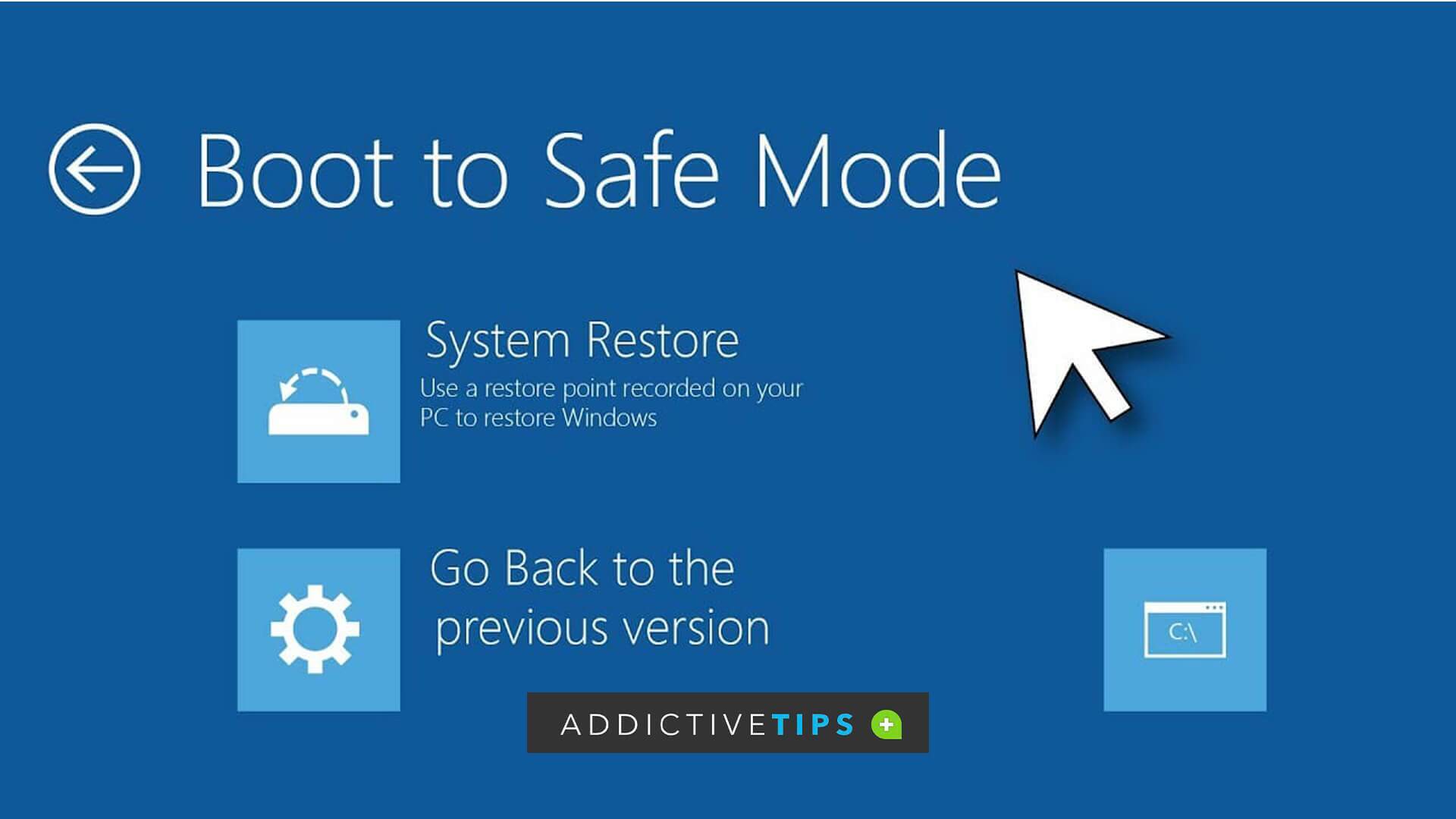
- Select Diagnostic Options: Your computer will restart into a blue menu screen. Select Troubleshoot > Advanced options > Startup Settings > Restart.
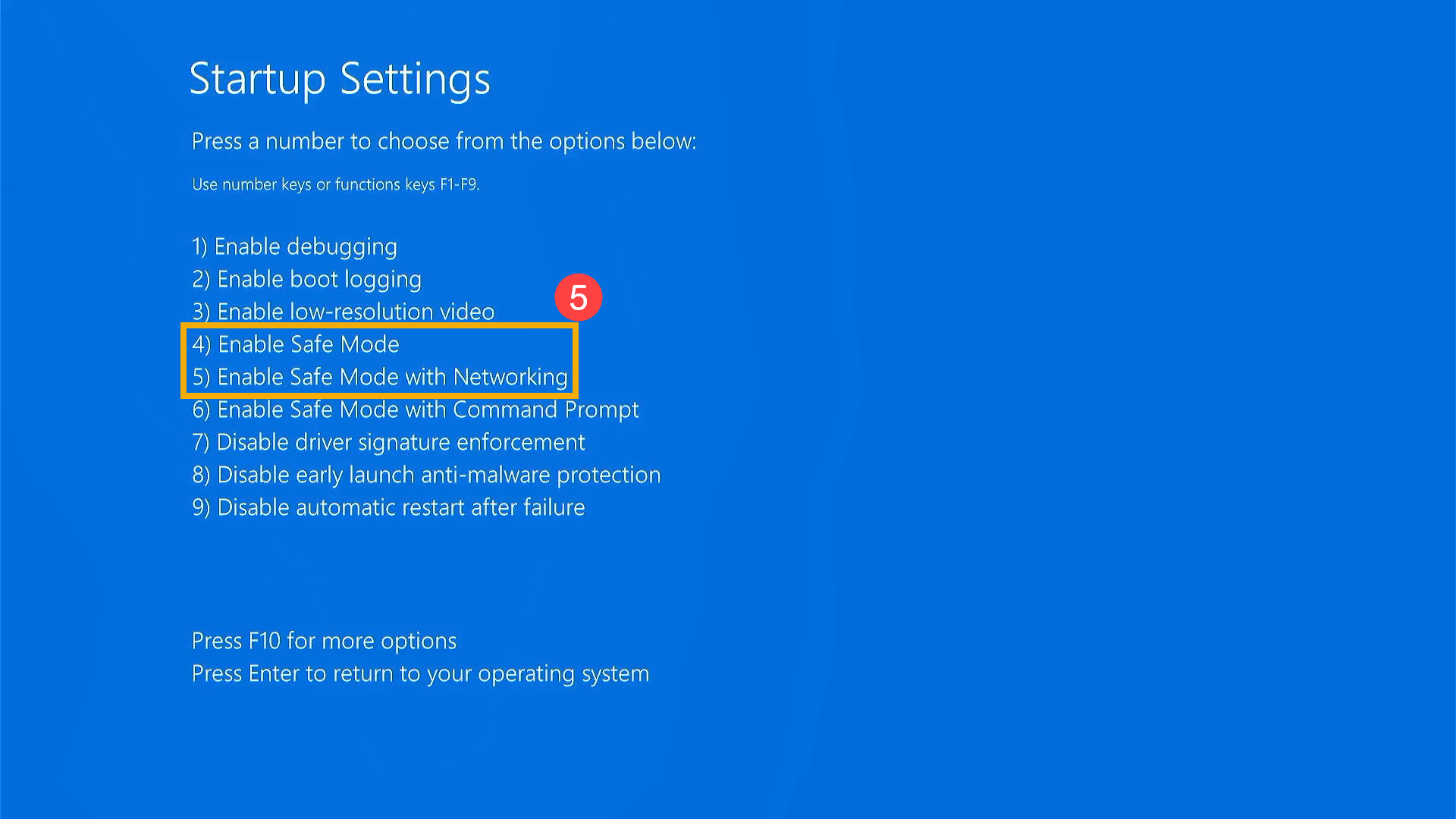
- Choose Your Mode: After the system restarts again, you will see a list of numbered options. Press 4 or F4 on your keyboard to enter standard Safe Mode, or press 5 or F5 to enter Safe Mode with Networking (if you need to download drivers or search for fixes online).
Method 2: Enabling Safe Mode via the System Configuration Tool
The System Configuration tool (often referred to by its executable name, msconfig) allows you to force Windows to boot into Safe Mode every time it restarts until you explicitly tell it otherwise. This is useful for intensive multi-step troubleshooting.
- Open Run Dialog: Press the Windows Key + R on your keyboard to open the Run box.
- Execute msconfig: Type
msconfiginto the box and press Enter. - Modify Boot Settings: In the window that appears, navigate to the Boot tab.
- Enable Safe Boot: Under the "Boot options" section, check the box labeled Safe boot. You can choose "Minimal" (the standard safe mode) or "Network" (if you require internet access).
- Apply and Restart: Click Apply, then OK. You will be prompted to restart your computer. Upon reboot, the system will enter Safe Mode automatically.
Critical Warning: Remember that once you finish your work, you must repeat these steps and uncheck the "Safe boot" box. If you do not, your Dell computer will continue to boot into Safe Mode indefinitely, which limits the functionality of your hardware.
Method 3: Entering Safe Mode when Windows 10 Fails to Boot
If your Dell system encounters a critical error that prevents it from reaching the desktop, you can force the computer into the Windows Recovery Environment (WinRE) by interrupting the boot process.
- Interrupt the Boot: Turn on your Dell computer. As soon as the Dell logo appears on the screen, press and hold the power button until the computer forces a shutdown.
- Repeat the Interruption: Turn the computer on again and repeat the force-shutdown process as soon as the logo appears. Do this two to three times.
- Enter Automatic Repair: On the third or fourth attempt, Windows will enter the "Automatic Repair" mode. When the screen prompts you, select Advanced options.
- Navigate to Safe Mode: Once in the blue menu, follow the same path as in Method 1: Troubleshoot > Advanced options > Startup Settings > Restart.
- Confirm Selection: Press the corresponding key (4, 5, or 6) to select your preferred version of Safe Mode.
Comparative Overview of Safe Mode Options
When prompted during the boot sequence, Windows offers three distinct variations of Safe Mode. Choosing the correct one depends on the nature of your task.
| Mode | Functionality | Primary Use Case |
|---|---|---|
| Safe Mode | Basic system access only. | Eliminating software conflicts, removing viruses, or basic file recovery. |
| Safe Mode with Networking | Basic access plus network drivers. | Downloading missing drivers or patches, or accessing online help resources. |
| Safe Mode with Command Prompt | Basic access plus command console. | Advanced users repairing registry keys or manually moving system files. |
Prerequisites for Troubleshooting Dell Systems
Before you attempt to modify boot settings or enter Safe Mode, ensure you have taken the necessary precautions to prevent data loss or further system damage.
- Backup Your Data: If the computer is booting, back up your critical files to an external drive or cloud storage before attempting repairs. Safe Mode is generally safe, but high-level system changes always carry a minor risk.
- Identify External Peripherals: Disconnect non-essential USB devices, such as printers, scanners, or external hard drives, before entering Safe Mode. These devices can sometimes conflict with the loading of minimal drivers.
- Have Installation Media: If you are dealing with a "no-boot" scenario, it is wise to have a Windows 10 installation USB drive prepared. This acts as a safety net if the recovery partition is corrupted.
- Power Stability: Ensure your Dell laptop is connected to an AC power adapter. If the battery dies during a recovery operation, it can result in an incomplete update or corrupt the BCD (Boot Configuration Data).
Common Mistakes and Troubleshooting
Users often experience difficulty because they miss the brief window during the boot process to interrupt the system. If you find that the computer boots past the Dell logo too quickly, you may need to enter the BIOS (by pressing F2 repeatedly during startup) to disable "Fast Boot" temporarily. Disabling Fast Boot forces the system to wait longer during the POST (Power-On Self-Test) phase, giving you more time to trigger the recovery menus.
Another common issue is forgetting to exit the msconfig forced-boot loop. If your computer seems trapped in Safe Mode, revisit the System Configuration tool. If you cannot reach the desktop because you do not know the password while in Safe Mode (or if the login screen is failing), try the standard Windows login credentials. Safe Mode uses the same local user accounts as normal mode. If you are using a Microsoft account, ensure you have the password saved elsewhere, as network services may be limited.
FAQ: Frequently Asked Questions
1. Does Safe Mode delete my personal files? No. Safe Mode is a diagnostic environment. It does not delete your documents, photos, or personal files. It simply prevents non-essential software from running.
2. Can I run my everyday apps in Safe Mode? Generally, no. Most applications, especially those requiring specialized hardware drivers or specific services (like antivirus software or heavy gaming engines), will not launch or function correctly.
3. Why is my desktop resolution low in Safe Mode? This is normal. Safe Mode uses a generic, low-resolution display driver. Once you restart the computer normally, your Dell system will reload your dedicated graphics drivers, and your resolution will return to its native settings.
4. What if I can’t remember my password in Safe Mode? Safe Mode uses the same credentials as your standard Windows 10 session. If you use a Microsoft Account, you must use your Microsoft account password. If you use a local account, the password remains the same. If you are locked out, you may need to use a Windows recovery disk to reset the security settings.
5. How do I know I am in Safe Mode? Windows will display the words "Safe Mode" in the four corners of your desktop wallpaper. Additionally, the taskbar and general interface will appear more basic than usual.
Final Recommendation
Safe Mode is your most powerful tool for resolving technical issues on a Dell Windows 10 machine. If you are currently facing system instability, the best approach is to enter Safe Mode via the Settings menu if possible, then perform an "SFC scan" (System File Checker) by opening the Command Prompt as an administrator and typing sfc /scannow. This command verifies the integrity of your system files and automatically repairs them. If the issues persist after running this scan and ensuring all drivers are updated, you may need to look into a system restore point or a reset of the operating system.