The Voice Memos app on Apple Watch allows you to capture spontaneous thoughts, reminders, and interviews directly from your wrist without reaching for your phone. Recordings automatically sync via iCloud to your iPhone, iPad, and Mac, providing a seamless workflow for managing audio notes across the entire Apple ecosystem for playback and sharing.
Introduction to Wrist-Based Audio Capture
In the fast-paced environment of 2026, the ability to capture information instantly remains a cornerstone of personal and professional productivity. The Apple Watch Voice Memos application is not merely a scaled-down version of its iOS counterpart; it is a specialized tool designed for immediacy. Whether you are a journalist needing to record a quick quote, a student capturing a lecture snippet, or a creative professional documenting a fleeting idea, the Apple Watch provides the lowest barrier to entry for audio recording.
The utility of the Apple Watch for voice memos lies in its accessibility. Unlike a smartphone, which may be tucked away in a pocket or bag, the watch is always exposed and ready. This "always-on" proximity ensures that you never miss a critical thought due to the friction of retrieving a device. Furthermore, with the advancements in microphone technology found in recent models like the Apple Watch Ultra series and the Series 10/11, the clarity of these recordings has reached a professional standard suitable for transcription and basic broadcast.
Hardware and Software Requirements for 2026
To utilize Voice Memos effectively, your hardware and software configuration must meet specific standards. While the app has been a staple of the watchOS ecosystem for several years, optimal performance in 2026 relies on modern system architecture.
Supported Devices
As of 2026, the Voice Memos app is fully supported on the following devices:
- Apple Watch Series 4 and later: While older models support the app, the Series 4 introduced the redesigned speaker and microphone layout that significantly improved audio fidelity.
- Apple Watch SE (All Generations): These models offer a robust recording experience, though they may lack some of the advanced wind-noise reduction found in flagship models.
- Apple Watch Ultra (All Generations): The Ultra series is the gold standard for voice memos, featuring a three-microphone array with beamforming and wind-noise mitigation, making it ideal for outdoor recording.
Software Integration
Your Apple Watch must be running a compatible version of watchOS. For the best experience in 2026, ensure your device is updated to the latest version of watchOS 12 or 13. On the paired iPhone, iCloud must be active, and the "Voice Memos" toggle must be enabled in your iCloud settings. This ensures that the moment a recording ends on your wrist, the upload process begins, making the file available on your MacBook or iPad within seconds.
How to Record Voice Memos on Apple Watch
Recording audio on the Apple Watch is designed to be a one-handed, often "no-look" operation. There are two primary methods to initiate a recording: manual interaction and Siri commands.
The Manual Method
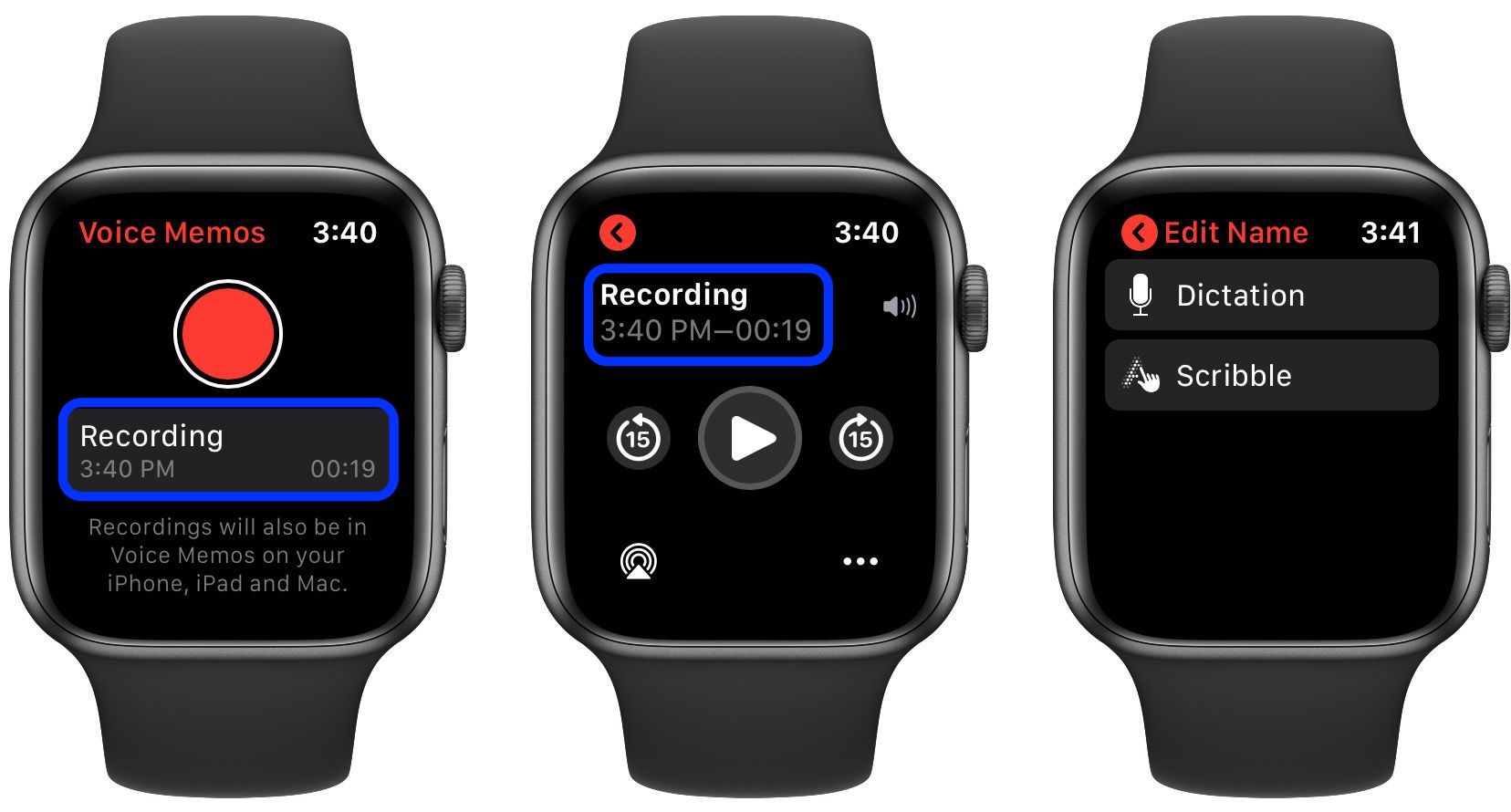
- Open the App: Locate the Voice Memos icon (a red waveform on a black background) on your Home Screen or via the App Grid.
- Start Recording: Tap the large red record button in the center of the screen. You will see a timer start and a live waveform indicating that the microphone is active.
- Monitor the Session: The watch face will display the duration of the recording. You can pause the recording if you need to gather your thoughts and resume by tapping the record icon again.
- End the Recording: Tap the stop button (the red square). The recording is instantly saved to your watch’s local storage and queued for iCloud synchronization.
Using Siri for Hands-Free Capture
For true efficiency, Siri is the preferred method for many users. By lifting your wrist and saying, "Hey Siri, start a voice memo," the app will launch and begin recording immediately. This is particularly useful when your hands are occupied, such as while driving, cooking, or performing manual labor. In 2026, Siri's improved on-device processing ensures that these commands are recognized even in low-connectivity environments.
Managing and Playing Back Recordings
Once a recording is captured, the Apple Watch allows for basic management directly from the wrist. While deep editing is reserved for the iPhone or Mac, the watch interface provides essential tools for review.
On-Device Playback
To listen to a recording, tap on the file name within the Voice Memos app list. You can play the audio through the Apple Watch's built-in speaker or via connected AirPods. Using the Digital Crown, you can adjust the volume with precision. This is particularly useful for verifying that a recording is clear before leaving a location.
Deleting and Organizing
If a recording is no longer needed, you can swipe left on the memo in the list and tap the trash icon. It is important to note that if iCloud Sync is active, deleting a memo on your watch will also delete it from your iPhone and Mac. To prevent accidental loss, the "Recently Deleted" folder (accessible on the iPhone) acts as a safety net for 30 days.
Synchronization and the iCloud Ecosystem
The true power of Apple Watch Voice Memos is found in its integration with the broader Apple ecosystem. This synchronization is handled through iCloud, which acts as a bridge between your wearable and your more powerful computing devices.
When you finish a recording, the Apple Watch attempts to upload the file. This happens over Bluetooth if your iPhone is nearby, or directly over Wi-Fi/Cellular if the watch is in standalone mode.
Cross-Device Access
- iPhone: Recordings appear in the Voice Memos app under "All Recordings." Here, you can trim the audio, enhance the recording to reduce background noise, or skip silences.
- Mac: Using the Voice Memos app on macOS, you can drag and drop recordings into professional editing software like Logic Pro or Final Cut Pro.
- iPad: The iPad version offers a large-scale waveform view, which is excellent for detailed annotation and transcription.
According to Apple's official support documentation, ensuring that all devices are signed into the same Apple ID is the most critical step for seamless synchronization.
Technical Specifications and Quality
Understanding the technical limitations and capabilities of the Apple Watch microphone is essential for professional users.
Audio Formatting
The Apple Watch records audio in a compressed AAC (Advanced Audio Coding) format, typically wrapped in an .m4a container. This format strikes a balance between high fidelity and small file size, which is vital for a device with limited storage and battery capacity. In 2026, the bitrates are optimized to ensure that vocal frequencies are prioritized, making transcriptions highly accurate.
Storage Management
Voice memos are stored locally on the Apple Watch until they are successfully synced to iCloud. If your watch storage is near capacity, the system may offload older, synced recordings to make room for new ones. Most modern Apple Watches (2024–2026 models) come with 32GB to 64GB of storage, which can hold hundreds of hours of high-quality voice recordings.
| Feature | Apple Watch (Standard) | Apple Watch Ultra | iPhone (Reference) |
|---|---|---|---|
| Microphone Count | Dual Mics | Triple Mics (Beamforming) | Multiple (Studio Quality) |
| Wind Resistance | Standard | High (Advanced Software) | Moderate |
| Primary Format | AAC / .m4a | AAC / .m4a | AAC or Lossless |
| Siri Integration | Yes | Yes | Yes |
| Direct Edit | No (Playback/Delete only) | No (Playback/Delete only) | Yes (Trim/Enhance) |
Troubleshooting Common Voice Memo Issues
Even with the refined software of 2026, users may occasionally encounter technical hurdles. Most issues stem from synchronization lag or hardware obstructions.
Syncing Delays
If a recording made on your watch isn't appearing on your iPhone:
- Check Connectivity: Ensure both Bluetooth and Wi-Fi are active on both devices.
- iCloud Status: Navigate to Settings > [Your Name] > iCloud on your iPhone and verify that "Voice Memos" is toggled ON.
- Force Close: Occasionally, force-closing the Voice Memos app on the iPhone and restarting it triggers a fresh sync.
Audio Quality Problems
"Muffled" audio is often the result of physical obstruction.
- Water in the Mic: If you have recently been swimming, use the Water Lock feature to eject water from the speaker and microphone ports.
- Case Interference: Some third-party rugged cases can partially block the microphone openings. If quality is poor, test a recording with the case removed.
- Mic Placement: Ensure your sleeve or jacket is not covering the side of the watch during a recording session.
Professional Use Cases and Best Practices
To get the most out of your Apple Watch Voice Memos, consider these expert strategies for 2026:
For Journalists and Researchers
The Apple Watch is the perfect "stealth" recorder for interviews in environments where a large microphone or smartphone might be distracting. Best Practice: Keep the watch at a natural distance from the subject; the beamforming microphones in the newer Ultra models can pick up clear audio from several feet away.
For Students
Use the complication (shortcut) on your watch face to start recording a lecture instantly. This prevents you from missing the beginning of a class while fumbling with a phone. Best Practice: Use the "Enhance Recording" feature on your iPhone later to boost the professor's voice over the ambient classroom noise.
For Medical and Legal Professionals
Dictating notes between appointments or hearings ensures that details are captured while fresh. Best Practice: Given the sensitive nature of this data, ensure your Apple Watch is protected by a passcode and that Advanced Data Protection for iCloud is enabled, providing end-to-end encryption for your voice memos.
Third-Party Alternatives
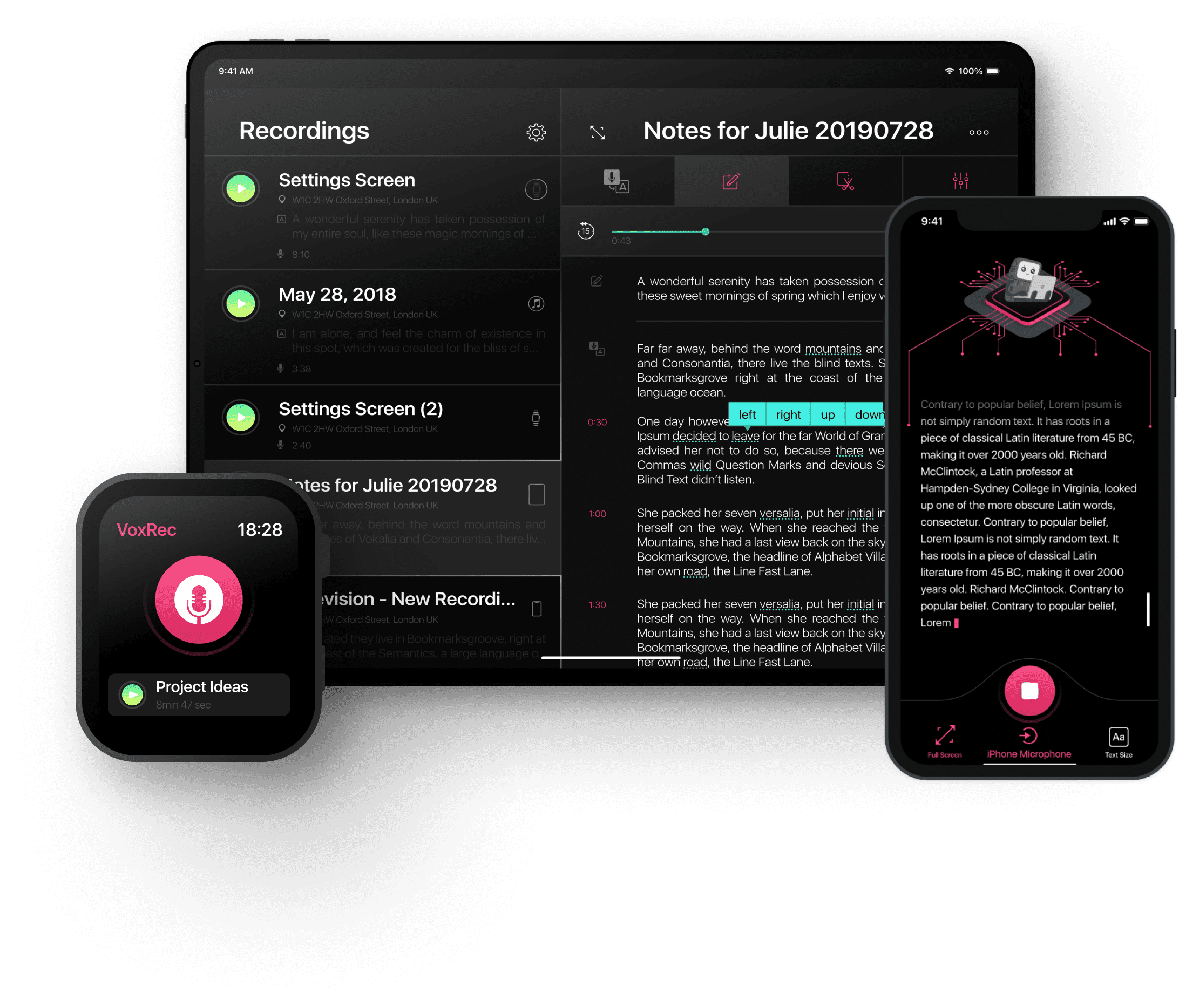
While the native Apple app is excellent, some users may require features like real-time transcription or folder-based organization on the wrist.
- Just Press Record: This app is a popular 2026 alternative that offers a one-tap complication and can transcribe your speech into text directly on the watch.
- Drafts: While primarily a text app, Drafts allows for dictated "captures" that are then processed as text notes, which is ideal for those who prefer reading over listening.
- Otter.ai: For users requiring professional-grade AI transcription, Otter's watch integration allows for the initiation of "live" recording sessions that sync to their cloud platform.
Optimizing Your Workflow
To make Voice Memos a core part of your daily routine, customization is key. You should add the Voice Memos complication to your most-used watch face. This turns a multi-step process into a single-tap action. In the "Modular" or "Infograph" faces, the complication can even show the duration of your last recording, providing a visual cue of your recent activity.
Furthermore, consider your privacy settings. Since the Apple Watch is often exposed, you can go to the Watch app on your iPhone, navigate to the "Voice Memos" section, and adjust how notifications and recordings are handled to ensure that your audio captures remain confidential.
Frequently Asked Questions
Can I record a voice memo while using other apps?
Yes. The Apple Watch supports background recording. Once you start a recording in the Voice Memos app, you can press the Digital Crown to return to your watch face or open another app (like Maps or Reminders). A small red microphone icon will appear at the top of your watch face to indicate that recording is still in progress.
Does recording voice memos drain the battery quickly?
Recording audio is moderately taxing on the battery because it keeps the microphones and processor active. However, on modern devices like the Series 11 or Ultra 3, you can record for several hours continuously without significant depletion. For long-form recording, it is always advisable to have at least 30% battery remaining.
Is there a limit to how long a single recording can be?
The primary limit is the available local storage on your Apple Watch. Most users will find they can record for hours at a time. However, for files longer than 60 minutes, the synchronization process to iCloud may take longer and require a stable Wi-Fi connection.
Can I rename recordings directly on the Apple Watch?
No. As of the current watchOS versions in 2026, renaming is not supported on the watch interface. Files are typically named by location (e.g., "Home 1," "Work 2") or by date and time. To give a recording a specific title, you must use the Voice Memos app on your iPhone, iPad, or Mac.
How do I share a recording from my watch?
Direct sharing (via Mail or Messages) is not available from the watch interface. You must wait for the file to sync to your iPhone. Once synced, you can use the standard Share Sheet in iOS to send the audio file to colleagues, social media, or cloud storage services like Dropbox.
Practical Recommendation
To maximize the utility of Voice Memos on your Apple Watch, the most effective next step is to configure a dedicated Complication on your primary watch face. This eliminates the need to navigate the App Grid and ensures that you can begin a recording in less than two seconds. Additionally, regularly audit your "All Recordings" folder on your iPhone to rename important files; this prevents a backlog of generically named audio clips and makes your voice-based knowledge base much easier to search and utilize in the future.