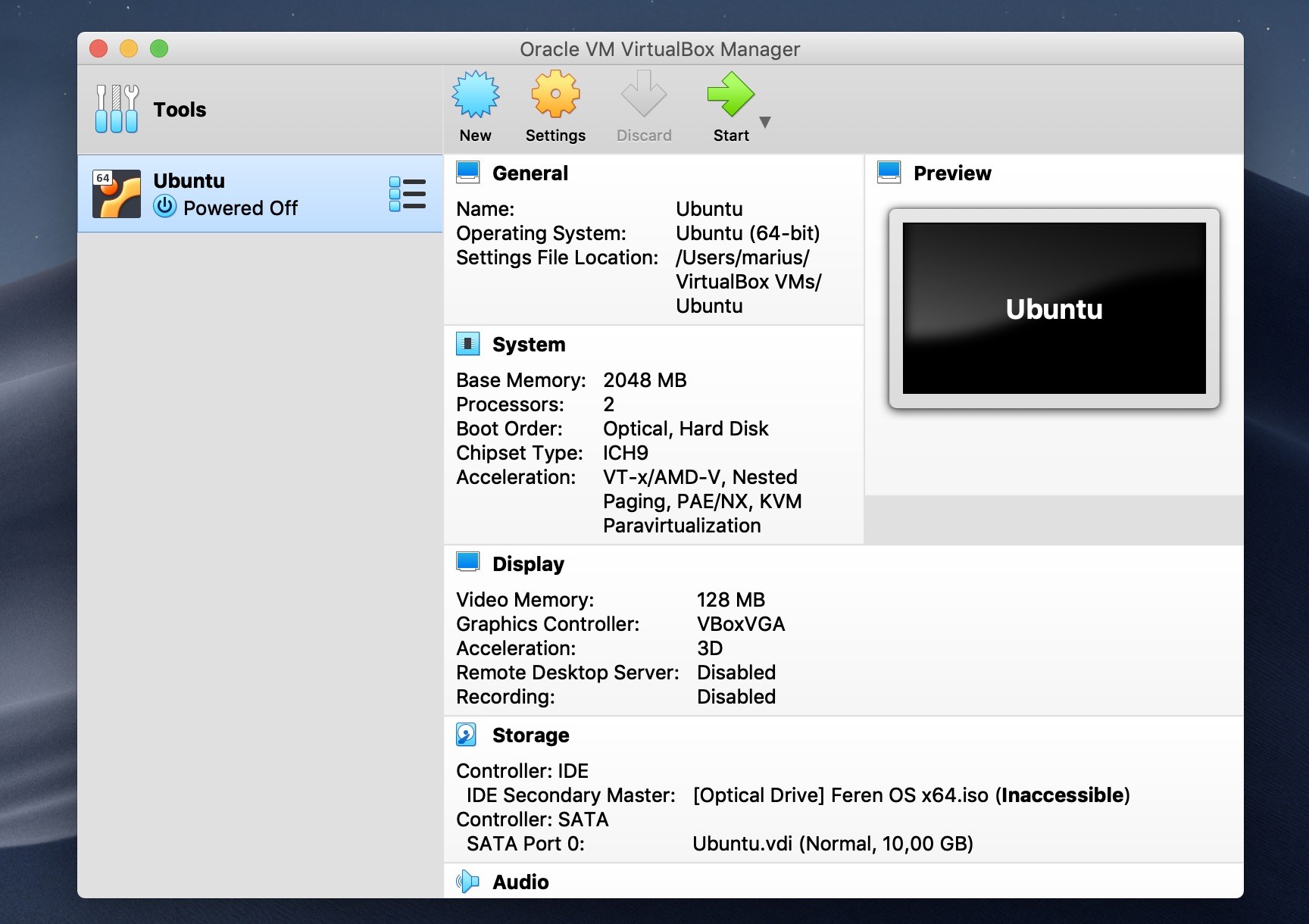
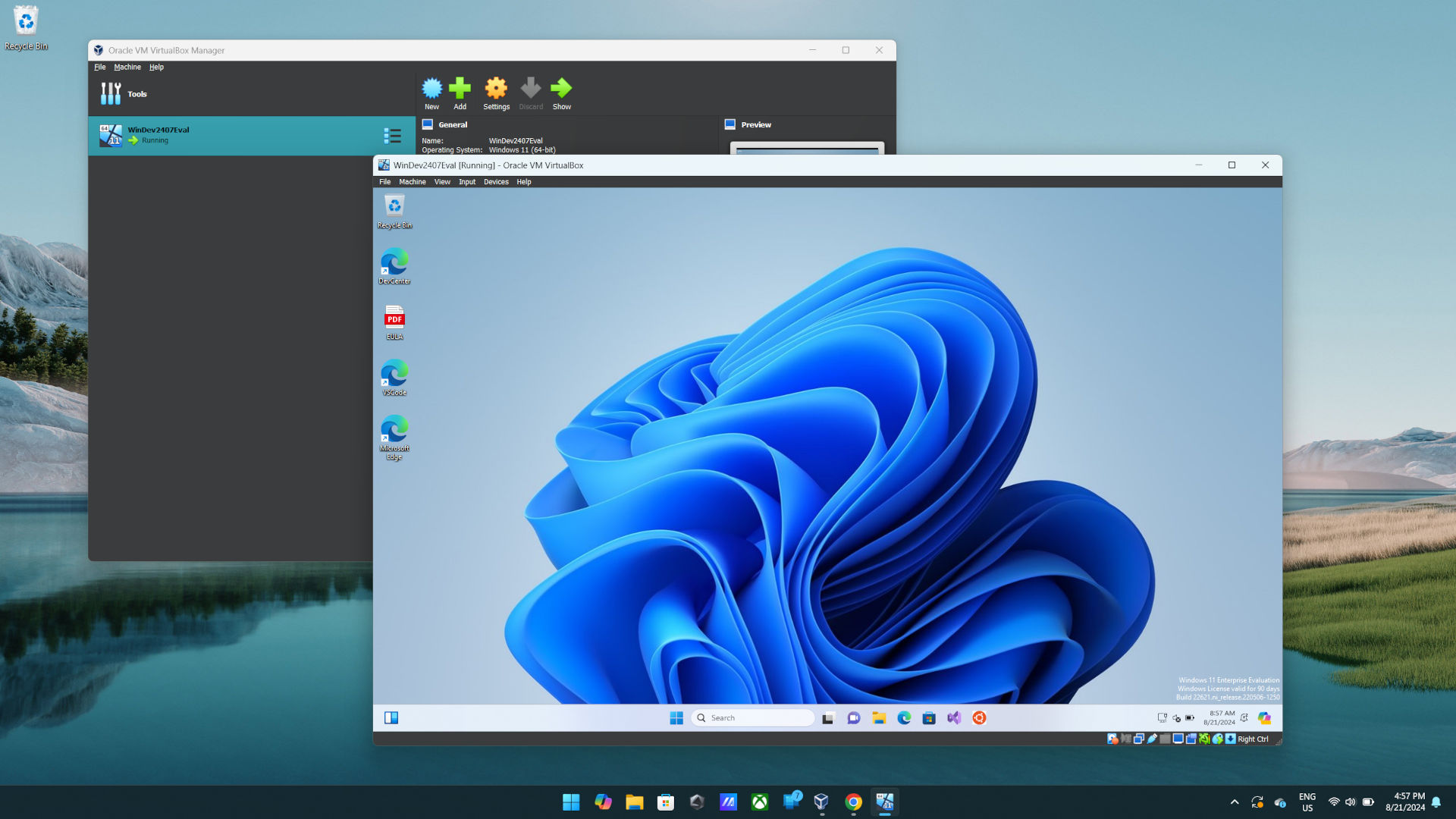
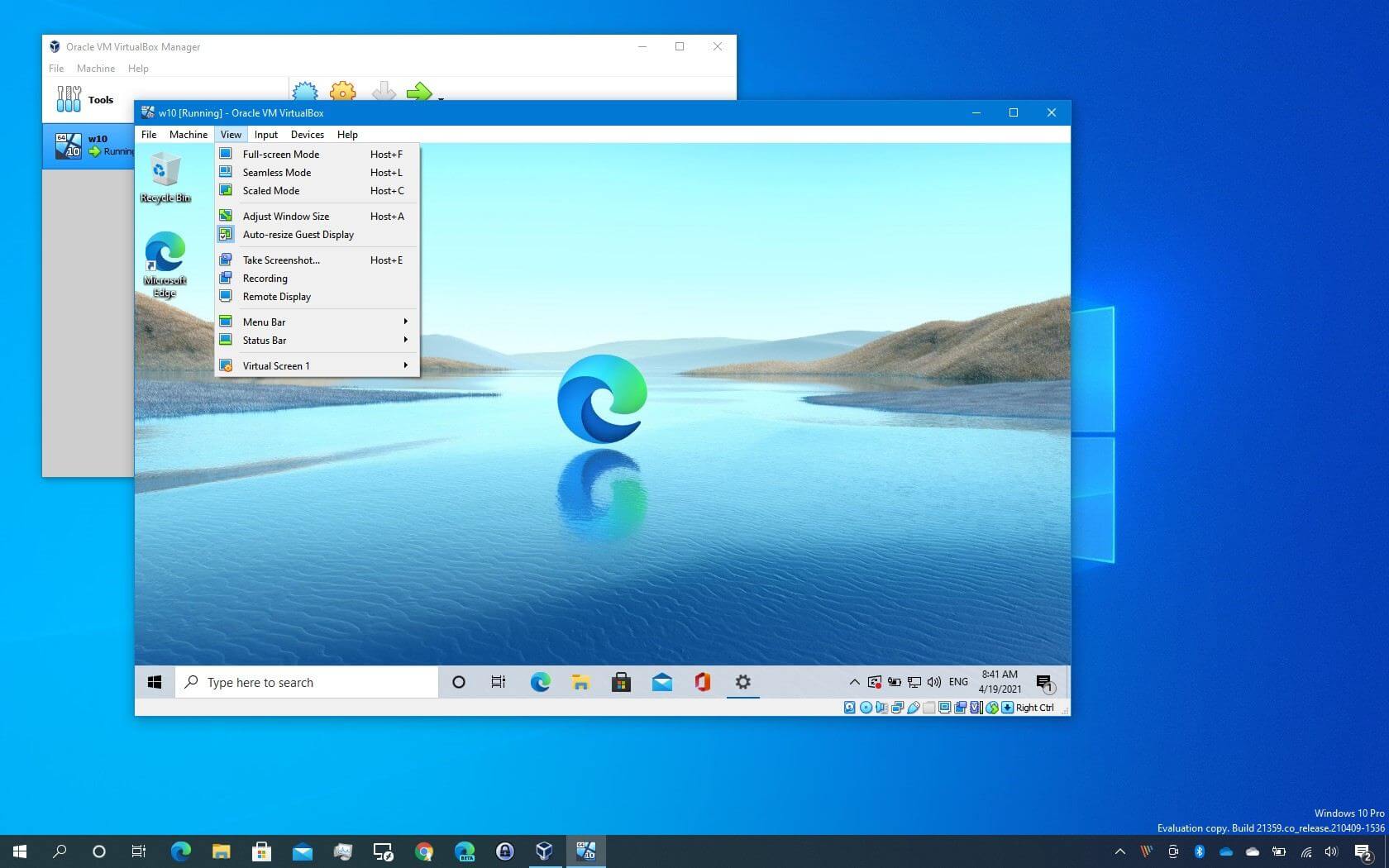
The most significant change in the VirtualBox Windows 10 virtual machine (VM) setup is the native integration and mandatory configuration of TPM 2.0 (Trusted Platform Module) and Secure Boot support within the VirtualBox 7.x (and later) architecture. This shift aligns virtual hardware with modern security standards, allowing for seamless installations and full compatibility with advanced Windows security features that previously required manual workarounds or registry hacks.
For years, setting up a Windows virtual machine in Oracle VirtualBox was a relatively static process. You defined your RAM, created a virtual hard disk, and pointed the software toward an ISO file. However, as of 2026, the landscape has shifted entirely. The transition to VirtualBox 7.0 and its subsequent updates has introduced a fundamental change in how the hypervisor interacts with the guest operating system’s security requirements. This change is not merely an incremental update; it represents a total overhaul of the virtual hardware profile to mirror the physical requirements of modern computing.
The Evolution of Virtual Hardware: Why TPM Matters
To understand why the introduction of native TPM 2.0 and Secure Boot is the "one major change" that defines modern VirtualBox setups, we must look at the evolution of the Windows ecosystem. Starting with the release of Windows 11, Microsoft mandated that all compatible hardware must possess a Trusted Platform Module (TPM) version 2.0 and support Secure Boot via UEFI. While Windows 10 was originally released during the transition from Legacy BIOS to UEFI, modern versions of Windows 10—and the security patches provided through 2025 and 2026—have increasingly relied on these hardware-level security features.
In older versions of VirtualBox (specifically the 6.1 series and earlier), there was no native, user-friendly way to present a TPM chip to the guest OS. If a user wanted to test security features like BitLocker, Windows Hello, or Virtualization-based Security (VBS) within a Windows 10 VM, they often had to use complex command-line configurations or third-party drivers. The "major change" in the current VirtualBox versions is that these components are now built directly into the Virtual Machine Manager (VMM) and are presented as standard options during the initial setup wizard.
Secure Boot and UEFI by Default
In the past, VirtualBox defaulted to a Legacy BIOS mode for almost all Windows setups. This was compatible with older software but lacked the robust boot-time protection found in modern hardware. The current setup process now defaults to EFI (Extensible Firmware Interface) for Windows 10 and Windows 11 templates.
Secure Boot is a security standard developed by members of the PC industry to help make sure that a device boots using only software that is trusted by the Original Equipment Manufacturer (OEM). When you enable this in VirtualBox, the virtual machine checks the signature of each piece of boot software, including UEFI firmware drivers (also known as Option ROMs), EFI applications, and the operating system. If the signatures are valid, the VM boots, and the firmware gives control to the operating system. This major change ensures that your virtual environment is as secure as a physical machine.
Implementing the Change: The New Setup Workflow
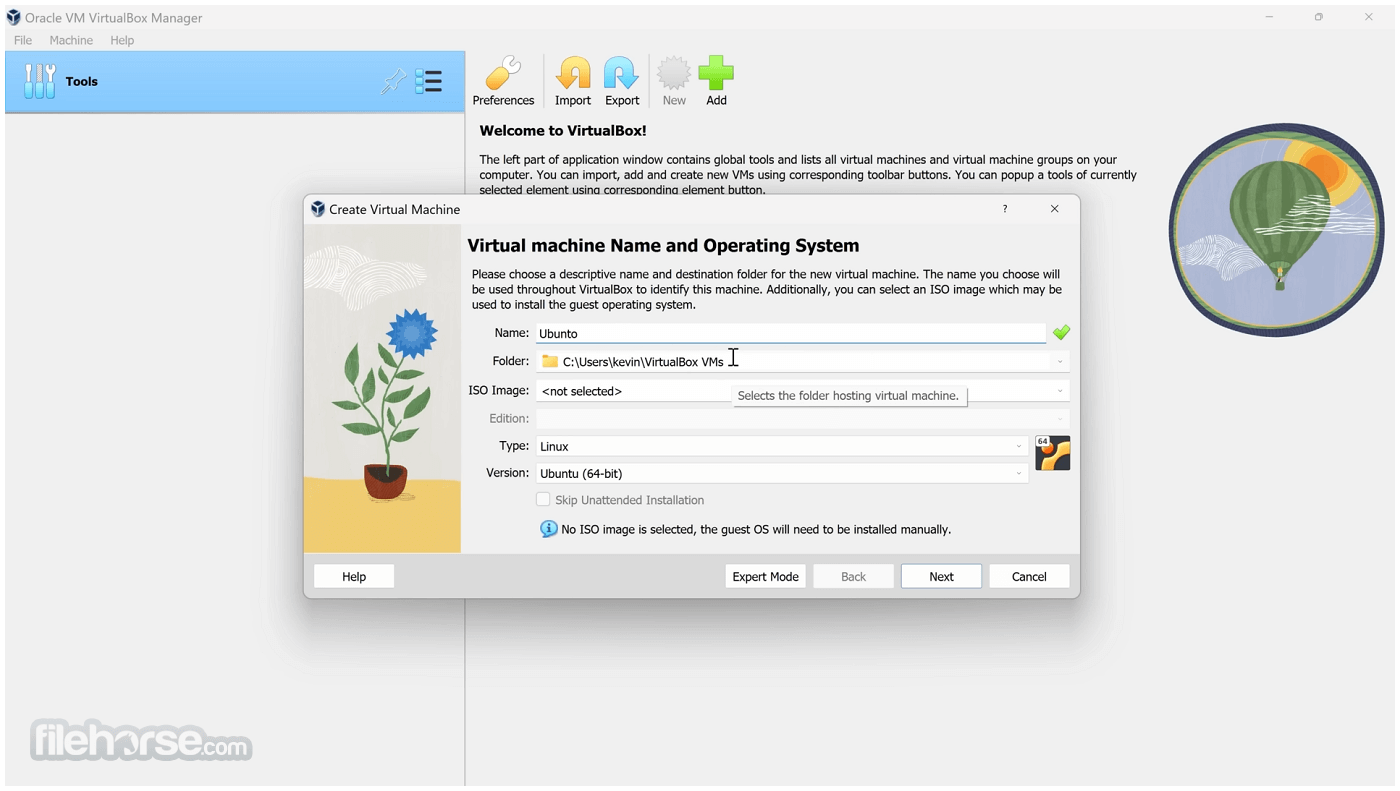
When you initiate the creation of a new Windows 10 VM in 2026, the interface looks significantly different than it did five years ago. The setup wizard has been streamlined to accommodate the TPM and Secure Boot requirements immediately.
The Hardware Configuration Tab
One of the most notable visual and functional differences is the "Hardware" tab in the Create Virtual Machine dialog. Here, you will find specific checkboxes for:
- Enable EFI (Special OSes only): This is now checked by default for Windows 10.
- TPM Type: Users can select between "None," "v1.2," or "v2.0." For modern Windows 10 compliance and future-proofing, v2.0 is the standard selection.
- Enable Secure Boot: This checkbox works in tandem with EFI to ensure the guest OS follows the trusted boot path.
By selecting these options, VirtualBox creates a "software-emulated" TPM. This is a critical distinction: the VM does not necessarily need a physical TPM chip on your host computer's motherboard to function, although VirtualBox can pass through a physical TPM if one is available. The software emulation is sufficient to satisfy the Windows 10 installer and the Windows Security center (Windows Defender).
Unattended Installation Support
Another facet of this major change is the integration of Unattended Installation. Because modern Windows setups require more "hand-shaking" between the hardware and the installer, VirtualBox now includes a feature that allows you to pre-configure your username, password, product key, and—crucially—the necessary drivers for the virtualized hardware. This prevents the "This PC can't run Windows" error that plagued many users during the early days of the TPM transition.
Why This Change Impacts Your Workflow
The shift to mandatory (or highly encouraged) UEFI/TPM setups in VirtualBox impacts performance, security, and the longevity of the VM.
1. Enhanced Security (VBS and Core Isolation)
Windows 10 includes a feature called Core Isolation, which uses virtualization-based security (VBS) to create an isolated region of memory from the normal operating system. This protects against malware that tries to exploit vulnerabilities in the OS kernel. Without the "major change" of native TPM and EFI support in VirtualBox, enabling Core Isolation inside a VM was nearly impossible or caused significant system instability. Now, it works out of the box, making VirtualBox an excellent environment for security researchers and developers.
2. Disk Encryption (BitLocker)
Previously, if you wanted to test BitLocker encryption within a VM, you had to use a password or a virtual USB drive to store the keys. With the native TPM 2.0 integration, the virtual Windows 10 environment can store the encryption keys in the virtual TPM, mirroring exactly how BitLocker operates on a physical laptop or desktop.
3. Windows Update Compatibility
Microsoft’s update telemetry often checks the hardware environment of the OS. As we move deeper into 2026, legacy BIOS-based virtual machines are increasingly flagged as "unsupported" or "incompatible" for certain feature updates. By adopting the UEFI/TPM setup standard, your VM remains in the "supported" category, ensuring you receive the latest security definitions and patches without interruption.
Comparison: VirtualBox 6.1 vs. VirtualBox 7.x (and 2026 Standards)
The following table highlights the technical differences between the older setup method and the current "Major Change" standard.
| Feature | Legacy Setup (VBox 6.1 & Prior) | Modern Setup (VBox 7.x/2026) |
|---|---|---|
| Default Boot Firmware | Legacy BIOS | UEFI (EFI) |
| TPM Support | None (Requires CLI/Hacks) | Native TPM 1.2 / 2.0 Emulation |
| Secure Boot | Not Supported | Fully Integrated |
| Setup Process | Manual OOBE (Out of Box) | Unattended Install Options |
| Graphics Controller | VBoxVGA / VBoxSVGA | VMSVGA (with DX11/12 Support) |
| Audio Driver | Intel HD Audio (Manual) | Intel HD Audio (Auto-configured) |
| Security Features | Restricted (No Core Isolation) | Full VBS and BitLocker Support |
Managing Guest Additions in the New Architecture
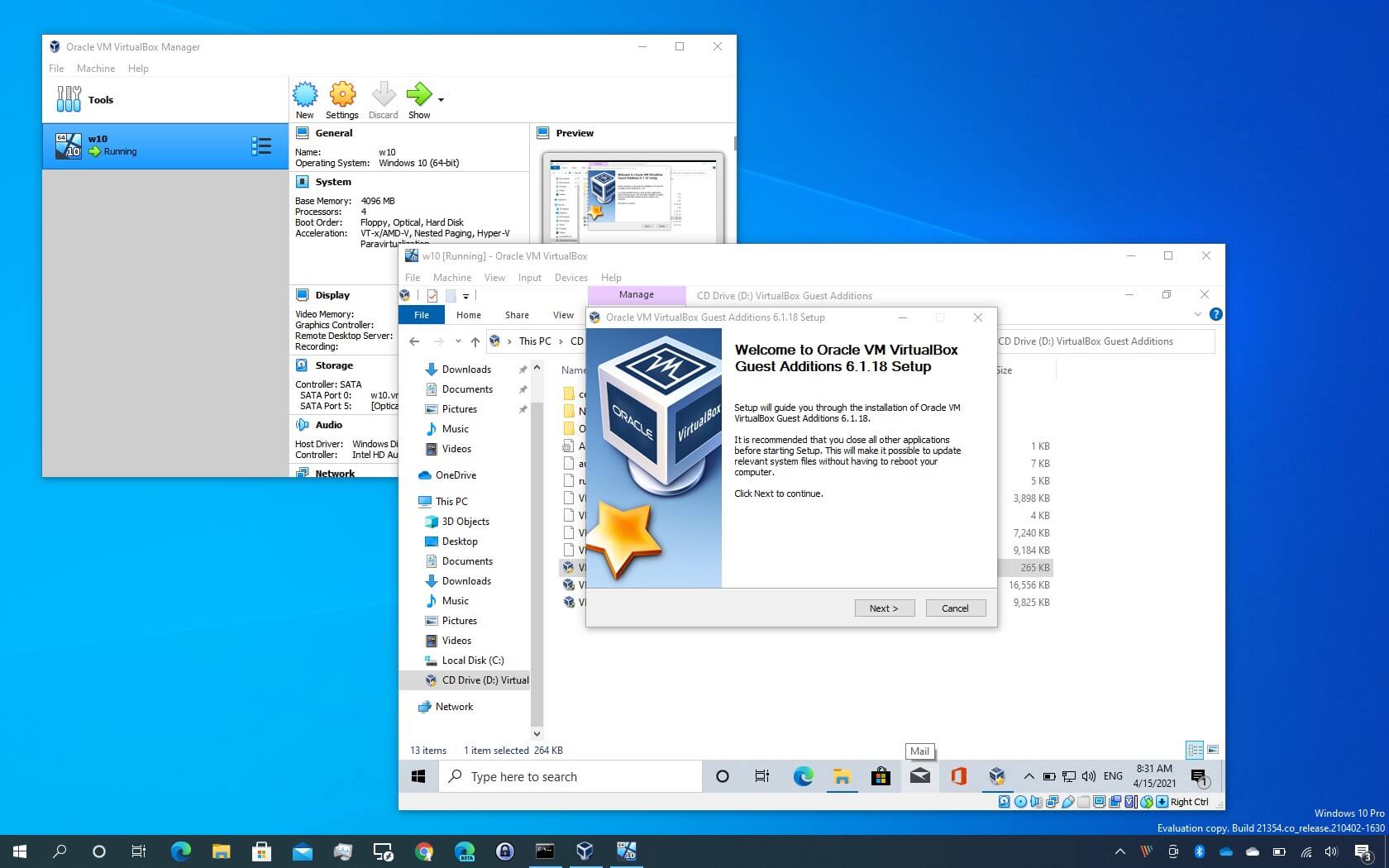
Along with the change in hardware emulation, the way VirtualBox Guest Additions are handled has also evolved. Guest Additions are a suite of system tools and device drivers that optimize the performance of the guest OS. They provide mouse pointer integration, shared folders, and, most importantly, hardware-accelerated graphics.
In the 2026 version of VirtualBox, the Guest Additions have been updated to support the WDDM (Windows Display Driver Model) 2.0 and higher. This is necessary because the new UEFI-based VMs expect a more modern interaction with the graphics stack. When you install Guest Additions on a Windows 10 VM using the new UEFI/TPM setup, you will notice significantly smoother window resizing and better 3D acceleration support in applications that use DirectX 11 or 12.
Installation Tip
To ensure the major changes in hardware are fully utilized, always install Guest Additions immediately after the first boot. In the VirtualBox window menu, go to Devices > Insert Guest Additions CD Image. Unlike older versions, the modern installer will automatically detect if you are running in a UEFI environment and install the appropriate kernel-mode drivers to match your Secure Boot configuration.
Troubleshooting Common Issues with the New Setup
Despite these improvements, the shift to a more complex virtual hardware profile can lead to specific errors. Understanding these is key to mastering the 2026 VirtualBox environment.
The "Black Screen" on Boot
If you enable EFI and Secure Boot but use an older Windows 10 ISO (from before 2018), you might encounter a black screen or a "Shell>" prompt. This occurs because the ISO does not contain the necessary EFI boot loaders.
- Solution: Ensure you are using a modern Windows 10 ISO (Version 22H2 or later) generated from the Microsoft Media Creation Tool or an official Volume Licensing portal.
TPM Not Detected in Windows
If you have enabled TPM in the VirtualBox settings but Windows 10 "Device Manager" doesn't show it under "Security Devices," you may need to check the "Security" tab in the VirtualBox VM settings.
- Solution: Ensure the "TPM Type" is set to 2.0 and that the "Enable EFI" box is checked. TPM cannot function under a Legacy BIOS boot.
Performance Lag with VBS
Enabling Virtualization-based Security (VBS) inside a virtual machine creates "nested virtualization." This can be resource-intensive.
- Solution: Ensure that your host CPU supports VT-x (Intel) or AMD-V and that it is enabled in your host's physical BIOS. In VirtualBox, go to System > Processor and check the box for Enable Nested VT-x/AMD-V. This allows the VM to pass virtualization instructions directly to the physical hardware, greatly reducing overhead.
The Future of VirtualBox and Windows 10
By 2026, Windows 10 has entered its late-lifecycle stage, with many users transitioning toward Windows 11 or specialized LTSC (Long-Term Servicing Channel) versions. The major change in VirtualBox setup—moving to UEFI, TPM 2.0, and Secure Boot—is Oracle’s way of ensuring that Windows 10 VMs remain viable and secure in a world that has largely moved past legacy hardware.
This transition also simplifies the eventual upgrade path. If you have a Windows 10 VM configured with these modern settings, upgrading it to Windows 11 within VirtualBox becomes a simple matter of running the installer. Since the "hardware" (TPM and Secure Boot) already meets the requirements, you won't encounter the compatibility blocks that older VMs face.
Frequently Asked Questions
Does enabling TPM 2.0 slow down my Windows 10 VM?
No, the TPM emulation in VirtualBox has negligible impact on system performance. It is a passive security component that handles cryptographic keys and integrity checks. The overall performance is more significantly impacted by the number of CPU cores and amount of RAM you allocate to the VM.
Can I change an existing Windows 10 VM from BIOS to UEFI/TPM?
It is not recommended to simply flip the switch in the settings. If a VM was installed using Legacy BIOS, changing it to UEFI will prevent it from booting because the disk partition style is MBR (Master Boot Record) instead of GPT (GUID Partition Table). To switch, you would need to use the mbr2gpt tool within Windows, which can be risky. It is generally better to create a new VM using the modern setup standard.
Do I need a physical TPM chip on my host PC to use this feature?
No. VirtualBox 7.x and later can use a software-emulated TPM. This means the hypervisor handles the TPM functions through software logic rather than requiring a physical chip on your motherboard. This allows users on older hardware to run modern, security-compliant Windows VMs.
Is Secure Boot mandatory for Windows 10 in VirtualBox?
It is not strictly mandatory for Windows 10 to function, but it is highly recommended. Many modern security updates and software packages (especially those related to anti-cheat or high-security enterprise tools) check for Secure Boot. Enabling it during the initial setup ensures maximum compatibility.
Why did VirtualBox wait so long to add native TPM support?
Implementing a virtual TPM requires complex cryptography and integration with the hypervisor's core. Oracle prioritized stability and cross-platform compatibility (Windows, macOS, Linux hosts). The surge in demand caused by Windows 11’s hardware requirements accelerated the development of this feature, which has now become the standard for all Windows VM setups.
Final Recommendation
When setting up a Windows 10 VM in 2026, do not ignore the "Hardware" configuration screen. The single most important action you can take to ensure a stable, secure, and future-proof environment is to select the EFI (with Secure Boot) and TPM 2.0 options. This "major change" in the VirtualBox workflow might seem like an extra step, but it aligns your virtual environment with the security standards of the modern era, protecting your data and ensuring your guest operating system remains fully supported by Microsoft.