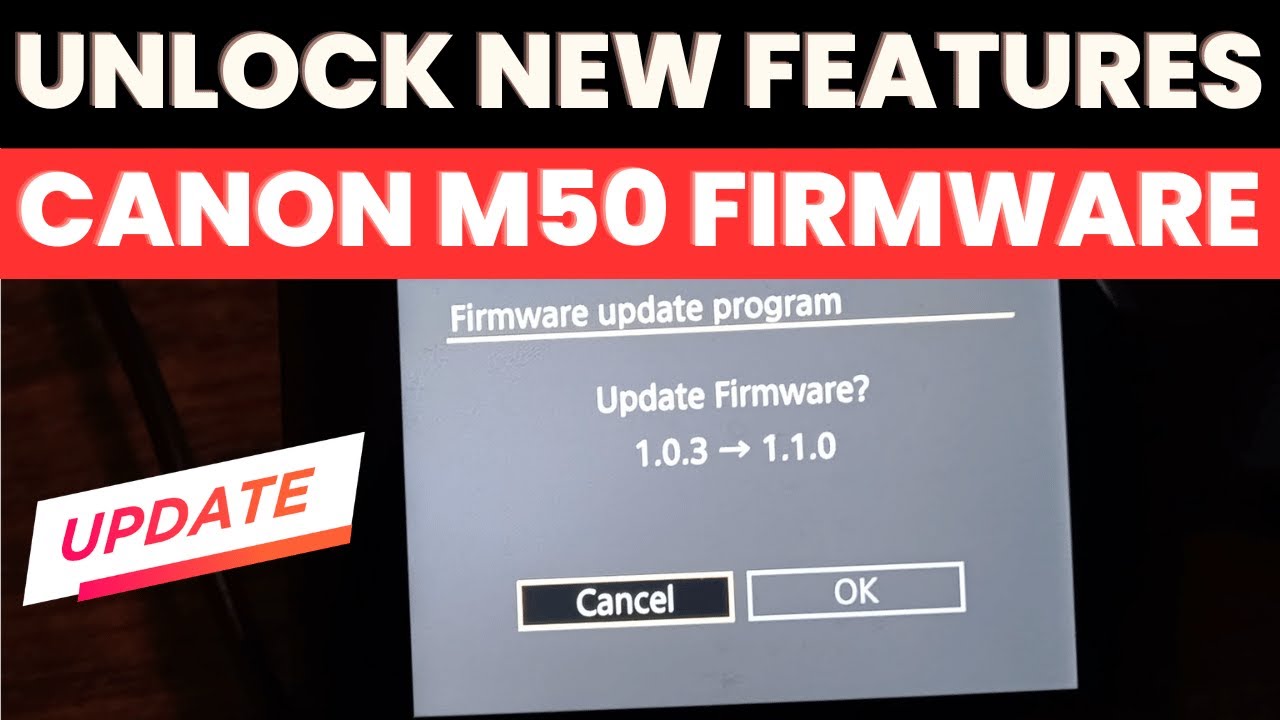
To update the Canon EOS M50 firmware, download the latest version (typically Ver. 1.1.0) from the official Canon support website, copy the .FIR file to the root directory of a formatted SD card, insert it into the camera, and select "Firmware" from the yellow Setup Menu. Ensure your battery is fully charged before proceeding.
The Canon EOS M50, also known as the EOS Kiss M in some regions, remains one of the most successful mirrorless cameras in Canon's history. Even in 2026, it continues to be a favorite for budget-conscious vloggers, street photographers, and hobbyists due to its compact form factor and excellent color science. However, to ensure the device operates with maximum stability and takes advantage of all available features—such as Eye Detection AF in Servo mode or Clean HDMI output—keeping the firmware up to date is essential.
Updating firmware is not merely about adding new features; it is a critical maintenance task that resolves internal software bugs, improves lens communication protocols, and ensures compatibility with newer SD card standards and accessories. This guide provides a deep dive into the update process, the history of M50 firmware improvements, and how to troubleshoot common installation hurdles.
Understanding the Importance of Canon M50 Firmware Updates
Firmware acts as the "brain" of your camera. It is the embedded software that controls everything from the autofocus algorithms to the way the image processor interprets data from the CMOS sensor. Unlike a computer operating system that updates frequently, camera firmware updates are infrequent but high-impact.
For the Canon M50, firmware updates have historically been transformative. Early adopters of the M50 launched the camera without certain features that are now considered standard. By applying the latest updates, users essentially receive a "mid-cycle refresh" of their hardware for free.
Key Enhancements from Major Updates
Two specific updates defined the lifecycle of the M50:
- Version 1.0.3: This update was pivotal as it introduced Eye Detection AF support when using Servo AF. This allowed the camera to track a subject's eye continuously while they moved, a feature that was previously restricted to One-Shot AF. It significantly improved the camera's hit rate for portraiture and vlogging.
- Version 1.1.0: This update addressed a major complaint from the streaming community by enabling a "Clean HDMI" output. It allowed the camera to output a video signal without the UI overlays (like the focus box and exposure settings), making the M50 a viable high-quality webcam for 4K and 1080p streaming.
Prerequisites for a Successful Update
Before attempting to update your Canon M50, you must gather the necessary tools and meet specific safety requirements. Failure to follow these prerequisites can lead to a "bricked" camera—a state where the internal software is corrupted, rendering the device inoperable and requiring a professional repair at a Canon service center.
1. Battery Power Requirements
You should never attempt a firmware update with a low battery. If the camera loses power while writing new data to its internal Read-Only Memory (ROM), the process will fail mid-way.
- Recommended: Use a 100% freshly charged LP-E12 battery.
- Alternative: Use a Canon CA-PS700 AC Adapter and DR-E12 DC Coupler to provide constant power.
2. SD Card Preparation
The M50 is sensitive to the file structure of the SD card used for updates.
- Use a standard SD, SDHC, or SDXC card.
- Action: Format the card inside the camera before copying the firmware file. This ensures the card uses the correct FAT32 or exFAT file system that the camera's bootloader expects to see.
- Do not use "microSD" cards in adapters if possible, as the extra connection point can occasionally cause read errors during the critical update phase.
3. Verification of Current Version
Check which version your camera is currently running to see if an update is even necessary.
- Turn on the camera.
- Press the Menu button.
- Navigate to the Setup Menu (the yellow wrench icon).
- Go to page 5 (or the final page of the setup menu).
- Look for the line item labeled Firmware Ver.
Step-by-Step Guide: The SD Card Method
The SD card method is the most reliable way to update the M50, as it does not rely on a stable USB connection or third-party software overhead.
Step 1: Download the Firmware
Visit the official Canon Support Page and search for "EOS M50." Navigate to the "Software & Drivers" section. Ensure you select your computer's operating system (Windows or macOS) to download the correct self-extracting archive.
Step 2: Extract the File
The downloaded file is usually a compressed folder (.zip or .dmg). Once extracted, you will find a file ending in .FIR (e.g., m50-v110.fir). This .FIR file is the only piece of data the camera needs.
Step 3: Transfer to SD Card
- Connect your formatted SD card to your computer using a card reader.
- Open the SD card directory.
- Copy the .FIR file directly onto the root directory of the card. This means it should not be inside any folders like "DCIM" or "MISC." It should be at the top level of the drive.
Step 4: Initiate the Update on the M50
- Ensure the camera is turned OFF.
- Insert the SD card into the M50.
- Set the Mode Dial to P (Program) or any other creative zone mode.
- Turn the camera ON.
- Press Menu and navigate to the Firmware Ver. option in the yellow Setup Menu.
- Press SET/OK. The camera will ask if you want to update the firmware. Select OK.
- The screen will display the current version and the version found on the SD card. Select the new version and confirm.
Step 5: The Update Process
Once you confirm, a progress bar will appear. Do not touch any buttons, do not open the battery door, and do not turn the dial during this time. The process usually takes 2 to 5 minutes. Once finished, the camera will display a "Complete" message. Turn the camera OFF and remove the battery for 10 seconds to fully reset the system before using it again.
Alternative: Using Canon EOS Utility
If you do not have an SD card reader, you can update via a USB cable using the Canon EOS Utility software.
- Install the latest version of EOS Utility from the Canon website.
- Connect your M50 to your computer via a Micro-USB to USB-A cable.
- Turn the camera ON.
- Launch the EOS Utility and select Camera Settings.
- Click on Firmware Update.
- The software will guide you through selecting the downloaded .FIR file from your hard drive and transferring it to the camera.
- Follow the on-screen prompts on the camera's LCD to finalize the installation.
| Feature Comparison | Pre-Update (v1.0.0) | Post-Update (v1.1.0) |
|---|---|---|
| Eye AF Support | One-Shot AF Only | One-Shot & Servo AF |
| HDMI Output | Overlaid UI Info | Clean HDMI (No UI) |
| Stability | Standard | Improved Lens Communication |
| Bug Fixes | None | PTP Security Vulnerability Patches |
| Video Utility | Standard | Better 24p/25p Compatibility |
Troubleshooting Common Update Issues
Despite the simplicity of the process, users often encounter specific hurdles. Here is how to resolve the most frequent issues.
The Camera Does Not "See" the Firmware File
If the M50 reports that it cannot find the firmware update on the SD card, check the following:
- File Extension: Ensure the file is a .FIR file and not the .ZIP archive you originally downloaded.
- Placement: The file must be in the root directory. If it is inside a folder, the camera's bootloader will ignore it.
- Naming: Do not rename the .FIR file. The camera looks for a specific filename.
- Card Size: While the M50 supports large cards, some users find that cards over 128GB occasionally fail to trigger the update menu. Try a smaller 16GB or 32GB card if you encounter issues.
The "Battery Level Too Low" Error
Even if your battery shows two bars, the camera may refuse to start the update. The firmware writing process is power-intensive. Always use a battery that has been charged immediately prior to the update. If you are using a third-party battery, the camera may not be able to accurately read the remaining voltage, causing it to block the update for safety. In this case, use an original Canon LP-E12.
The Screen Goes Black During Update
If the screen goes black and the "Access" lamp (the small blinking light) is not flashing, the update may have crashed. Wait at least 15 minutes before taking any action. If there is absolutely no activity, you may need to restart the camera, but be prepared for the possibility that the camera may require service.
Post-Update Optimization and Settings
After successfully updating your Canon M50, you should reset certain settings to take full advantage of the new software capabilities.
Enabling Eye Detection AF in Servo
If you updated from a very old version to v1.0.3 or higher, Eye Detection AF in Servo mode is not always enabled by default.
- Press Menu.
- Go to Shooting Menu 1.
- Select AF Method.
- Ensure Face + Tracking is selected.
- Select Eye Detection AF and set it to Enable.
- In Shooting Menu 1, ensure AF Operation is set to Servo AF.
Setting Up Clean HDMI
For those using the M50 as a webcam or for external recording:
- Go to Setup Menu 5 (yellow).
- Select HDMI Info Display.
- Choose Clean / 4K Output or Clean / FHD Output. Note: Using Clean HDMI will often disable the rear LCD screen to save processing power and bandwidth for the HDMI port.
The Role of Firmware in Lens Compatibility
The Canon M50 uses the EF-M lens mount. However, many users use the EF-EOS M Adapter to mount full-frame EF or EF-S lenses. Firmware updates for the M50 often include "Lens Correction Data" for newer lenses released after the camera's manufacture date.
Without the latest firmware, the camera may not be able to apply in-camera Peripheral Illumination Correction or Chromatic Aberration Correction for newer lenses like the Sigma 16mm f/1.4 DC DN or the Canon EF-M 32mm f/1.4. Furthermore, if you are using third-party adapters (like those from Viltrox or Commlite), keeping the camera firmware updated ensures the best possible communication between the camera body and the lens electronics, reducing "Lens Error" messages.
Frequently Asked Questions
Can I downgrade my firmware if I don't like the update?
Canon does not officially support firmware downgrades. Once you have moved to a newer version (e.g., 1.1.0), the internal version checker will typically block you from installing an older version (e.g., 1.0.2). This is a security measure to prevent the re-introduction of patched vulnerabilities.
Will updating the firmware delete my photos or settings?
A firmware update does not touch the photos on your SD card. However, it is a "best practice" to back up your photos before any technical operation. Regarding settings, most firmware updates preserve your custom menus and exposure settings, but major updates might occasionally reset the camera to factory defaults. It is wise to note your specific custom functions before starting.
Does the M50 Mark II use the same firmware?
No. The Canon M50 and the Canon M50 Mark II are distinct hardware entities with different internal configurations. You must never attempt to load M50 Mark II firmware onto an original M50, as the file headers are incompatible and the camera will reject the file.
How often should I check for updates in 2026?
Since the M50 is a legacy model, it is unlikely that Canon will release further updates unless a critical security flaw or a major compatibility issue with new lens technology is discovered. Checking once a year is sufficient for older models.
Why is my "Firmware Ver." menu item greyed out?
The "Firmware Ver." option is usually greyed out if the camera is in Basic Zone modes (like Green Auto, Sports, or Portrait mode). Turn the Mode Dial to P, Tv, Av, or M to unlock the full menu and access the firmware settings.
Final Recommendation
For any Canon M50 owner in 2026, verifying that you are on Ver. 1.1.0 is the single most effective way to maximize the value of your hardware. The addition of Clean HDMI and enhanced Eye Detection AF transforms this camera from a simple point-and-shoot alternative into a professional-grade tool for content creation. Always ensure you are using a genuine Canon battery and a high-quality SD card for the process, and follow the SD card root-directory method for the safest results. Once updated, your M50 will be fully equipped to handle the demands of modern photography and video streaming.