Optimizing ARK: Survival Evolved settings requires balancing visual fidelity, hardware performance, and gameplay progression. By adjusting graphical options like shadows and textures alongside world multipliers for taming and harvesting, players can transform a grueling survival experience into a tailored adventure that runs smoothly on 2026 hardware standards.
ARK: Survival Evolved remains one of the most complex survival titles in terms of customization. Since its launch and through its long-standing tenure in the gaming world, Studio Wildcard has provided players with an exhaustive list of toggles, sliders, and configuration files. Whether you are hosting a private server for friends, playing single-player, or trying to squeeze every frame out of your GPU, understanding what these settings do is essential for a frustration-free experience.
Graphical Settings for Peak Performance
Even in 2026, ARK: Survival Evolved is known for being resource-intensive. While modern GPUs have significantly more overhead than those available at the game's launch, the engine's optimization—or lack thereof—means that "Epic" settings can still challenge mid-range systems.
Primary Video Options
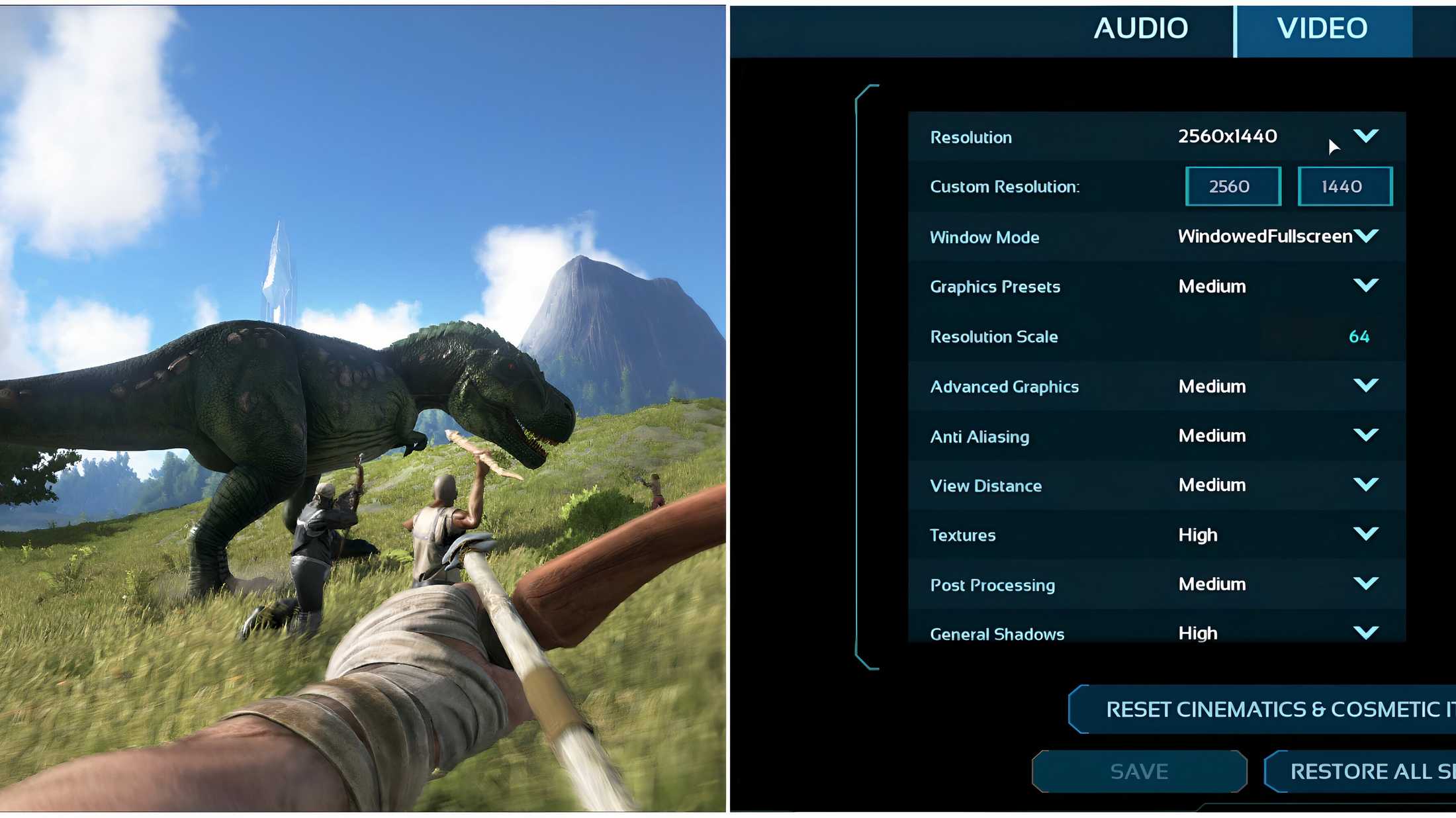
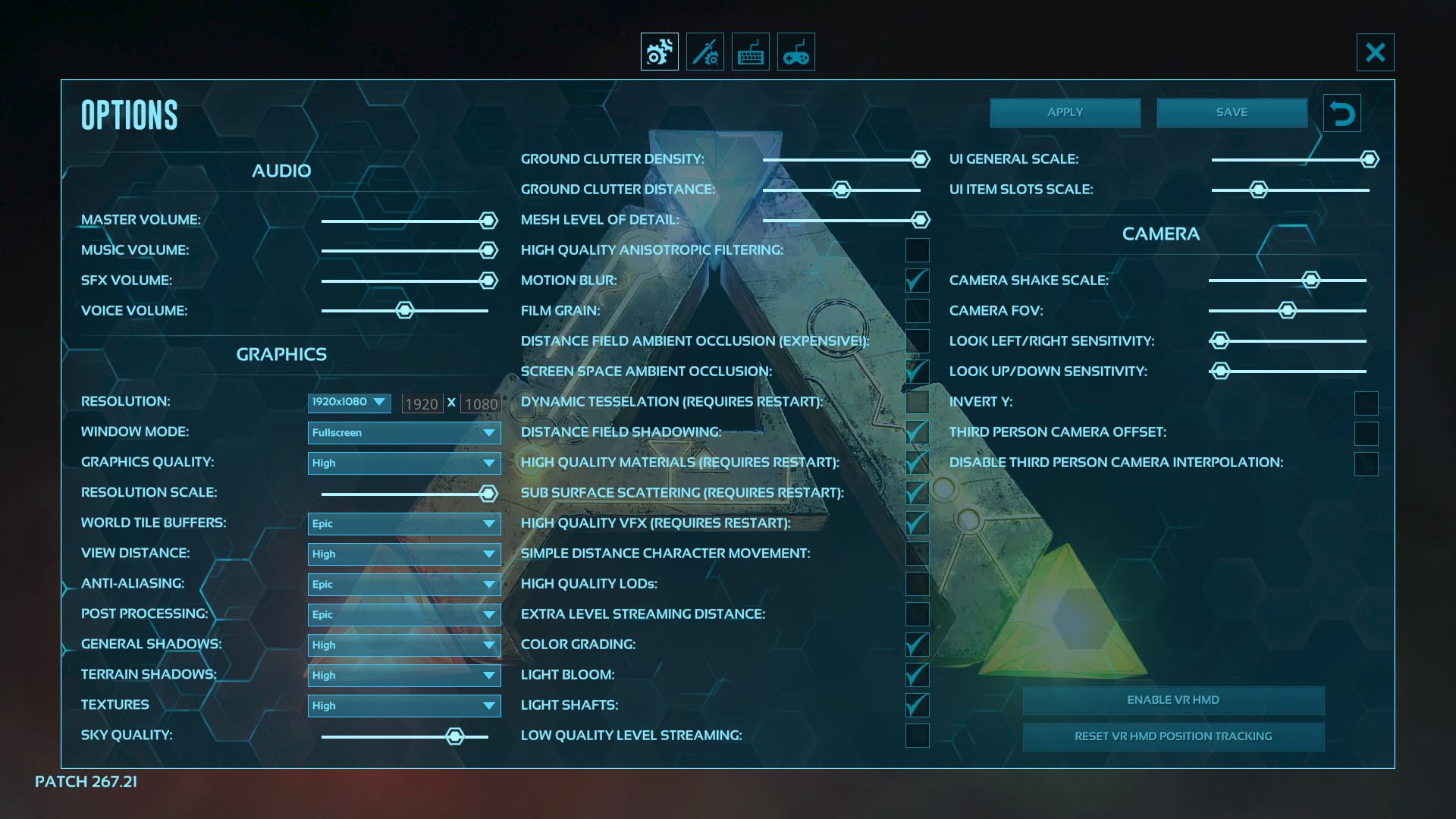
The Resolution Scale is the most impactful setting for performance. It determines the internal rendering resolution of the game. If you are playing at 4K but your frame rate is stuttering, dropping this slider slightly can provide a massive FPS boost without the UI becoming blurry. However, for the crispest experience, keeping this at 100% is recommended.
World Tile Buffers, View Distance, and Anti-Aliasing form the core of your visual clarity. View Distance is particularly critical in a survival game where spotting a Rex or a Giganotosaurus from a distance is a matter of life and death. Setting this to "High" or "Epic" is generally advised for gameplay safety, even if you have to lower other settings to compensate.
Advanced Graphical Toggles
Many players overlook the checkboxes at the bottom of the graphics menu, but these often hold the key to stability.
- Screen Space Ambient Occlusion (SSAO): This adds depth to shadows where objects meet. While it makes the world look grounded, disabling it can save 5–10% of GPU resources.
- Subsurface Scattering: This affects how light permeates surfaces like skin or leaves. It is a subtle effect that is often the first to go when optimizing for high-refresh-rate monitors.
- Ground Clutter Density and Distance: These sliders control how much grass and small rocks are rendered. High values make the world look lush but can hide small threats like Troodons and significantly impact CPU performance.
Essential General World Settings
When starting a single-player or non-dedicated session, the "General" tab dictates the fundamental "feel" of the game. ARK’s default settings are balanced for large tribes on official servers, which can feel punishingly slow for solo players or small groups.
The Difficulty Multiplier
The Difficulty Offset and Override Official Difficulty are often confused. The Difficulty Offset is a slider from 0.01 to 1.0. At 1.0, the maximum wild dinosaur level is typically 120 on The Island. To achieve the popular level 150 cap seen on official servers, or even higher levels like 300, players must use the "Override Official Difficulty" setting in the configuration files, usually setting it to 5.0 for level 150 cap (5 x 30).
Taming and Harvesting Rates
Taming Speed is perhaps the most adjusted setting in the game. On official rates, taming a high-level creature can take several real-world hours. For a balanced 2026 playstyle, a multiplier of 3x to 5x is generally considered the "sweet spot," providing a challenge without requiring an entire afternoon of standing over a sleeping dinosaur.
Similarly, the Harvest Amount multiplier affects how many resources you get from a single node. Increasing this to 2x or 3x reduces the "grind" significantly. However, setting this too high (e.g., 10x or 20x) can cause server lag when a high-power creature like a Brontosaurus swipes its tail through a forest, as the game struggles to calculate the massive influx of items.
Advanced Gameplay and Breeding Settings
For those looking to dive into the endgame of mutations and boss fights, the "Advanced" tab is where the most critical adjustments reside. This section governs the lifecycle of your tames and the technical limits of your structures.
Breeding and Maturation Math
Breeding in ARK involves three main sliders: Mating Interval, Egg Hatch Speed, and Baby Mature Speed.
- Mating Interval: A lower number (e.g., 0.1) allows females to mate more frequently.
- Egg Hatch/Gestation Speed: A higher number (e.g., 10.0) makes eggs hatch or pregnancies finish faster.
- Baby Mature Speed: This determines how quickly a baby becomes an adult.
The challenge here is the Baby Cuddle Interval Multiplier. If you speed up maturation but do not decrease the cuddle interval, you may find that your dinosaur becomes an adult before you ever get a chance to "imprint" on it for the stat bonuses. A common balanced setup is 10x Mature Speed with a 0.1 Cuddle Interval.
Structure and Resource Rules
Settings like Structure Decay and Resource Respawn Period are vital for maintaining a clean world. On a private server, setting the Resource Respawn Period to a lower value (like 0.5) ensures that trees and metal rocks return faster after being mined. Be careful not to set the No Resource Radius too high, or resources will never grow back near your base.
| Setting Name | Recommended (Vanilla+) | Recommended (Fast-Paced) | Impact on Performance |
|---|---|---|---|
| Difficulty Offset | 1.0 | 1.0 (with 5.0 Override) | Low |
| Taming Speed | 3.0 | 8.0 | Low |
| Harvest Amount | 2.0 | 5.0 | High (during harvesting) |
| XP Multiplier | 1.5 | 3.0 | Low |
| Baby Mature Speed | 5.0 | 20.0 | Medium |
| Egg Hatch Speed | 5.0 | 25.0 | Low |
| View Distance | High | High | High |
| Ground Clutter | 0.5 | 0.2 | Very High |
Technical Configuration via INI Files
For players on PC, the in-game menus only scratch the surface. Deep customization happens in the GameUserSettings.ini and Game.ini files, typically found in the ShooterGame\Saved\Config\WindowsNoEditor directory.
GameUserSettings.ini
This file handles your graphical preferences and basic server rules. One of the most important entries here is bUseSingleplayerSettings=True. When this is enabled, the game automatically applies hidden buffs to taming, breeding, and player stats to make the game viable for a lone survivor. If you prefer to manually tune every slider, it is often better to set this to False to avoid conflicting multipliers.
Game.ini
This is where "Power Users" define custom level caps, engram points per level, and specific dinosaur spawns. For example, if you want to disable a specific creature like the Ichthyornis (the bird that steals items), you would add a ConfigSubtractNPCSpawnEntriesContainer line here. This file is also used to adjust the Stat Multipliers for players and tames, allowing you to increase the weight capacity per point spent—a common quality-of-life fix for those tired of being encumbered by a few stacks of stone.
Troubleshooting Common Settings Issues
Even with the correct settings, ARK can behave unexpectedly. A common issue is the "Settings Not Saving" bug. This usually occurs if the .ini files are marked as "Read-Only" or if the game crashes before it can write the changes to the disk. Always exit to the main menu before closing the game to ensure your progress and settings are cached correctly.
Another frequent complaint is the "Low Memory" mode. If you are playing on an older system or a handheld PC (like an older Steam Deck or Ally), launching the game in "Extremely Low Memory" mode disables many of the visual flourishes but allows the game to run on systems with as little as 8GB of RAM. In 2026, while 16GB is the standard, this mode remains a savior for mobile gamers.
Frequently Asked Questions
What is the best difficulty setting for a "Normal" experience?
Set the Difficulty Offset to 1.0 and check the "Maximum Difficulty" box. This ensures wild dinosaurs can spawn up to level 150. This is widely considered the standard for ARK, as it provides enough challenge while making high-level tames rewarding to find.
How do I increase the number of items I can carry without getting encumbered?
Adjust the PerLevelStatsMultiplier_Player[7] in the Game.ini file. The index [7] corresponds to Weight. Increasing the value to 2.0 or 3.0 will double or triple the amount of weight capacity you gain each time you spend a point in that stat.
Why does my game look blurry even on high settings?
This is usually caused by Motion Blur being enabled or the Resolution Scale being set below 100%. Additionally, check if "Film Grain" is turned on in the advanced settings; disabling these three options will significantly sharpen the image.
Can I change settings in the middle of an existing save?
Yes. Almost all settings, including taming speeds and difficulty, can be changed at any time. When you reload your save, the new rates will apply. However, changing the Difficulty Offset will not instantly change the levels of dinosaurs already standing in the world; you will need to use the console command admincheat destroywilddinos to force new, higher-level creatures to spawn.
What are the best settings for breeding mutations?
To speed up the mutation process, you need a very low MatingIntervalMultiplier (e.g., 0.01) and a very high EggHatchSpeedMultiplier (e.g., 50.0). This allows you to produce hundreds of eggs in a short period, which is necessary because the chance of a desirable mutation is statistically low.
Final Recommendations for 2026 Players
For the best experience in 2026, treat ARK: Survival Evolved as a sandbox that should cater to your available time. If you have a full-time job or school, do not feel guilty about bumping taming and harvesting to 5x. The core of ARK is exploration and progression; removing the monotonous waiting times allows you to focus on the boss battles and story notes scattered across the maps. Always keep a backup of your Saved folder before making major changes to .ini files, and use the "Experimental" graphics settings with caution.