Adding a credit card to your Amazon account is a straightforward process that enables faster checkouts and access to the full suite of Amazon services. By managing your payment methods through the secure "Your Payments" dashboard, you can securely store multiple cards, update expiration dates, and designate a default payment method for your purchases.
Understanding the Amazon Payment Ecosystem
Amazon utilizes a centralized payment architecture that links your financial credentials to your secure profile. This system is designed to facilitate transactions across various Amazon platforms, including retail purchases, digital content rentals, subscriptions like Prime, and Amazon Web Services (AWS) billing if applicable. When you add a credit card to your account, the information is encrypted and stored in Amazon’s secure servers.
It is important to differentiate between "Your Payments"—where your credit and debit cards reside—and other financial products like the Amazon Store Card or co-branded credit cards. While the process for adding a standard credit card remains consistent, managing specialized store credit may involve additional authentication steps due to the nature of those revolving credit lines.
Prerequisites Before Adding a Payment Method
Before initiating the process, ensure you have the following information ready to avoid authentication errors or transaction failures:
- Card Details: You will need the full 16-digit card number, the exact name as it appears on the card, the expiration date (month and year), and the Card Verification Value (CVV/CVC) found on the back or front of the card.
- Billing Address: Amazon requires a billing address associated with the card for verification purposes. Ensure this matches the address on file with your financial institution to prevent payment declines.
- Active Internet Connection: A stable connection is necessary to securely transmit data to Amazon's encrypted servers.
- Two-Step Verification (Optional but Recommended): While not strictly required for adding a card, having two-step verification enabled on your Amazon account provides an essential layer of security, protecting your financial data from unauthorized access.
Step-by-Step: Adding a Credit Card via Desktop
The web-based interface remains the most robust way to manage your account details. Follow these steps to add your credit card:
- Access Your Account: Sign in to Amazon.com. Hover over the "Accounts & Lists" menu located at the top right of the navigation bar.
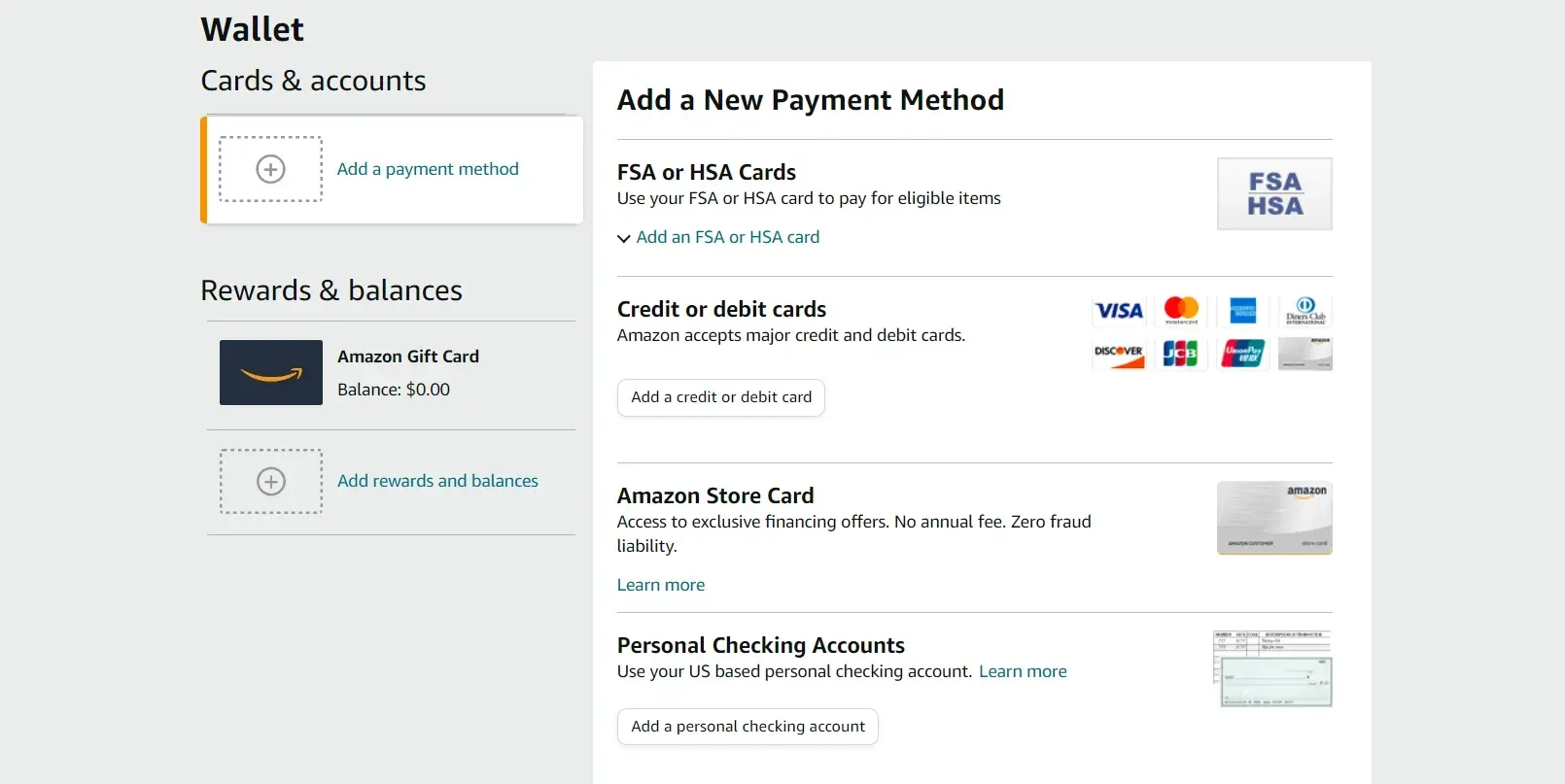
- Navigate to Your Payments: Select the "Your Payments" link from the dropdown menu. This page serves as your central repository for all payment instruments.
- Add a Payment Method: Click the "Add a payment method" link, usually represented by a plus sign (+) or a button labeled "Add a card."
- Enter Card Information: A secure pop-up window will appear. Input your credit card number, cardholder name, and expiration date accurately.
- Verify the Billing Address: You will be prompted to select an existing address or add a new billing address that corresponds to the credit card. This step is critical for AVS (Address Verification System) checks performed by your bank.
- Confirm: Once entered, click "Add your card." Amazon may perform a temporary authorization hold to verify the card's validity, which will disappear from your statement within a few business days.
Step-by-Step: Adding a Credit Card via the Amazon Mobile App
The mobile app process is streamlined for convenience but mirrors the security requirements of the desktop version.
- Open the App: Ensure you are using the official Amazon Shopping app on your iOS or Android device.
- Open Account Settings: Tap the user profile icon (the silhouette at the bottom menu) and then tap "Your Account."
- Find Payment Options: Scroll down to the "Payments and subscriptions" section and tap "Your Payments."
- Initiate Addition: Tap the "Add" button near the "Wallet" section.
- Input Data: You may be given the option to scan your card using the device camera. If you prefer manual entry, type the details carefully.
- Review and Save: Verify the address selection and tap "Add to your wallet."
Comparison of Payment Management Methods
When managing your financial data on Amazon, understanding the distinction between different card types and management methods can help you avoid common friction points.
| Feature | Credit Card | Debit/Prepaid Card | Amazon Store Card |
|---|---|---|---|
| Verification | AVS & CVV Required | AVS & CVV Required | Managed via Synchrony |
| Default Setting | Fully Customizable | Fully Customizable | Optional for Amazon Purchases |
| Auto-Renewal | Supported | Supported | Supported |
| Security Risk | Standard | Higher (Direct bank access) | Limited to Amazon |
Security Measures and Fraud Prevention
Amazon employs industry-standard security protocols to protect your financial data. This includes Transport Layer Security (TLS) for data in transit and hardware-based encryption for data at rest. However, as a user, you should maintain proactive security habits:
- Avoid Public Wi-Fi: Never add or update sensitive financial information while connected to unsecured public internet hotspots.
- Monitor Statements: Review your credit card statements regularly for any unauthorized "Amazon" charges that do not correlate with your purchase history.
- Remove Old Cards: If a card has expired or you no longer use it, navigate to "Your Payments" and click "Remove" to delete the card from your digital wallet. This minimizes the risk of someone using an old, forgotten account.
- Report Phishing: Amazon will never email you asking for your full credit card number or login credentials to "verify" an account. If you receive such communication, report it immediately to Amazon’s spoofing department.
Troubleshooting Common Issues
If you encounter an error when adding a card, consider the following common causes:
- Mismatched Billing Address: If your bank’s address format slightly differs from how you entered it (e.g., "St." versus "Street"), the transaction may fail due to a verification mismatch.
- Bank Security Blocks: Your financial institution may flag a "new" charge from Amazon as suspicious if you haven't used the site recently. Contact your bank to authorize the transaction.
- Expired Card: Ensure the card you are adding has not reached its expiration date, as Amazon’s system will automatically reject it.
- Browser/App Cache: Sometimes, corrupted cache data causes submission buttons to become unresponsive. Clear your browser cookies or restart the Amazon app and try again.
Frequently Asked Questions
Can I use a credit card that belongs to someone else on my account? Yes, but you must ensure you have the cardholder’s explicit permission. Amazon does not restrict the name on the credit card relative to the account holder name, provided the billing address matches the information registered with the financial institution.
Why does Amazon charge a small amount when I add a card? This is known as a "test authorization" or "pending hold." It is a temporary hold, usually for $0.00 or $1.00, meant to verify that the card is active and the billing details are accurate. It is not an actual charge and will disappear automatically.
How do I make a specific card my default payment? Within the "Your Payments" page, find the card you wish to use as your default. Click on it to expand the details, then look for the "Set as default" button. Once clicked, this card will automatically be selected for all future 1-Click purchases and recurring subscriptions.
What happens to my payment methods if my Amazon account is hacked? If you suspect your account is compromised, change your password immediately and enable two-step verification. Additionally, visit "Your Payments" to see if any new cards were added without your authorization and remove them immediately. Contact your bank to lock or replace the cards stored in the compromised account.
Is it safe to store my credit card on Amazon? Amazon is considered a secure platform that uses robust encryption. However, no digital storage method is 100% immune to risk. You should weigh the convenience of saved payment methods against your personal security preferences and ensure you have strong, unique passwords for your Amazon account.
Final Recommendation for Account Management
For the highest level of security and convenience, I recommend periodically auditing your "Your Payments" page—at least once every six months. Remove any cards you no longer use, ensure your default payment method is correct, and confirm that all addresses associated with your cards are current. If you frequently make large purchases, ensure your credit card issuer has updated contact information to prevent them from blocking legitimate high-value transactions on the Amazon platform.