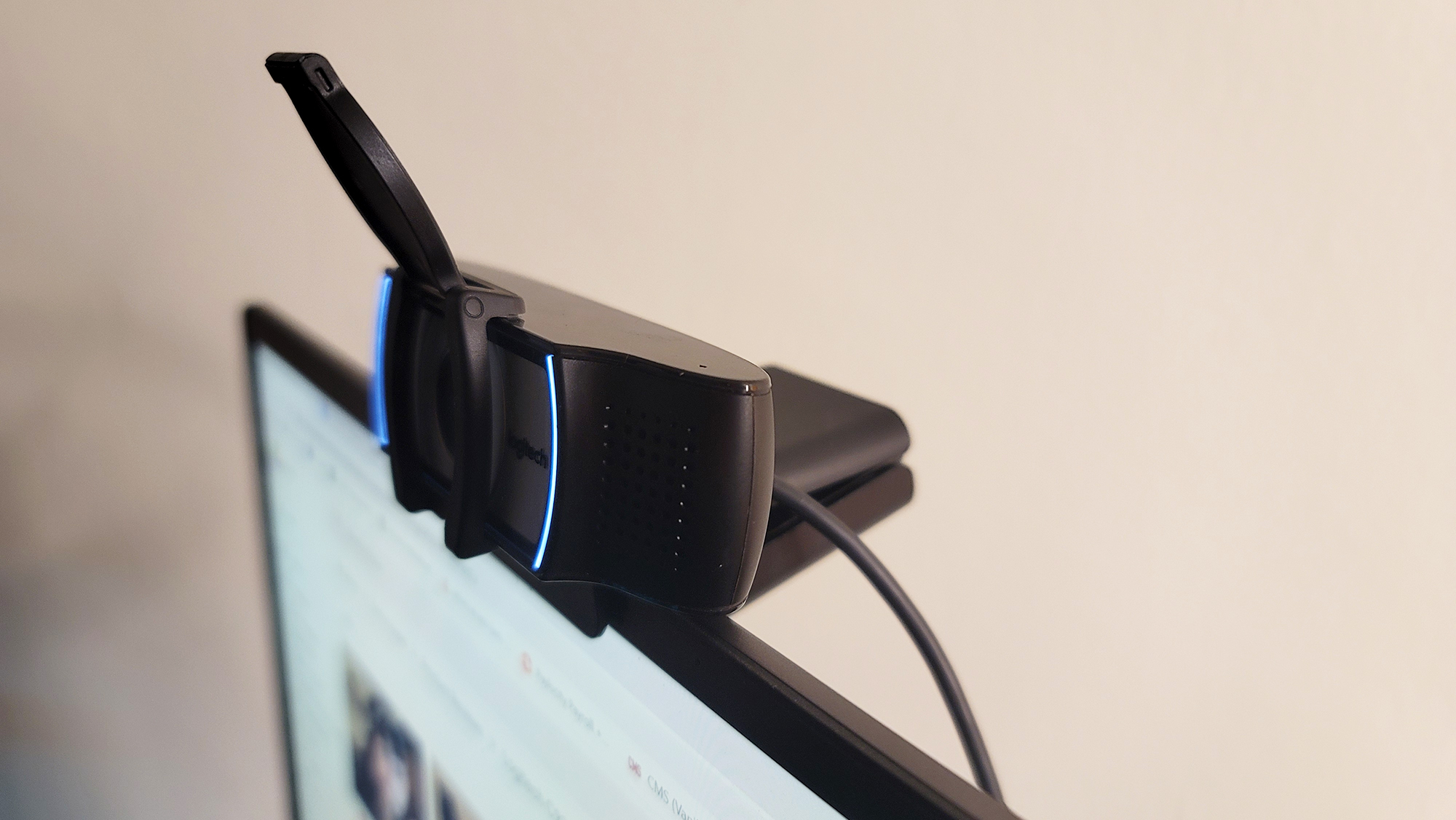
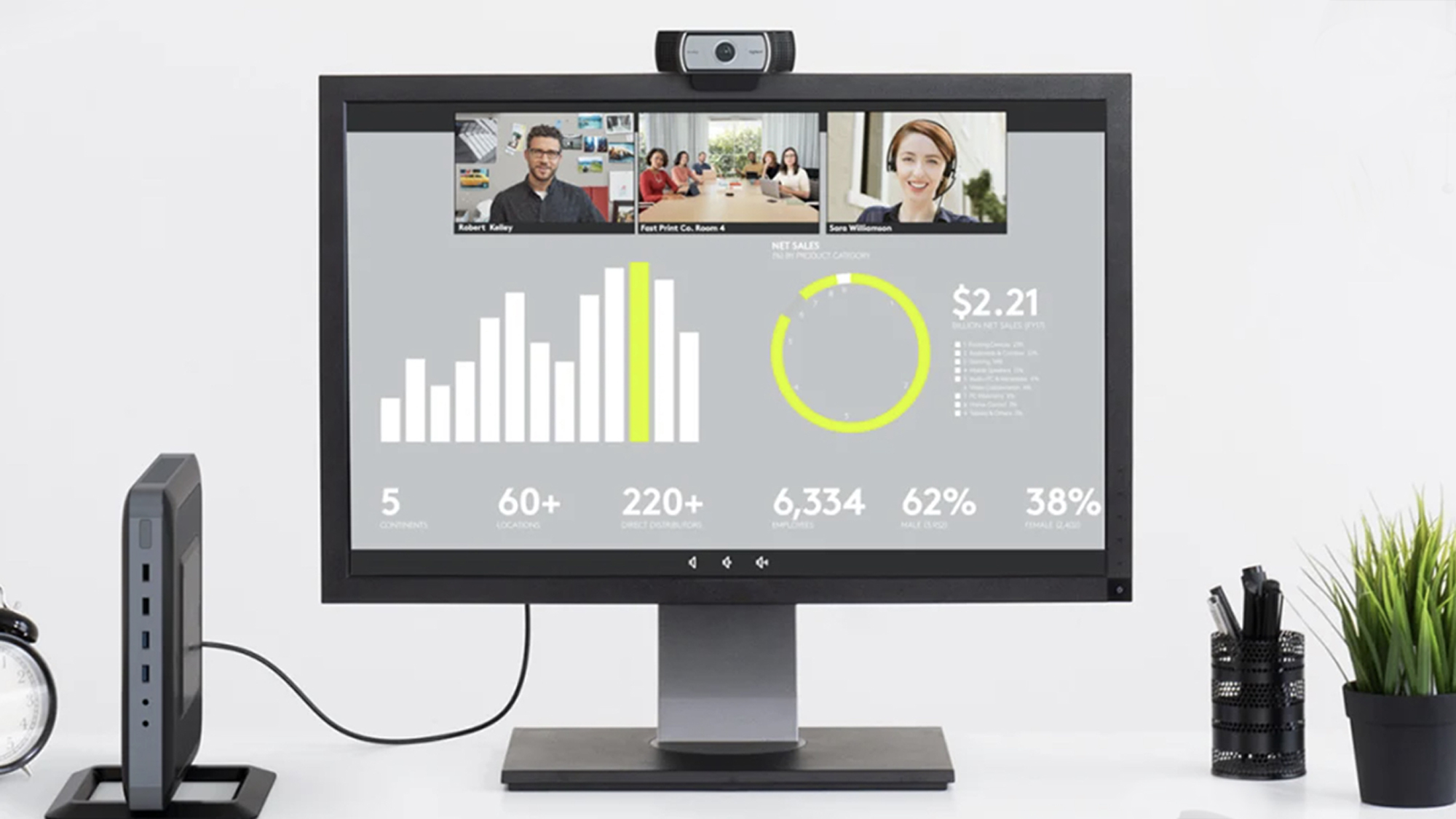
The Logitech C930e driver issue typically manifests as a failure of the operating system to recognize the camera, resulting in a black screen, "device not found" errors, or the camera defaulting to an inferior internal microphone or sensor. This problem is usually resolved by performing a clean reinstallation of the Logitech drivers, checking USB power delivery, or reconciling conflicts with modern privacy permission settings.
Understanding the Logitech C930e Architecture
The Logitech C930e is a professional-grade business webcam designed for high-definition 1080p video conferencing. Unlike entry-level consumer webcams, the C930e relies on specialized drivers and H.264 UVC (USB Video Class) encoding to offload processing tasks from the host computer’s CPU. This technical architecture is the root cause of many driver-related conflicts; because the camera carries the heavy lifting of video compression, any interruption in the communication protocol between the USB controller and the Windows or macOS driver stack can cause the device to hang or drop the connection entirely.
When the OS identifies the C930e, it loads specific firmware drivers provided by Logitech to unlock features such as digital pan, tilt, and zoom (PTZ). If these files become corrupted or are overwritten by a generic "USB Video Device" driver during a system update, the advanced features fail, and the camera may cease to stream video entirely.
Prerequisites for Stable Operation
Before assuming the hardware has reached its end of life, verify that your environment meets the strict requirements of the C930e:
- USB Port Capability: The C930e is sensitive to power fluctuations. Always plug the device directly into a USB 2.0 or 3.0 port on the motherboard’s rear I/O panel. Avoid using passive USB hubs, as these often fail to provide the consistent 5V/500mA power required for the onboard H.264 processor to function under load.
- Operating System Permissions: Since 2022, Windows and macOS have implemented stricter privacy controls regarding camera access. Even with the correct drivers, the device will remain dark if the application requesting the stream—such as Microsoft Teams or Zoom—lacks the requisite permissions in the OS settings.
- Cable Integrity: The C930e features a fixed USB cable. Because this cable is not replaceable, physical wear at the connector strain relief point often mimics a driver issue. If the device disconnects when moved, the problem is physical, not software-based.
Systematic Troubleshooting Steps
If your computer detects the camera but displays no video or reports a "Driver Error," follow these steps to isolate the fault.
1. The Clean Driver Reinstall
Do not simply attempt to "Update" the driver through Device Manager; this often pulls the same corrupted cache file.
- Open Device Manager (Windows) or System Information (macOS).
- Locate the Logitech C930e under "Cameras" or "Imaging Devices."
- Right-click and select Uninstall Device. Crucially, check the box that says "Attempt to remove the driver for this device."
- Unplug the camera, restart your computer, and plug the camera into a different, primary USB port. Allow the OS to pull a fresh configuration from its driver store.
2. Resolving H.264 Encoder Conflicts
The C930e is designed to use hardware encoding. If you have other video software running (such as OBS Studio, background streaming tools, or conflicting virtual camera software), those programs may be hogging the H.264 stream. Close all background applications that might be attempting to access the camera stream simultaneously.
3. Verifying Firmware Status
While the C930e does not require the modern Logi Tune software for basic operation, older units may benefit from firmware updates that address compatibility with newer USB controller chipsets. If your C930e is not being recognized at all, check the official Logitech Support page for the "Logitech Webcam Firmware Tool" to see if your specific hardware ID is eligible for a patch.
Comparative Troubleshooting Matrix
| Issue Symptom | Likely Cause | Primary Fix |
|---|---|---|
| Black screen in apps | Privacy permissions/Encoder conflict | Reset Privacy Settings / Close apps |
| "USB Device not recognized" | Power delivery / Port failure | Move to rear USB port / Bypass hub |
| Camera disconnects randomly | Cable strain / Power surge | Inspect cable / Change USB port |
| Only 720p resolution available | Generic Windows driver installed | Manual driver install via support page |
Managing Privacy and Security Permissions
In 2026, most driver "failures" are actually security blocks. If you have updated your OS recently, the security framework may have revoked the permission for desktop applications to access the webcam.
- On Windows: Go to Settings > Privacy & Security > Camera. Ensure "Let desktop apps access your camera" is toggled to ON.
- On macOS: Go to System Settings > Privacy & Security > Camera. Ensure your conferencing applications are explicitly allowed to use the webcam.
If the driver remains stubborn, you may need to clear the Windows "Driver Store." This is an advanced step involving the command line. Open Command Prompt as an Administrator and use pnputil /enum-drivers to identify the Logitech INF files, then use pnputil /delete-driver /uninstall to strip the system of old, conflicting driver remnants.
Frequently Asked Questions
Why does my Logitech C930e show up as "USB Video Device" instead of its proper name? This occurs when the operating system uses a generic UVC driver rather than the Logitech-specific driver. While the camera will function, you lose access to specialized features like digital zoom. To fix this, manually uninstall the generic device in Device Manager and reinstall the software from the Logitech support site.
Does the C930e require the Logi Tune software to work? No. The camera is a plug-and-play UVC device. However, Logi Tune is recommended if you wish to adjust color, contrast, or digital pan/tilt settings. If you are troubleshooting, uninstall Logi Tune temporarily to see if it is the source of the software conflict.
Can a faulty USB hub cause a driver error for this camera? Yes. Passive USB hubs do not provide sufficient power for the C930e’s H.264 processing. This often causes the device to drop out during high-intensity usage, which the computer interprets as a driver error or a device crash. Always use a powered hub or a direct connection.
Will a Windows 10 driver work on Windows 11? Yes. Logitech drivers for the C930e are generally backward compatible across Windows versions. If you are experiencing issues on Windows 11, it is almost certainly a conflict with modern system-wide privacy settings rather than an actual driver incompatibility.
How do I know if the camera hardware itself is dead? Plug the camera into a completely different computer. If the device is not detected by a secondary machine and shows no activity (no power LED), the internal controller board of the webcam has likely failed.
Expert Recommendation
If you have performed a clean driver installation, moved the device to a direct motherboard USB port, and confirmed that privacy settings are correct, but the camera still fails to initialize, focus on the cable. The C930e is a legacy product in terms of its manufacturing lifecycle, and the fixed USB cables are susceptible to internal wire fatigue. If the hardware is outside of its warranty period and the cable is damaged, professional repair is rarely cost-effective compared to replacing the unit. Before giving up, however, always test the camera on a different computer; if it works elsewhere, the issue is strictly a localized OS conflict on your primary machine, which can often be solved by creating a new User Profile to bypass corrupted Registry settings.