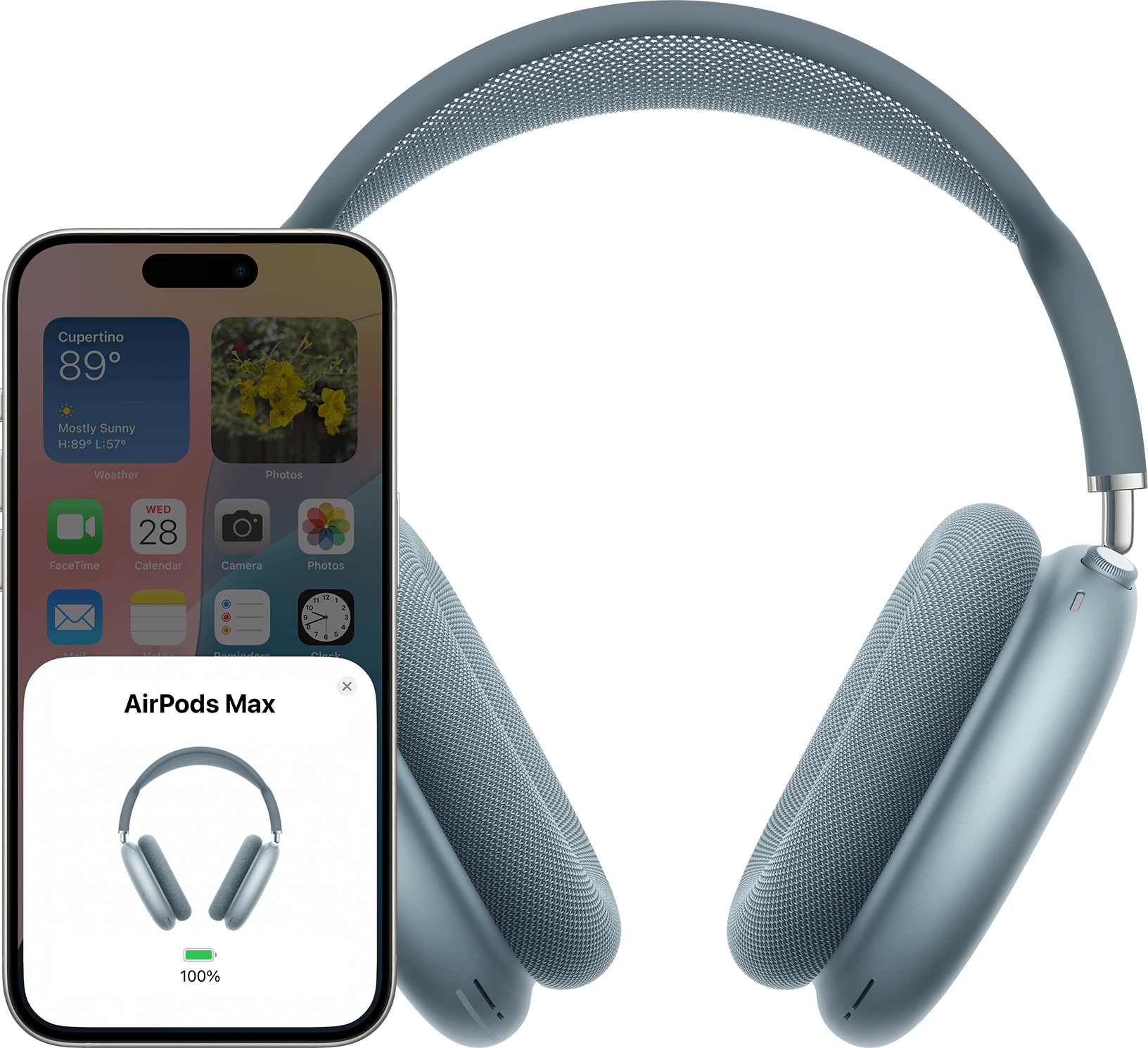
To use Apple AirPods Max with a wired connection, you must use Apple's official bi-directional audio cable designed for your specific model version, as standard third-party cables and passive 3.5mm adapters will not transmit audio. A wired connection eliminates Bluetooth latency for audio editing and gaming while enabling compatibility with airline inflight systems and analog gear, but the headphones still require active battery power to function.
Hardware Requirements: Lightning vs. USB-C Models
Apple AirPods Max do not feature a traditional 3.5mm auxiliary input port. Instead, all audio processing and physical connectivity flow through a single proprietary digital port on the right ear cup. Depending on whether you own the original Lightning-equipped model (released in 2020) or the updated USB-C model (introduced in late 2024), your required cables and hardware adapters differ significantly.
Lightning-Equipped AirPods Max
The original AirPods Max feature a Lightning port. To establish an analog-to-digital wired connection, you must use the official Apple Lightning to 3.5 mm Audio Cable. Generic Lightning-to-AUX cables found on common retail sites almost universally fail to work with AirPods Max.
The reason standard cables fail comes down to signal directionality and digital conversion:
- Bi-directional conversion: Most third-party Lightning-to-3.5mm cables are strictly unidirectional, designed to output audio from an iPhone's Lightning port to an auxiliary input (such as a car stereo).
- Analog-to-Digital Converter (ADC): The AirPods Max require an incoming analog signal to be converted into a digital signal that the headphone's internal System-in-Package (SiP) chip can process. Apple’s official cable contains a custom inline ADC chip capable of converting an incoming 3.5mm analog signal into a 24-bit/48 kHz digital stream delivered to the Lightning port.
If you plug a generic 3.5mm male-to-male aux cable into a third-party Lightning adapter attached to the headphones, no sound will pass through because the adapter lacks the bi-directional ADC required to encode analog audio into a digital format for the headphones.
USB-C-Equipped AirPods Max
The updated AirPods Max replace the Lightning port with a universal USB-C port. Connecting the USB-C model via a wire presents two distinct connection scenarios:
- Analog 3.5mm Sources: Connecting the USB-C AirPods Max to a standard headphone jack (such as an audio interface, laptop headphone jack, or airplane seat) requires a bi-directional USB-C to 3.5mm Audio Cable. Like its Lightning predecessor, this cable contains an embedded ADC that converts the analog source into a digital USB audio stream.
- Direct USB-C Digital Audio: Connecting directly to a USB-C host device (like a Mac, iPad, or PC) using a standard USB-C data cable allows the headphones to receive a pure digital audio stream. In this configuration, the digital audio bypasses external analog conversion completely, allowing direct digital processing through the headphone's internal audio architecture.
Step-by-Step Guide: Connecting AirPods Max to Wired Audio Sources
Connecting your AirPods Max to external analog equipment, digital workstations, or in-flight entertainment systems requires selecting the appropriate adapter chain for your host hardware.
- Analog Source (PC, Flight, Amp)
- 3.5mm connection
- Apple Bi-Directional Cable (Contains Analog-to-Digital Converter / ADC Chip)
- USB-C / Lightning connection
- AirPods Max (Requires Active Battery Power)
1. Connecting to Standard 3.5mm Auxiliary Outlets
Whether plugging into an airline seat, a Nintendo Switch, an Xbox controller, a PlayStation DualSense controller, or a legacy PC headphone jack, follow these steps:
- Ensure your AirPods Max have at least a minimal battery charge (they cannot operate unpowered).
- Insert the 3.5mm male end of Apple's bi-directional audio cable into the output jack of the audio source device.
- Insert the Lightning or USB-C connector into the port located on the bottom of the right ear cup of the AirPods Max.
- Put on the headphones. The headphones automatically detect the physical audio signal and switch from Bluetooth wireless mode to wired line-in audio.
2. Connecting to Studio Audio Interfaces (6.35mm / 1/4-Inch Jacks)
Professional audio interfaces (such as a Focusrite Scarlett or Universal Audio Apollo), headphone amplifiers, and AV receivers use 6.35mm (1/4-inch) stereo output jacks.
- Purchase a standard 1/4-inch male to 3.5mm female stereo adapter (TRS).
- Plug the 1/4-inch adapter into your audio interface's headphone monitor port.
- Plug the 3.5mm end of your Apple bi-directional cable into the adapter, then attach the digital end to your AirPods Max.
Caution: Ensure the 1/4-inch adapter is a stereo (TRS - Tip/Ring/Sleeve) adapter rather than a mono (TS - Tip/Sleeve) adapter. A mono adapter will drop one channel of audio, resulting in sound playing exclusively through the left or right ear cup.
3. Connecting to Modern Mobile Devices and Laptops
If your source device lacks a 3.5mm jack (such as modern iPhones or iPads) and you want to establish a wired connection:
- For Lightning AirPods Max: Connect Apple's Lightning-to-3.5mm cable to a 3.5mm-to-USB-C or 3.5mm-to-Lightning adapter connected to your host device. While complex, this double-conversion chain works because the signal logic remains coherent.
- For USB-C AirPods Max: Connect directly using a high-quality USB-C to USB-C cable capable of data transfer to establish a direct digital audio link without secondary analog conversion.
Signal Chain & Audio Performance: Sound Quality and Latency
Using AirPods Max over a wire fundamentally alters how audio data travels from your source file to your ears. Understanding this signal chain helps clarify why wired audio behaves differently on AirPods Max compared to traditional audiophile headphones.
Analog Wired Signal Chain:
- Analog Source
- 3.5mm Audio Output
- Apple Bi-Directional Cable (Integrated ADC converts Analog to 24-bit/48kHz Digital)
- Lightning / USB-C Digital Output
- AirPods Max H1/H2 Chip (Applies Active EQ, Spatial Audio & ANC DSP)
- Internal Digital Stream
- Internal DAC & Amplifiers
- Analog Current
- Dynamic Speaker Drivers (Sound Delivered to Ear)
The Double-Conversion Loop (ADC to DAC)
Traditional high-end wired headphones operate passively. An analog voltage signal travels down an copper wire directly into the headphone's voice coils, vibrating the driver diaphragm to produce sound.
AirPods Max cannot bypass their internal digital signal processing (DSP). When you stream analog audio through Apple's bi-directional 3.5mm cable:
- Source Output: Your source device's internal Digital-to-Analog Converter (DAC) translates digital audio into an analog signal exiting the 3.5mm jack.
- Cable Conversion (ADC): The chip inside Apple's bi-directional cable samples that incoming analog signal and converts it back into a digital stream at 24-bit / 48 kHz.
- Headphone DSP: The H1 (or H2) chips inside the AirPods Max receive this 48 kHz digital stream, applying Active EQ, Active Noise Cancellation (ANC), or Transparency mode processing.
- Headphone Conversion (DAC): The internal DAC inside the AirPods Max converts the processed digital signal back into an analog electrical current.
- Amplification: Internal amplifiers drive the custom 40mm dynamic drivers to create physical acoustic sound.
Because of this Analog $\rightarrow$ Digital $\rightarrow$ Digital Signal Processing $\rightarrow$ Analog pipeline, AirPods Max never operate as a pure analog transducer.
Lossless Audio Compatibility
According to official technical documentation from Apple Support on Lossless Audio, AirPods Max connected via the Lightning-to-3.5mm audio cable deliver exceptional audio fidelity, but the connection is not completely lossless.
Because the cable includes an analog-to-digital conversion step, the signal undergoes a re-sampling process capped at 24-bit/48 kHz. While this exceeds CD-quality audio (16-bit/44.1 kHz) and provides audibly pristine playback, audiophiles seeking bit-perfect High-Res Lossless (up to 24-bit/192 kHz) will find that the physical architecture of the Lightning AirPods Max caps the upper boundary at 48 kHz.
Conversely, the USB-C AirPods Max connected via a direct digital USB-C link eliminate the intermediate analog conversion stage, offering a full digital signal path directly to the internal processor.
Latency Reduction for Music Production and Gaming
The most practical advantage of wiring AirPods Max is the complete elimination of wireless transmission latency:
- Bluetooth Latency: Bluetooth audio streaming typically introduces between 80 to 200 milliseconds of latency due to buffer sizes, codec encoding (AAC), and wireless packet transmission. This delay makes Bluetooth unsuitable for live musical performance, digital audio workstation (DAW) monitoring in software like Logic Pro or Ableton Live, and competitive gaming.
- Wired Latency: Plugging in via Apple’s bi-directional cable reduces signal transmission latency down to imperceptible hardware levels (under 5 ms). This makes wired AirPods Max viable for editing video, tracking vocals or instruments, and playing fast-paced games where visual-to-audio sync is essential.
Critical Operational Limitations
While connecting AirPods Max via a cable solves latency and compatibility issues, it introduces operational trade-offs that surprise many users.
1. Active Power Dependency (No Passive Mode)
AirPods Max cannot function passively. Traditional wired studio headphones require no internal battery because the electrical current driving the speakers comes directly from the source device's headphone amplifier.
Because AirPods Max rely on active DSP electronics, amplifiers, and microprocessors to render sound, the internal battery must be charged. If your AirPods Max battery reaches 0%, the headphones will power off completely and play no sound—even if connected via Apple’s wired audio cable to a high-powered external amplifier.
2. Microphone Inoperability Over 3.5mm
When using the Lightning or USB-C to 3.5mm bi-directional cable, the built-in beamforming microphones are completely disabled. The 3.5mm plug on Apple’s bi-directional cable is a 3-pole (TRS) connector, which carries only stereo left and right audio channels. It does not contain a fourth conductor ring (TRRS) for microphone signal transmission.
If you connect AirPods Max to a PlayStation DualSense controller, Xbox controller, PC, or Mac via the 3.5mm cable:
- You will hear high-quality stereo game and system audio.
- You cannot use the AirPods Max built-in microphones for party chat, Discord, or phone calls.
- Workaround: You must select a separate dedicated microphone (such as your laptop's internal mic, a USB desktop microphone, or an inline cable boom mic) as your voice input device in your software settings.
3. Media Control Button Behavior
When connected via a 3.5mm wire, the physical Digital Crown on the AirPods Max continues to control hardware-level volume amplification directly on the ear cup. However, track navigation functions (such as double-clicking to skip a track or triple-clicking to rewind) may not transmit back to non-Apple source devices over the analog link. Active Noise Cancellation and Transparency modes remain fully operable via the noise control button on the top of the ear cup.
Model Comparison: Wired Performance & Specifications
The following table summarizes the functional differences, technical limits, and cable requirements across both generations of Apple AirPods Max when operated in a wired configuration.
| Feature / Capability | Lightning Model (2020) | USB-C Model (2024) |
|---|---|---|
| Physical Headphone Port | Lightning | USB-C |
| Required 3.5mm Cable | Apple Lightning to 3.5mm Audio Cable | Apple USB-C to 3.5mm Audio Cable |
| Third-Party 3.5mm Cable Support | Unsupported (Requires Apple ADC Chip) | Unsupported for 3.5mm Analog Source |
| Direct Digital Audio Input | Unsupported (Charging only via Lightning) | Supported (via USB-C to USB-C connection) |
| Maximum Sample Rate (Wired) | 24-bit / 48 kHz | 24-bit / 48 kHz (3.5mm) / Up to 24-bit/48kHz+ (Direct USB-C) |
| Bit-Perfect Lossless Audio | No (Re-digitized via cable ADC) | Yes (via direct USB-C digital link) |
| Passive Playback (Dead Battery) | No (Requires charged battery) | No (Requires charged battery) |
| Microphone Input Over Cable | No (Audio Output Only) | No (Audio Output Only over 3.5mm TRS) |
| Wireless Latency Elimination | Yes (Imperceptible wired latency) | Yes (Imperceptible wired latency) |
| Hardware Volume Control | Active (Digital Crown) | Active (Digital Crown) |
Troubleshooting Common Wired Audio Issues
If you have connected your AirPods Max using a cable and encounter problems, consult these diagnostic steps to resolve the issue.
No Sound Is Playing Through the Headphones
- Verify Cable Authenticity: Ensure you are using an official Apple bi-directional audio cable. Third-party Lightning-to-3.5mm cables designed for charging or basic phone audio output lack the bi-directional ADC required to feed audio into the headphones.
- Check Battery Charge Status: Press the noise control button on the right ear cup. If the LED flashes amber or does not illuminate, charge the headphones for at least 10 minutes before testing again.
- Firmly Seat Connections: Ensure both the 3.5mm plug and the Lightning/USB-C connector are fully inserted into their respective ports. Phone cases or recessed audio jacks on desktop PCs often prevent 3.5mm plugs from seating completely.
- Check Output Volume & Source Settings: Confirm that your source device (PC, Mac, or audio interface) has its output volume turned up and that the audio output routing is set to "Headphones" or "Line Out."
Audio Plays in Mono or Out of One Ear
- Inspect Adapters: If using a 1/4-inch studio adapter, verify that it is a stereo TRS adapter (marked by two black rings on the metal plug) rather than a mono TS adapter (marked by a single black ring).
- Clean Port Debris: Carefully check the Lightning or USB-C port on your AirPods Max for lint or debris build-up using compressed air or a wooden toothpick. Foreign matter can block pin contact, causing channel dropouts.
Static, Hiss, or Buzzing Noise
- Ground Loop Interference: If your host source (like a laptop or audio interface) is plugged into an ungrounded wall outlet, electrical ground noise can travel down the 3.5mm shield. Unplug your laptop's power adapter to test if running on battery clears the static.
- Adjust Gain Staging: Set your computer or host device output volume to approximately 80–90%, then use the Digital Crown on the AirPods Max to adjust your final listening level. Setting your host source volume too low while maxing out the headphone's internal amp can amplify the signal noise floor.
Frequently Asked Questions
Why can't I use a cheap third-party Lightning-to-AUX cable with AirPods Max?
Third-party Lightning-to-3.5mm cables are almost exclusively unidirectional, designed to send digital audio out of an iPhone to an analog speaker. AirPods Max require a bi-directional cable containing a specialized Analog-to-Digital Converter (ADC) chip to convert analog audio from the source into a digital format the headphone processor can accept. Apple's official cable includes this necessary hardware chip, whereas cheap aftermarket cables do not.
Can I use AirPods Max for gaming party chat on PlayStation or Xbox when wired?
You can hear game and chat audio perfectly when plugging the 3.5mm cable into a PlayStation DualSense or Xbox controller, but you cannot use the built-in microphone on the AirPods Max for voice transmission. The official cable uses a 3-pole (TRS) connector that does not carry microphone signals. To speak with teammates, you must use a separate standalone USB microphone or your console's controller-integrated microphone.
Do AirPods Max work wired if the battery is completely dead?
No. AirPods Max feature an active audio architecture that relies on internal processing chips, dynamic equalization, and internal amplifiers. Even when receiving audio through a physical wire, the internal electronics require battery power. If the battery dies, the headphones shut down completely and will not pass audio until recharged.
Does connecting AirPods Max wired enable true Lossless Audio on Apple Music?
Connecting the Lightning AirPods Max via Apple's 3.5mm cable allows playback of Apple Music Lossless files up to 24-bit/48 kHz, but the audio undergoes a digital-to-analog and subsequent analog-to-digital re-sampling stage in the cable. It is not a bit-perfect lossless stream, though the degradation is imperceptible to most human ears. The USB-C model connected via a direct USB-C digital data link provides a pure digital connection.
Does Active Noise Cancellation (ANC) work while using AirPods Max with a wire?
Yes. Active Noise Cancellation and Transparency modes remain fully operational when using a wired connection. You can toggle between ANC and Transparency mode by pressing the dedicated noise control button on the top of the right ear cup, provided the headphones have battery power.
Practical Recommendations
To achieve the best possible wired audio experience with Apple AirPods Max, tailor your setup to your specific use case:
- For Audio Producers and Video Editors: Purchase the official Apple Bi-Directional Audio Cable corresponding to your model. Wire the headphones into your audio interface using a stereo TRS 1/4-inch adapter to eliminate Bluetooth latency during recording and tracking sessions.
- For Gamers: Connect the official 3.5mm cable into your console controller for zero-latency game audio, but set your console's voice input setting to use the controller's built-in microphone or an external desk mic.
- For Frequent Travelers: Pack your official bi-directional audio cable alongside a two-prong airline adapter in your carry-on bag to connect seamlessly to inflight seatback entertainment systems without relying on third-party Bluetooth transmitters.
- For Power Users: Keep your AirPods Max charged above 20% prior to extended wired sessions, as physical cable connections will not charge the battery unless connected to a host through a powered USB-C digital stream.