Adding Google Drive to your PC allows you to integrate your cloud storage directly into your operating system, enabling you to manage, sync, and access files stored in the cloud as if they were located on your local hard drive. By installing the official Google Drive for desktop application, you create a virtual drive that mirrors your cloud-based folders, facilitating offline access, automatic backups, and efficient file collaboration.
Understanding Google Drive for Desktop
Google Drive for desktop is the official utility provided by Google to bridge the gap between your local Windows environment and your cloud storage. Once installed, it maps a virtual drive—typically assigned the G: letter—within your File Explorer. This environment functions as a transparent layer; when you move a file into this drive, the application automatically uploads it to the Google cloud. Conversely, changes made on your PC are pushed to the cloud, ensuring that your data remains consistent across all devices, including mobile phones and tablets.
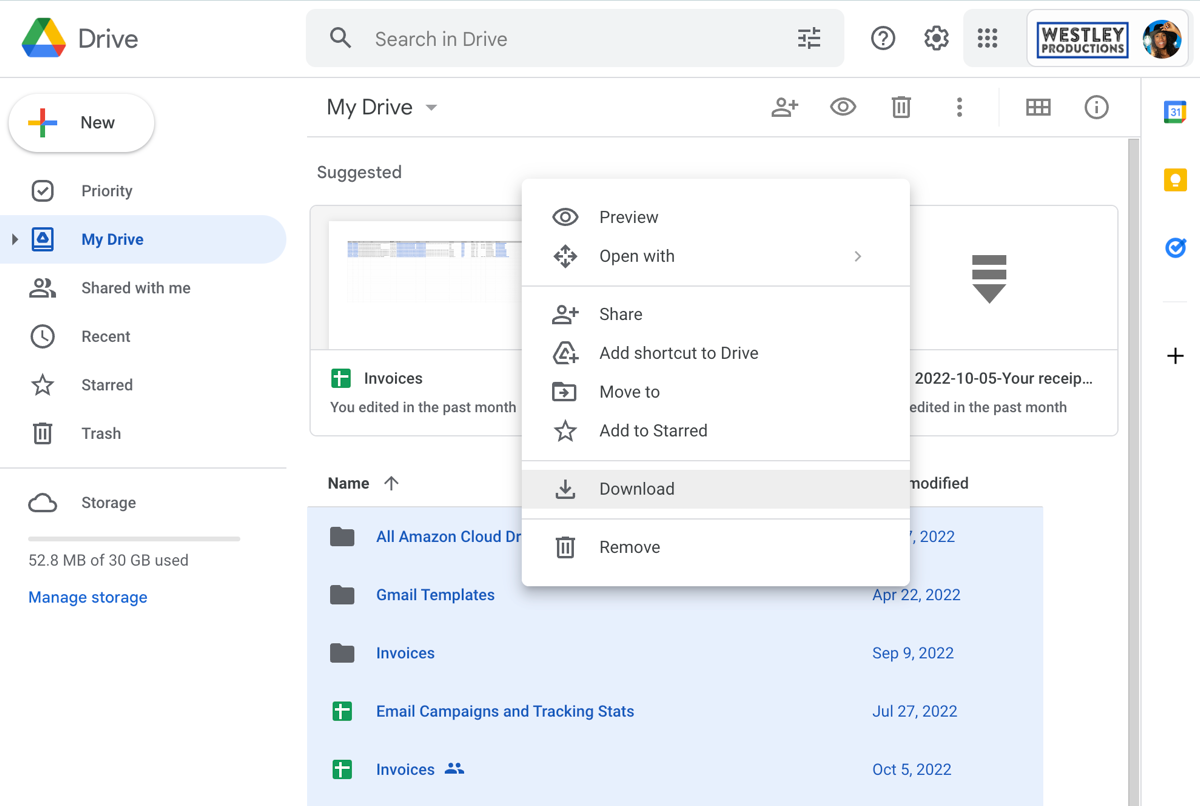
The primary benefit of this integration is the ability to work with files without the constant need for a web browser. Instead of manually uploading or downloading documents through the web interface, you utilize the native file management capabilities of your operating system. This is particularly advantageous for users dealing with large file structures or those who require frequent access to shared documents for collaborative work.
System Prerequisites and Requirements
Before proceeding with the installation, verify that your machine meets the basic technical requirements to ensure stable operation. As of 2026, Google Drive for desktop is compatible with all modern versions of the Windows operating system, including Windows 10 and Windows 11.
Technical Requirements
- Operating System: Windows 10 (64-bit) or Windows 11.
- Account: A valid Google Account (Personal, Workspace, or Education).
- Disk Space: Sufficient local disk space to handle the application metadata and any files selected for "Offline" access.
- Internet Connection: A stable broadband connection is required for the initial synchronization and ongoing background updates.
- Permissions: Administrative access to the PC is typically required to install the software package.
It is critical to note that while the application is lightweight, you must have enough free space on your system partition to store the application binaries. If you intend to use the "Available Offline" feature heavily, ensure your primary drive has adequate headroom beyond your typical system requirements.
Step-by-Step Installation Process
Installing Google Drive is a straightforward process, provided you use the official source. Always ensure you are downloading the installer from the verified Google website to avoid security risks associated with third-party mirrors.
Downloading the Software
- Navigate to the official Google Drive download page via your preferred web browser.
- Click the "Download Drive for desktop" button.
- Once the
GoogleDriveSetup.exefile finishes downloading, locate it in your Downloads folder and run the installer.
Configuration and Signing In
- Accept the installation prompts and allow the application to install its necessary components.
- Once installed, the Google Drive icon will appear in your system tray (the area near your clock).
- Click the icon to launch the sign-in prompt. A browser window will open, directing you to log in with your Google credentials.
- After authentication, the application will initialize and create the Google Drive virtual disk in your File Explorer.
Managing Sync Preferences and File Access
After installation, you must decide how the application handles your data. The software offers two primary modes: "Stream files" and "Mirror files." Understanding the distinction is essential for optimizing storage and performance.
Stream Files vs. Mirror Files
The "Stream files" option is the default setting. It stores your files primarily in the cloud, only downloading them to your local PC when you open them. This is ideal for users with limited local storage, as it allows you to see all your files in the file system without occupying significant disk space.
"Mirror files," on the other hand, creates a complete copy of your Google Drive contents on your local PC. This is recommended if you frequently work in environments with limited or inconsistent internet access, as it ensures that your entire library is available at all times, regardless of your connectivity status.
Customizing Folders
You can further customize your experience by selecting specific folders to sync. Within the Google Drive preferences menu, you can toggle the "Offline access" status for individual files or folders. If you right-click any file within your G: drive in File Explorer, you can select "Offline access" > "Available offline" to force a local copy.
Comparison of Google Drive Management Modes
| Feature | Stream Files | Mirror Files |
|---|---|---|
| Local Storage Usage | Minimal (Files downloaded on-demand) | High (Full library copied locally) |
| Offline Capability | Limited (Only files marked for offline) | Full (Entire drive synced) |
| Performance | Dependent on network speed | Near-instant access |
| Ideal For | Laptops and devices with limited storage | Workstations with ample hard drive space |
Troubleshooting Common Issues
Despite the robust nature of the application, you may occasionally encounter sync errors or connectivity issues.
Resolving Sync Conflicts
If a file cannot be synced due to a conflict (e.g., two people editing the same document simultaneously while offline), the Google Drive icon in your system tray will show an error notification. Click the icon to view the specific error. Usually, Google will create a copy of the file with your changes appended, allowing you to manually merge the data and resolve the discrepancy.
Resetting the Application
If the drive does not appear in your File Explorer, or if the sync status remains permanently "stuck," you can perform a soft reset. Right-click the Google Drive icon in the system tray, click the gear icon (Settings), and choose "Quit." Re-launch the application from your Start Menu. If the issue persists, ensure your Windows firewall or third-party antivirus software is not blocking the application's connection to Google servers.
Frequently Asked Questions
Can I add multiple Google accounts to my PC?
Yes, Google Drive for desktop supports multiple accounts simultaneously. You can add a second account by clicking the account icon in the app's settings menu and selecting "Add another account." Each account will appear as a separate virtual drive or folder structure in your file manager.
Does Google Drive for desktop work with shared drives?
Yes, if you use a Google Workspace account, any Shared Drives you have permissions for will automatically appear in your Google Drive folder. You can manage them in the same way as your personal files, provided your organization's administrators have not restricted desktop sync access.
Is my data secure when syncing to my PC?
Your data is encrypted both in transit and at rest. However, remember that any file synchronized to your local PC resides on your local disk. If your PC is not protected by full-disk encryption, such as BitLocker, anyone with physical access to your device could potentially view your synced files.
What happens if I delete a file from my PC?
If you delete a file from your Google Drive folder on your PC, it will be moved to the Trash in your Google Drive cloud account. It is not permanently deleted immediately; you have a grace period of 30 days to recover files from the cloud Trash folder before they are automatically purged.
Does this replace my need for a web browser?
For standard file management—uploading, downloading, renaming, and moving—the desktop application is significantly more efficient than a browser. However, certain actions, such as managing complex sharing permissions or checking advanced version history, are still best performed through the web interface at drive.google.com.
Recommendation for Optimal Use
To get the most out of adding Google Drive to your PC, we recommend maintaining the "Stream files" setting unless your workflow demands constant offline access. This keeps your local disk clean while providing immediate access to your entire cloud library. Additionally, periodically review your "Offline access" settings to ensure that unnecessary files are not consuming local storage space. By treating your Google Drive folder as a primary workspace rather than a secondary backup location, you can leverage the full power of cloud-integrated file management in your daily productivity routine.