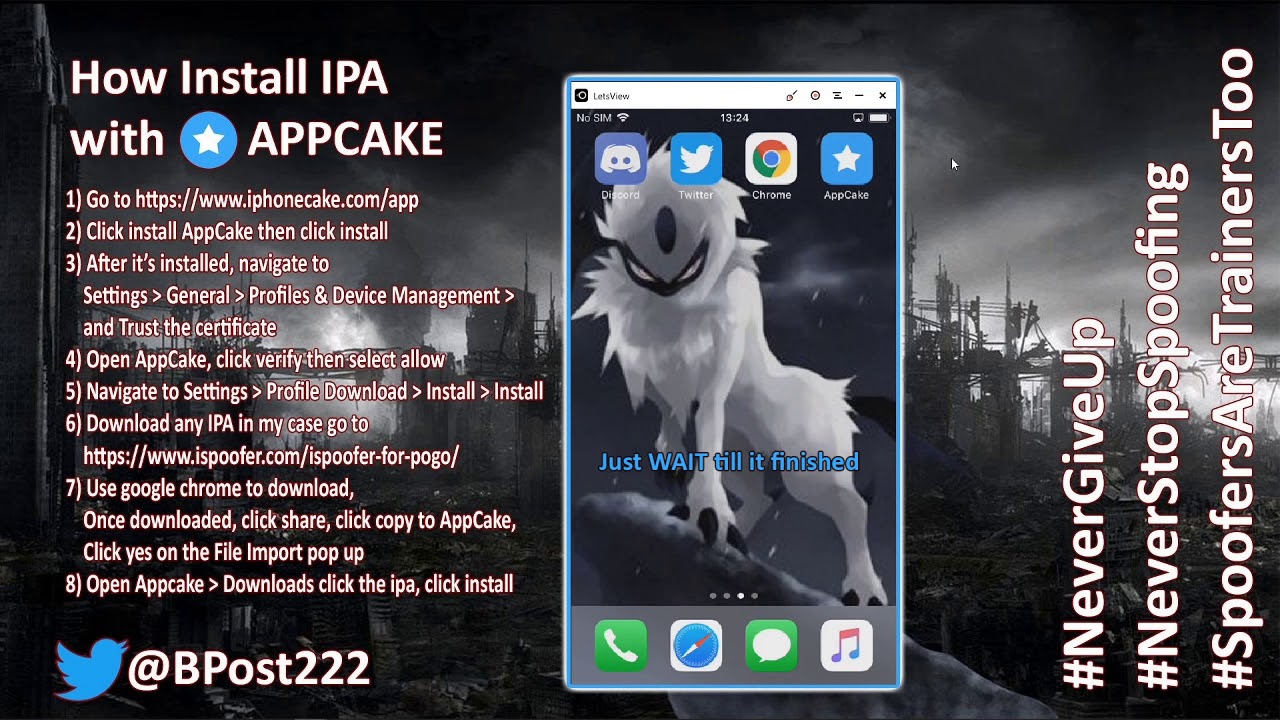
Installing AppCake on an iOS device involves downloading the application directly through Safari using an enterprise provisioning profile, adding the official repository within a jailbreak package manager like Cydia or Sileo, or manually sideloading the IPA file using a computer utility such as Sideloadly. Jailbroken installations require the installation of AppSync Unified to function correctly.
Understanding AppCake and How iOS App Installation Works
AppCake is a third-party application storefront and IPA installer designed for iOS devices. Originally released as a platform for jailbroken iPhones and iPads, AppCake enables users to download, sign, and install iOS application packages (IPA files) directly on their devices. To understand how to install and maintain AppCake, it is essential to understand the underlying mechanisms iOS uses to verify and execute third-party software.
Apple enforces strict code-signing requirements on iOS. Every executable file must be signed with a valid cryptographic certificate issued by Apple before the operating system will run it. Under standard operation, applications are downloaded exclusively through the official App Store, where Apple automatically manages these signatures. Installing software outside the App Store—often referred to as sideloading—requires alternative signing pathways.
AppCake operates across three distinct installation frameworks:
- Jailbroken Environments: The device relies on a patch called AppSync Unified, which disables the iOS kernel's signature validation check for installed apps. This allows AppCake to install and launch any IPA file without requiring valid digital signatures or certificates.
- Enterprise Provisioning Profiles (Non-Jailbroken Web Install): AppCake utilizes Apple Enterprise Developer Certificates. Apple issues these certificates to corporations for internal app distribution, allowing direct web-based installations via Safari without App Store review.
- Personal Developer Sideloading (PC-Based Sideloading): Users sign the AppCake IPA file using their personal Apple ID via desktop software (such as Sideloadly or AltStore), creating a self-signed provisioning profile valid for seven days.
Each installation approach carries distinct technical prerequisites, operational limitations, and stability considerations.
Prerequisites Before Installing AppCake
Before proceeding with the installation of AppCake, complete the following preparation steps to ensure device compatibility and protect personal data.
1. Create a Full Device Backup
Modifying app management profiles or installing third-party certificates can occasionally disrupt system services or cause configuration conflicts. Always back up your iOS device using Finder (macOS Catalina and later), Apple Devices / iTunes (Windows), or iCloud before proceeding.
2. Identify Your iOS Version and Device Hardware
Determine your exact iOS version by navigating to Settings > General > About > iOS Version. Certain installation pipelines—specifically jailbreak-based repos and kernel-level exploits—are bound to specific iOS versions and processor architectures (e.g., A11 vs. A12+ chips).
3. Verify Safari Settings for Direct Downloads
If using the direct web-based profile method, ensure Safari is configured to allow downloads and configuration profile additions:
- Go to Settings > Safari.
- Verify that Block Pop-ups is temporarily toggled off if download prompts fail to appear.
- Ensure Prevent Cross-Site Tracking does not obstruct profile downloading links.
4. Prepare Computer Access (Optional but Recommended)
Direct web installations using Enterprise Profiles are prone to frequent revocations by Apple. Having a Windows PC or Mac available with software like Sideloadly or AltStore installed serves as a reliable fallback if direct downloads fail.
Method 1: Installing AppCake on Non-Jailbroken Devices (Direct Web Profile)
The direct web installation method allows users to install AppCake directly onto an iPhone or iPad without relying on a computer or jailbreaking the operating system. This method depends on active Enterprise Developer Profiles.
Direct Web Install Flow:
- Visit Web Portal
- Download Profile
- Trust Cert
Step 1: Open the Official AppCake Download Portal
- Open the Safari web browser on your iOS device. Third-party browsers such as Chrome or Firefox for iOS cannot initiate system profile installation prompts.
- Navigate to the official AppCake website (
iphonecake.com). Avoid third-party mirror directories, as modified installers may contain injected adware or malicious payloads. - Locate and tap the Install AppCake or Direct Install button appropriate for non-jailbroken devices.
Step 2: Accept the Installation Prompt
- A system pop-up will appear stating that the website is trying to install an application or configuration profile.
- Tap Install to confirm the installation request.
- Exit Safari and return to your device's Home Screen. You will see the AppCake icon installing or loading.
Step 3: Trust the Enterprise Developer Certificate
If you attempt to launch AppCake immediately after downloading, iOS will block execution and display an "Untrusted Enterprise Developer" error message. To resolve this:
- Settings
- General
- VPN & Device Management
- Enterprise App Profile
- Tap "Trust [Developer Name]"
- Enterprise App Profile
- VPN & Device Management
- General
- Open Settings on your iOS device.
- Select General, then scroll down and tap VPN & Device Management (labeled as Profiles & Device Management on older iOS versions).
- Under the Enterprise App section, locate the name of the developer profile associated with AppCake.
- Tap the profile name, then select Trust "[Developer Name]".
- Confirm your choice by tapping Trust again in the confirmation pop-up.
- Return to your Home Screen and open AppCake.
Note: Enterprise certificates are regularly revoked by Apple. If the installation fails to complete or the app displays an "Unable to Verify App" error despite trusting the profile, the active certificate has been revoked. You must wait for the distributors to sign the app with a new certificate or use an alternative installation method.
Method 2: Installing AppCake on Jailbroken Devices (Cydia / Sileo)
For devices running a functional jailbreak (such as checkra1n, unc0ver, Taurine, or Dopamine), installing AppCake through a package manager provides a permanent installation that does not suffer from 7-day expirations or Enterprise Profile revocations.
Step 1: Install AppSync Unified (Essential Prerequisite)
AppCake requires AppSync Unified to bypass iOS signature enforcement when installing downloaded IPA files on jailbroken devices. Attempting to run AppCake on a jailbroken device without AppSync Unified will result in installation failures for all downloaded applications.
- Open your primary package manager (Cydia, Sileo, Zebra, or Installer).
- Go to the Sources or Repositories tab.
- Add the official repository for AppSync Unified maintained by Karen (akemi):
https://cydia.akemi.ai/ - Search for AppSync Unified within the newly added repository.
- Tap Install (or Queue), confirm the action, and allow the package manager to complete the installation. Respring your device if prompted.
Step 2: Add the Official AppCake Repository
- Return to your package manager's Sources tab.
- Tap Edit, then Add.
- Type the official AppCake repository URL:
http://cydia.iphonecake.com/ - Tap Add Source and wait for the package manager to fetch the repository metadata and index available packages.
Step 3: Search and Install AppCake
- Go to the Search tab within your package manager.
- Enter AppCake into the search field.
- Select the official AppCake package provided by the iPhoneCake repository.
- Tap Install in the upper-right corner and confirm the queue.
- Once the installation process completes, tap Restart SpringBoard (Respring) if prompted.
- AppCake will now appear on your Home Screen as a fully integrated native app.
Method 3: Sideloading AppCake via Sideloadly or AltStore (PC/Mac Required)
Sideloading using a personal computer is the most reliable method for non-jailbroken devices when enterprise certificates are revoked. This process uses your personal Apple ID to generate a 7-day developer signature.
Prerequisites
- A Windows PC or Mac.
- A Lightning-to-USB or USB-C cable.
- The official AppCake IPA file (downloaded from
iphonecake.com). - Sideloadly or AltStore installed on your computer.
- iTunes and iCloud installed directly from Apple (not the Microsoft Store) if using Windows.
Installation Steps Using Sideloadly
PC Sideloading Pipeline:
Get AppCake IPA
Connect iOS Device
Sign via Sideloadly
Launch Sideloadly on your computer.
Connect your iPhone or iPad to your computer using the USB cable. If prompted on your device, tap Trust This Computer and enter your passcode.
Verify that Sideloadly detects your connected device under the Device drop-down menu.
Enter your Apple ID email address into the designated field. Sideloadly uses this to authenticate with Apple servers and generate the personal signing profile.
Drag and drop the downloaded AppCake IPA file into the large IPA icon target area on the left side of Sideloadly.
Click the Start button at the bottom of the Sideloadly interface.
If prompted, enter your Apple ID password. If your Apple ID has Two-Factor Authentication (2FA) enabled, enter the verification code sent to your Apple device.
Wait for Sideloadly to process, sign, and install the application. The progress log will show
Status: Completewhen finished.
Post-Installation Device Trust
- Disconnect your device from the computer.
- On your iOS device, navigate to Settings > General > VPN & Device Management.
- Under Developer App, tap your Apple ID email address.
- Tap Trust "[Your Apple ID Email]" and confirm.
- Launch AppCake from your Home Screen.
Note: Software sideloaded using a free Apple ID remains valid for exactly 7 days. After 7 days, the application will crash upon opening unless re-signed using Sideloadly or refreshed via AltStore.
Technical Comparison of AppCake Installation Methods
The following table summarizes the structural differences, system requirements, stability levels, and renewal intervals for each installation path:
| Installation Method | Jailbreak Needed? | Computer Required? | Certificate Revoke Risk | Signature Validity Period | Primary Advantage |
|---|---|---|---|---|---|
| Direct Web Profile (Safari) | No | No | High (Frequent Apple Revokes) | Variable (Days to Weeks) | Easy installation; no hardware required. |
| Cydia / Sileo (Repo) | Yes | No | None | Permanent (while jailbroken) | Fully functional; no re-signing needed. |
| Sideloadly (PC Sideload) | No | Yes (Windows/Mac) | None (Self-Signed) | 7 Days (Free Apple ID)1 Year (Paid Dev Account) | Highly reliable; bypasses enterprise revokes. |
| AltStore (On-Device Sideload) | No | Yes (Initial setup) | None (Self-Signed) | 7 Days (Auto-refreshes over local Wi-Fi) | Automated background re-signing without PC re-attaching. |
Troubleshooting Common AppCake Errors
1. "Unable to Verify App" or "App No Longer Available"
- Cause: The Enterprise Developer Certificate used to sign AppCake has been revoked by Apple's Online Certificate Status Protocol (OCSP) servers.
- Resolution:
- Delete the installed AppCake app and its profile from Settings > General > VPN & Device Management.
- Check the publisher’s status channels to see if a newly signed web profile is available.
- Alternatively, switch to the computer-based sideloading method using Sideloadly, which is immune to enterprise revocations.
2. "AppSync Unified Error" During IPA Installation inside AppCake
- Cause: The AppSync Unified dependency is missing, outdated, or corrupted on a jailbroken device.
- Resolution:
- Open your package manager (Cydia/Sileo).
- Re-add the official repository
https://cydia.akemi.ai/. - Reinstall or update AppSync Unified to the latest version compatible with your iOS branch.
- Perform a device respring and retry the installation within AppCake.
3. App Closes Immediately Upon Launch (Crash on Open)
- Cause: Either the 7-day self-signing expiration window has elapsed (for non-jailbroken sideloaded apps), or the device's kernel verification blocked an unverified execution.
- Resolution:
- Re-connect your device to your computer and re-run the installation in Sideloadly using the same Apple ID.
- If on iOS 16 or later, verify that Developer Mode is enabled under Settings > Privacy & Security > Developer Mode. Reboot the device and confirm activation when prompted.
4. "Profile Installation Failed" / Connection Timed Out
- Cause: High server load on the profile host, or system-level content filters blocking the profile domain.
- Resolution:
- Switch network connections (e.g., toggle from Wi-Fi to cellular data).
- Clear Safari cache and browsing data by going to Settings > Safari > Clear History and Website Data.
- Retry the download process.
Security, Privacy, and System Risks
Before utilizing AppCake, users must evaluate the operational risks and system vulnerabilities associated with third-party app stores and profile management.
Enterprise Profile Exploitation
Granting explicit trust to an Enterprise Developer Profile authorizes code execution outside Apple's App Store sandbox review standards. Malicious or compromised enterprise certificates can theoretically expose system resources, collect telemetry, or install background configuration profiles capable of routing traffic through unknown proxy servers.
Integrity of Unverified IPAs
IPAs downloaded from public repositories or unverified sources may be modified. Arbitrary executable injection can introduce adware, spyware, or credential-harvesting scripts into popular applications.
Battery and System Performance Impact
Improperly compiled or resigned IPAs often miss performance optimizations designed for specific hardware architectures. Background processes managed by patched apps can cause abnormal battery drain, thermal throttling, or unexpected system reboots (kernel panics).
Apple ID Account Considerations
When using personal Apple IDs to sideload software via desktop tools, use a dedicated secondary or "burner" Apple ID rather than your primary personal account to minimize security risks if credentials are intercepted or compromised.
Modern Alternatives to AppCake for iOS Sideloading
If AppCake is unavailable or failing due to revoked certificates, several modern alternatives offer sideloading functionality:
- AltStore: An open-source desktop and mobile companion system created by Riley Testut. It automates the re-signing of IPAs over local Wi-Fi networks using your personal Apple ID, operating reliably without enterprise certificates.
- Sideloadly: A feature-rich desktop sideloading utility for Windows and macOS. It supports advanced options such as injection of dynamic libraries (
.dylib/.deb), app ID customization, and automatic installation handling. - TrollStore: A specialized, permanent signing utility for specific vulnerable iOS versions (iOS 14.0 through select 16.x builds). It leverages a CoreTrust exploit to grant permanent app signatures without requiring a full jailbreak or certificate updates.
- Scarlet: A web-based and computer-assisted installer interface that allows custom repo additions, direct IPA signing, and profile management similar to AppCake.
Best Practices and Final Guidance
To ensure a stable, secure experience when managing third-party software on iOS:
- Prefer Computer-Based Sideloading: If your device is not jailbroken, use Sideloadly or AltStore instead of direct web enterprise profiles. Self-signed apps rely on your own Apple ID account and are immune to third-party certificate revocations.
- Isolate Test Credentials: Never supply your primary iCloud credentials to unverified signing programs. Maintain a secondary Apple ID exclusively for signing software packages.
- Audit Installed Profiles Regularly: Periodically review Settings > General > VPN & Device Management and remove any profiles or enterprise signatures that are no longer actively required.
- Maintain Regular Backups: Ensure your personal data, photos, and system configurations are continuously backed up to an encrypted local drive or iCloud before modifying developer parameters or executing unauthorized software.
Frequently Asked Questions
Can I install AppCake on iOS without a computer?
Yes, you can install AppCake directly without a computer by opening the official AppCake website in Safari and installing its Enterprise Developer Profile, or by installing it via package managers like Cydia or Sileo on a jailbroken device. However, direct web installs frequently stop working when Apple revokes the enterprise certificate.
Why does AppCake say "Untrusted Enterprise Developer"?
This message is a standard iOS security alert. It appears when an application signed with an enterprise certificate is launched for the first time. To resolve it, go to Settings > General > VPN & Device Management, find the certificate name under Enterprise App, and select Trust.
Is a jailbreak required to use AppCake?
No, a jailbreak is not strictly required. AppCake can be installed on non-jailbroken devices using enterprise web profiles or by sideloading the AppCake IPA file via computer utilities like Sideloadly. However, jailbroken devices running AppSync Unified offer the most stable experience.
How do I fix the "Unable to Verify App" error?
The "Unable to Verify App" error indicates that Apple has revoked the digital enterprise certificate used to sign the application. You must uninstall the affected app, clear your Safari cache, and wait for the developer to issue a new enterprise certificate, or sideload the app using your own Apple ID via Sideloadly.
How long does AppCake remain signed after installation?
If installed on a jailbroken device with AppSync Unified, the app remains functional indefinitely. If installed on a non-jailbroken device using a free personal Apple ID via Sideloadly or AltStore, the signature lasts for 7 days before requiring a refresh. Enterprise direct web downloads last until Apple revokes the signing certificate.