Android software update problems usually stem from insufficient storage space, unstable network connections, corrupted update files, or system cache conflicts. Resolving these issues requires clearing the download manager cache, verifying available internal memory, checking network stability, or wiping the system cache partition through Recovery Mode to allow the Over-The-Air (OTA) package to install cleanly.
Understanding Why Android Software Updates Fail
Operating system updates on Android devices involve a multi-stage process where encrypted packages are downloaded, verified for integrity, and installed onto dedicated system partitions. Because Android utilizes an A/B (Seamless) update architecture or traditional recovery-based updating depending on your device hardware, failure can occur at various stages of the process.
- Download Phase
- Network / Storage
- Verification Phase
- Digital Signature
- Installation Phase
- Partition Writing
- First Boot / ART Optimization
- App Cache Rebuilding
Over-the-Air (OTA) Delivery and Staged Rollouts
Device manufacturers and cellular carriers distribute updates using staged Over-The-Air (OTA) rollouts. When an update notification appears, your device receives a manifest file pointing to Google or manufacturer servers. If network packets drop or the local manifest becomes corrupted, your device may throw errors such as "Update Failed to Download" or "Installation Error."
Storage and Partition Requirements
Android updates require significantly more space than the size of the downloaded patch itself. For example, a 2 GB system update might require 5 GB to 8 GB of free internal storage. This extra space accommodates the uncompressed installation images, temporary caches, and backup states created during the installation process. If your internal flash memory (UFS or eMMC) lacks sufficient headroom, the update installer halts automatically to prevent bricking the device.
Network, Server-Side, and Carrier Blockers
Updates often stall due to domain name resolution failures, server throttling, or strict cellular data restrictions. Certain carrier-branded devices also require active connections to specific mobile networks or validated SIM cards to pass authentication checks before authorizing firmware installation.
Preparing Your Device Before Updating
Taking key precautions before applying a system update minimizes the risk of system instability, boot loops, or permanent data loss.
Essential Data Backup Procedures
Before troubleshooting or applying pending software updates, secure your critical personal data. While standard system updates preserve user partitions, software glitches during installation can force a hardware reset.
- Cloud Backup: Go to Settings > System > Backup (or Settings > Google > Backup) and trigger a manual cloud sync for app data, call logs, SMS messages, and device settings.
- Media Backup: Back up photos, videos, and local documents to a cloud service or transfer them directly to a computer via a USB cable set to File Transfer (MTP) mode.
- Two-Factor Authenticator Keys: Export security keys from authenticator applications (such as Google Authenticator or Microsoft Authenticator) to an offline device or cloud account, as these tokens are rarely included in standard automated system backups.
Battery and Power Management Checklist
Never attempt an operating system update with low battery reserves. If a phone powers off unexpectedly while writing to system partitions (such as /system, /vendor, or /boot), the partition structure may corrupt, leading to a "soft-brick" state.
- Maintain a battery charge level of at least 50% before starting an update.
- Keep your device connected to a reliable wall charger throughout the entire installation phase.
- Avoid updating while connected to low-power USB ports on computers or unverified portable power banks.
Comprehensive Troubleshooting Matrix
The following table summarizes common Android update error codes, their underlying root causes, and recommended corrective actions.
| Error Symptom / Code | Primary Root Cause | Risk Level | Primary Solution |
|---|---|---|---|
| "Not Enough Storage Available" | Insufficient free space on the primary system partition. | Low | Delete temporary files, remove unused apps, or clear cached media. |
| "Installation Failed" / Error 7 | Digital signature mismatch or incompatible bootloader status. | Medium | Remove modified system files, re-download the OTA, or perform a manual sideload. |
| Stuck at 0% Download | Download Manager or Google Play Services cache corruption. | Low | Clear cache and data for Download Manager and Google Play Services. |
| Boot Loop after Restart | Incompatible app framework or corrupted system cache partition. | High | Wipe system cache partition via Recovery Mode or boot into Safe Mode. |
| Wi-Fi / Cellular Drops Mid-Update | Network timeout, DNS configuration error, or signal loss. | Low | Reset Network Settings; switch from 5 GHz to 2.4 GHz Wi-Fi or vice versa. |
| "System UI Has Stopped" | Outdated third-party apps conflicting with new OS framework. | Medium | Boot into Safe Mode, update all installed apps, or reset app preferences. |
Step-by-Step Solutions for Installation Errors
If your phone fails to download or install a software update, follow these targeted solutions in order, starting with the least invasive methods.
- STEP 1: Clear Cache/Data (Google Play Services & Download Manager)
- STEP 2: Free Internal Storage (Ensure 8–10 GB Available)
- STEP 3: Reset Network Settings & Adjust Synchronicity
- STEP 4: Force Reboot & Wipe Cache Partition via Recovery Mode
Solution 1: Clear Cache and Data for System Download Services
Corrupted temporary files stored inside system download modules frequently block fresh update packages from downloading cleanly.
- Open the Settings menu on your Android device.
- Navigate to Apps (or Apps & Notifications) and tap See all apps.
- Tap the three-dot menu icon in the upper-right corner and select Show system apps.
- Locate and select Download Manager.
- Tap Storage & cache, select Clear Cache, and then select Clear Storage (or Clear Data).
- Return to the system apps list, select Google Play Services, navigate to Storage & cache, and tap Clear Cache.
- Restart your device and check for updates again under Settings > System > Software update.
Solution 2: Free Up System Storage and Manage Internal Memory
Android OS updates require substantial buffer space to unpack and stage system files.
- Open Settings > Storage to view your available capacity. Ensure you have at least 8 GB to 10 GB of free space before proceeding.
- Tap Free up space (or use built-in tools such as Google Files) to locate and remove temporary files, duplicate media, and large cached videos.
- Uninstall unused third-party applications, particularly heavy games or media production apps.
- Clear app caches for high-usage applications like social media platforms and web browsers by navigating to Settings > Apps > [App Name] > Storage & cache > Clear Cache.
Solution 3: Reset Network Settings and Verify Date/Time Synchronicity
If your system clock deviates from the time on update verification servers, secure HTTPS connection handshakes can fail, aborting the download.
- Navigate to Settings > System > Date & time.
- Toggle on Set time automatically and Set time zone automatically.
- If the download still fails, reset network interfaces by navigating to Settings > System > Reset options > Reset Wi-Fi, mobile & Bluetooth (menu paths may vary slightly by manufacturer, such as Samsung's Settings > General Management > Reset).
- Confirm the reset, reconnect to your Wi-Fi network, and retry the download.
Solution 4: Force Restart and Wipe Cache Partition (Recovery Mode)
For devices that use a shared cache partition, clearing residual system cache files eliminates structural system conflicts without removing personal user data.
Turn Off Android Device
Hold Power + Vol Up / Down
Select "Recovery Mode"
Choose "Wipe Cache Partition"
Select "Reboot System Now"
Power off your Android device completely.
Press and hold the Power Button + Volume Up button simultaneously (on some devices, use Power + Volume Down or plug the phone into a PC via USB cable while holding the hardware buttons) until the boot logo appears.
Use the physical volume keys to navigate the Android Recovery menu and select Recovery Mode by pressing the Power button.
Navigate down to select Wipe cache partition and confirm your selection with the Power button. (Note: Devices utilizing seamless A/B updates may not show this option, as cache operations are managed automatically across dual system slots).
Once completed, select Reboot system now.
Resolving Post-Update Problems
Update issues do not always stop at installation. Post-installation bugs—including rapid battery drain, app instability, and boot loops—can surface after your phone reboots into a new system version.
Fixing Post-Update Rapid Battery Drain and Performance Degradation
Following a major operating system upgrade (such as transitioning between major Android versions), your device undergoes intensive background background indexing. The Android Runtime (ART) re-compiles application bytecode, media databases index new storage locations, and background tasks run machine-learning models to optimize power usage.
- Allow Initial Calibration: Expect higher thermal output and elevated battery consumption for 24 to 48 hours after a major system update while the OS completes background initialization.
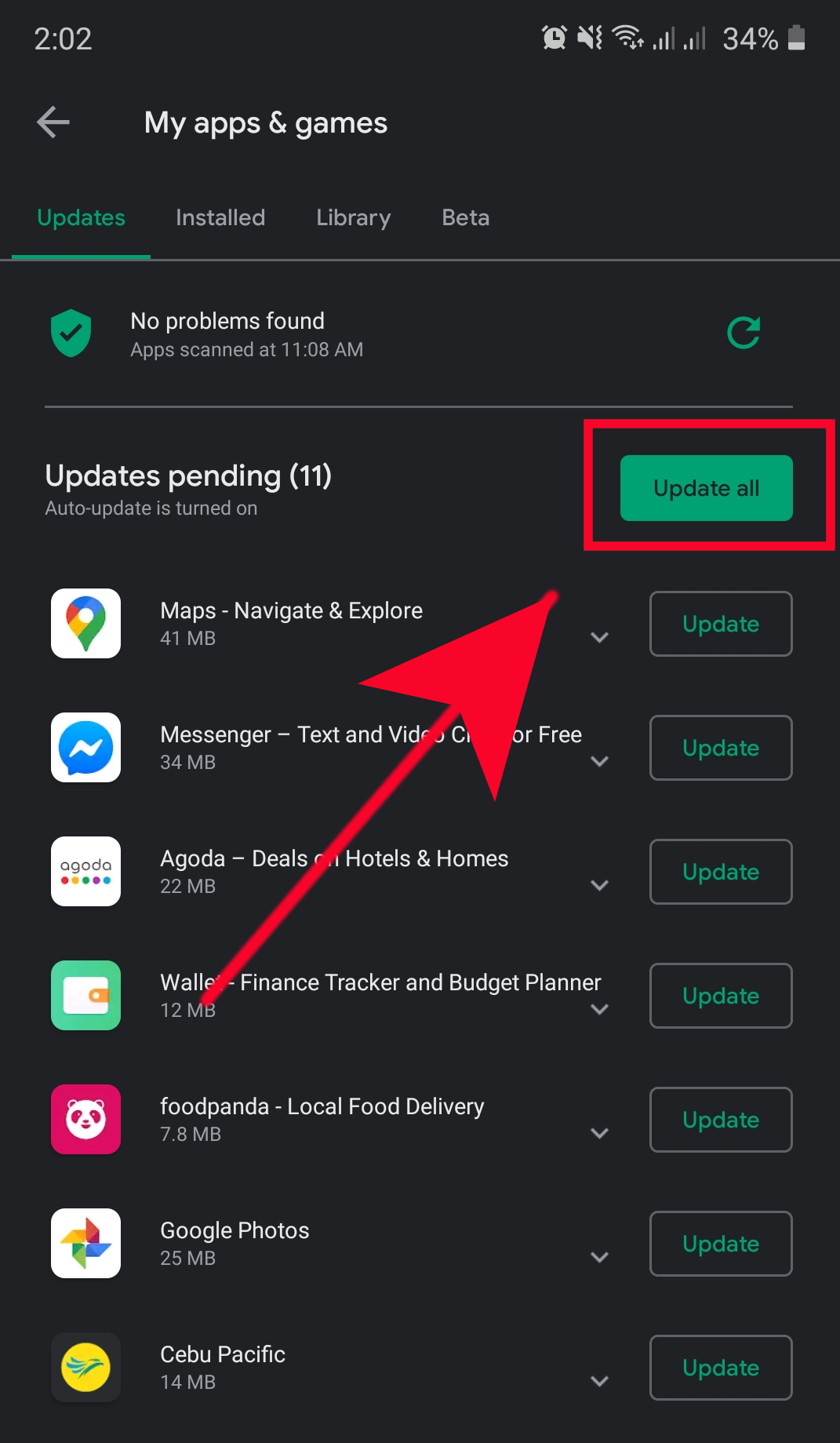
- Update All Installed Applications: Outdated applications built for legacy Android APIs often run inefficient loops on newer system frameworks. Open Google Play Store, tap your profile icon, go to Manage apps & device, and execute Update all.
- Reset App Preferences: If background draining continues past 48 hours, navigate to Settings > Apps > See all apps > Three Dots > Reset app preferences. This restores original permission parameters, background data limits, and notification privileges without deleting app files.
Dealing with App Crashes via Safe Mode
If third-party applications crash continuously after a software update, use Safe Mode to isolate system bugs from software conflicts.
- Press and hold the Power Button until the power menu options appear on screen.
- Touch and hold the Power Off (or Restart) icon until the Reboot to safe mode prompt appears.
- Tap OK. The device will restart, and "Safe Mode" will display in the lower corner of the screen.
- In Safe Mode, all third-party apps are temporarily disabled. Test core phone functions, system settings, and native tools.
- If performance stabilizes, an incompatible third-party app is causing the crashes. Uninstall recently installed or unupdated apps individually, then restart the phone normally to exit Safe Mode.
Advanced Recovery Options: Factory Reset and Manual Flashing
When standard troubleshooting fails to fix software corruption or endless boot loops, advanced system restoration becomes necessary.
Performing a Clean Factory Reset
A factory data reset returns system files, hidden data structures, and user partitions to a factory-fresh baseline, wiping out persistent software bugs.
Caution: A Factory Data Reset permanently deletes all files, photos, installed apps, and user accounts from local storage. Ensure all critical data is safely backed up before proceeding.
- Open Settings > System > Reset options.
- Select Erase all data (factory reset).
- Enter your PIN, pattern, or password to confirm authorization.
- Tap Erase all data and allow the device to process the reboot and flash routine. Do not force restart the device during this execution.
If the operating system cannot boot into the main settings UI, perform the reset via Recovery Mode:
- Boot into Recovery Mode using your hardware key combination.
- Select Wipe data/factory reset.
- Confirm by selecting Factory data reset, then choose Reboot system now when completed.
Flashing Official Firmware Files (ADB & Fastboot)
Advanced users dealing with persistent software corruptions or botched system updates can manually flash official firmware images onto their devices using command-line interface (CLI) software utilities like Android Debug Bridge (ADB) and Fastboot.
- PC Workstation (Platform-Tools)
- Connected via USB Debugging / Fastboot Cable to:
- Android Device (Bootloader State)
- Download the official platform-tools package directly from the Android Developers Platform Tools repository.
- Obtain verified factory images or OTA update packages directly from your device manufacturer's official support portal (e.g., Google Pixel Factory Images, Samsung Smart Switch / Odin binaries, or official OEM recovery packages).
- Enable Developer Options by tapping Settings > About Phone > Build Number seven consecutive times, then toggle on USB Debugging and OEM Unlocking (if required).
- Connect your phone to your computer via a data-capable USB cable.
- Open your terminal or command prompt inside the extracted
platform-toolsfolder directory and execute:adb reboot bootloader - Once in fastboot mode, verify connection integrity:
fastboot devices - Apply official firmware packages using standard vendor execution scripts (such as
flash-all.shorflash-all.bat) or manually sideload OTA packages in recovery mode using ADB command suites:adb sideload path/to/official_update.zip
Frequently Asked Questions
Why does my phone say "Update Failed" even though I have enough storage space?
An update can fail even with sufficient storage space due to file corruption during the download phase, unstable network connections, or digital signature verification errors. Clearing the cache and data inside Download Manager and Google Play Services, restarting the device, and attempting the download on a stable Wi-Fi network typically resolves this issue.
Will restarting or resetting my phone during a software update ruin it?
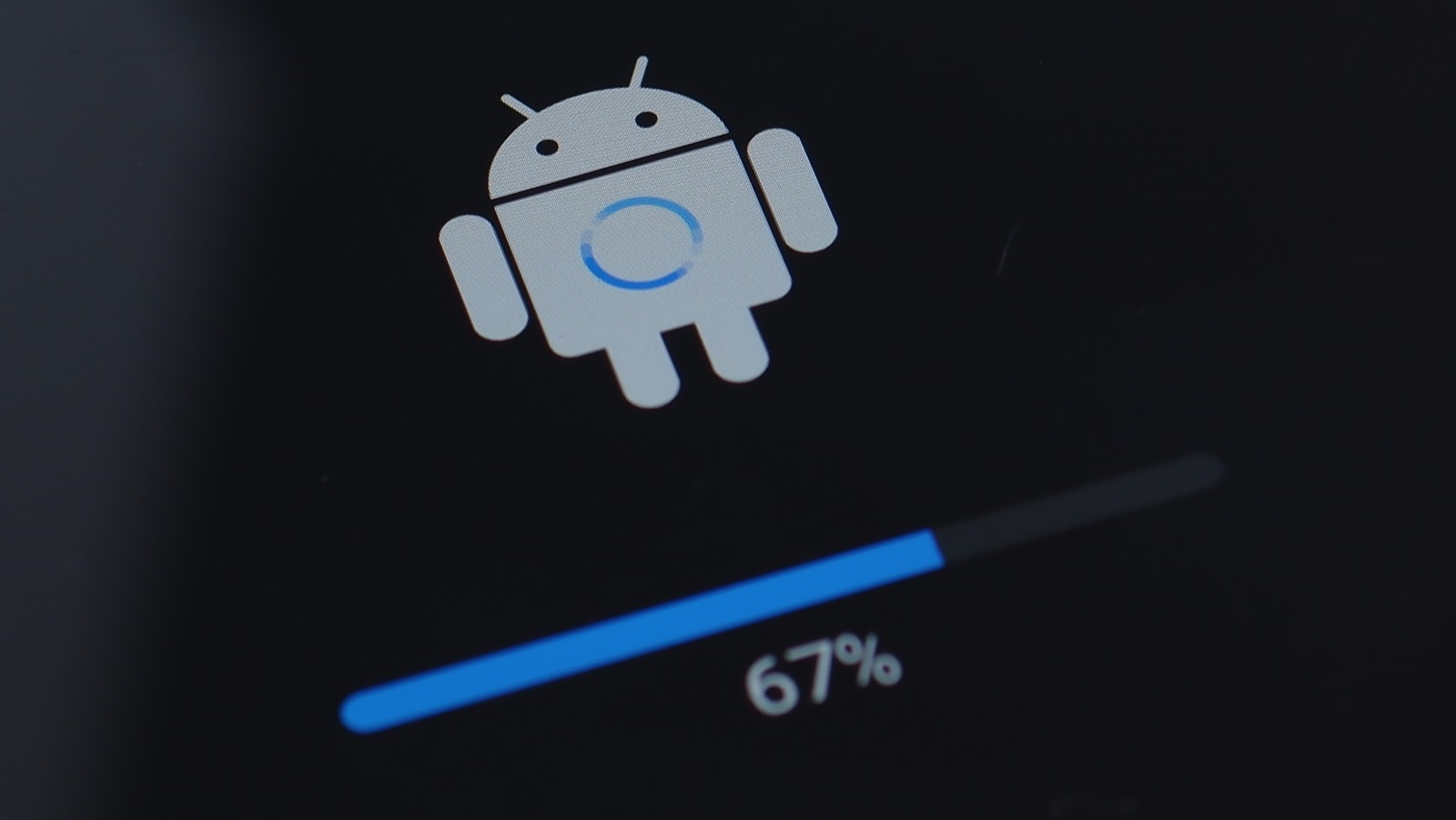
Interrupting a software update while system files are actively being written can corrupt critical partitions and soft-brick your device. However, if your phone freezes during the initial download phase before installation begins, force-rebooting the phone is generally safe. Never force restart your phone while it displays an active system installation progress bar or an updating graphics icon.
How long should an Android system update take to complete?
A standard minor security patch takes anywhere from 5 to 15 minutes to install. Major OS updates (such as upgrading from Android 14 to Android 15) can take between 30 and 60 minutes, depending on your processor speed, storage efficiency, and whether your device uses an A/B dual-partition update architecture that optimizes installation in the background.
Why is my battery draining so fast after an Android update?
Post-update battery drain often occurs because the operating system is actively rebuilding system caches, re-compiling app code, and re-indexing local storage files in the background. This elevated battery consumption typically stabilizes within 24 to 48 hours. If battery life does not improve after two days, update all installed applications through the Google Play Store and clear your app preferences.
What should I do if my phone gets stuck in a boot loop after an update?
If your phone continuously reboots to the manufacturer logo after an update, press and hold the hardware power and volume buttons to force a reboot into Recovery Mode. From there, select Wipe cache partition (if available) or perform a Wipe data/factory reset to clear corrupted system settings causing the boot conflict.
Recommended Next Actions
If you are experiencing Android software update issues right now, start with simple, non-destructive steps before trying advanced recovery methods:
- Check Storage and Connectivity: Verify that your phone has at least 10 GB of free internal storage and is connected to a fast, reliable Wi-Fi network.
- Clear System Download Caches: Clear cache and data for Download Manager and Google Play Services in system app settings to remove corrupted temporary files.
- Perform a Managed Reboot: Restart your device, verify your system date and time settings are accurate, and retry the update.
- Boot into Safe Mode or Recovery: If errors persist or your phone exhibits post-update crashes, boot into Safe Mode to identify app conflicts or enter Recovery Mode to wipe the cache partition.
- Contact Official Support: If manual software installations, sideloading, or factory resets fail to resolve the issue, contact your device manufacturer or carrier support center to check for potential hardware or flash memory failures.