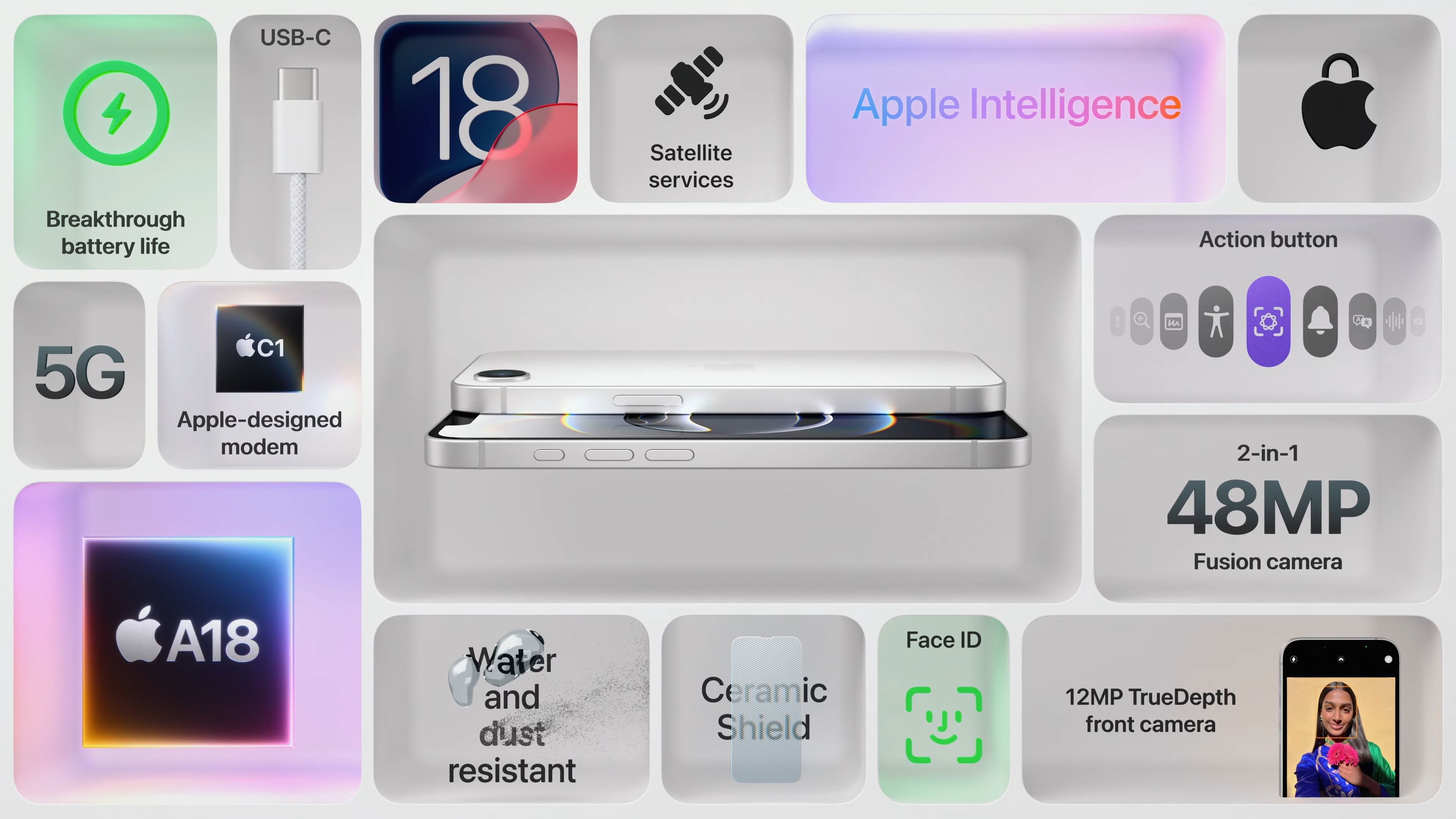
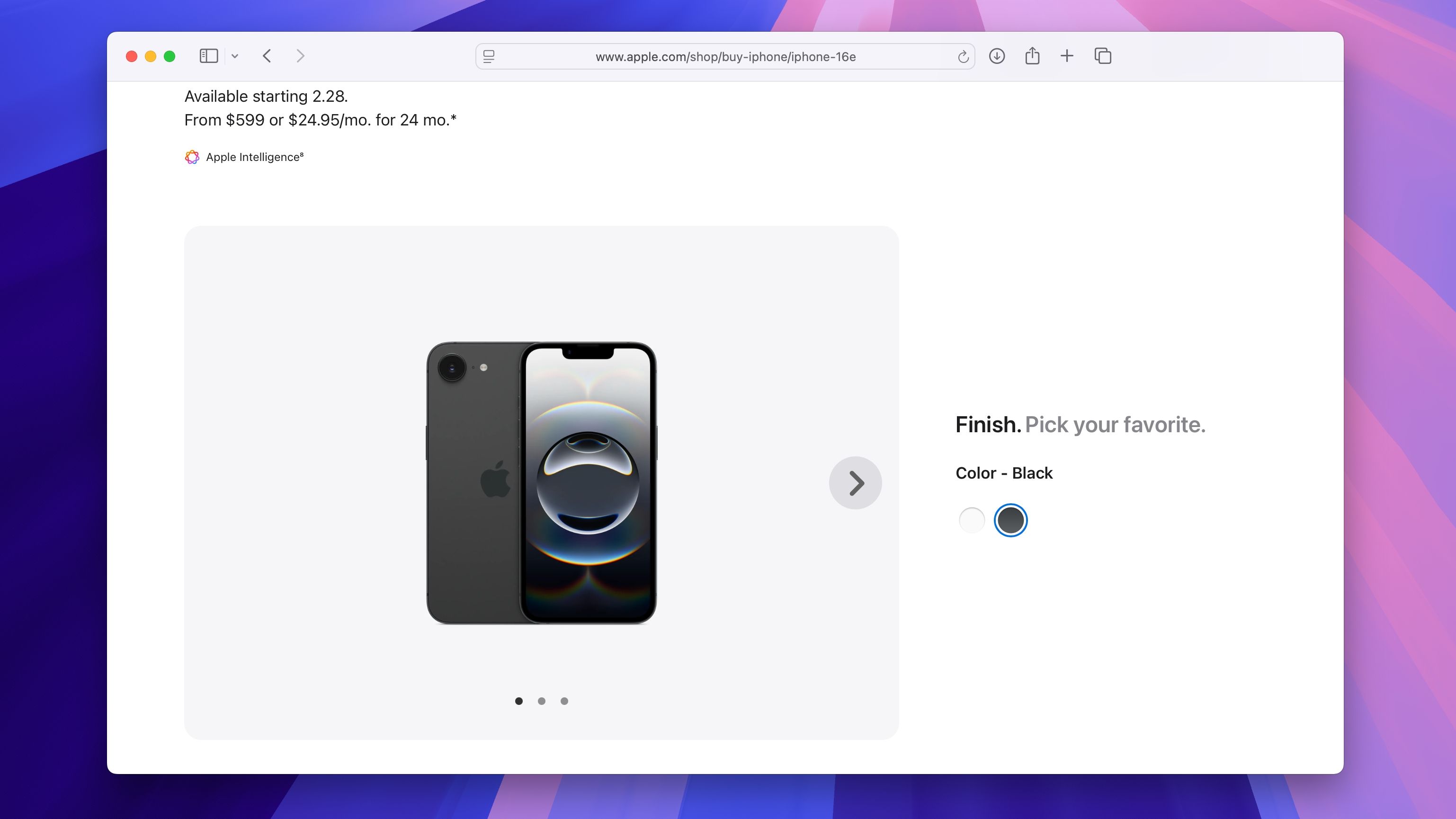
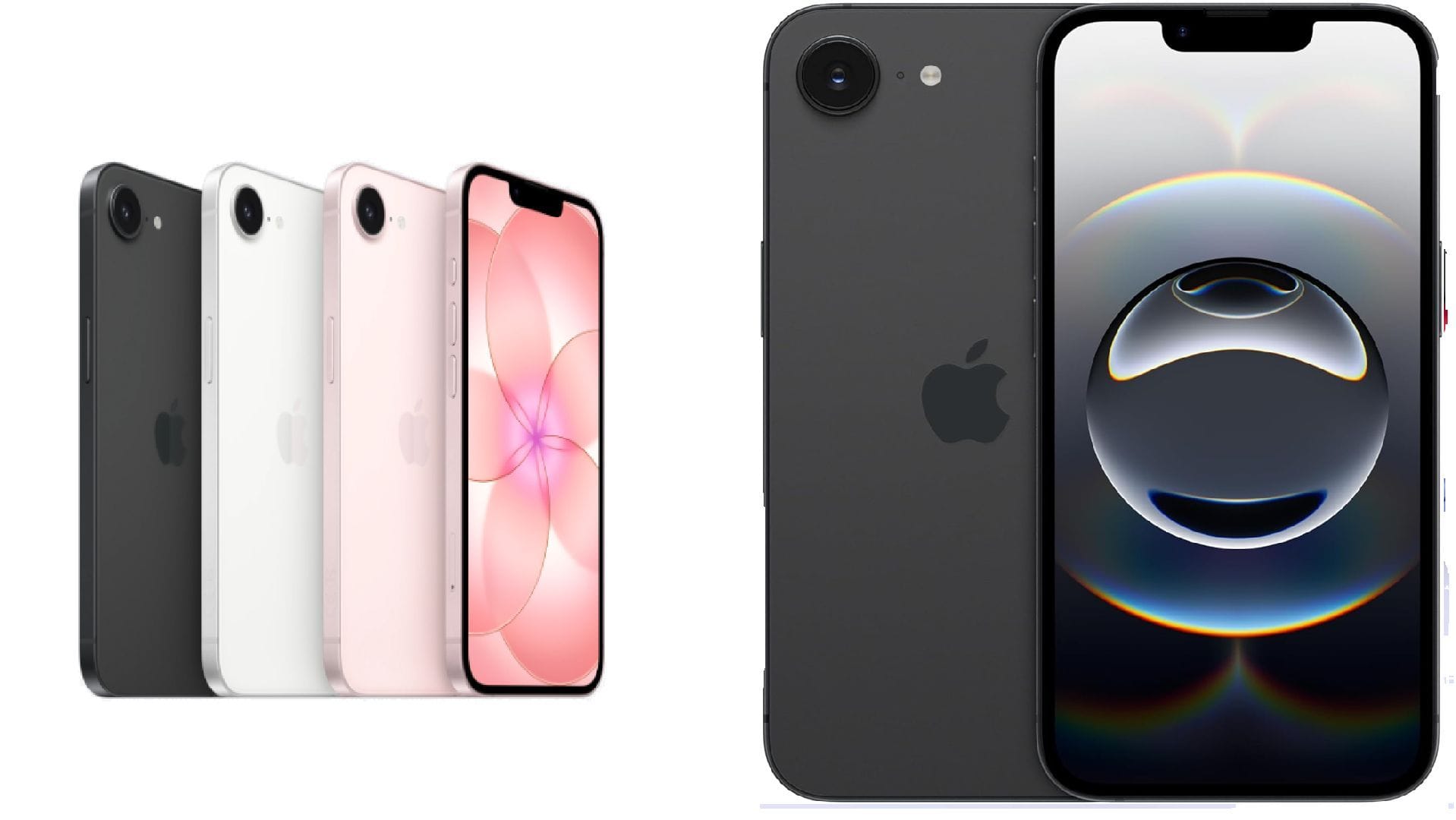
The iPhone 16e serves as a streamlined, high-performance addition to the Apple smartphone lineup, designed to balance advanced hardware capabilities with an accessible, user-friendly interface. This guide provides a comprehensive walkthrough for setting up your device, optimizing its unique features, and ensuring long-term performance through effective maintenance and software management.
Initial Setup and Device Activation
The first step in your journey with the iPhone 16e is the Out-of-Box Experience (OOBE). When you power on your device for the first time, you are greeted by the iOS Setup Assistant. This automated process is critical for migrating your existing data and configuring your hardware.
To begin, press and hold the side button until the Apple logo appears. Once the "Hello" screen transitions, follow the on-screen prompts to select your language and region. If you have a previous iPhone, the "Quick Start" feature is the most efficient method of migration. By placing your old device near the iPhone 16e, you can securely transfer your Apple ID settings, Wi-Fi credentials, and application data directly via an encrypted peer-to-peer connection.
If you are migrating from an Android device, download the "Move to iOS" application on your previous phone. This utility will create a private Wi-Fi network that allows the iPhone 16e to pull your contacts, message history, camera roll, and web bookmarks. Ensure both devices are plugged into power sources during this process to prevent data corruption or battery depletion during large file transfers.
Understanding the Hardware Interface
The iPhone 16e utilizes a refined chassis design that emphasizes durability and tactile feedback. Understanding the physical input points is essential for daily navigation.
- The Side Button: Located on the right edge, this button is used to wake the screen, initiate Siri with a long press, and confirm purchases via Face ID or Apple Pay.
- Volume and Action Controls: On the left edge, you will find the volume rockers and the customizable Action Button. By navigating to Settings > Action Button, you can map this control to specific tasks such as launching the Camera, activating the Flashlight, starting a Voice Memo, or triggering a custom Shortcut.
- The USB-C Port: Located at the bottom of the device, the USB-C port supports charging and data transfer. Unlike previous proprietary connectors, this standard allows for wider compatibility with third-party peripherals, including external drives and various docking stations.
Optimizing iOS Performance
The operating system powering the iPhone 16e is designed for fluidity and security. To get the most out of your device, you should focus on managing your background processes and privacy settings.
Battery Health and Charging Habits
Lithium-ion batteries are consumable components. To maximize the longevity of your iPhone 16e battery, navigate to Settings > Battery > Battery Health & Charging. Enable "Optimized Battery Charging." This feature utilizes machine learning to analyze your daily routine, delaying the final 20% of the charging process until just before you typically begin using the phone. This reduces the time the battery spends at high states of charge, which slows chemical aging.
Privacy and Security Configuration
Your iPhone 16e includes advanced security protocols. Ensure that "Stolen Device Protection" is enabled in Face ID & Passcode settings. This adds a layer of security by requiring biometric authentication for sensitive actions, such as changing your Apple ID password or viewing saved passwords, particularly when the device is away from familiar locations like your home or workplace.
Mastering the Camera System
The camera hardware on the iPhone 16e is engineered to produce high-fidelity imagery through computational photography. Whether you are capturing landscapes or portraits, the internal image signal processor (ISP) works in real-time to adjust exposure, white balance, and noise reduction.
For professional-grade control, utilize the Camera app’s various modes. "Photographic Styles" allow you to apply a custom look to your images before you take them. Unlike a standard filter, these styles retain skin tones and natural lighting while adjusting specific elements like contrast or warmth. Access these by tapping the arrow at the top of the viewfinder and selecting the icon representing three stacked frames.
When recording video, be mindful of the "Spatial Video" capture capabilities if you intend to view your content on compatible head-mounted displays or specialized hardware. You can toggle this setting in Settings > Camera > Formats.
Comparison of iPhone Models and Usage Contexts
The following table outlines how the iPhone 16e fits into the broader 2026 product ecosystem to help you understand its intended use case.
| Feature | iPhone 16e | iPhone 16 Pro |
|---|---|---|
| Primary Display | Standard Refresh Rate | ProMotion (120Hz) |
| Main Chassis | Aluminum | Titanium |
| Camera Configuration | Dual-Lens System | Triple-Lens System |
| Ideal For | Everyday Reliability | Professional Content Creation |
| Charging Port | USB-C | USB-C |
This comparison highlights that the iPhone 16e is optimized for efficiency and standard daily tasks, whereas the Pro models prioritize specialized hardware for advanced photographers and power users.
Essential Troubleshooting Procedures
Even the most robust hardware can occasionally encounter software-level hitches. Before seeking professional repair or contacting technical support, perform these three fundamental troubleshooting steps:
- Force Restart: If the screen becomes unresponsive, press and quickly release the Volume Up button, press and quickly release the Volume Down button, and then hold the side button until the Apple logo appears. This cycle clears the temporary memory without erasing your personal data.
- App-Specific Issues: If a single application is crashing, check the App Store for updates. Developers frequently release patches to maintain compatibility with the latest iOS versions. If the issue persists, delete and reinstall the app to clear corrupted cache files.
- Network Reset: If you experience connectivity issues with cellular data or Wi-Fi, navigate to Settings > General > Transfer or Reset iPhone > Reset > Reset Network Settings. This removes saved Wi-Fi networks and VPN configurations, effectively refreshing your connection stack.
Frequently Asked Questions
How do I take a screenshot on the iPhone 16e? To capture your screen, simultaneously press the side button and the Volume Up button. A thumbnail will appear in the bottom-left corner, which you can tap to edit, annotate, or share immediately.
Is the iPhone 16e waterproof? The iPhone 16e carries an IP68 rating under IEC standard 60529. This means it is resistant to accidental spills and can withstand submersion in water up to a certain depth for a limited time. However, this resistance is not permanent and may decrease as a result of normal wear and tear. Avoid exposing your device to pressurized water or salt water.
How can I free up storage space efficiently? Navigate to Settings > General > iPhone Storage. The system provides a breakdown of what is occupying your memory. You can enable "Offload Unused Apps," which removes the app binary while keeping your local data intact, or review your Photos and Videos to identify and delete large, redundant files.
What is the best way to back up my data? iCloud is the most seamless method. Enable it by going to Settings > [Your Name] > iCloud > iCloud Backup. Ensure "Back Up This iPhone" is toggled on. The device will automatically initiate a backup nightly whenever it is connected to a power source and a stable Wi-Fi network.
Can I use legacy accessories with the iPhone 16e? Because the device uses a USB-C port, you may need a Lightning-to-USB-C adapter for older proprietary cables. However, the move to USB-C ensures greater compatibility with standard consumer electronics cables used for laptops and tablets.
Recommendations for Daily Maintenance
To keep your iPhone 16e in optimal condition, establish a cleaning routine. Use a soft, slightly damp, lint-free cloth to wipe the device. Avoid using cleaning products or compressed air, as these can damage the oleophobic (fingerprint-resistant) coating on the display. Furthermore, ensure you keep your software updated by checking Settings > General > Software Update regularly. These updates often contain critical security patches that protect your data from emerging threats.
By following this guide, you should be well-equipped to manage your iPhone 16e independently. Should you encounter persistent hardware failure that basic troubleshooting cannot resolve, visit an Apple Authorized Service Provider or an Apple Store for professional diagnostics.