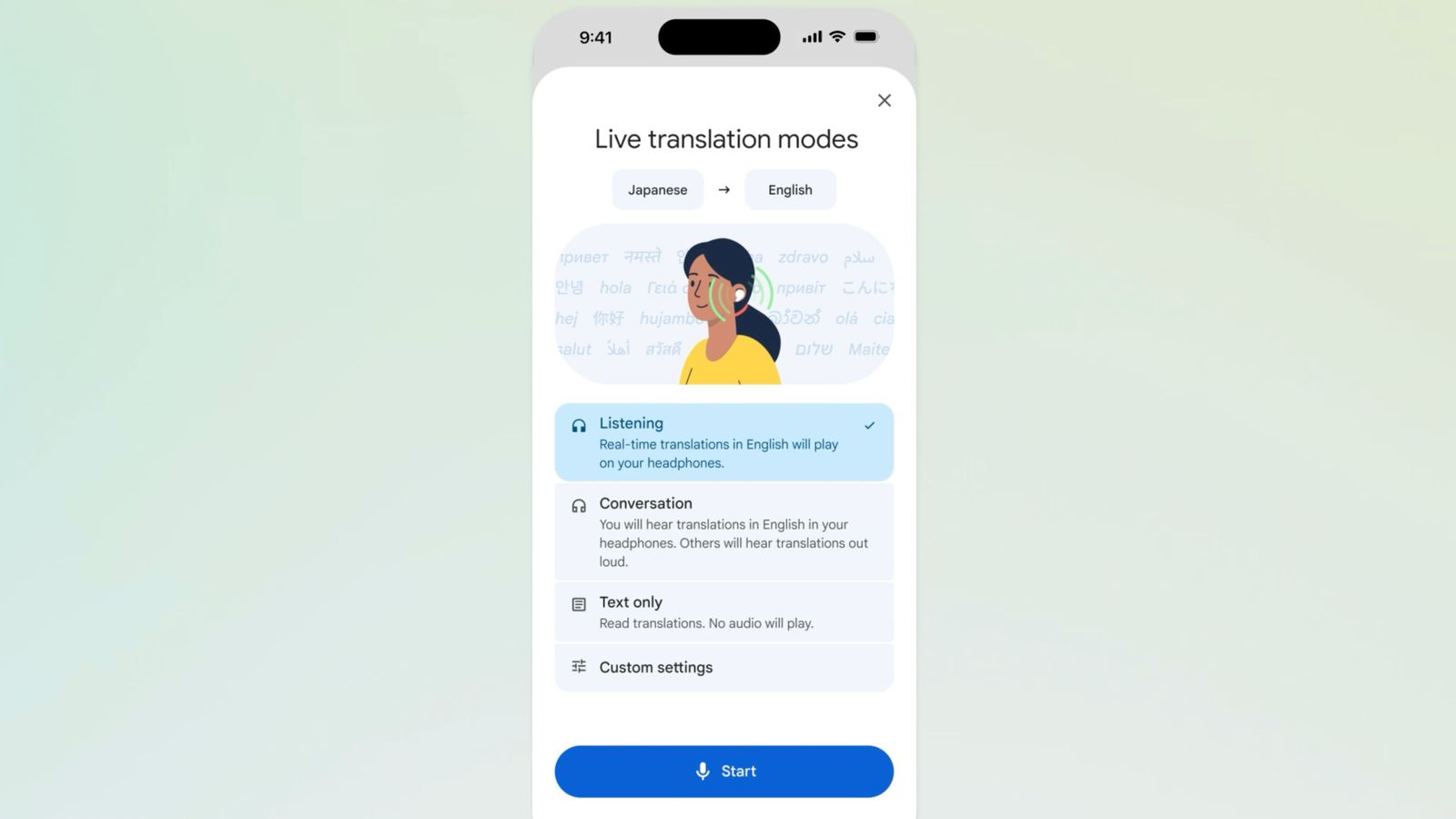
Active Google Translate features allow users to facilitate fluid, bidirectional communication across dozens of languages in real time. By utilizing the app’s "Conversation" mode, speakers can engage in verbal exchanges where the software automatically detects the language being spoken, transcribes the audio into text, and provides an immediate synthesized voice translation, effectively breaking down linguistic barriers during live interactions.
Understanding the Mechanics of Real-Time Translation
Google Translate has evolved significantly since its inception, moving beyond simple static text conversion to become a sophisticated, AI-driven engine. The "Conversation" feature relies on two primary pillars: automatic speech recognition (ASR) and neural machine translation (NMT).
When a user initiates Conversation mode, the application remains "active" in a listening state. As a person speaks, the ASR engine converts the acoustic waveform into a text transcript. Simultaneously, the NMT engine processes that text, applying deep-learning models to determine context, idiomatic meaning, and grammatical structure to produce a target language output. Because these processes occur in milliseconds, the resulting experience feels near-instantaneous, mimicking the rhythm of natural dialogue.
Prerequisites and System Requirements
To ensure the best performance when using active Google Translate for real-time conversation, users must verify that their hardware and software environment is optimized.
- Stable Internet Connection: While many languages are available for offline use, real-time conversation mode is significantly more accurate and responsive when connected to high-speed Wi-Fi or 5G cellular data. The cloud-based models are generally more robust than their on-device counterparts.
- Microphone Quality: Because the system relies on voice input, background noise is the primary cause of errors. Using a device with clear input or a high-quality external microphone significantly improves accuracy.
- App Permissions: The Google Translate app (available on both Android and iOS) requires explicit permission to access your device’s microphone. Ensure these permissions are enabled in your OS settings before starting.
- Language Packs: For users traveling to regions with unreliable data, downloading the "Offline Translation" packages for the specific languages being used is essential to maintain functionality in environments without connectivity.
Step-by-Step Guide to Using Conversation Mode
The interface for real-time translation is designed for speed. Following these steps will help you initiate a conversation effectively:
- Open the App: Launch the Google Translate app on your mobile device.
- Select Languages: At the top of the screen, tap the language buttons to select the source language and the target language. If you are unsure which languages will be spoken, you can select the "Auto-detect" feature.
- Activate Conversation Mode: Tap the "Conversation" icon, usually represented by two microphone symbols, located at the bottom of the main input area.
- Initiate Dialogue: The screen will split into two sections. You can tap the microphone button on your side to start speaking. The app will translate your speech and play it back in the target language.
- Toggle Input: The other participant can tap their respective microphone icon to respond. The system will continue to listen and translate, allowing for a back-and-forth flow.
Comparison of Translation Modes
Understanding the difference between the available translation features helps users choose the right tool for the scenario.
| Feature | Best Use Case | Bidirectional? | Real-Time? |
|---|---|---|---|
| Text Mode | Translating signs or documents | No | No |
| Camera Mode | Menus, street signs, papers | No | Partial |
| Voice Mode | Short, isolated questions | Limited | Yes |
| Conversation Mode | Fluid, long-form dialogue | Yes | Yes |
Managing Limitations and Improving Accuracy
While Google Translate is a powerful tool, it is not a replacement for a human interpreter in sensitive or high-stakes environments. Recognizing the system’s constraints is critical for successful communication.
Ambiguity and Context
The system may struggle with homonyms—words that sound the same but have different meanings—or highly technical jargon. To improve accuracy, speak clearly and in complete, grammatically standard sentences. Avoid using slang or regional idioms that may not have direct equivalents in the target language.
Environmental Noise
Background noise, such as traffic, wind, or crowded rooms, can confuse the ASR engine. If you find the translations are becoming inaccurate, move to a quieter location. If that is not possible, position the phone’s microphone closer to the speaker’s mouth.
Legal and Medical Cautions
The technology behind real-time translation tools should not be relied upon for legal proceedings, medical diagnosis, or critical safety instructions. AI translation errors, while infrequent, can lead to dangerous misunderstandings. In high-stakes scenarios, always seek a certified human interpreter.
Troubleshooting Common Issues
If you experience failures during a session, follow these troubleshooting steps:
- Lag or Delays: If the translation is slow, clear your app cache or restart the application. High latency is often the result of an overloaded processor or poor connectivity.
- Incorrect Language Detection: If the system is translating into the wrong language, manually lock the language selection instead of relying on "Auto-detect."
- Unexpected Audio Output: Check your volume settings. If the voice output is too quiet, it may be muffled by a device case or the volume may simply be turned down in the system settings.
- Device Updates: Ensure that you are running the latest version of the Google Translate app. Developers frequently push updates that improve the underlying neural network models and support for new dialects.
Frequently Asked Questions
Does Conversation mode require a data connection? While you can download language packs for offline text and voice, the highest accuracy for real-time conversation mode is achieved through an active data connection, as the app communicates with Google’s more powerful, server-side neural models.
Is there a time limit for a single conversation session? There is no hard time limit for how long you can keep the app open; however, the session may time out if there is a long period of inactivity. Simply tap the microphone icon again to resume the listening state.
Can I use this on a desktop computer? The "Conversation" mode, which provides the split-screen, dual-mic interface, is optimized for the mobile application. While the browser version of Google Translate offers voice input, it lacks the specialized conversational interface designed for mobile interaction.
How does Google handle my private conversations? Google states that translations are processed to provide the service. However, for highly confidential business or personal matters, be aware that audio snippets may be processed by cloud servers. Review the Google Privacy Policy within the app settings to understand your data controls.
Does it work for dialects and accents? Yes, Google Translate supports a wide range of dialects. However, heavy accents may reduce accuracy. The more you use the app, the better it becomes at interpreting individual speech patterns over time.
Recommended Next Steps
To master real-time conversation, practice in a controlled environment before relying on the tool in a foreign country. Spend ten minutes translating simple sentences with a friend or colleague who speaks a different language. This allows you to calibrate your speaking pace and learn how to manage the interface effectively. Once you are comfortable with the "turn-taking" rhythm of the app, you will find it to be an invaluable tool for bridging communication gaps across the globe.