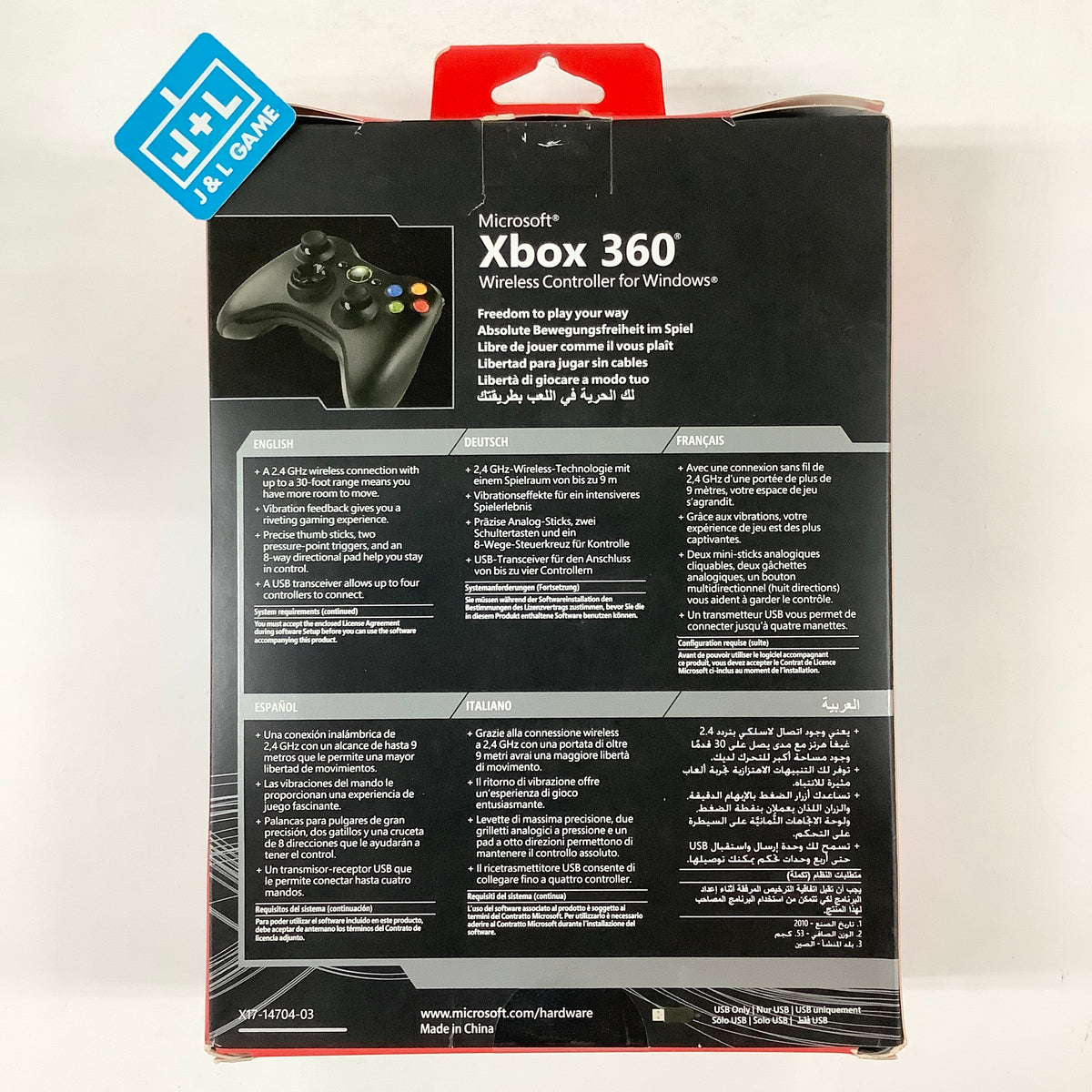
Connecting an Xbox controller to a Windows 10 PC involves understanding how hardware handshakes with Microsoft's built-in software ecosystem, device drivers, and utility apps. Seamless compatibility relies on native XInput architecture, the correct USB or Bluetooth connection method, and the Xbox Accessories application for firmware updates and button mapping.
Introduction to Xbox Controller and Windows 10 Architecture
The integration between Xbox controllers and Windows 10 represents one of the most streamlined hardware ecosystems in modern PC gaming. Because Microsoft designs both the Windows operating system and the Xbox console family, support for Xbox input devices is built directly into the OS core. Understanding this compatibility requires examining how the hardware communicates with software through system-level APIs, device drivers, and configuration tools.
When a user connects an Xbox controller to a Windows 10 computer, the system does not treat it as a generic joystick. Instead, it recognizes the peripheral through Microsoft's proprietary XInput programming interface. XInput replaced the older DirectInput standard by standardizing how triggers, thumbsticks, and vibration motors report data to games. This deep operating system integration ensures that virtually every modern PC game released on platforms like Steam, the Epic Games Store, and the Xbox app natively recognizes the controller layout without requiring external third-party translation software.
However, optimal performance, accurate battery reporting, and access to advanced customization features depend on more than just basic plug-and-play connectivity. Users must navigate different connection methods—such as wired USB, proprietary wireless adapters, or standard Bluetooth—each with distinct driver requirements. Furthermore, software suites like the Xbox Accessories app play a critical role in maintaining hardware stability through firmware updates. This guide provides an in-depth breakdown of how Xbox controller software functions within Windows 10, outlining technical specifications, connection protocols, troubleshooting methods, and administrative considerations.
Core Compatibility Matrix by Controller Generation
Not all Xbox controllers offer the same level of software compatibility with Windows 10. Over multiple hardware generations, Microsoft has updated wireless protocols, Bluetooth capabilities, and port standards. Reviewing the hardware iteration ensures proper expectations regarding software features and required accessories.
| Controller Model | Native Windows 10 Support | Connection Methods | Bluetooth Support | Xbox Accessories App Support |
|---|---|---|---|---|
| **Xbox Series X | S Controller** | Full (Plug-and-Play) | USB-C, Bluetooth 5.1, Wireless Adapter | Yes |
| Xbox One Wireless (Model 1708) | Full (Plug-and-Play) | Micro-USB, Bluetooth, Wireless Adapter | Yes (Later revisions) | Yes |
| Xbox One Original (Model 1537/1697) | Full (Plug-and-Play) | Micro-USB, Wireless Adapter Only | No | Limited (USB required for updates) |
| Xbox Elite Wireless Controller Series 2 | Full (Plug-and-Play) | USB-C, Bluetooth, Wireless Adapter | Yes | Full (Profiles, Tensions, Mapping) |
| Xbox Elite Wireless Controller (Gen 1) | Full (Plug-and-Play) | Micro-USB, Wireless Adapter Only | No | Full (Mapping via App) |
The table above illustrates that while all major Xbox One and Xbox Series X|S controllers function on Windows 10, older models lack native Bluetooth radios. Users with older hardware must rely on a wired connection or the dedicated Xbox Wireless Adapter for Windows 10 to achieve untethered play.
Connection Protocols and Driver Management in Windows 10
Establishing a stable link between an Xbox controller and a Windows 10 PC requires understanding the three primary connection pathways. Each protocol handles data transmission differently and interacts with the operating system through specific driver stacks.
1. Wired USB Connection
The most direct and latency-free method is connecting the controller via a physical cable (Micro-USB for older models, USB-C for Xbox Series X|S and Elite Series 2).
- Driver Behavior: Windows 10 automatically installs the necessary XInput drivers instantly through Windows Update if they are not already cached.
- Data Transmission: Operates via a polled USB protocol that minimizes input lag, making it ideal for competitive gaming. It also bypasses wireless interference entirely.
2. Bluetooth Wireless Connection
Modern Xbox controllers (released late 2016 onward, including Xbox One S models and all Series X|S controllers) feature built-in Bluetooth radios capable of pairing directly with Windows 10 PCs equipped with Bluetooth 4.0 or higher.
- Pairing Process: Users must open Windows 10 Bluetooth settings, press the pairing button on the top of the controller until the Xbox logo flashes rapidly, and select the controller from the discovered devices list.
- Driver Stack: Relies on the generic Windows Bluetooth enumerator and HID (Human Interface Device) framework, translated internally to XInput by the system gaming services.
3. Xbox Wireless Adapter for Windows 10
For players seeking the proprietary Microsoft wireless protocol rather than Bluetooth, the USB Wireless Adapter provides a low-latency connection identical to an actual Xbox console.
- Proprietary Protocol: Uses a custom 2.4GHz wireless signal that supports up to eight controllers simultaneously, along with stereo audio transmission through the controller’s 3.5mm headphone jack (a feature often unsupported or unstable over standard PC Bluetooth).
- Driver Requirements: Requires specific Microsoft drivers that are usually downloaded automatically, though manual installation via Device Manager may occasionally be required on enterprise or restricted Windows builds.
The Role of the Xbox Accessories App
The Xbox Accessories app is the central software utility designed for managing firmware and configuring advanced controller settings on Windows 10. Available as a free download from the Microsoft Store, this application bridges the gap between basic operating system recognition and deep hardware personalization.
Firmware Updates
Hardware manufacturers frequently release firmware patches to address analog stick drift, improve Bluetooth stability, or optimize battery efficiency. The Xbox Accessories app checks the controller's internal firmware against Microsoft's servers.
- Crucial Prerequisite: For older Xbox One controllers, updates frequently require the controller to be physically plugged into the PC via a USB cable. Wireless firmware updates are generally supported only on Xbox Series X|S controllers and Elite Series 2 units.
Button Mapping and Profile Customization
For standard controllers, the app allows users to remap primary inputs. For premium hardware like the Xbox Elite Wireless Controller Series 2, the software unlocks extensive professional features:
- Custom Profiles: Users can save up to three different profile configurations directly to the controller's onboard memory, switching between them via the physical profile button.
- Thumbstick Sensitivity Curves: Adjusts the physical response curve of the joysticks (e.g., aggressive, delayed, or linear) to match specific game genres like first-person shooters or racing simulators.
- Trigger Stops: Calibrates the digital actuation points of the physical hair-trigger locks, reducing the travel distance required to register a click.
- Component Calibration: Adjusts deadzones for both sticks and triggers to eliminate unwanted drift caused by microscopic wear or manufacturing tolerances.
Prerequisites and System Requirements for Optimal Performance
Before troubleshooting controller software issues on Windows 10, verify that the host system meets the necessary software and hardware prerequisites. An outdated operating environment is the most frequent cause of controller disconnections, unrecognized inputs, and failed app installations.
- Operating System Build: Windows 10 version 1909 or later is recommended. Certain advanced Bluetooth low-energy features and gaming services require recent cumulative updates.
- Microsoft Store Connectivity: The Xbox Accessories app requires an active Microsoft Store connection for installation and updates. Restrictive corporate or educational firewalls that block Microsoft Store services will prevent app downloads.
- Visual C++ Redistributables: Modern controller companion apps rely on system libraries; ensure Windows Update is fully completed so that all necessary runtime dependencies are present.
- USB Root Hub Power Management: To prevent Windows 10 from putting USB-connected or adapter-connected controllers to sleep during prolonged inactivity, users should check Device Manager and disable "Allow the computer to turn off this device to save power" under Universal Serial Bus Controller properties.
Troubleshooting Common Software and Connectivity Issues
Even with native integration, users occasionally encounter software conflicts, pairing loops, or unrecognized inputs in Windows 10. Systematic troubleshooting helps isolate whether the root cause is driver corruption, hardware interference, or outdated firmware.
1. Controller Not Recognized in Games
- Cause: The game may be attempting to read DirectInput rather than XInput, or a virtual controller driver (such as vJoy or DS4Windows) is intercepting the input stream.
- Solution: Close competing remapping software. Verify that the controller is recognized in the Windows "Set up USB game controllers" control panel applet. If a game still fails to respond, launch the game through the Steam Desktop Client with "Xbox Configuration Support" enabled in Big Picture Mode settings, which forces Steam to translate the input.
2. Bluetooth Connection Drops or Lag Spikes
- Cause: Wireless interference from 2.4GHz routers, USB 3.0 port radiation, or outdated Bluetooth adapter drivers.
- Solution: Move the Bluetooth dongle away from USB 3.0 ports using a short USB extension cable. Update the PC’s motherboard Bluetooth/Wi-Fi drivers directly from the manufacturer's website (Intel, Realtek, or Qualcomm) rather than relying solely on generic Windows Update drivers.
3. Firmware Update Errors in Xbox Accessories App
- Cause: Using a faulty USB cable (charge-only cables lack data transfer lines) or wireless interference during the flash process.
- Solution: Disconnect any USB hubs and plug the controller directly into a motherboard-level USB port using a certified data-sync USB cable. Restart the Windows Audio and Gaming Services via Windows Services (
services.msc) if the app freezes during initialization.
Frequently Asked Questions
Can I use an Xbox 360 controller on Windows 10?
Yes, wired Xbox 360 controllers and wireless models connected via the legacy Xbox 360 Wireless Receiver for Windows feature native XInput support. However, they are not supported by the modern Xbox Accessories app, and their drivers must often be installed manually through the Windows Device Manager if plug-and-play fails.
Do I need a Microsoft account to use the Xbox Accessories app?
No, downloading and using the Xbox Accessories app from the Microsoft Store does not strictly require you to be signed into a Microsoft account, though certain cloud profile sync features may be limited without one. Basic firmware updates and button remapping function entirely offline.
Why does my controller vibrate constantly or fail to rumble in Windows 10?
Inconsistent haptic feedback is typically caused by outdated XInput drivers or energy-saving power profiles. Ensure your game graphics and audio settings are not interfering with DirectX game audio endpoints, and verify that Windows is not running in Battery Saver mode, which occasionally throttles peripheral motor output.
How many Xbox controllers can connect to a single Windows 10 PC?
Up to eight Xbox controllers can be connected simultaneously when using official Xbox Wireless Adapters (up to four per adapter, or mixing wired and wireless connections). Bluetooth connections are generally limited to four controllers simultaneously depending on the Bluetooth host adapter's hardware specifications and bandwidth.
Can I map keyboard keys to my Xbox controller using official software?
The official Xbox Accessories app only permits remapping controller buttons to other controller functions, triggers, or thumbstick assignments. To map keyboard keystrokes or mouse clicks to an Xbox controller, you must use trusted third-party utility software like AntiMicroX or Steam Input.
Conclusion and Next Actions
Maintaining seamless compatibility between an Xbox controller and Windows 10 relies on keeping the operating system updated, utilizing the correct physical connection protocol for your specific hardware generation, and regularly applying firmware patches through the Xbox Accessories app. To ensure long-term stability, verify that your Bluetooth or wireless adapter drivers are current, avoid charge-only USB cables during data transfers, and configure Windows power management settings to prevent unwanted device sleep states. For further optimization, check the Microsoft Store for the latest app updates to manage advanced profile configurations.