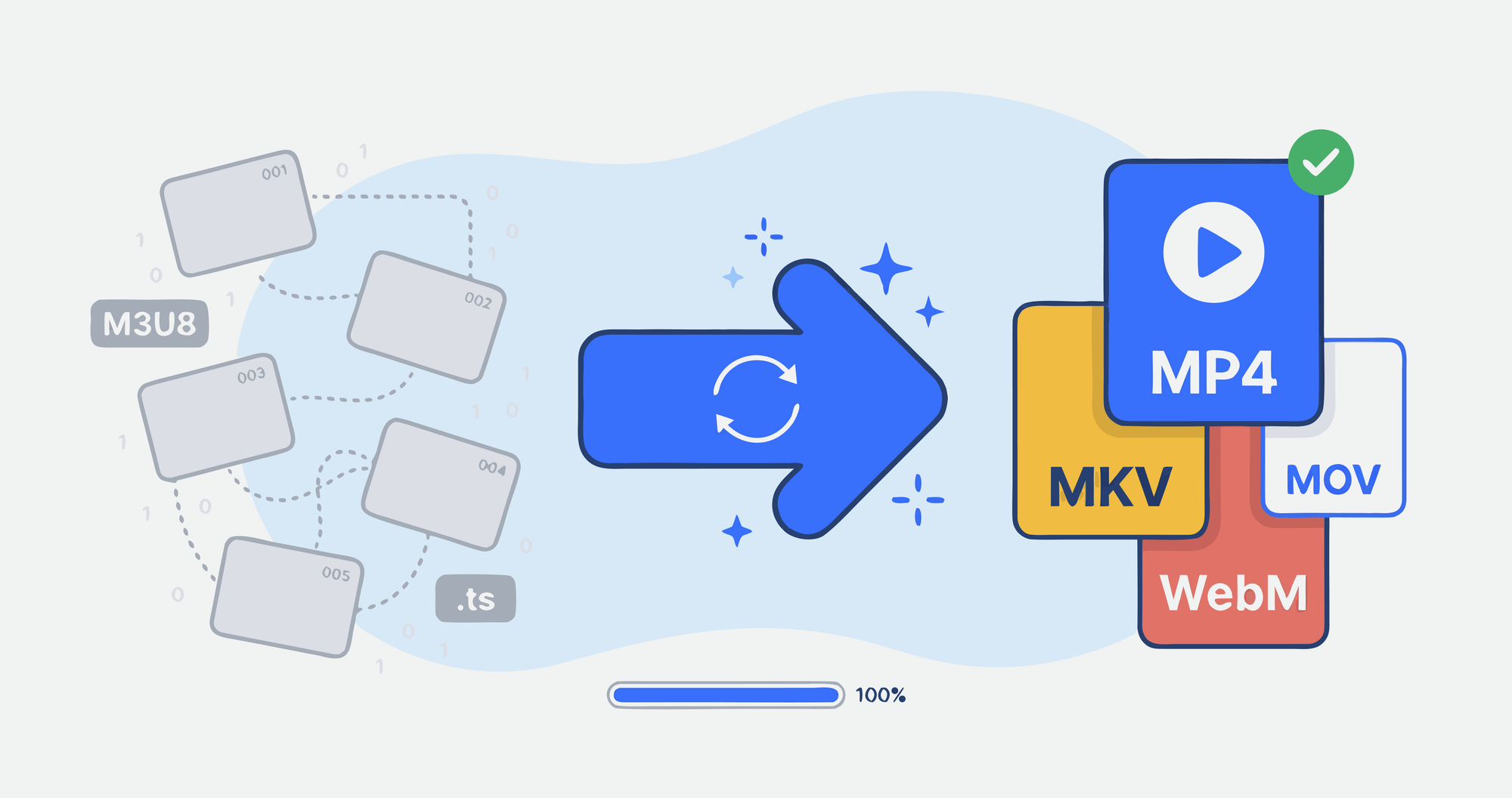
Converting HLS (HTTP Live Streaming) to MP4 requires moving away from fragmented streaming protocols and toward a single, cohesive container format that works across virtually any media player or editing software. Because HLS splits video assets into an index playlist and dozens of bite-sized transport stream segments, you cannot simply right-click and save a single file. Transcoding tools like FFmpeg parse the master manifest file, download the underlying media segments in sequence, stitch them back together, and repackage the raw video and audio streams into an MP4 container for local playback and offline editing.
Understanding the HLS Protocol and the Need for MP4 Conversion
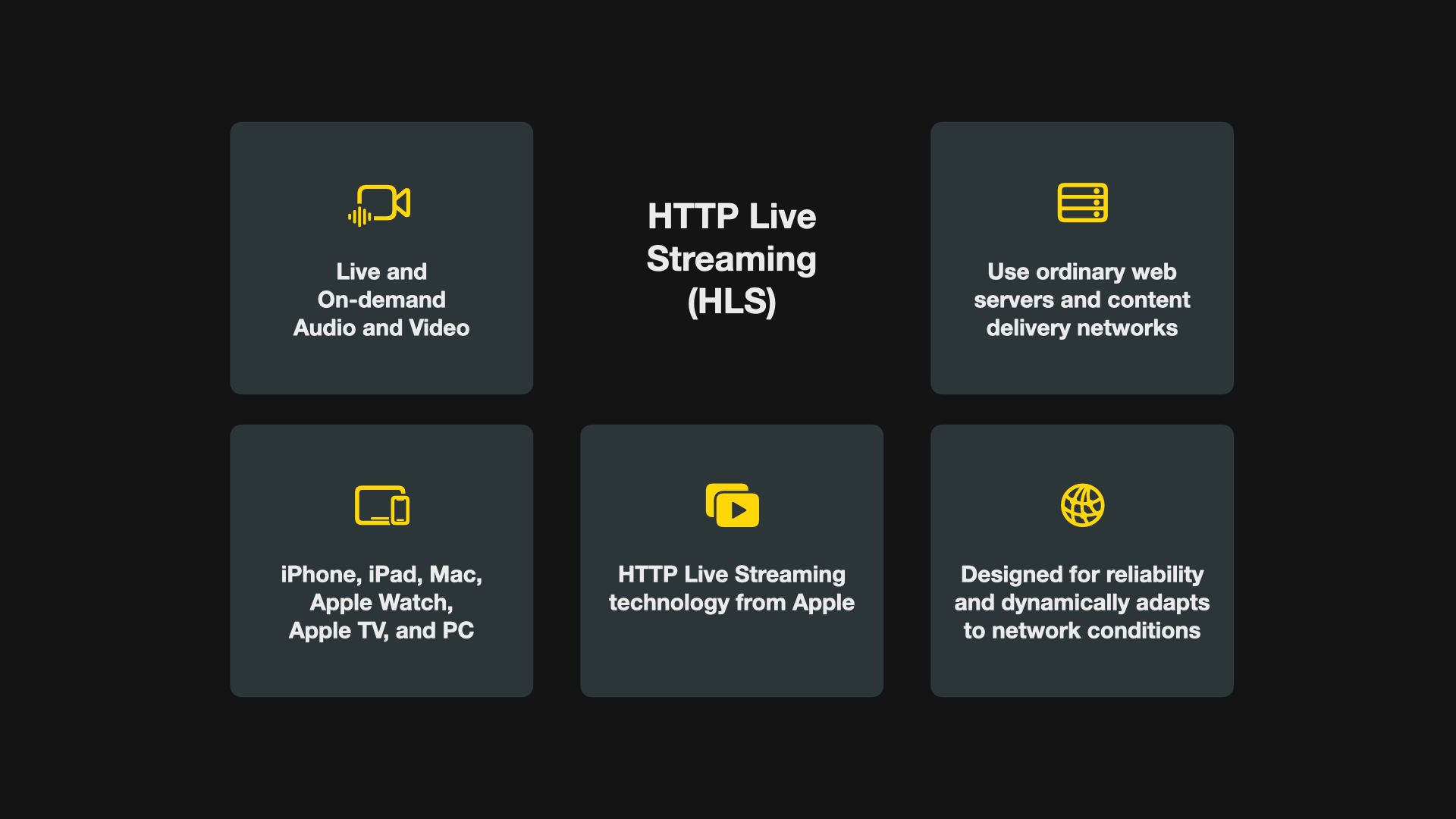
To appreciate why conversion requires specialized tools, it helps to understand how the HTTP Live Streaming format works at a technical level. Developed by Apple as an adaptive bitrate streaming protocol, HLS breaks a continuous video source into a sequence of small file segments—typically between two and ten seconds in duration—stored as .ts (MPEG Transport Stream) files. Alongside these segments sits a text-based playlist file with an .m3u8 extension. This manifest file contains the URLs pointing to all individual segments, audio tracks, and bitrate variants, allowing a client-side player to dynamically switch stream quality based on current network conditions.
While HLS is exceptionally resilient for web delivery, content distribution networks, and live broadcasting, it presents significant friction for users who want to store, edit, or archive media locally. Standard media players like VLC can parse local .m3u8 playlists and stream the content on the fly, but basic video editors, mobile devices, and archival systems often fail to recognize the fragmented structure.
Converting HLS to MP4 solves this accessibility problem. An MP4 file uses the ISO Base Media File Format container standard, wrapping video codecs (such as H.264, H.265, or AV1) and audio codecs (such as AAC or MP3) into a single, contiguous file. This unified structure ensures compatibility with non-linear editing software, hardware media players, and operating systems that lack native adaptive streaming integration.
Prerequisites and Preparation for Conversion
Before executing any conversion workflow, you must gather the necessary technical resources and verify that you have legal and authorized access to the content. Converting streams requires careful preparation regarding software dependencies, file paths, and storage capacity.
Identifying the Manifest URL or Local Files
Every HLS conversion begins with an .m3u8 file. This can exist in two distinct states:
- Remote Manifest URL: A web address pointing to a live stream or an asset hosted on a content delivery network (e.g.,
https://example.com/stream/playlist.m3u8). - Local Playlist Directory: A downloaded folder containing the
.m3u8index file alongside a sequence of numbered.tsor.m4ssegments. If you are working with a local folder, verify that the relative paths inside the manifest match your local directory structure.
Selecting the Right Software Utility
While several graphical user interface (GUI) applications handle video transcoding, command-line tools offer the most reliable performance for streaming protocols.
- FFmpeg: The industry standard for handling multimedia data, capable of reading remote manifests and stitching segments without requiring a separate download phase.
- VLC Media Player: A versatile open-source player that includes a built-in conversion wizard for users who prefer graphical interfaces.
- Dedicated Stream Grabbers: Browser extensions and desktop applications designed to detect network packets and reconstruct media assets automatically.
Method 1: Converting HLS to MP4 Using FFmpeg
FFmpeg is the most powerful and flexible tool for converting HLS streams into MP4 files. Because it handles network protocols natively, it can download, decode, and remux remote .m3u8 manifests directly into a single output file.
Basic Remuxing (Fastest Method)
If the underlying video and audio codecs inside the HLS stream are already compatible with the MP4 container (typically H.264 video and AAC audio), you can perform a lossless remuxing operation. This process avoids re-encoding the video, saving substantial time and preventing any generational quality loss.
Open your terminal or command prompt and execute the following command:
ffmpeg -i "https://example.com/path/to/playlist.m3u8" -c copy output.mp4
-i "...": Specifies the input source, which can be a local path or a secure remote URL.-c copy: Tells FFmpeg to copy the audio and video streams directly into the new container without re-encoding them.output.mp4: Defines the name and destination of the final file.
Full Transcoding (For Incompatible Codecs)
If the HLS stream uses codecs that the MP4 container does not support (such as HEVC in specific legacy environments or non-standard audio formats), a simple stream copy will fail or produce an unplayable file. In these instances, you must transcode the media into standard codecs:
ffmpeg -i "https://example.com/path/to/playlist.m3u8" -c:v libx264 -c:a aac output.mp4
-c:v libx264: Re-encodes the video stream using the widely compatible H.264 video codec.-c:a aac: Re-encodes the audio stream into Advanced Audio Coding (AAC) stereo or surround sound.
Handling Authentication and Headers
Many modern streaming servers protect their HLS assets with user authentication, custom cookies, or specific HTTP referer headers. If FFmpeg returns a 403 Forbidden or 401 Unauthorized error when attempting to fetch a remote manifest, you can pass custom headers using the -headers flag:
ffmpeg -headers "Referer: https://example.com/\r\nUser-Agent: Mozilla/5.0" -i "https://example.com/playlist.m3u8" -c copy output.mp4
Method 2: Converting HLS to MP4 Using VLC Media Player
For users who prefer a graphical interface over command-line utilities, VLC Media Player provides a built-in conversion wizard that can process HLS streams.
- Open VLC Media Player.
- Navigate to the top menu and select Media, then click Convert / Save (or press
Ctrl + Ron Windows /Cmd + Ron macOS). - In the Open Media dialog box, switch to the Network tab.
- Paste the full URL of the
.m3u8manifest into the network URL field. - Click the Convert / Save button at the bottom of the window to open the conversion settings panel.
- In the Profile dropdown menu, select a compatible output profile, such as Video - H.264 + MP3 (MP4) or Video - H.264 + AAC (MP4).
- Click the wrench icon next to the profile dropdown to inspect encapsulation settings, ensuring MP4/MOV is selected as the encapsulation format.
- Click Browse to choose the destination file path and name for your output video.
- Click Start to initiate the streaming and conversion process. VLC will play the stream in real-time while writing the transcoded output to your designated disk location.
| Conversion Method | Primary Advantage | Main Limitation | Best Use Case |
|---|---|---|---|
| FFmpeg (Stream Copy) | Extremely fast; zero quality loss. | Fails if codecs are incompatible with MP4. | Quick extraction of standard H.264/AAC streams. |
| FFmpeg (Transcode) | High compatibility across all target players. | Slower processing speed; requires CPU/GPU rendering. | Converting modern or exotic codecs into standard MP4. |
| VLC Media Player | Graphical user interface; no command line required. | Operates in real-time playback speed; less automation. | Casual users converting accessible streams on demand. |
Verification, Troubleshooting, and Common Issues
Even with robust tools, HLS conversions can occasionally fail due to network interruptions, encryption keys, or manifest irregularities. Knowing how to diagnose and resolve these errors ensures a smooth workflow.
Verifying File Integrity
Once your conversion finishes, you should verify that the output file plays correctly and contains all expected streams. You can run an inspection command using FFprobe (included with FFmpeg) to check the container contents:
ffprobe output.mp4
Look at the console output to confirm that the video stream displays the correct resolution, framerate, and codec (e.g., h264), and that the audio stream reports active channels and a recognized format (e.g., aac).
Troubleshooting Common Errors
- HTTP 403 / 404 Errors: If FFmpeg cannot download segments, verify that the manifest URL is still active. Streaming sessions hosted on cloud infrastructure often expire tokenized URLs after a short time. Refresh the page or capture a fresh manifest link.
- Encrypted HLS Streams (AES-128): Some commercial platforms encrypt HLS segments using AES-128 encryption. If the manifest points to a key file (
#EXT-X-KEY) that requires session cookies or private keys that your tool cannot access, the conversion will fail or output scrambled data. Ensure your extraction tool has permission to download the decryption keys alongside the media segments. - Audio-Video Desynchronization: Live streams occasionally experience timestamp gaps or discontinuities across segment boundaries. If your converted MP4 suffers from audio drift, you can force FFmpeg to correct timestamps during conversion by adding the
-fflags +genptsflag before your input argument:
ffmpeg -fflags +genpts -i "playlist.m3u8" -c copy output.mp4
- Stitched File Truncation: If a download is interrupted midway through a long playlist, the resulting MP4 may lack an index moov atom, rendering the file unseekable. You can fix incomplete or unseekable MP4 files by remuxing them through a faststart utility or running a repair pass with FFmpeg.
Advanced Considerations and Best Practices
When managing large-scale or automated HLS conversion tasks, consider hardware acceleration and batch scripting to optimize your workflow.
Hardware Acceleration
Transcoding video streams is computationally intensive. If you are processing multiple files or converting high-bitrate 4K assets, utilizing your computer's dedicated graphics hardware can reduce processing time significantly.
- On NVIDIA GPUs, you can replace the default CPU encoder with the hardware-accelerated NVENC encoder by passing
-c:v h264_nvvenc(orhevc_nvenc) to FFmpeg. - On Apple Silicon hardware (M1/M2/M3 chips), utilizing VideoToolbox via
-c:v h264_videotoolboxleverages the onboard media engines for high-speed, power-efficient transcoding.
Batch Processing Multiple Playlists
If you have a directory containing multiple downloaded HLS folders, you can automate conversion using a simple shell loop in a Unix-like environment:
for d in */; do if [ -f "${d}playlist.m3u8" ]; then ffmpeg -i "${d}playlist.m3u8" -c copy "${d%/}.mp4" fi done
This script loops through every subdirectory, checks for the presence of a playlist manifest, and converts each HLS asset into a standalone MP4 file bearing the folder's name. Always test your scripts on a single sample file before running batch operations across large media libraries to ensure your parameters produce the desired output quality and format.